
How to Recall an Email in Outlook (And What Actually Works When It Fails)
- 0
To recall an email in Outlook: open Sent Items, double-click the message to open it in its own window (the recall command doesn't show up in the reading pane - this trips up almost everyone on their first try), then click Recall Message from the ribbon. Choose either Delete unread copies or Delete unread copies and replace with a new message, hit OK, and Outlook will send you a Recall Report within a few minutes telling you whether it worked.
That's the whole mechanic. The part nobody tells you up front is that it only works under a narrow set of conditions - and understanding those conditions matters more than memorizing the click path, because they determine whether you're about to waste three minutes on a feature that was never going to save you.
Recall only works when:
- You and the recipient both have Microsoft 365 work or school accounts in the same organization (same tenant). Send to a Gmail address, a client at another company, or even a colleague's personal Outlook.com account, and recall is off the table before you even try.
- The recipient hasn't opened the message yet. Once it's read, the copy exists independently of the server and recall can't touch it.
- You're on a Microsoft Exchange or Microsoft 365 mailbox - not a POP or IMAP-only account, which don't support the underlying protocol at all.
If any one of those is false, skip straight to the "What actually works" section below - you'll save yourself the click-through.
Check These Three Things Before You Click Recall
I've watched people spend five frantic minutes hunting for a recall button that was never going to help, because the email had already gone to an external client. Before you touch anything, look at three things:
1. Who did it actually go to? Open the sent message and check the To/Cc/Bcc line. If even one address is outside your company or school domain, recall will fail for that recipient specifically — Outlook doesn't tell you this until after you try, so check first.
2. What kind of account is this? Personal accounts ending in @outlook.com, @hotmail.com, @live.com, or @msn.com don't support message recall at all, regardless of who they're emailing. If that's you, jump to the Undo Send section — it's the tool built for your situation.
3. Has enough time passed that they've probably read it? There's no hard cutoff, but the honest reality is that most business email gets opened within minutes during working hours. The faster you act, the better your odds — waiting even 10-15 minutes materially drops your success rate on anything mildly urgent.
Step-by-Step: How to Recall an Email in Every Outlook Version
Microsoft rebuilt the recall system between 2023 and 2025, moving from a client-side mechanism (where the recipient's Outlook literally had to process and honor a delete request) to a cloud-based recall that runs on the Exchange Online server itself. That change is why recall now works consistently across new Outlook, classic Outlook, Outlook on the web, and mobile — previously, web and mobile users had no recall option at all.
New Outlook for Windows
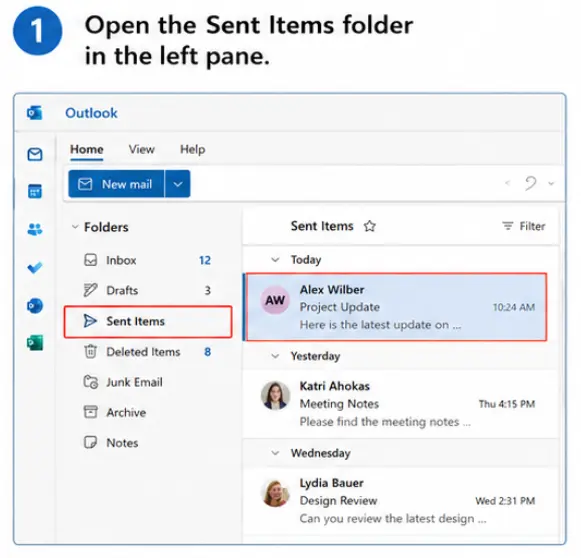
1. Open the Sent Items folder in the left pane.
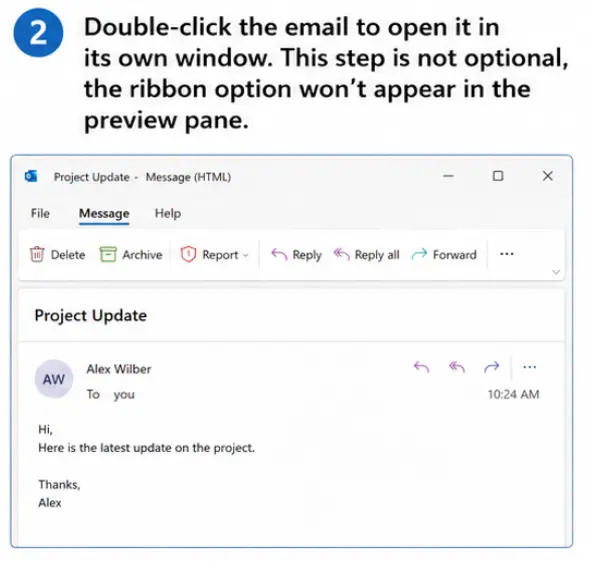
2. Double-click the email to open it in its own window. This step is not optional, the ribbon option won't appear in the preview pane.
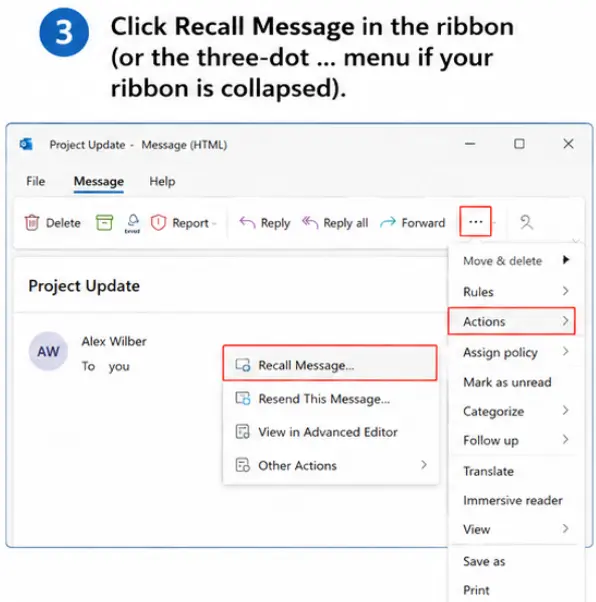
3. Click Recall Message in the ribbon (or the three-dot … menu if your ribbon is collapsed).
4. Confirm in the dialog box.
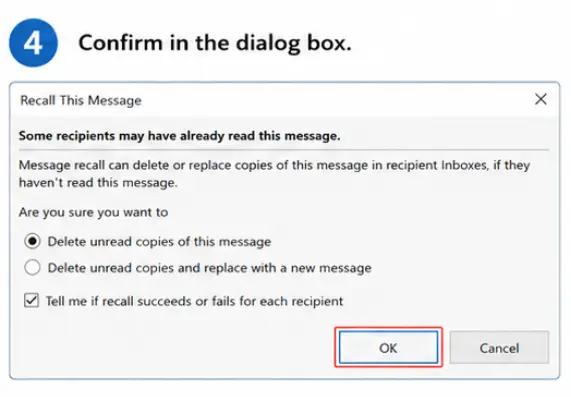
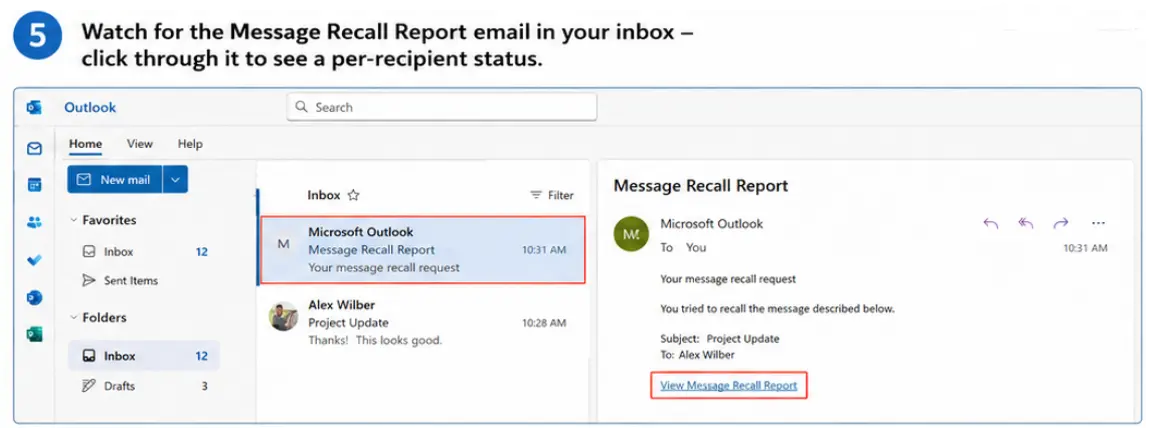
5. Watch for the Message Recall Report email in your inbox - click through it to see a per-recipient status.
Classic Outlook (desktop)
1. Go to Sent Items, double-click the message.
2. Click the Message tab → Actions → Recall This Message. (On some builds it's under File → Info → Resend or Recall.)
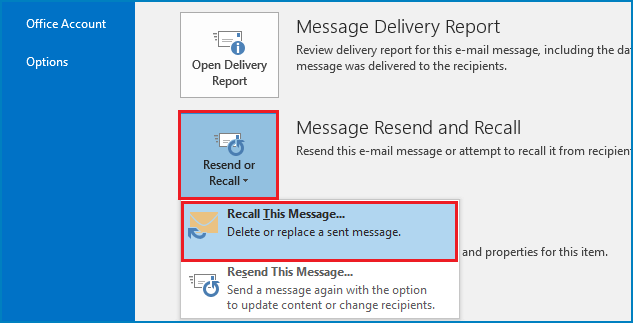
3. Pick Delete unread copies of this message or Delete unread copies and replace with a new message.
4. Tick Tell me if recall succeeds or fails for each recipient so you get a full report instead of silence.
5. Click OK. If you chose "replace," a new compose window opens immediately - edit it and send.
Outlook on the Web (work/school accounts)
- Open Sent Items.
- Open the message in its own window (same rule as above: no reading pane recall).
- Ribbon → Recall Message.
- Confirm. You'll get the same recall report as desktop users.
Older documentation claims web-based Outlook can't recall messages at all. That was true before the 2025 cloud-recall rollout; it isn't anymore for work/school Exchange Online accounts. If you don't see the option, your organization's admin may not have the feature enabled yet, or you're on a personal account.
Outlook Mobile (iOS and Android)
- Tap your profile picture → Sent.
- Open the message, tap the ⋯ menu.
- Tap Recall, then confirm.
- You'll get a push notification or email once the recall attempt completes.
Mobile recall is a genuinely recent addition - it wasn't available in the Outlook app until Microsoft's 2025 update cycle, so if your phone doesn't show the option, update the app before assuming it's unsupported.
Outlook for Mac
Control-click the message in Sent Items → Recall, or use the Recall Message button in the ribbon on newer builds. Mac recall lagged behind Windows for years; it's now supported on current versions but you do need to be fully updated.
Delete vs. Delete-and-Replace: Which One Do You Actually Want
This choice trips people up more than it should:
- Delete unread copies of this message - use this when the email simply shouldn't have gone out (wrong recipient, wrong attachment entirely, sent before you meant to). Clean removal, nothing sent in its place.
- Delete unread copies and replace with a new message - use this when the intent was right but the content was wrong: a typo in a number, a missing attachment, a date that needs fixing. Outlook opens a fresh compose window pre-filled with the original, so you're editing rather than starting over.
One thing worth knowing from actually doing this repeatedly: choosing "replace" and then sitting on the draft for ten minutes defeats the purpose. The replacement only reaches recipients whose original copy got successfully deleted — and that window closes the moment they open the first email. Edit and send the replacement immediately, not later.
How to Check If the Recall Actually Worked
Within about 30 seconds to a few minutes of triggering a recall, Outlook sends a Message Recall Report — an email with the subject "Message Recall Report for message [subject]." Click the View Message Recall Report link and you'll see one of three statuses per recipient:
- Succeeded - the unread copy was deleted (or replaced) before they saw it.
- Pending - still in progress, usually because the recipient's mailbox was temporarily unreachable. Microsoft's system keeps retrying for up to 24 hours before marking it failed.
- Failed - most commonly because the message was already read, or the recipient falls outside the eligibility conditions above.
For a handful of recipients this resolves in seconds. If you sent to a distribution list with hundreds of people, expect the full status report to take up to five minutes; for lists in the tens of thousands, Microsoft's own documentation notes the recall itself is fast but compiling every recipient's status can take up to 30 minutes.
Why Recall Fails: A Visual Troubleshooting Guide
Recall failure almost always traces back to one of five causes. Here's what the recall dialog and report actually look like, and what each failure signal is telling you:
The recall dialog box - this is where most people first get confused, because the two radio-button options look nearly identical and it's easy to click the wrong one under pressure:
Real screenshots of this exact dialog (the one you'll see after clicking Recall Message) show the two-option layout clearly — "Delete unread copies of this message" sits above "Delete unread copies and replace with a new message," with the "tell me if recall succeeds or fails" checkbox underneath. If you're recalling on a deadline, pause the extra half-second to read which radio button is actually selected before hitting OK — the default selection isn't always the one you want.
The recall status/report - after you confirm, Outlook shows a small status banner or sends the report email confirming per-recipient outcomes. This is the single most useful troubleshooting tool you have, because it tells you why it failed, not just that it failed.
"The message was already read" - What it means: The recipient opened it before your recall reached the server. What to do: Send a correction or apology email instead — don't retry, it won't change the outcome.
"Recall failed" with no read confirmation - What it means: Usually an inbox rule auto-filed the message before recall ran, or the recipient is outside your organization. What to do: Check the recipient's domain first. If they're internal, ask them to check filtered or rule-sorted folders.
Status stuck on "Pending" for hours - What it means: The recipient's mailbox was temporarily unavailable — offline sync, a mailbox move, or similar. What to do: Wait it out. Microsoft retries automatically for up to 24 hours before marking it failed.
No recall option appears at all - What it means: You're on a POP/IMAP account, a personal Outlook.com/Hotmail account, or your organization hasn't enabled the feature. What to do: Use Undo Send or set up a delayed-delivery rule instead — recall was never available to you here.
"This message is protected" error - What it means: The email has an Azure Information Protection or sensitivity label applied. What to do: These can't be recalled at all. Treat it as a data exposure issue and escalate through your security process, not as an IT troubleshooting step.
A pattern worth knowing from watching this play out in real inboxes: an email that gets auto-sorted by an inbox rule (say, everything from you lands in a "Priority" folder) is often marked "unread" in Outlook's eyes even after the recipient has technically seen the folder - so recall may report success on a message the person already glanced at. The recall report tells you about the unread flag, not about human attention. Don't treat "succeeded" as an ironclad guarantee that no one saw it; treat it as the best signal you're going to get.
When Recall Won't Work, Here's What Actually Does
Recall fails more often than people expect, mostly because most of the email you send in a day goes to people outside your own Microsoft 365 tenant: clients, vendors, candidates, anyone on Gmail. For all of those cases, recall was never a realistic option, and no amount of retrying changes that.
Set up Undo Send (works for literally any recipient). This is a local delay: Outlook holds your outgoing message in the Outbox for a short window before it actually leaves your machine. Click Undo during that window and the email never reaches anyone's server, internal or external, it doesn't matter, because it never left yours.
- In new Outlook: Settings → Compose and reply → Undo Send, set the delay (5–10 seconds on web, up to two minutes on new Outlook desktop).
- In classic Outlook, there's no built-in toggle - you build it yourself with a rule (below).
Build a delayed-delivery rule in classic Outlook (a longer buffer than Undo Send).
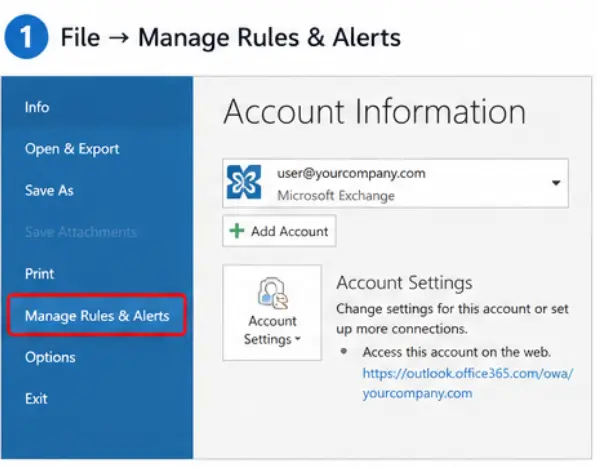
1. File → Manage Rules & Alerts → New Rule.
2. Apply rule on messages I send → Next.
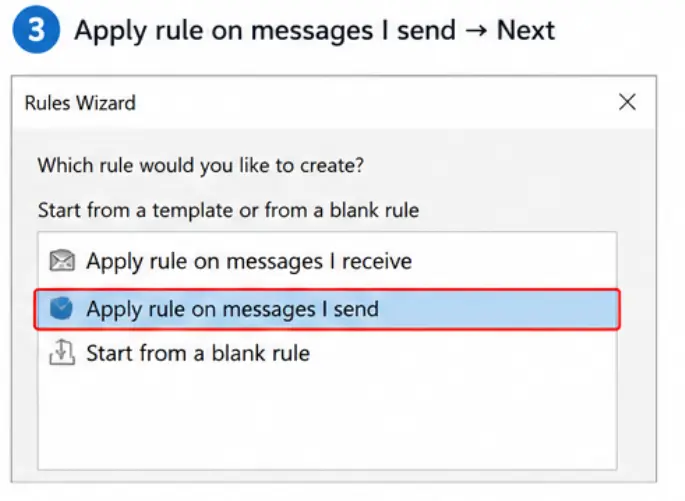
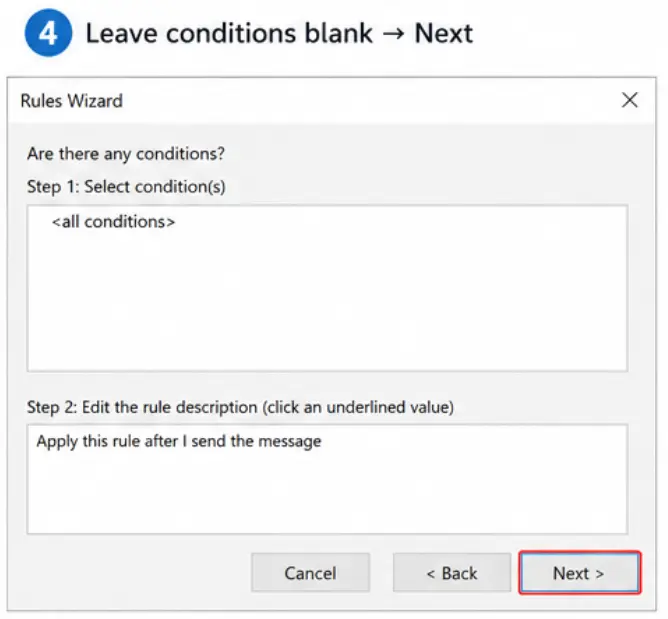
3. Skip the conditions screen (click Next without selecting anything) so it applies to everything.
4. Check defer delivery by a number of minutes, click the underlined value, set it to 1 (Outlook's minimum).

5. Finish → Apply.
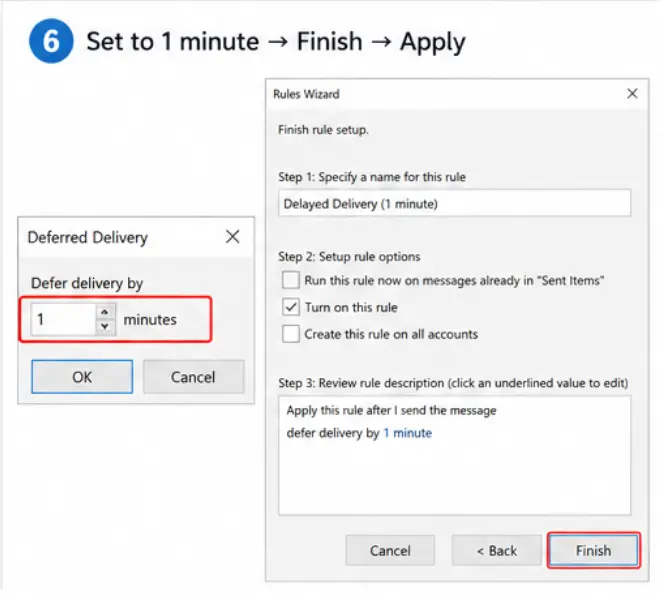
Every message now sits in your Outbox for 60 seconds before sending. Catch a mistake, open the Outbox, delete or edit it. The catch: Outlook has to be open and running for the delay to actually hold — if you close the app, queued messages send immediately on next launch.
If it's already gone and can't be recalled, send a short correction - don't over-explain. A one-line follow-up ("Correction: the meeting is at 3pm, not 2pm, sorry for the mix-up") resolves 90% of the actual problem people are trying to solve with recall. Recall feels like the "clean" fix, but a fast, honest follow-up almost always lands better than a delayed, failed recall attempt followed by an awkward explanation.
If the email contained genuinely sensitive information - financial data, credentials, personal records don't treat recall as a deletion guarantee. It isn't one. The recipient may have already read, forwarded, downloaded, or screenshotted it before your recall even triggers. At that point this is a data-handling incident, not a recall problem: follow your organization's security escalation process immediately rather than waiting to see if the recall report comes back "succeeded."
New Outlook vs. Classic Outlook: What Actually Changed
If you've used recall for years and it feels different now, that's not you misremembering - Microsoft genuinely rebuilt it. The old system relied on the recipient's Outlook client to receive and honor a recall instruction locally, which is why it historically had a reputation for being unreliable (client-side recall attempts have long been estimated at roughly a coin-flip success rate in mixed-environment testing). The rebuilt cloud-based version runs the recall logic on the Exchange Online server itself, independent of what mail client the recipient happens to have open, which is why success rates on modern Microsoft 365 tenants run meaningfully higher - provided the unread condition is still met.
Practically, this means: if your organization is fully on Exchange Online (most Microsoft 365 business plans are), you're on the newer, more dependable version even if you're still running classic Outlook - the improvement lives on the server, not in the desktop app.
Related Articles
How to Create an Email Group in Outlook (Step-by-Step, All Versions)
Once you've got recall and Undo Send sorted, the next most common Outlook headache is sending to the right people in the first place. This guide walks through building contact groups across every Outlook version so you spend less time double-checking recipient lists.
How to Fix GoDaddy Email Not Receiving Messages?
If your recall attempts keep landing on "Pending" or "Failed" because messages aren't syncing properly on the receiving end, this troubleshooting guide covers the delivery issues that can masquerade as recall problems.
How to Restore Deleted Emails in Google Workspace?
Recall can't reach a Gmail or Workspace inbox — but if a message was mistakenly deleted on that end instead of sent by mistake, this is the companion fix for the other half of the problem.
All You Need to Know About Rediffmail
For anyone managing mixed-provider inboxes where recall's "same organization" rule keeps getting in the way, this overview explains how a different major webmail platform handles sending and retrieval.
Frequently Asked Questions (FAQs)



 +1-857-557-6896
 +44-161-791-4592