
How to Add GoDaddy Email to Your iPhone: The Complete Setup Guide
- 0
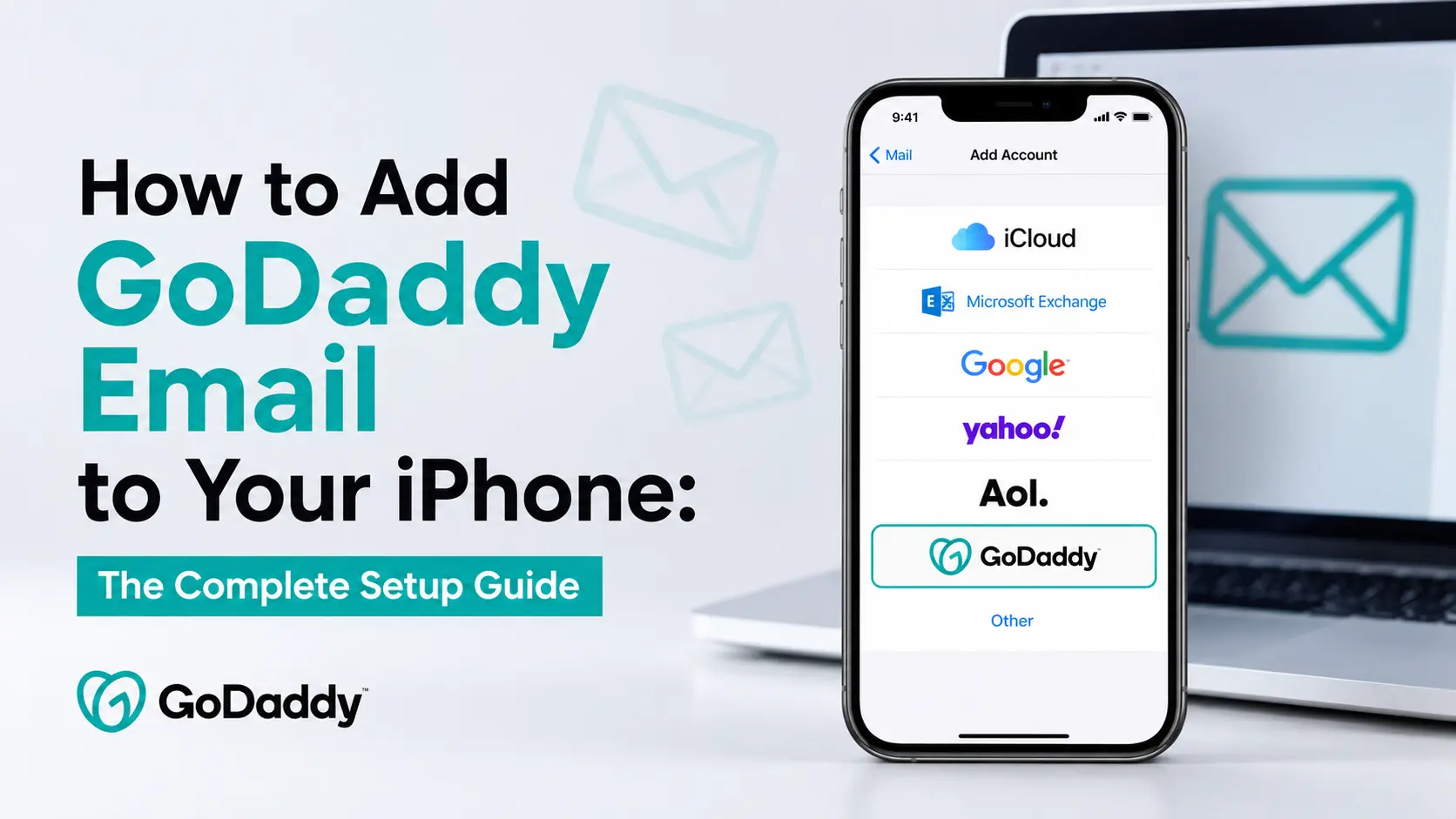
Open Settings, tap Apps, then Mail, then Mail Accounts, then Add Account. From here, GoDaddy splits into two genuinely different setups depending on what you actually bought, and mixing the two up is the single biggest reason this doesn't work on the first try.
If you have Microsoft 365 from GoDaddy, tap Microsoft Exchange as the account type, enter your email address, and sign in. Apple and Microsoft handle the rest between them, including any two-factor prompts, right there in the setup screen.
If you have Professional Email (sold in the past as Workspace Email, and as Professional Email powered by Titan in some regions), tap Add Other Account, then Mail Account, and enter imap.secureserver.net as your incoming server and smtpout.secureserver.net as your outgoing server, both over SSL.
(If you remember email settings living directly under Settings → Mail, that's not you misremembering - that was iOS 17 and earlier. Apple folded per-app settings into this unified Apps section from iOS 18 onward, and it's stayed put through the current iOS 26. The fields you fill in haven't changed, only the path to reach them.)
Both routes are covered in full below, with exact taps, exact ports, and the handful of error messages that send most people down a Google rabbit hole. There's also a section on what to check once the account connects, because on GoDaddy specifically, "it added successfully" and "it behaves the way you'd expect" aren't quite the same thing more on why further down.
Before you start, have three things sorted: your mailbox password (not your godaddy.com account password - that distinction causes more failed logins than anything else here), a Wi-Fi connection if you can manage it, and a clear answer to which of the two products above you're actually on. The next section settles that last one in under a minute.
Which GoDaddy Email Do You Actually Have?
GoDaddy has sold three things under the "email" banner, and the settings for each don't overlap at all:
- Workspace Email the original product, now being retired. Runs on GoDaddy's own mail servers.
- Professional Email (in some markets, "Professional Email powered by Titan") is the current name for essentially the same GoDaddy-hosted mailbox. Same server addresses as Workspace Email; newer branding, and in some regions a Titan-built inbox layered on top.
- Microsoft 365 from GoDaddy is a genuine Microsoft-hosted mailbox that GoDaddy resells and provisions on your behalf. Entirely different infrastructure underneath.
The fastest way to check: sign in at godaddy.com, go to My Products, and look at the Email & Office section - it will say either Professional Email or Microsoft 365. If you'd rather skip the account dashboard, just try both sign-in pages: email.godaddy.com is Professional Email's webmail, while Microsoft 365 mail signs in through GoDaddy's Office 365 portal. Whichever one accepts your address and password is the one you're actually on. Your original welcome email from GoDaddy names the product too, if it's still sitting in an inbox somewhere.
This is worth the sixty seconds it takes. Apple's own support forums are full of threads where someone has pasted Workspace Email server settings into a Microsoft 365 mailbox, or the reverse, then spent an afternoon on the phone with support before anyone spotted the mismatch. It's also not a trivial edge case: Apple's Mail app is the single largest email client in the world by tracked opens. Litmus's Email Client Market Share data puts it over half of all opens, with mobile devices generally accounting for around two in five opens across clients, so getting this exactly right, rather than approximately right, is doing real work for whoever's emailing you.
Setting Up Microsoft 365 from GoDaddy on iPhone
- Go to Settings → Apps → Mail → Mail Accounts → Add Account.
- Tap Microsoft Exchange.
- Enter your Microsoft 365 email address, then Next.
- Tap Sign In, then Continue when Settings asks permission to use microsoftonline.com.
- If you're asked to choose between Work or school and Personal, pick Work or school. GoDaddy-hosted 365 mailboxes are organisational accounts, not personal Outlook.com ones, and choosing wrong here is a common stumbling block.
- Enter your password and sign in.
- If prompted, verify your identity with a one-time code. This is Microsoft's own multi-factor check, not a separate GoDaddy step.
- Tap Accept to grant Mail permission to access the account.
- Tap Save.
Two prompts that catch people out
"This browser is a bit unusual" this means iCloud Private Relay is interfering with Microsoft's sign-in verification. Turn off Private Relay for this network in Settings, finish signing in, then switch it back on afterwards.
An unexpected security delay message: if Stolen Device Protection is turned on and you're setting this up somewhere other than a familiar location (home, work), Apple deliberately holds the change for about an hour. Your options are to wait it out, move to a familiar location, or temporarily disable the protection and re-enable it once you're finished.
Notice what's missing from that list: an app-specific password. Because the Mail app signs in through Microsoft's own web-based login the same "modern authentication" flow Outlook and Teams use, your multi-factor code gets handled directly in the setup screen. App passwords only become necessary for older software that can't complete that handshake; the standard iPhone Mail setup isn't one of them.
Setting Up Professional Email (or Workspace Email) on iPhone
- Go to Settings → Apps → Mail → Mail Accounts → Add Account.
- Enter your email address and tap Next.
- If it doesn't auto-detect, tap Add Other Account, then Mail Account. (Older iOS versions show a single button labelled Other instead of the same destination, older wording. Even GoDaddy's own help screenshots still show that older button, so don't assume you're lost if your screen doesn't match their pictures exactly.)
- Enter your name, full email address, password, and a short description, then Next.
- Choose IMAP rather than POP3, unless you have a specific reason not to; see below for why.
- Under Incoming Mail Server, enter:
| Field | Value |
|---|---|
| Host name | imap.secureserver.net |
| User name | your full email address |
| Password | your mailbox password |
- Under Outgoing Mail Server, enter:
| Field | Value |
|---|---|
| Host name | imap.secureserver.net |
| User name | your full email address |
| Password | your mailbox password |
- Tap Next, then Save.
The exact ports, if you're entering these by hand
| Protocol | Server | Port | Security |
|---|---|---|---|
| IMAP (recommended) | imap.secureserver.net | 993 | SSL/TLS |
| POP3 (rarely necessary) | pop.secureserver.net | 995 | SSL/TLS |
| SMTP (sending) | smtpout.secureserver.net | 465, or 587 if your network blocks 465 | SSL/TLS |
Usually the iPhone fills these in on its own once it recognises a secureserver.net address - you'd only need this table for a manual entry, or when a workplace or hotel Wi-Fi network is quietly blocking one of the ports.
Skip POP3 unless you genuinely only ever open this address from a single device. It downloads messages to whichever phone or computer checks first and, by default, deletes them off GoDaddy's server afterwards, so a laptop and an iPhone both set to POP3 end up holding two different, non-matching inboxes. IMAP keeps read status, folders, and deletions identical everywhere.
Fixing the Most Common Setup Errors
"Cannot verify server identity"
iOS is flagging that a security certificate name doesn't precisely match what it expected. If the server names on screen match the table above exactly, it's generally safe to tap Continue. If a completely unfamiliar domain appears in that warning, stop and re-check what you typed rather than dismissing it automatically.
The password keeps getting rejected
This is the single most repeated complaint across both Apple's community forums and GoDaddy's own support threads, and it almost always comes down to one of two things:
- Wrong password, right account. Your godaddy.com login the one for buying domains and managing billing, and your mailbox password are two entirely separate credentials. GoDaddy states this outright in its own Microsoft 365 documentation ("your GoDaddy username and password won't work here"), and the same split applies to Professional Email. If Mail rejects a password you're certain is correct, you're very likely entering the account password where the mailbox password belongs.
- You changed it minutes ago. Password updates can take up to half an hour to fully take effect across GoDaddy's mail servers. If you've just reset it through the Email & Office Dashboard, give it thirty minutes before troubleshooting further.
If neither explains it, reset the mailbox password directly through the Email & Office Dashboard if you're the account owner, or the "Need to find your password?" link on the webmail sign-in page otherwise — and then delete and re-add the account on your phone rather than editing the broken one in place. Starting fresh clears cached credentials that a simple password edit sometimes leaves behind.
Incoming mail works, but sending times out
If receiving is fine but outgoing mail hangs or times out, check that the outgoing port isn't set to 25. Most mobile networks block outbound traffic on port 25 by default, purely to stop spam being relayed from compromised phones - it has nothing to do with your GoDaddy settings. Switching to port 465 or 587 typically resolves it straight away.
Nothing works, and you've checked everything twice
Toggle Wi-Fi off and back on before trying again; GoDaddy's own setup instructions recommend this because Mail's auto-discovery occasionally gets stuck mid-lookup. And if you've been repairing an existing broken account, delete it completely and start over - a clean setup succeeds noticeably more often than a patched one.
Three Things That Trip People Up After Setup "Works"
Your inbox won't feel instant, and that's normal
If you're used to Gmail or iCloud on iPhone, you're used to mail arriving the second it's sent. Standard IMAP accounts, which is what Professional Email and Workspace Email both are, don't get that treatment on iOS. Apple reserves true push delivery for a short list of providers (iCloud and Exchange among them); everything else, GoDaddy's own IMAP servers included, gets Fetch instead, where your phone checks in on a timer rather than being notified the moment mail arrives. Microsoft 365 from GoDaddy, because it's added as a Microsoft Exchange account, does get genuine push.
To tighten the gap on a Professional Email or Workspace account, go to Settings → Apps → Mail → Mail Accounts → Fetch New Data and set it to Every 15 Minutes rather than Hourly. It's still not instant, but it's the shortest interval iOS offers.
iOS is quietly filing your business mail out of sight
Since iOS 18.2, the Mail app automatically sorts incoming messages into Primary, Transactions, Updates, and Promotions tabs. A client enquiry or an invoice notification can easily land in Updates or Transactions instead of Primary, which, to someone expecting one flat inbox, looks identical to the email simply never arriving. Before assuming a setup fault, check the other category tabs, or tap the ··· menu in Mail and switch to List View to see everything together again.
Sent messages show up on webmail but not your phone, or the other way round
This is an IMAP folder-mapping quirk, not a genuine sync failure. Go to Settings → Apps → Mail → Mail Accounts, tap the account, and check how Sent and Trash are mapped under Advanced. Occasionally the phone builds its own local "Sent" folder instead of pointing at the server's, so messages sent from the iPhone never appear when the same account is checked from a computer.
Frequently Asked Questions (FAQs)



 +1-857-557-6896
 +44-161-791-4592