
How to Add Xfinity Email to iPhone (And Why It Fails for Most People the First Time)
- 0
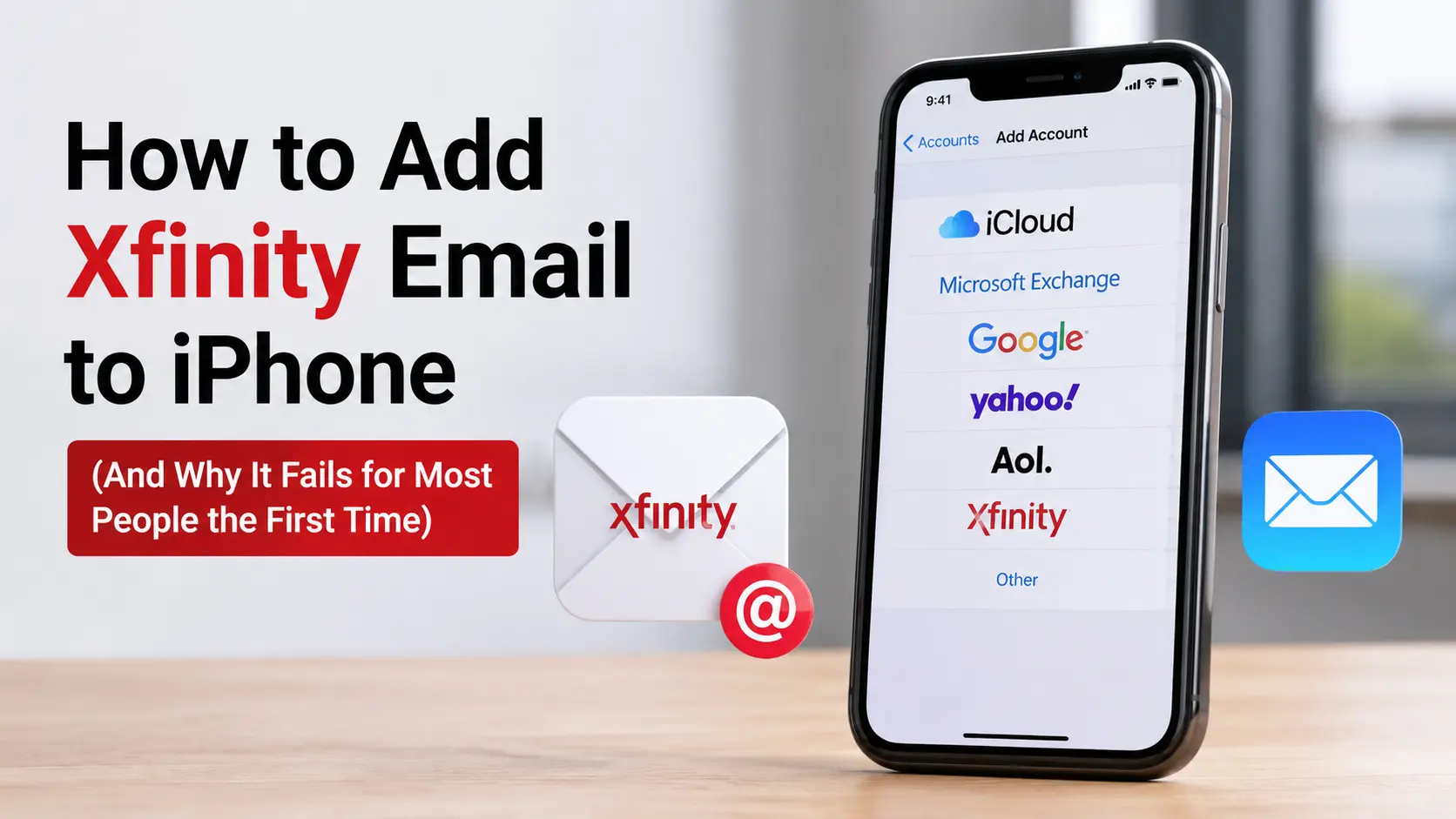
Open Settings → Apps → Mail → Mail Accounts → Add Account → Other → Add Mail Account, then enter your Xfinity address and password. If Mail can't verify it automatically, you'll need to enter the server settings manually: incoming server imap.comcast.net, port 993, SSL on; outgoing server smtp.comcast.net, port 587, SSL/TLS on, with authentication using your full email address and password.
That's the setup itself, and it takes about two minutes. But if you've landed here, there's a good chance you've already tried that and hit an error "Cannot Get Mail," a password that keeps getting rejected, or a spinning wheel that never finishes. That's almost never an iPhone problem. It's a setting on Xfinity's side that nobody warns you about until you've already wasted twenty minutes on it.
The setting that breaks this for almost everyone
Xfinity quietly disables third-party app access to your inbox by default. Since a security update Comcast rolled out in September 2020, every Xfinity Email account has a checkbox called Third Party Access Security, and until you tick it, no app outside of Xfinity's own webmail — not the iPhone Mail app, not Outlook, not Gmail's app, not Thunderbird is allowed to connect. It's the reason so many people get identical, correct-looking server settings and still can't get past the sign-in screen.
Here's how to turn it on before you touch your iPhone at all:
- On a computer or in Safari, go to connect.xfinity.com and sign in with your Xfinity ID and password.
- Click the gear icon in the top-right corner, then select Settings.
- Click Security in the left-hand menu.
- Check the box under Third Party Access Security.
This single step resolves the majority of "my Comcast email won't add to my iPhone" threads on Apple's own community forums and Xfinity's support forums. If you've recently had your password reset — Xfinity periodically forces this for security reasons this checkbox can revert to unchecked, which is why an account that worked fine for months suddenly stops connecting after a forced reset. Check it again before assuming something else is broken.
Method 1: Let Mail try to set it up automatically
Once third-party access is enabled, this is the fastest route.
- Open Settings on your iPhone.
- Tap Apps, then Mail. (On iOS 17 and earlier, Mail sits directly in the main Settings list — you won't see the Apps folder step.)
- Tap Mail Accounts, then Add Account.
- Xfinity doesn't appear as a preset provider the way iCloud, Google, or Yahoo do, so tap Other, then Add Mail Account.
- Enter your name, your full Xfinity or Comcast.net address, your password, and a description (e.g., "Xfinity Email").
- Tap Next and let Mail attempt to verify the account.
If it succeeds, you'll be asked which data to sync to Mail, and possibly Notes - then tap Save and you're done. If it fails, don't panic and don't keep tapping Next; move to manual setup below, since Mail will now let you type in the server details it couldn't find on its own.
Method 2: Manual setup with the exact server settings
This is the version to use if step 6 above fails, or if you want to set things up correctly the first time rather than troubleshoot afterward.
Incoming mail server (IMAP)
Setting | Value |
|---|---|
Host name | imap.comcast.net |
Port | 993 |
Security | SSL |
Username | Your full email address |
Password | Your Xfinity password |
Outgoing mail server (SMTP)
Setting | Value |
|---|---|
Host name | smtp.comcast.net |
Port | 587 |
Security | SSL/TLS (STARTTLS) |
Authentication | Password, same credentials as incoming |
If port 587 gets blocked by a network you're on, some hotel and campus Wi-Fi networks block it - port 465 with SSL works as a fallback for outgoing mail. Never use port 25; Comcast blocks it outright to cut down on spam relay abuse, and it will never work no matter how you configure it.
Should you use IMAP or POP3?
Almost everyone should use IMAP, and the built-in Add Mail Account flow defaults to it. IMAP keeps your inbox in sync: read, delete, or file an email on your iPhone and it updates on the Xfinity webmail site and any other device the same way. POP3 downloads messages to one device and, depending on how it's configured, can remove them from the server afterward, which causes the classic complaint of "I can see the email on my phone but not on my computer."
The only real reason to choose POP3 is if you deliberately want a single archive on one device and don't care about seeing the same inbox anywhere else. If you're not sure why you'd want that, you don't — pick IMAP.
If you do go the POP3 route: host pop3.comcast.net, port 995, SSL on, and check the "leave a copy of messages on the server" option (or set delete-from-server to "Never") if you ever plan to check that email from a second device or the web.
Fixing the errors people actually hit
"Cannot Get Mail. The mail server 'imap.comcast.net' is not responding."
This shows up even when your password is correct. Work through it in this order:
- Confirm Third Party Access Security is checked (see above) — this is the fix in most reported cases.
- Delete the account entirely: Settings → Mail → Accounts, tap the account, tap Delete Account.
- Restart the iPhone. This isn't superstition — Mail's connection cache to a specific server can get stuck, and a restart clears it.
- Re-add the account manually using the exact settings above, double-checking that SSL is on and the port is 993, not 143.
- Try switching from Wi-Fi to cellular data momentarily. If it connects on cellular but not Wi-Fi, your router or network is blocking the port, a factor a surprising number of troubleshooting guides skip entirely.
"The IMAP server 'imap.comcast.net' doesn't support Password authentication."
This one specifically points to the account not being unlocked for outside apps; it's Third Party Access Security again, not a typo in your settings. Enable it, then remove and re-add the account rather than just retrying the sign-in, since Mail sometimes caches the failed handshake.
"Comcast is currently unavailable" during setup
This message is misleading; Comcast's servers are very likely fine. It usually appears seconds after you've just changed the Third Party Access setting on the web, before that change has propagated to the mail servers. Wait 10–15 minutes and try adding the account again rather than repeating the attempt immediately.
Mail arrives on your computer but not your iPhone
This is a fetch settings issue, not a connection issue, and it's the most misunderstood part of the whole setup - see below.
Why Xfinity email doesn't "ping" your iPhone the instant it arrives
If you've used Gmail or an iCloud address, you're used to messages popping up the second they land. Xfinity Email won't behave that way on the iPhone Mail app, and this isn't a bug. Apple only offers real-time Push delivery to Exchange and iCloud accounts. Every standard IMAP account, which includes Xfinity/Comcast, Yahoo, and most others, is limited to Fetch, where your iPhone checks the server on a timer, or Manual, where it only checks when you open the Mail app.
There used to be a workaround: the standalone Xfinity Connect app supported push notifications for Comcast.net mail. Comcast retired that app in April 2021 and folded webmail access into a browser-only experience at connect.xfinity.com, so that workaround no longer exists for anyone setting this up today.
To get email as close to real-time as Apple allows:
- Go to Settings → Mail → Accounts → Fetch New Data.
- Make sure Push is toggled on at the top (this affects any accounts that do support it and costs nothing to leave enabled).
- Under the account list, tap your Xfinity account and set it to Fetch.
- Set the global schedule to Every 15 Minutes, the shortest interval Apple allows for Fetch accounts.
Fifteen minutes is a real limitation if you're waiting on something time-sensitive, like an appointment confirmation. If that matters to you regularly, a third-party client such as Outlook or Spark can sometimes deliver Xfinity mail faster because they poll the server independently of Apple's Fetch restrictions, though results vary and none of them can force true push on a non-Exchange account.
Keeping the account from getting cut off later
Two things catch people out months after setup is done, and neither is an iPhone issue:
- The 12-month inactivity rule. Xfinity's policy requires signing into your mailbox through webmail, not just via the Mail app receiving messages passively at least once every 12 months, or the account can be flagged inactive. If you mainly rely on the iPhone Mail app and never open connect.xfinity.com directly, it's worth logging into the website occasionally just to keep the account clearly active.
- Forced password resets re-lock third-party access. As mentioned above, a security-driven password change on Xfinity's end can silently uncheck Third Party Access Security. If email that's worked for months suddenly stops after you changed your password, that checkbox, not your new password, is usually the first thing to check.
Frequently Asked Questions (FAQs)



 +1-857-557-6896
 +44-161-791-4592