
Outlook Not Receiving Emails? Here's What's Actually Going On
- 0
Nine times out of ten, Outlook isn't broken; it's quietly sorting mail somewhere you're not looking, or a setting flipped without you noticing. Before you assume the worst (a hacked account, a dead server), work through this in order: it takes about five minutes and solves the vast majority of cases.
Do this first, right now:
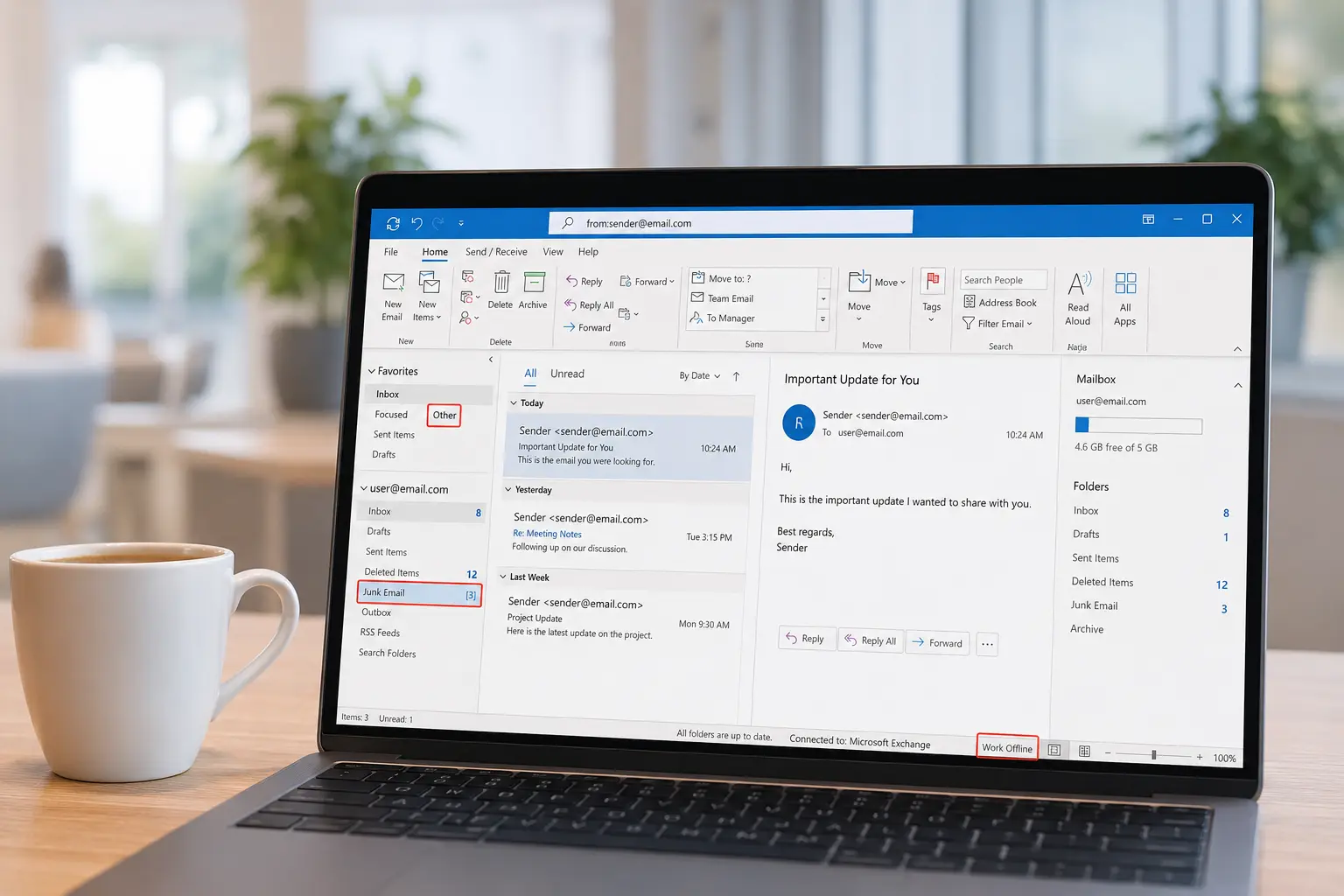
- Check the Other tab if Focused Inbox is on, then the Junk Email folder - this alone fixes more "missing email" reports than every other cause combined.
- Look at the bottom-left corner of the Outlook window (desktop app) for Work Offline - if it's highlighted, Outlook has stopped talking to the server entirely.
- Search for the sender's exact address across all folders using
from:sender@email.comin the search bar, not just the Inbox - Outlook's default search sometimes scopes to the current folder only. - Check your mailbox storage. A full mailbox doesn't just block new mail politely - senders get a bounce-back, and you never see the message existed.
- Confirm you're not signed out or in a broken sync state - a red exclamation mark or "Disconnected" in the status bar means nothing new is coming in until that's resolved.
If none of those explain it, the cause is usually one of the five categories below. I'll walk through each one the way I'd actually diagnose it, not the way a generic troubleshooting list presents it.
Outlook View and Filtering Settings (Hidden Mail)
This is the category people skip past fastest, and it's the one responsible for most "my email just vanished" tickets I've seen.
Focused Inbox is splitting your view in two
Focused Inbox doesn't file mail into a folder - it splits your existing Inbox into two tabs, Focused and Other, based on Microsoft's prediction of what you care about. The mail is still in your Inbox folder technically, but if you're only glancing at the Focused tab, an entire category of legitimate senders - automated notifications, people you haven't emailed back yet, new contacts - can pile up in Other and go unnoticed for weeks. <cite index="15-1">This filtering happens at the view level, so the messages aren't deleted - they're just hidden from the default display.</cite>
The counter-intuitive part: turning Focused Inbox off doesn't just merge the tabs, it also resets the model, so you sometimes see a short burst of "new" mail that had been quietly sitting in Other for days. If a client or vendor says "I sent that three times," check Other before you assume delivery failure.
The junk filter is more aggressive than you think
Outlook's Junk Email Filter runs locally in addition to any server-side filtering, and the two don't always agree. <cite index="13-1">If the filter level is set to "No Automatic Filtering," you'd expect zero false positives - but that setting is inconsistent across mailbox migrations, so a level that used to be "Low" can silently reset to "High" after an update, catching legitimate senders that were never a problem before.</cite>
If you're on a Microsoft 365 or Exchange-managed account, there's a second, invisible layer above your personal junk settings: Exchange Online Protection scores every incoming message with a Spam Confidence Level (SCL) and Bulk Complaint Level (BCL). <cite index="11-1">A high SCL or BCL score routes the message straight to Junk or quarantine before it ever reaches your personal filter settings - meaning even if your own Junk Email Options are set to the most lenient level, an admin-level policy can still be the actual reason a message never showed up.</cite> You can confirm this by opening the message (if you can find it in Junk or quarantine), going to File > Properties > Internet Headers, and checking the X-MS-Exchange-Organization-SCL value - anything above 5 means the system flagged it before you ever had a chance to.
A rule is quietly moving or deleting mail
Rules are the most overlooked cause because they're invisible unless you go looking. A rule created months ago - maybe by you, maybe inherited from a mailbox migration or delegate setup - can auto-forward, auto-file, or auto-delete messages that match a condition you've long forgotten. Go to File > Manage Rules & Alerts and read every rule's full logic, not just its name. I've seen a rule labeled "Newsletter cleanup" that was silently deleting anything containing the word "invoice," because someone reused an old condition without updating it.
Server-Side Blocks and Account Storage Limits
Sometimes the problem never touches your device at all - the mail never made it to the server in a form you can retrieve.
Your mailbox is full
This is the single most binary failure mode: there's no "mostly full" warning that degrades gracefully. Free Outlook.com accounts get 15 GB of mailbox storage; a Microsoft 365 Personal or Family subscription raises that to 100 GB; business mailboxes on Exchange Online typically get 50 GB, with Microsoft 365 E3/E5 or Exchange Online Plan 2 supporting up to 100 GB. Once you hit the ceiling, <cite index="2-1">you won't be able to send or receive any messages, and people who email you will get an error message telling them your mailbox is full.</cite> Critically, that error goes to them, not you - so from your side, it just looks like the world went quiet.
Check via Settings > Accounts > Storage (new Outlook) or Settings > Storage (Outlook.com web). If you're a free-tier user who recently added a Microsoft 365 subscription and storage still shows 15 GB, the subscription may be tied to a different Microsoft account than the one your mailbox uses - this is a surprisingly common mismatch, since Microsoft accounts and subscriptions don't automatically merge.
A Microsoft 365 service outage
Less common than people assume, but worth ruling out with a two-minute check rather than assuming it by default. If Outlook.com or Exchange Online is degraded, it typically affects a specific region or tenant rather than everyone globally, which is why "Outlook is down" trends on social media while plenty of users see nothing wrong. Check the Microsoft 365 Service Health dashboard if you're on a work/school account (requires admin or user sign-in), or search for real-time reports if you're on a personal Outlook.com account.
Your account triggered a security hold
Unusual sign-in patterns a new device, a VPN from a different country, several failed password attempts can put Microsoft's automated fraud detection on alert and temporarily restrict mail flow while you re-verify. This shows up as a banner prompting for two-factor re-authentication, not as an outright error, so it's easy to dismiss the banner without realizing it's connected to the mail problem.
Sync and Connection Failures (Desktop App Specific)
If webmail (outlook.com or outlook.office.com) shows the message but your desktop app doesn't, the problem lives entirely between your device and the server, not with delivery.
Cached Exchange Mode and a corrupted .ost file
Desktop Outlook stores a local copy of your mailbox in an .ost file for offline access. When that file gets corrupted usually after an abrupt shutdown, a disk error, or an oversized mailbox syncing awkwardly, new mail can stop appearing even though the server has it. The fix is the Inbox Repair Tool (SCANPST.EXE), found in the Office installation folder, or as a faster reset: close Outlook, rename the .ost file, and let Outlook rebuild it from scratch on next launch. This forces a full resync and is more reliable than repairing a badly damaged file.
Send/Receive settings are paused or misconfigured
Check Send/Receive > Send/Receive Groups > Define Send/Receive Groups. If "Include this group in send/receive" or "Schedule an automatic send/receive every X minutes" got unchecked, which happens more often than you'd expect after an update Outlook stops pulling new mail until you manually hit F9 or re-enable the schedule.
IMAP/POP-specific sync gaps
If you're connecting a non-Microsoft account (Gmail, Yahoo, a business domain) to Outlook via IMAP rather than a native connector, sync behavior depends on server settings that Outlook doesn't fully control. Confirm the incoming server port and encryption method match what the provider currently requires. Providers periodically deprecate older TLS versions, which silently breaks IMAP sync without any visible error in Outlook itself.
Third-Party Software Interference
Antivirus suites with an "email scanning" or "email protection" module intercept mail at the protocol level before Outlook processes it. When that module misbehaves, common after a definitions update, mail can be held, dropped, or delayed without any indication inside Outlook. Temporarily disabling the email-scanning component (not the whole antivirus) is the fastest way to test this; if mail starts flowing again, the antivirus vendor needs an exclusion rule for Outlook's ports, not a full disable.
COM add-ins are the other usual suspect, especially older CRM or signature-management add-ins that hook into the send/receive pipeline. Start Outlook in safe mode (outlook.exe /safe) if mail resumes, re-enable add-ins one at a time via File > Options > Add-ins to isolate the culprit.
When the Problem Isn't Yours to Fix
If specific senders, say, everyone at one company, consistently fail to reach you while everyone else gets through fine, the fault often sits on their end, not yours. <cite index="12-1">Weak or missing SPF, DKIM, and DMARC authentication on the sender's domain makes their mail look suspicious to spam filters, and requesting they fix that authentication is often the actual permanent solution, not another change on your side.</cite> You can hand them concrete proof rather than a vague "check your settings": open one of their messages that did arrive, pull the Internet Headers, and share the SCL/SFV values with them. It moves the conversation from "it's probably fine" to "here's the exact signal your domain is sending."
If you manage the receiving domain yourself (business email on Exchange Online), <cite index="17-1">propagation for anti-spam policy changes typically takes 15–30 minutes, and mail flow rule changes can take up to an hour due to caching</cite> so testing immediately after a fix and concluding it didn't work is a common false alarm. Wait the full window before troubleshooting further.
A Real Example Worth Knowing
A recurring pattern I've seen reported repeatedly in Microsoft's own support forums: someone upgrades to a Microsoft 365 Family plan expecting their storage to jump immediately, sees their Outlook mailbox still capped at the old limit, and assumes the upgrade failed. <cite index="9-1">The actual cause is almost always that the subscription is tied to a different Microsoft account than the mailbox in daily use personal Microsoft accounts can't be merged or combined, and storage from one account can't be transferred to another.</cite> The fix isn't a storage bug fix; it's signing into the correct account, or repurchasing the subscription under the account that owns the mailbox.
Preventing This From Happening Again
- Set a recurring reminder to check the Other tab weekly if you keep Focused Inbox enabled; don't rely on remembering it exists.
- Add recurring, important senders (invoicing systems, HR platforms, vendors) to your Safe Senders list proactively, rather than after you've already missed something. <cite index="19-1">Addresses and domains on the Safe Senders list are never treated as junk, regardless of message content.</cite>
- Check mailbox storage quarterly, not when you hit the wall; use Sweep or filtered date-range deletion to stay comfortably under quota instead of scrambling at 100%.
- Review Rules & Alerts every time you change jobs, roles, or delegate access - inherited rules are one of the quietest failure points in any mailbox.
- If you manage a business domain, publish and periodically re-verify SPF, DKIM, and DMARC - this protects inbound trust for your replies as much as outbound deliverability.
Related Guides
- How to Recall an Email in Outlook (And What Actually Works When It Fails) - useful if the flip side of this problem hits you: a message went out that shouldn't have.
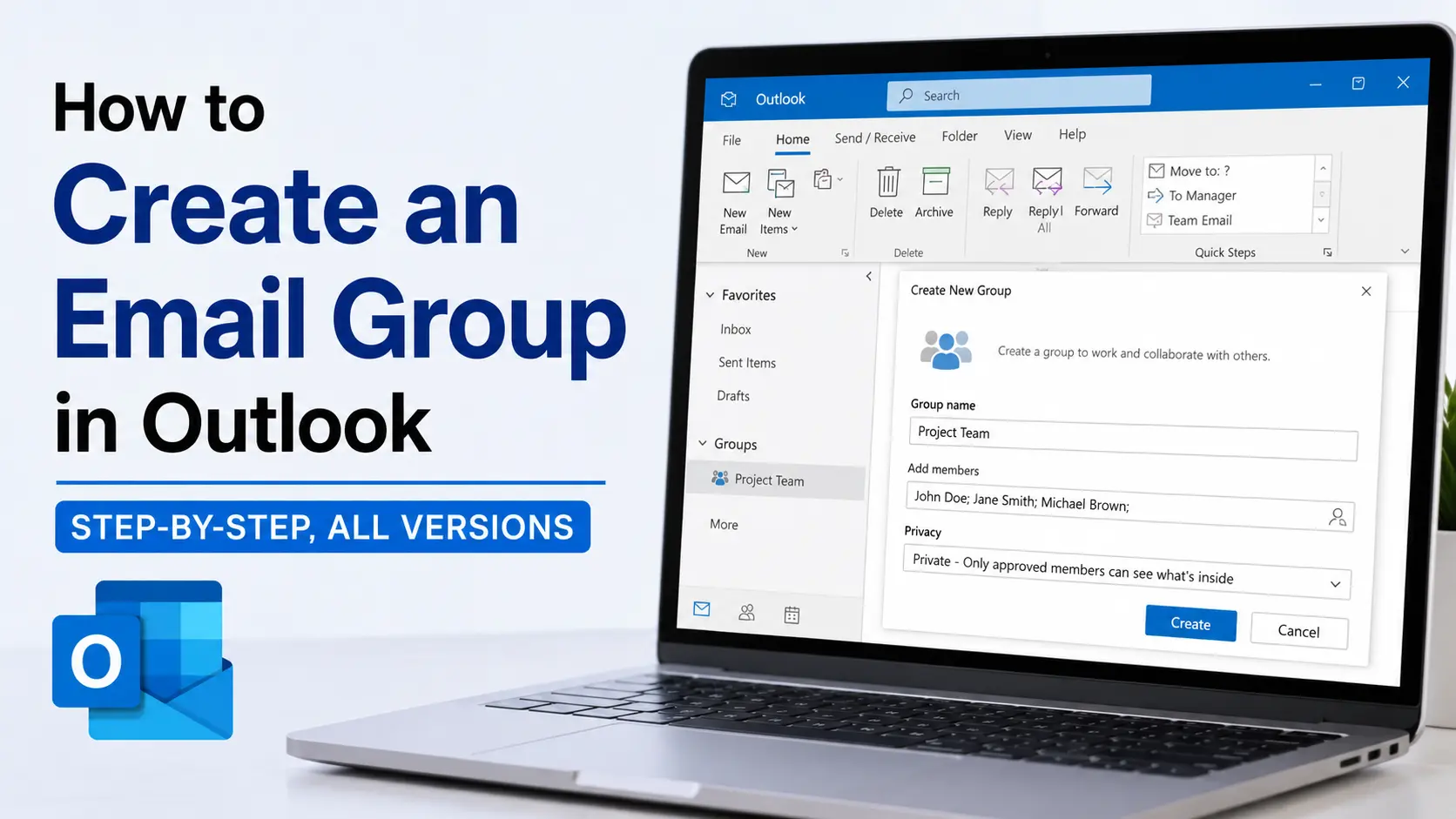
- How to Create an Email Group in Outlook (Step-by-Step, All Versions) - worth setting up once your inbox is stable again, especially if you're managing Safe Senders for a recurring group of contacts.
Frequently Asked Questions (FAQs)



 +1-857-557-6896
 +44-161-791-4592