
How to Encrypt Email in Outlook: A Practical Guide for Every Account Type
- 1
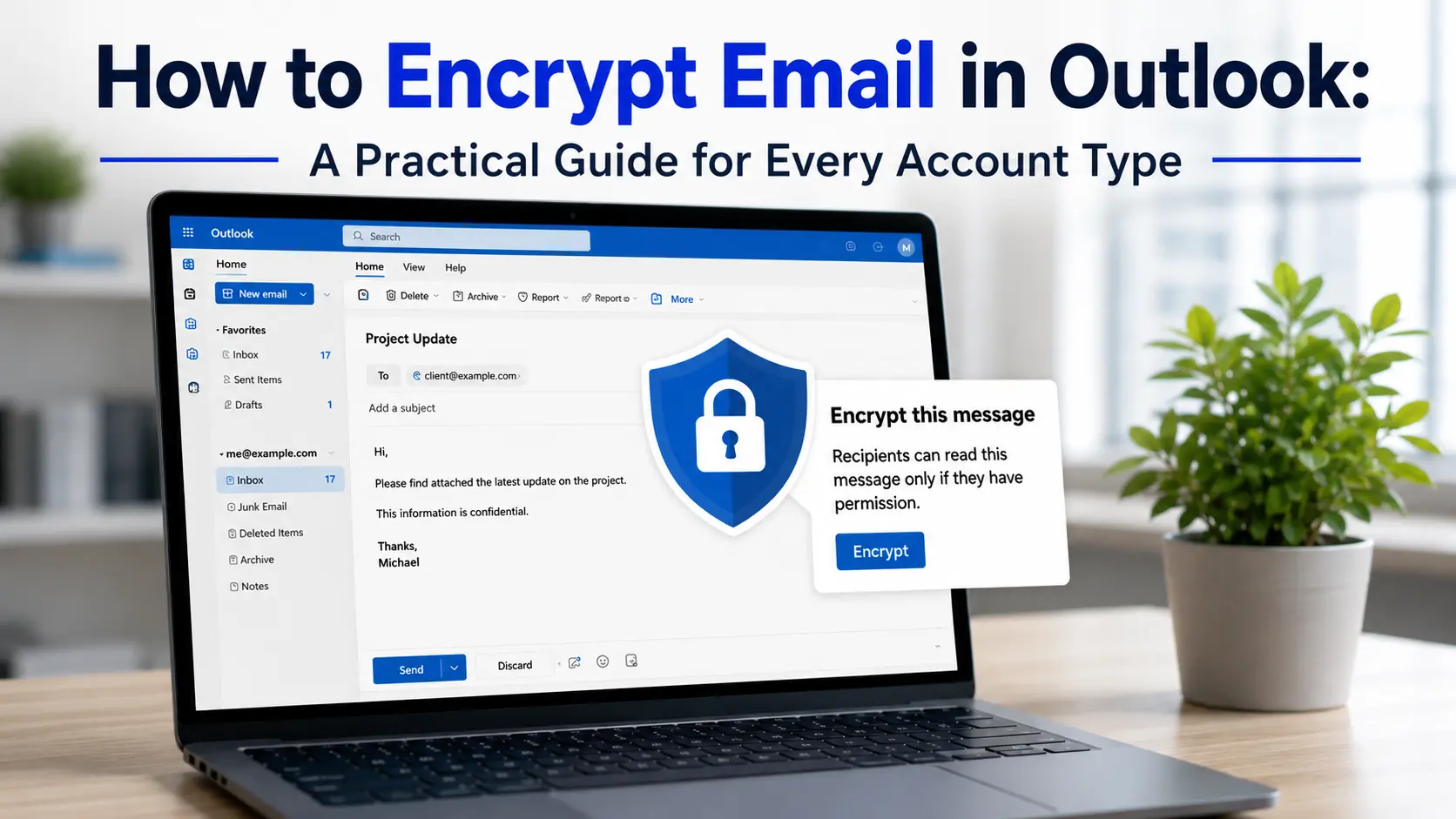
If you clicked into this looking for the fastest answer: open a new message, click Options on the ribbon, then click Encrypt. If that button is grayed out or missing, it's not broken - it means your account doesn't have the license for it, and you'll need a different route (both are covered below).
Outlook doesn't have one encryption system. It has three, and which one you actually need depends on your account type, not just your preference:
- Microsoft Purview Message Encryption (formerly Office 365 Message Encryption, or OME) the "Encrypt" button on the ribbon. Works with any recipient, including Gmail or Yahoo addresses, but requires a business-grade Microsoft 365 license.
- S/MIME certificate-based, true end-to-end encryption. Works on free consumer accounts, but only if the recipient also has a certificate set up, which in practice almost nobody does.
- Nothing built in if you're on a free Outlook.com or Hotmail address with no Microsoft 365 subscription, Outlook has no native encryption option at all. This surprises a lot of people, and it's the single most common reason the "Encrypt" button never shows up.
I've set up mail encryption for small businesses migrating off on-prem Exchange, and the number one support ticket isn't "how do I encrypt an email" - it's "why can't I find the button my coworker has." So before touching any settings, it's worth figuring out which of the three situations above applies to you.
Which Encryption Path Applies to You
| Your situation | What you can use | Recipient experience |
|---|---|---|
| Microsoft 365 Business Premium, E3, E5, A3/A5, or G3/G5 | Purview Message Encryption (Encrypt button) | Opens directly in Outlook, or via a browser portal for non-Outlook users |
| Business Basic, Business Standard, or Apps for Business | Nothing by default - button is grayed out | N/A (cannot send encrypted mail without an add-on license) |
| Free Outlook.com/Hotmail, no subscription | S/MIME only (self-arranged certificate) or a third-party add-in | Recipient needs a compatible mail client and, for S/MIME, their own certificate |
| Any Outlook account, sender and recipient both willing to set up certificates | S/MIME | Opens natively, no portal, no sign-in prompt |
Method 1: The Encrypt Button (Microsoft Purview Message Encryption)
This is what almost everyone means when they ask about Outlook encryption, and it's the right choice if you're on a qualifying work or school account and your recipients might not use Outlook themselves.
Sending an encrypted message
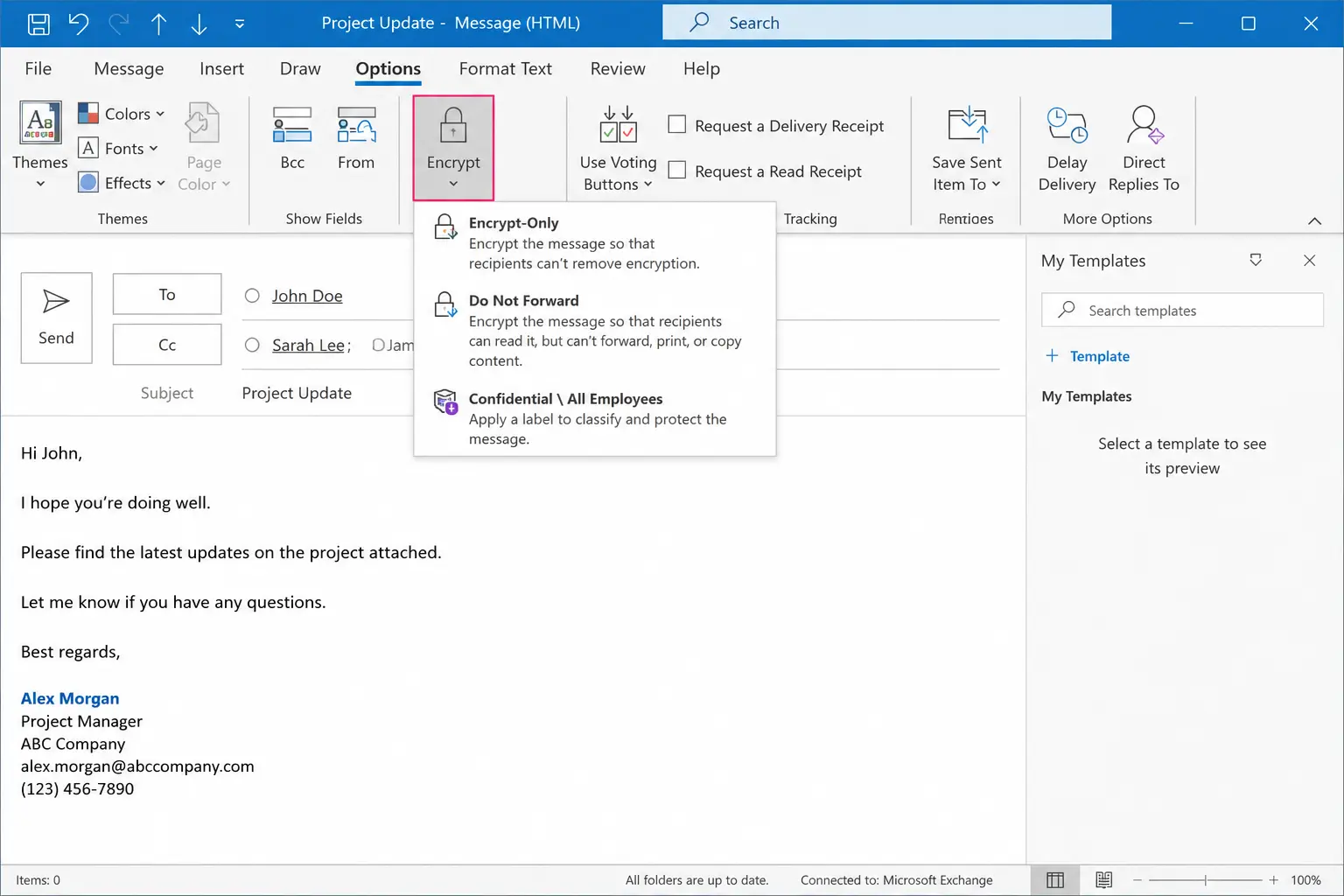

- Compose a new email as usual.
- Click the Options tab on the ribbon.
- Click Encrypt.
- Choose a permission level from the dropdown, usually Encrypt-Only or Do Not Forward (your organization may show custom labels if IT has configured sensitivity labels instead).
- Finish writing the message and hit Send.
That's the entire workflow - no certificates, no software to install. The difference between the two default options matters more than people expect:
- Encrypt-Only keeps the message encrypted in transit and at rest, but the recipient can still forward, copy, or print it once they've opened it.
- Do Not Forward blocks forwarding, copying, and printing, and it persists into Office attachments (a Word or Excel file attached to the email stays locked down even after it's downloaded). Non-Office attachments a PDF, a photo, a screenshot lose that protection the moment they're saved to disk. This is the detail that trips up healthcare and legal offices most often, because they assume "Do Not Forward" locks everything, and it doesn't touch a PDF once it's out of the portal.
What the recipient actually sees
If the recipient also uses Outlook or a Microsoft 365 work account, the message just opens with no extra steps. If they're on Gmail, Yahoo, or any other provider, they get a notification email with a link to a Microsoft-hosted viewing portal. They sign in with a Google or Microsoft account, or request a one-time passcode sent to that same address, and the message opens in the browser. Replies sent from that portal are automatically re-encrypted, so the thread stays protected in both directions.
Which plans actually include this
Purview Message Encryption ships with Microsoft 365 Business Premium, Enterprise E3, Enterprise E5, A3, A5, and Government G3/G5. It is not included in Business Basic, Business Standard, or standalone Apps for Business - those plans need an Azure Information Protection add-on license before the Encrypt button will do anything. Personal and Family subscriptions, and free Outlook.com accounts, don't get Purview at all, encrypt button or not.
If you're not sure which license your organization has, an admin can check under Microsoft 365 admin center → Billing → Licenses. If you're managing this yourself for a small team, it's worth checking there before assuming the feature is broken. I've seen more "encryption isn't working" tickets resolved by a license upgrade than by any troubleshooting step.
Method 2: S/MIME Certificate Encryption
S/MIME is the older, more technical option, and it's the only one of the two that qualifies as genuine end-to-end encryption, meaning even Microsoft can't read the message content in transit. Purview encryption protects the message from outside interception, but Microsoft's infrastructure still has access to it for compliance and policy enforcement. That distinction matters if your threat model includes "I don't want my email provider able to see this," not just "I don't want it intercepted."
How it actually works, in plain terms
S/MIME uses a matched pair of keys: a public key that gets attached to your outgoing messages (this is what people mean by a "certificate"), and a private key that stays on your device and never leaves it. When someone sends you an S/MIME-encrypted email, they're using your public key to scramble it, and only your private key can unscramble it. Sign your messages and the recipient can verify it genuinely came from you, unaltered, separate from encryption, but usually bundled with the same certificate.
The catch that kills most S/MIME rollouts: both people need a certificate installed, not just the sender. If you encrypt a message to someone without one, Outlook will simply fail to send it or warn you the recipient can't be reached with S/MIME. This is the main reason S/MIME never took off outside of government, defense, and healthcare - you can't unilaterally decide to use it the way you can with a password manager. I've watched clinics adopt it organization-wide only to have every external referral bounce because the specialist's office had no certificate on their end.
Getting a certificate
You need a certificate from a Certificate Authority (CA) - you can't just generate your own and expect anyone's mail client to trust it. Options, roughly by cost:
- Actalis issues one free Class 1 (mailbox-validated) certificate per email address, valid for one year, and it's on the trusted-root lists that Outlook, Thunderbird, and Gmail check against. It's genuinely free, but support is limited and Actalis generates the private key on their end before sending it to you worth knowing if your threat model is strict about who's ever touched that key.
- Paid providers like DigiCert or Sectigo offer identity-validated certificates with support, typically annual, aimed at businesses that need someone accountable if something breaks.
- Organization-issued certificates - if you're on a Microsoft 365 tenant, IT can push certificates automatically via policy so you never touch the process manually.
Certificates max out at 24 months of validity industry-wide, and most free options are issued for just one year. Set a calendar reminder before it expires. Once it lapses, you can still read old encrypted mail if you kept the private key backed up, but you can't send or receive new encrypted messages until you renew.
Installing it and sending your first message
Only follow the section below that matches the app you actually have open - the two setups don't overlap.
If you're using classic Outlook (Windows desktop app)
- Go to File → Options → Trust Center → Trust Center Settings → Email Security.
- Under Digital IDs, import the certificate file you received from your CA.
- Set it as your default signing and encryption certificate.
- To encrypt a single message, open a new email, go to Options → Encrypt, and pick the S/MIME option (it appears in the same dropdown as Purview options once a Digital ID is installed).
If you're using New Outlook or Outlook on the web
- Go to Settings → Mail → S/MIME.
- Import your certificate.
- Optionally check Encrypt contents and attachments for all messages I send if you want every outgoing email protected by default, rather than choosing per message.
A habit worth building before you rely on this for anything sensitive: send yourself a test encrypted email first. Outlook won't proactively tell you if your own certificate setup is wrong until a real recipient can't open what you sent - I've had this bite people during time-sensitive exchanges, like a signed contract that needed to go out same-day.
If You're on a Free Outlook.com or Hotmail Account
This is the scenario Microsoft's own documentation glosses over, and it's a common one. Free personal accounts with no Microsoft 365 subscription attached have zero access to the Encrypt button not hidden, not a lesser version, genuinely absent from the interface. Your realistic options:
- Buy a Microsoft 365 Personal or Family subscription. This unlocks a scaled-down version of encryption inside Outlook.com, the same Encrypt/Do Not Forward choices described above, though attachment handling and portal behavior can differ slightly from the business tier.
- Set up S/MIME yourself, using a free Actalis certificate. This works on a free Outlook.com account with no subscription required, but you're back to the core limitation: your recipient needs one too.
- Use a dedicated encrypted email service as a layer alongside Outlook, or migrate sensitive correspondence to a provider built around encryption from the ground up, if you're doing this regularly rather than for the occasional sensitive message.
If you only need to send one or two protected emails a year tax documents to an accountant, medical records to a new provider S/MIME through a free certificate is usually more practical than paying for a subscription upgrade you won't otherwise use.
Outlook Mobile and Encrypted Email
The Outlook mobile app can open Purview-encrypted messages you receive without any extra steps, since it recognizes your Microsoft account the same way the desktop app does. Composing and sending a new S/MIME-encrypted message from the mobile app is far more limited - certificate management on mobile isn't built out the way it is on desktop, so if S/MIME is your method, plan to compose those specific messages from a computer.
Purview (OME) vs. S/MIME: The Real Trade-off
| Purview Message Encryption | S/MIME | |
|---|---|---|
| License required | Business Premium or higher | None (works on any Outlook account) |
| Setup effort | None - built in | Certificate purchase/install, per person |
| Works with any recipient | Yes, via portal | Only if recipient also has a certificate |
| True end-to-end (provider can't read it) | No | Yes |
| Attachment behavior | Office files stay protected after download; others don't (Do Not Forward only) | Fully encrypted regardless of file type |
| Best fit | Occasional sensitive emails to external, non-technical recipients | Regular exchanges with a small, defined group who'll also set up certificates |
Common Reasons Encryption Fails (and How to Actually Fix Them)
- The Encrypt button is missing or grayed out. Almost always a licensing gap, not a settings problem. Check your Microsoft 365 plan before troubleshooting further.
- "This message could not be encrypted" error on send. For S/MIME, this typically means the recipient doesn't have a certificate on file that Outlook can find, or your own certificate has expired.
- Recipient says they can't open the message. If they're not on Outlook or a Microsoft account, remind them to check for the "read the message" link and sign in with any Google account or request a one-time passcode. Many people expect a normal attachment and miss the actual link.
- A downloaded attachment isn't protected anymore. Expected behavior for non-Office file types under Purview's "Do Not Forward" - the message body stays locked, but a PDF or image loses its wrapper once saved locally. If that's a dealbreaker, S/MIME encrypts attachments unconditionally.
Is Outlook's Built-In Encryption Actually Enough?
For most everyday sensitive information a signed PDF, a birth certificate, salary details either method above is a real improvement over sending things in plain text. But it's worth being clear-eyed about what you're protecting against. The 2026 Verizon Data Breach Investigations Report found the human element present in 62% of breaches, with social engineering and phishing being the dominant form, accounting for 16% of them, even as attackers increasingly lean on exploited software vulnerabilities as an entry point instead of credentials alone. Encrypting the message content protects it from interception in transit - it does nothing if the recipient's account itself gets phished after the fact, or if you're the one who clicks the wrong link before you ever hit send.
If you're handling regulated data HIPAA, financial records, anything with a compliance officer attached encryption is necessary but not sufficient. HIPAA specifically requires a signed Business Associate Agreement with Microsoft, staff training, and audit logging on top of turning on the Encrypt button. Flipping that switch alone doesn't make an organization compliant, even though it's a common assumption.
Related Guides
Encryption is only one piece of keeping an Outlook account running the way you expect. These cover the other issues that tend to come up around the same workflows:
Outlook Not Receiving Emails? Here's What's Actually Going On - useful if an encrypted message you're expecting never seems to land, since delivery problems and encryption problems get mistaken for each other more often than you'd think.
How to Create an Email Group in Outlook (Step-by-Step, All Versions) - handy if you're sending the same encrypted update to a recurring group of people and don't want to re-enter recipients every time.
How to Recall an Email in Outlook (And What Actually Works When It Fails) - worth reading before you rely on recall as a safety net for a sensitive message sent without encryption by mistake; it explains exactly when recall does and doesn't work.
Frequently Asked Questions (FAQs)


 +1-857-557-6896
 +44-161-791-4592