
How to Add Footer to Outlook Email?
- 0
When sending professional emails, you may feel something is missing, such as your name, title, contact details, or company logo. Adding these elements gives your messages a professional touch. It looks more polished if all your emails include your name, title, contact details, and the company’s logo or website link. This not only helps recipients recognize you but also makes it easier for them to contact you. The best way to achieve this is by adding a footer (email signature) to all your emails.
A footer is very useful at the end of your Outlook emails, as it lets you showcase who you are, what you do, and even add images, links, or other details. But how do you add a footer in Outlook? We will walk you through the complete process step by step. Before that, let’s take a quick look at the common problems you may face when adding a footer in Outlook.
Common Problems When Adding a Footer in Outlook
When trying to add a footer to your Outlook email, here are some common issues that may arise and create an obstruction.
-
Formatting problems (colors, fonts, or images look wrong)
-
Footer doesn’t appear in new emails or replies
-
Signature doesn’t set automatically
-
Images are not displaying properly
-
Hyperlinks in the footer don’t work
Steps to Add Footer to Outlook Email
Adding a footer (email signature) in Outlook takes only a few simple steps. Here’s all that you need to do:
Step 1: Open your Outlook and click on “New Email.”
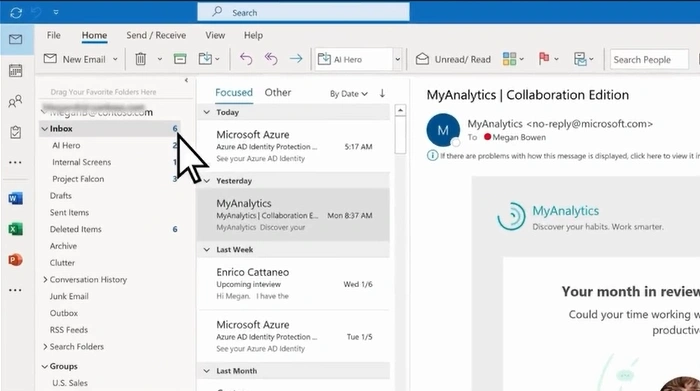
Step 2: Click on the Signature icon and select Signatures.
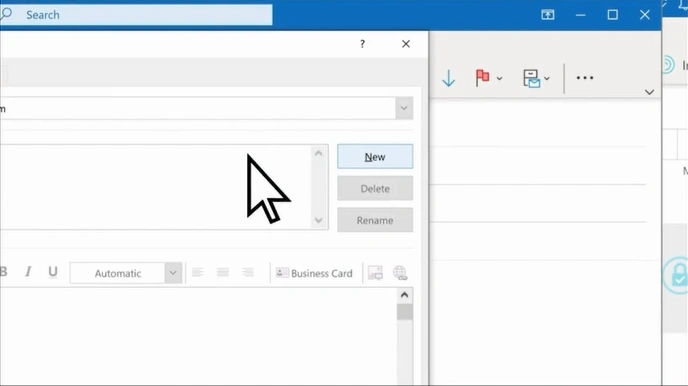
Step 3: Click on the “New” button.
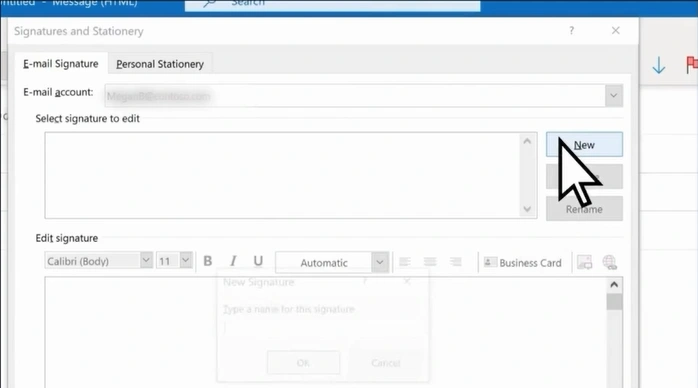
Step 4: Give the signature a name and click on OK.
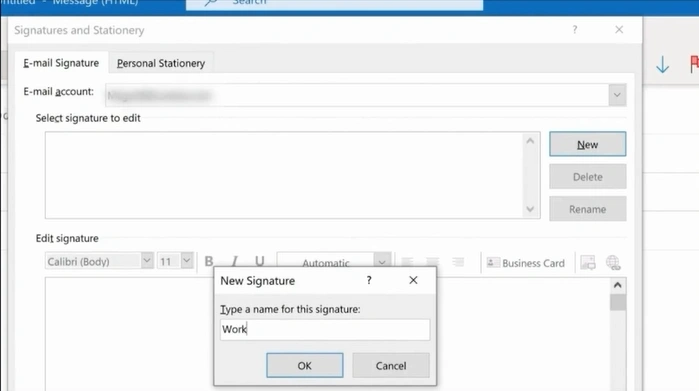
Step 5: Enter your footer content in the Edit Signature field.
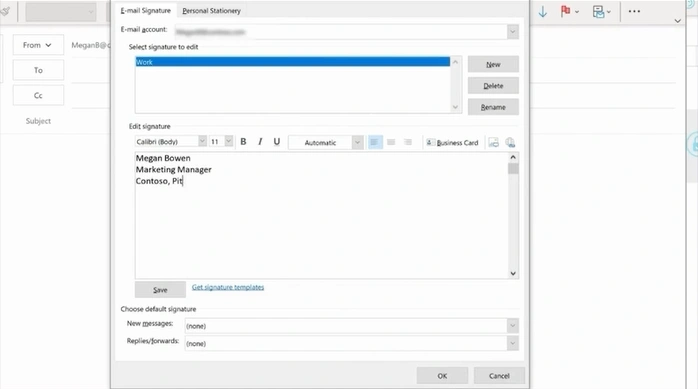
Step 6: Click on Save.
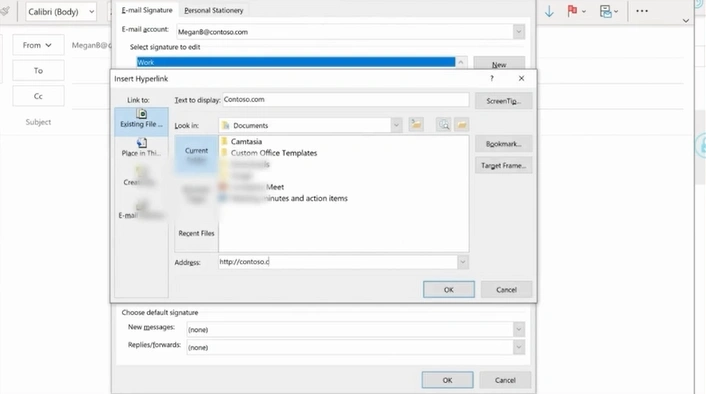
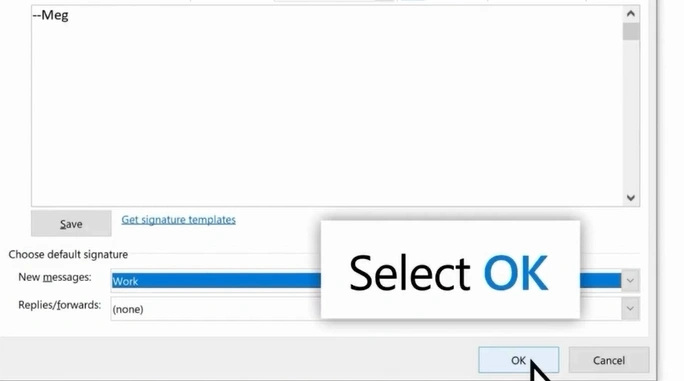
Step 7: Choose your signature from the “New Messages” dropdown to set it as default.
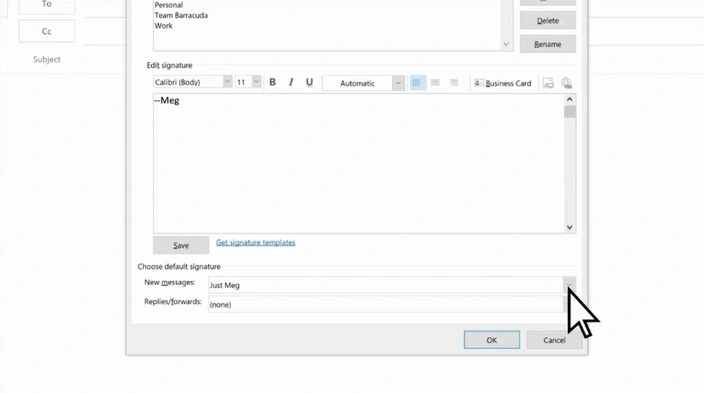
Step 8: Click on OK.
Summing Up
Now you know how to add a footer in Outlook and share your details with recipients easily. The footer at the bottom of each email represents you and creates a lasting professional impression.
With this setup, you no longer need to type details like your name, title, or contact number every time you send an email. Instead, your signature is added automatically, so you can simply hit send with confidence.



 +1-857-557-6896
 +44-161-791-4592