
How to Make an Email Group in Outlook?
- 0
Typing the same email in Outlook and sending it to different members can be very hectic and time-consuming. You may be doing this almost every day, whether it is for sharing updates, meeting invites, or any important announcements. That, of course, takes up the entire day of yours. But now things can be simpler with Outlook’s email group feature.
Setting up an email group in Outlook can be a great way to communicate with your teammates. Not only will it save your time and effort, but it will also avoid typos that are often made when sending emails. Setting up an email group is not difficult; you just need to follow the correct steps, which we have outlined here. But, before we go there, take a glance at the challenges that you might face during the setup.
Problems to Occur When Making an Email Group in Outlook
Here are a few common problems that can arise when you are trying to make an email group in Outlook:
-
Contacts are not available or are not syncing
-
Outlook profile or data file problems
-
Group not appearing in the address book
-
Invalid or mistyped email addresses
The Ideal Steps to Make an Email Group in Outlook
Having an email group in Outlook can help simplify your communication and save your precious time. Follow these steps to create an email group in Outlook:
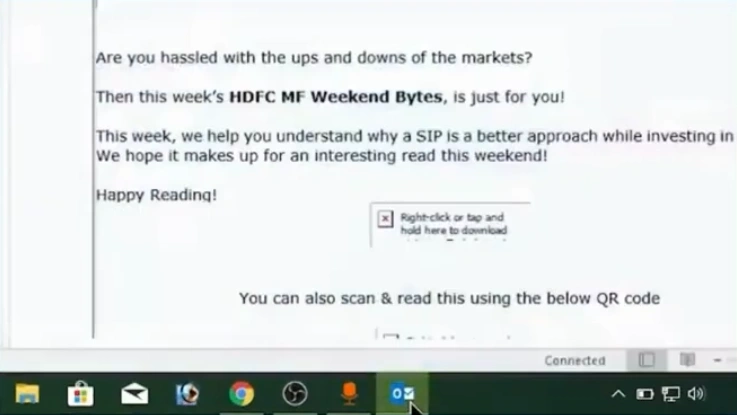
Step 1: Open Outlook and click on “Home.”
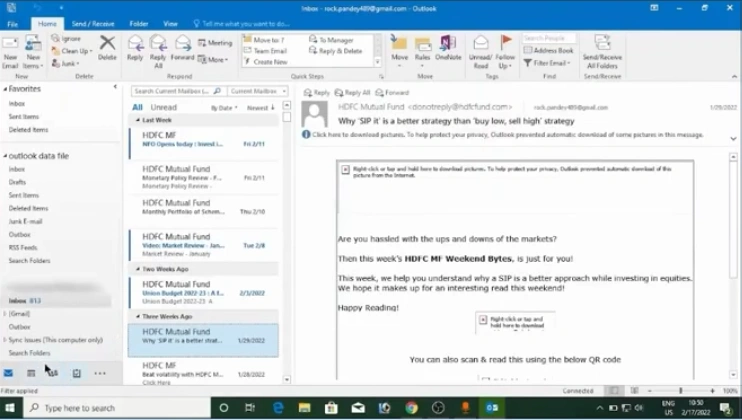
Step 2: Click the Contact icon located at the bottom left.
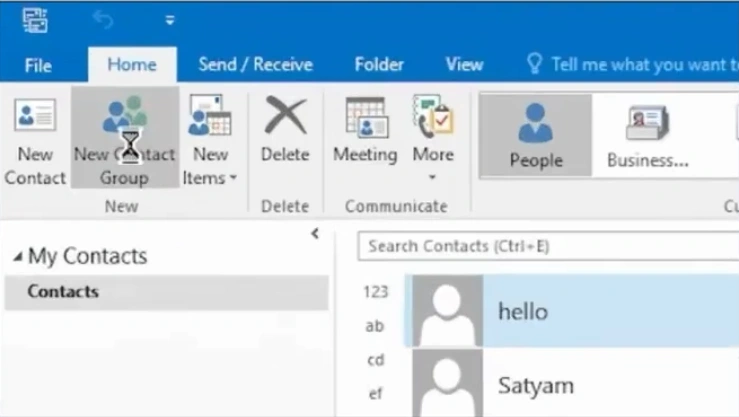
Step 3: Click on New Contact Group.
Step 4: In the Contact Group Window, enter the Group Name.
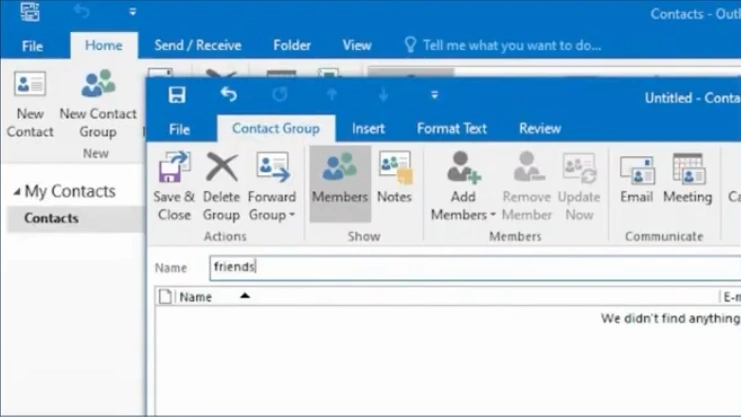
Step 5: Click “Add Members.”
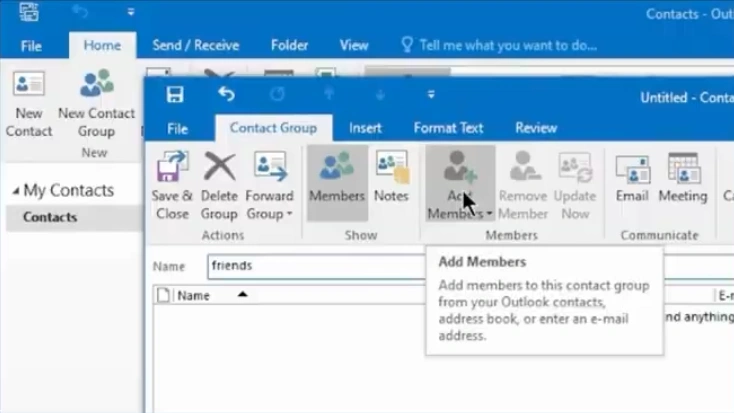
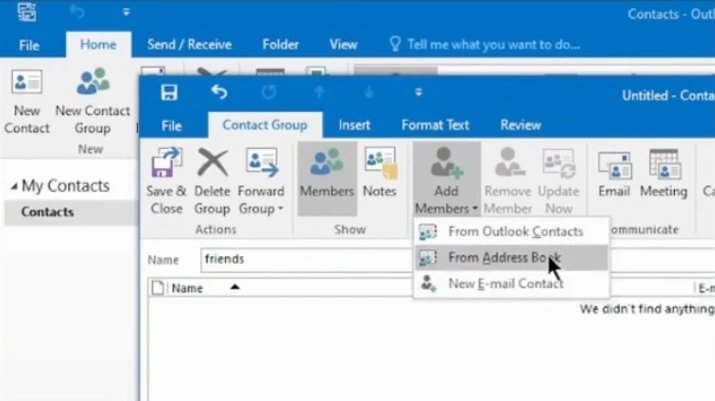
Step 6: Select your option to add members.
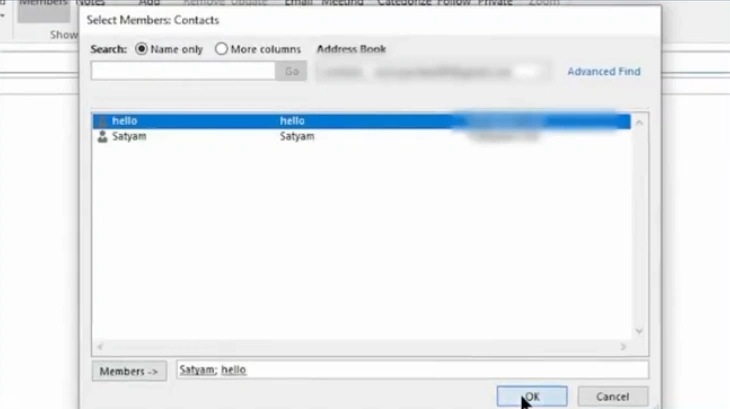
Step 7: Select the contact and click on Members.
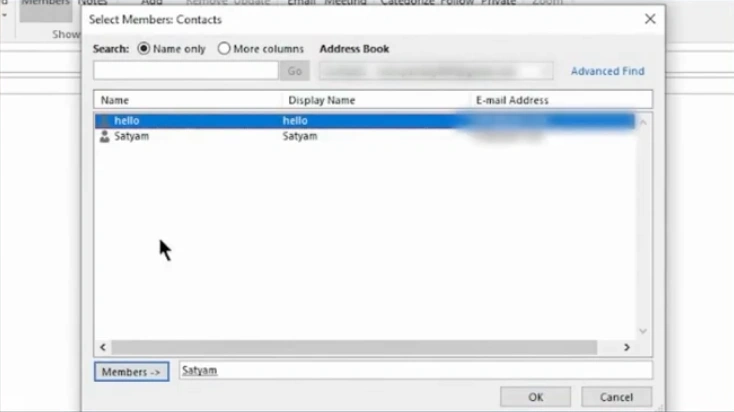
Step 8: After adding, click on OK.
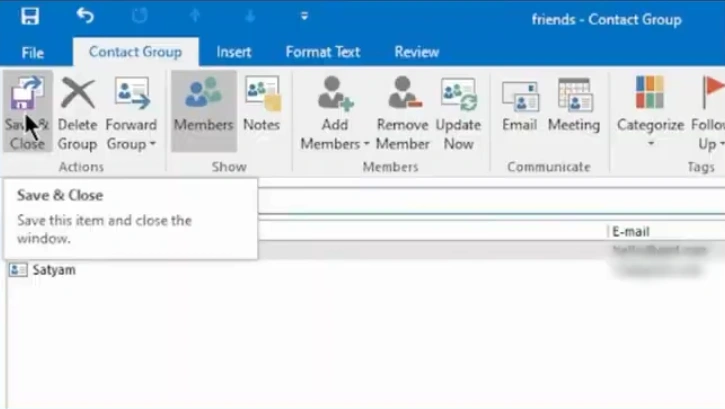
Step 9: Click “Save & Close.”
Also Read:- How to Add Footer to Outlook Email?
Tips for Proper Email Group Management
Here are some tips to know for managing your email groups effectively and keeping communication smooth and organized:
Manage Permissions and Privacy
Decide who can send messages; it could be everyone or just the admin. Use private groups if you wish to carry out confidential discussions.
Use Clear and Consistent Naming Conventions
Try not to use generic names that may confuse users. Always keep the naming consistent across departments.
Keep Group Membership in Organization
Always review and update members on a regular basis. Timely add new employees and remove inactive or departed members.





 +1-857-557-6896
 +44-161-791-4592