
How to Retract an Email in Outlook?
- 0
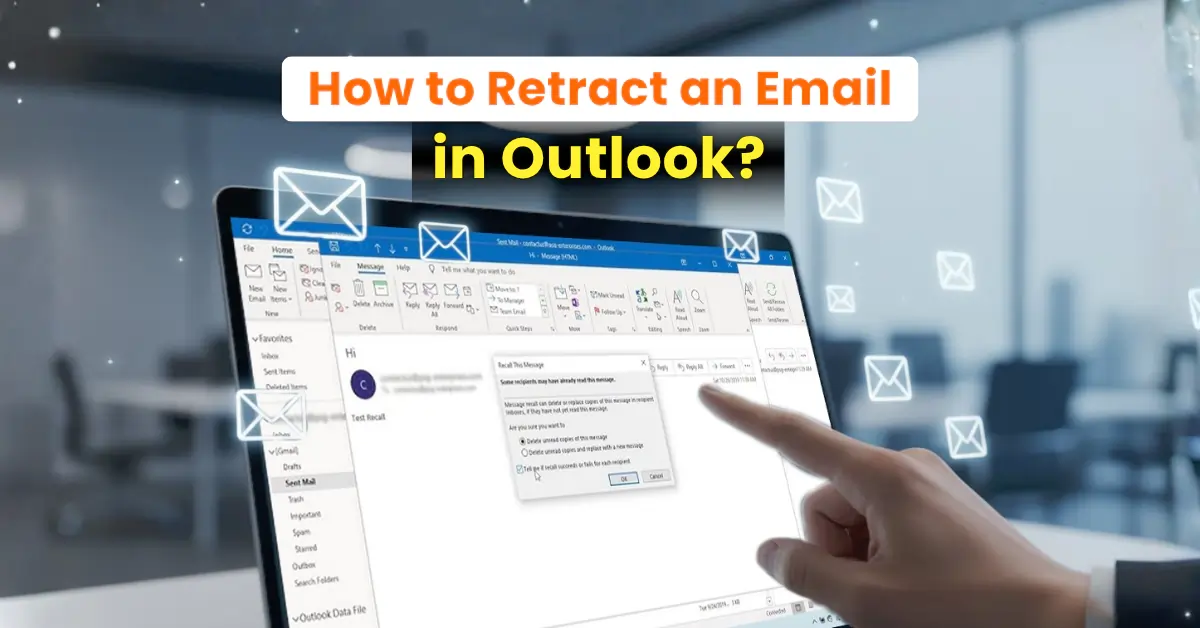
Hitting the send button too soon and instantly regretting it is not so uncommon among Outlook Mail users. If you are also facing a similar situation, not to worry. There is a backup plan called “Retract” - it essentially allows you to correct mistakes in the email before your recipient reads it. That’s an excellent way to update your messages and make your communication more efficient and accurate.
Using the Retract an Email feature of Outlook Mail can save you from future embarrassment or confusion. But how to do this? Well, we have provided you with all the steps to retract an email in Outlook- just follow them carefully. Before we proceed to the steps, we want you to look at the potential problems that may arise when retracting a message.
Problems to Occur When Retracting an Email in Outlook
These are some of the most common issues that can occur when you are retracting an email in Outlook:
-
Message moved from the inbox
-
The recipient uses a different email system
-
Delayed delivery or server syncing problems
-
Cached or mobile email clients
-
Different Outlook versions
What are the Necessary Requirements Before Retracting an Email?
Here are a few mandatory requirements you should be aware of before you start the retracting email process in Outlook:
-
Both sender and recipient should use Outlook and remain on the same Microsoft Exchange server.
-
The recipient shouldn’t have opened the email yet.
-
You must use the desktop version of Outlook rather than Outlook Web or mobile.
-
The email must still be in the recipient’s inbox, and it must not have been moved or redirected.
Steps to Retract an Email in Outlook
Take a look at the following steps to learn how to properly retract an email in Outlook:
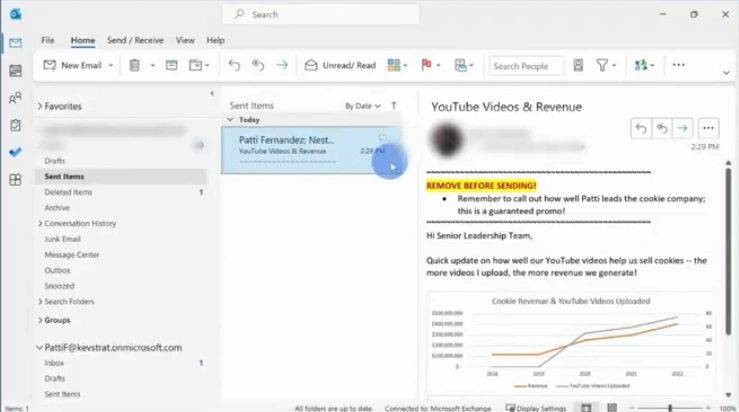
Step 1: In your Outlook Mail, go to Sent items and open the email you want to retract.
Step 2: Open More Move Actions.
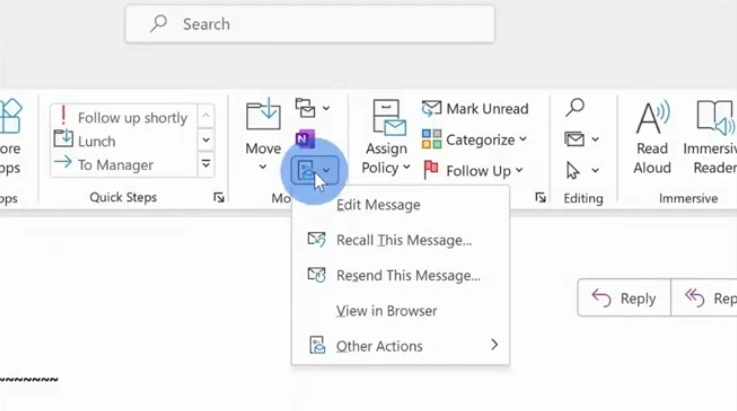
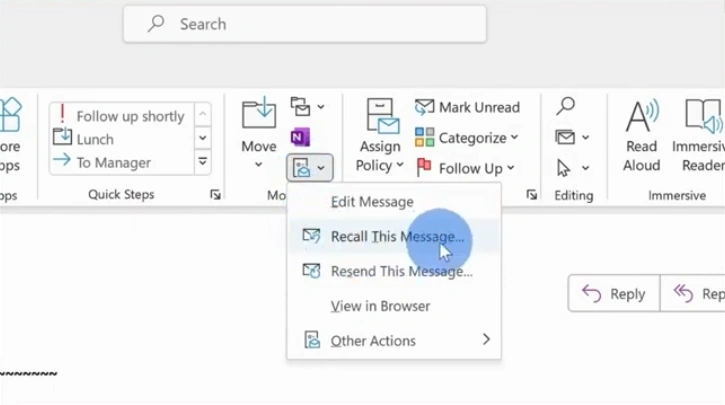
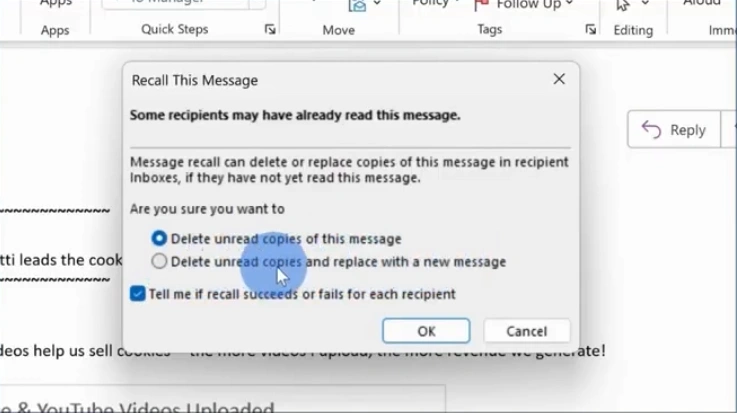
Step 3: From the list, select the “Recall This Message” option.
Step 4: On the Recall This Message window, choose your desired option and click on OK.
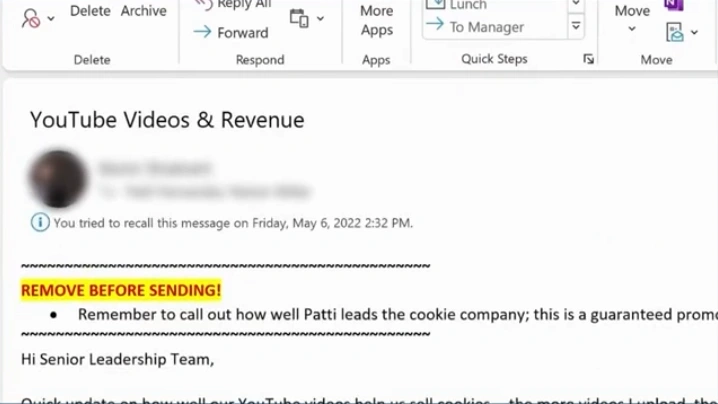
Step 5: Confirm that you received a notification regarding the recall.
Also Read:- How to Add Hostinger Email to Outlook?
To Sum Up
Give yourself another chance to fix the mistakes in the emails you’ve sent. Make the most of the Outlook’s retract an email feature. Follow each instruction we have discussed with you, and you can have a successful retraction. Let your communication look clear, professional, and error-free.
Ensure you are using the desktop version of Outlook, and the recipient hasn’t opened the email yet after you have sent it. Both you and the recipient should use Outlook and be on the same Microsoft Exchange server.



 +1-857-557-6896
 +44-161-791-4592