
Step-by-Step Fix for Outlook Not Receiving Emails in Office 365
- 0
Have you been expecting an important email but have not received it in your Microsoft 365 account? The problem becomes even more confusing when you receive emails on your phone but not on your computer, or vice versa, which makes it difficult to identify where the issue actually lies. This situation can be frustrating and may cause you to worry about missing deadlines or important updates. It can be hard to determine what is behind the error, whether it is your Outlook account, Microsoft 365, or your internet connection.
The most common causes of this email failure include issues with the Outlook desktop app, mailbox quota limits, or Exchange server synchronization problems. In some cases, other technical reasons may also prevent Outlook from receiving emails properly. This guide explains the main issues and outlines the most effective troubleshooting steps to help you resolve the problem.
Step 1: Confirm Internet and Online Status
In most cases, a weak internet connection is the primary cause of the email delivery issue. As a consequence, the Outlook email doesn’t sync or retrieve new emails. Therefore, ensure that your internet connection is stable and working properly. Once the connection is stable, Outlook may start receiving emails again.
Step 2: Check Outlook on the Web
Checking Outlook Web helps you identify whether the main issue is the desktop app, the Microsoft Office 365 server, or a mailbox issue. In this method, you log in through the web version instead of the desktop app. If you see emails in the inbox after signing in, the issue is likely with the desktop app, not the server. The problem may be in the Outlook desktop app or in a sync or profile issue. Here is how to check Outlook on the web:
-
Open a browser of your choice, whether Chrome or Microsoft Edge.
-
Visit outlook.office.com.
-
Use your email and password to sign in.
-
After signing in, check the inbox.
-
Check if there are new emails.
Step 3: Change the Work Mode to Online
Beginner users may enable the “Work Offline” mode in Outlook, which stops email delivery. Outlook stops syncing with its web server, and you become anxious about why you’re not receiving emails. In simple terms, emails remain stored locally and are not synced with the server. Emails remain in the local OST file and will not sync with the server until you disable Work Offline mode. After disabling this feature, Outlook reconnects to the server and syncs all the new changes from the Outlook client. Here is how to change work mode to online in Outlook.
-
Click on the Send/Receive tab in Outlook.
-
Select the Work Offline option, and then you’ll observe the Connected to Microsoft Exchange option displayed at the bottom status bar of Outlook.
Step 4: Clear Mailbox Storage
Microsoft 365 has a storage limit for each mailbox, and when it is exceeded, you stop receiving emails from clients. If your mailbox is full, clear some storage space using these steps.
-
Open the desktop version of Outlook, and then go to File.
-
Then, select Info and review the information under Mailbox Settings. It may appear as "Mailbox Cleanup" in older versions of Outlook.
-
Check the folder size under the Properties menu.
-
If the storage is full, delete unnecessary emails. Alternatively, you can archive old emails to reduce the mailbox size or directly clear all the emails using the Cleanup tool.
-
If you’re using Outlook on the web, click on Settings and then select General.
-
Select Storage, and if it shows 100% storage, go to the left sidebar of the email and scroll down.
-
Find Deleted Items, select all, and delete them to empty the storage.
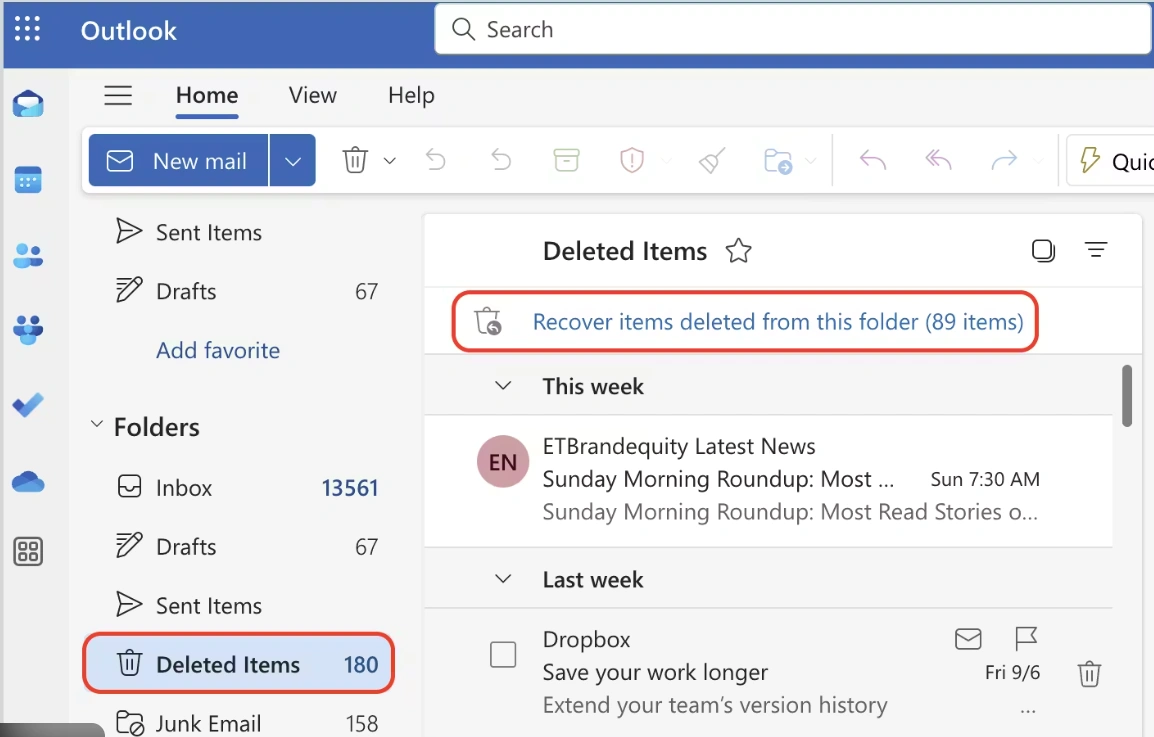
Once storage space is available, Outlook can start receiving new emails.
Step 5: Change Your Outlook Password
If the reason is related to authentication, changing Outlook’s password may work for you. It performs re-authentication between your Outlook application and the Microsoft email server. When you change your password, the previously stored password becomes invalid, which may restore proper email synchronization. However, changing your password is important when prompted at the bottom bar of the Outlook desktop version. Here is how to change your Outlook password.
-
Go to account.microsoft.com and sign in with your details.
-
Select Security from the top menu.
-
After that, click on Change password.
-
Set a new password when prompted, then click Save.
After changing your password, restart Outlook and check if emails begin syncing.
Step 6: Recreate Outlook Profile
Recreating the Outlook profile can resolve the issues with email delivery. This method fixes the profile corruption and resets outdated configuration settings. Here is how to recreate an Outlook profile.
-
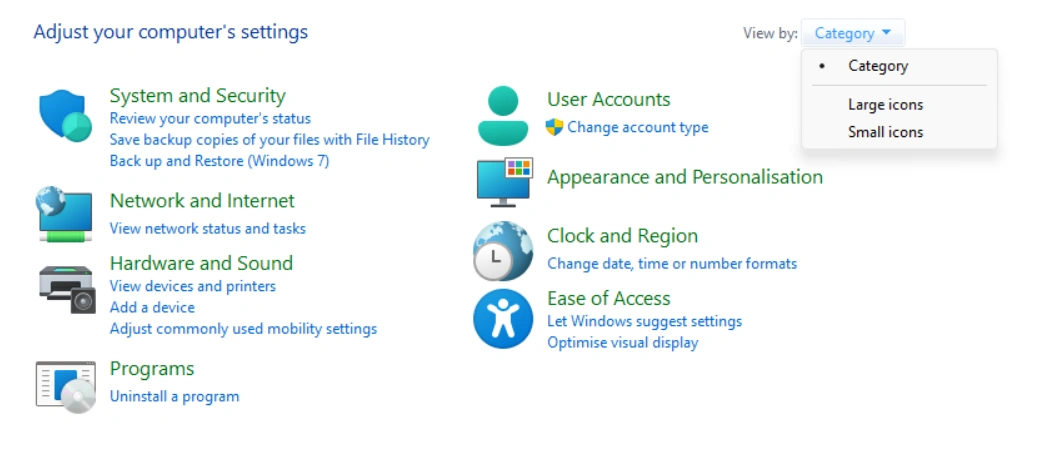
Go to the Start menu on your desktop and type "Control Panel," and select it from the results.
-
Select the Large icons option from the category drop-down menu at the top-right side.
-
Select Mail, and then the Mail Setup window will appear.
-
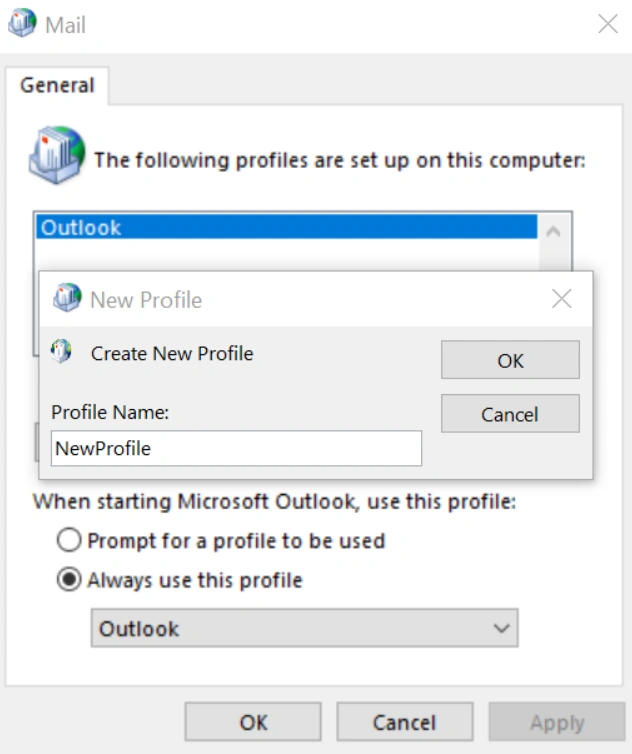
Choose Show Profiles, and then select Add.
-
On the new profile window, enter a name and click OK.
-
Follow the Add Account wizard to add your mail account, and select "Always use this profile" to set your new profile as the default one.
-
Click OK, and then launch Outlook.
Also Read:- How to Add Zoho Email to Outlook?
This completes the profile recreation process. You can now open Outlook and check your emails.
Frequently Asked Questions (FAQs)



 +1-857-557-6896
 +44-161-791-4592