
Troubleshoot Outlook Not Sending Emails in Windows 10/11
- 0
Have you composed an email in Outlook that is not sending? Your email may be stuck in the Outbox, or you might observe a strange error, which can interrupt your work. This is a very common issue in Outlook, and there are several reasons for it, such as a weak internet connection, an incorrect email address, or account settings that prevent emails from being sent or received. Because of this, it can be frustrating when important attachments are stuck in the Outbox.
This guide explains how to troubleshoot Outlook not sending emails on Windows 10 or 11. Sometimes the problem is minor, but we make it seem complicated, so it is better to start with simple checks. Therefore, here are step-by-step instructions, starting from basic to advanced methods. You do not need to try advanced methods if a simple solution can fix the issue.
What Prevents Outlook From Sending Emails in Windows 10/11?
If your Outlook email is unable to send emails from your Windows computer, there are many factors responsible for this:
-
Entering an incorrect recipient’s email address
-
Network issues
-
Previously stuck messages may block new emails from being sent.
-
The Outlook account is set to offline mode.
-
Outlook is outdated
Method 1: Check Your Internet Connection
In most cases, the primary reason Outlook fails to send emails is a weak internet connection. If you are unable to send emails from your Outlook account on Windows, your internet connection may be slow or unstable. Check your internet speed by searching for an online speed test. This will help you decide whether you need to try the next troubleshooting method.
Method 2: Confirm Your Outlook Account Is Online
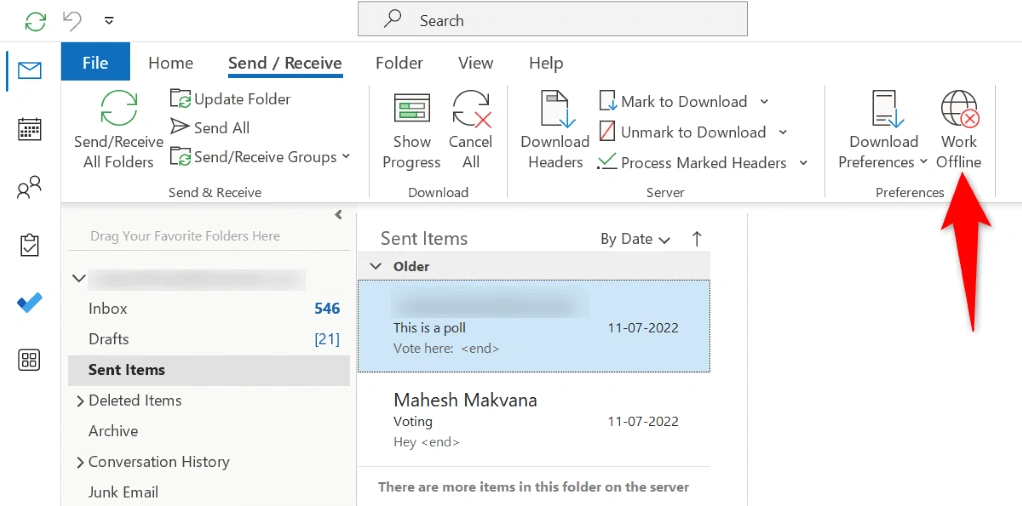
If your Outlook is offline, it won’t send emails. It must be in online mode to actively send emails. How will you check this setting? It's so simple. Just go to the Send/Receive tab and verify that the Work Offline option is not selected. This method often fixes the email not sending issue.
Method 3: Empty the Outbox
When your Outlook Outbox contains several unsent messages, it may interrupt the sending and receiving of emails. In this case, you should clear the outbox to free up space for newer emails to process. Here is how to do that:
-
Open your Outlook account and go to the Outbox folder in the left pane.
-
Move or delete the unsent or unnecessary emails.
-
Try sending a new email to check if the issue is resolved.
However, if the issue persists, you need to follow the advanced troubleshooting methods.
Method 4: Check Attachment Size
Outlook has a file size limit for attachments, which typically ranges from 20MB to 25MB, depending on your account type. Therefore, if your attachment exceeds the limit, your email won’t be sent. If you don’t have any other option, you can either compress your attachment files or use a cloud-based storage provider like OneDrive, Dropbox, or Google Drive. Then, you can copy the attachment links and send them via email. It won’t exceed the maximum limit of the attachment.
Method 5: Repair Outlook
If your Outlook account still doesn’t send emails, it may be corrupted. Microsoft Office includes a built-in repair tool that can automatically resolve issues in Outlook. Here is how to repair Outlook:
-
Go to the Start menu at the bottom of your computer, and search for the Control Panel.
-
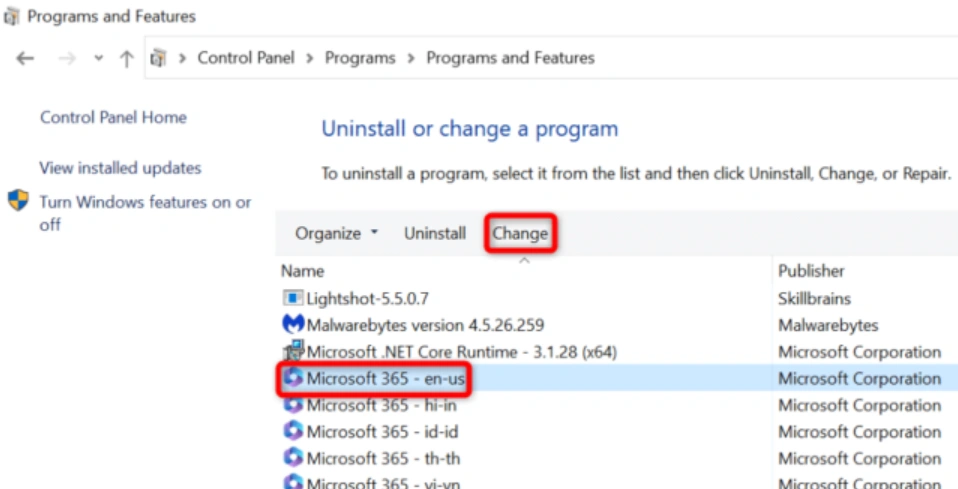
Open the utility, and then select the “Uninstall a program” option.
-
Next, select your Microsoft Office installation from the list, and select Change at the top.
-
Click on Yes on the User Account Control prompt.
-
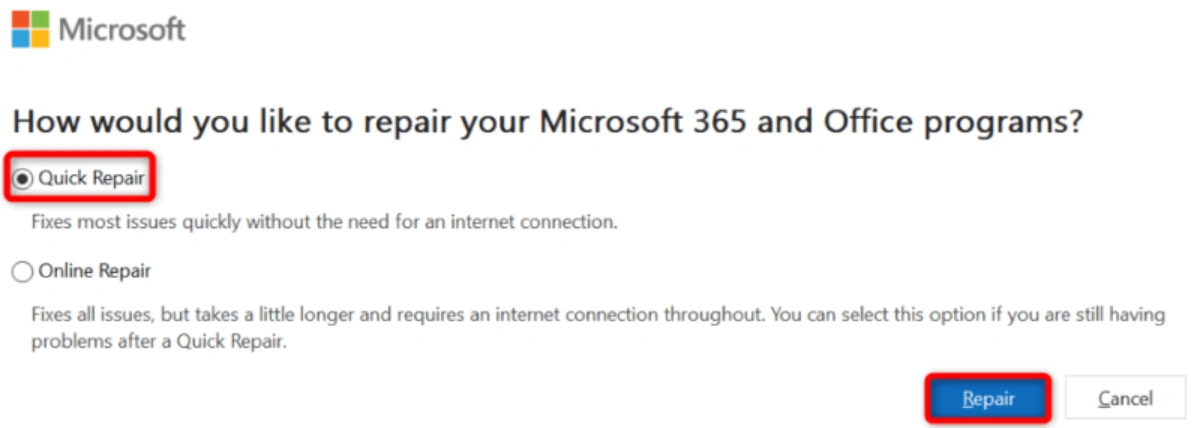
After this, select Quick Repair and then click Repair.
-
However, if the issue persists, open the repair tool, select Online Repair, then select Repair.
Method 6: Check Antivirus or Firewall
Temporarily disable antivirus or firewall software only for testing purposes, and enable it again right away after checking.
-
Go to the system tray at the bottom right corner of your computer and locate the antivirus tray.
-
Then, right-click on that icon and select an option from “Disable protection,” “Pause,” or “Stop Shields.”
-
Select a time duration, such as one hour or “Until restart,” if prompted.
Method 7: Verify SMTP Settings
Your Outlook account may not send emails due to incorrect server details or authentication errors. To fix this, verify the SMTP settings using the steps below.
-
Go to the File option in your Outlook account.
-
Click onAccount Settings, and then select Account Settings once again.

-
After that, select your email and click on Change.
-
Click on More Settings, and check the Outgoing Server tab.
-
Confirm that the “My outgoing server requires authentication” option is enabled.
-
Check your Advanced tab for encryption.
Frequently Asked Questions (FAQs)



 +1-857-557-6896
 +44-161-791-4592