
How to Solve Outlook Keeps Freezing or Crashing Issue?
- 0
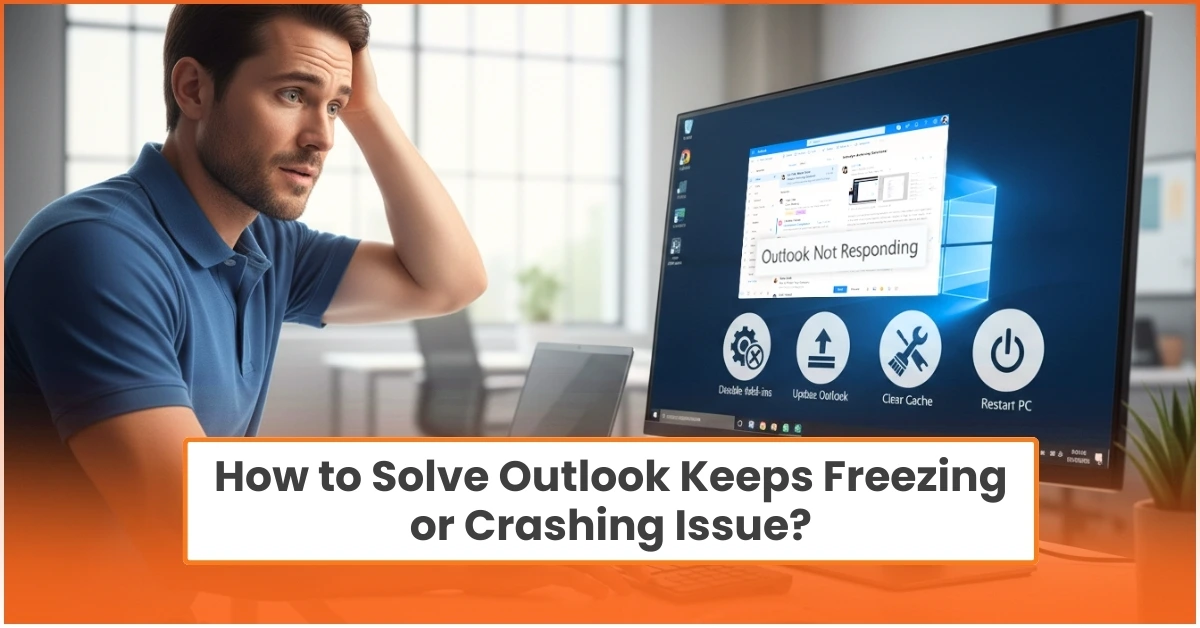
Does your Outlook app stop in the middle of urgent work or crash when you are sending large attachments? This problem can disrupt your work and cause concern, especially when you are under pressure from ticking deadlines or fear losing unsaved drafts.
The good news is that there are quick fixes to resolve this issue. We have handled many similar cases and want to share some tested solutions with you. But before we start, let us first look at what is causing this issue.
Top Reasons Outlook Freezes or Crashes
-
Corrupted PST/OST
-
Add-in conflicts
-
Windows conflicts
-
Large mailbox
-
Outdated Office
Quick Diagnostic Checklist
Before you can apply the fixes, check the following things:
-
Check your internet connection: An unstable network often causes Outlook to run slowly. So, open any browser on your PC and visit multiple websites. If pages load slowly or fail to load, there is a network issue. Troubleshoot your network and restart your router if required.
-
Test attachment behavior: Does Outlook crash when you open any specific file? If it does, save the attachment first and open it outside Outlook.
-
Restart Outlook in Safe Mode: To do this, press the Windows Start + R keys together. Type outlook.exe /safe in the Run dialog box and press Enter. If it runs smoothly, a faulty add-in may be the culprit.
-
Check the size of your mailbox: Large Outlook data files (PST or OST) can slow down or freeze Outlook. Archive old emails if the mailbox is oversized. Compact the data file if required.
-
Verify pending updates: Running an outdated version of Outlook can cause compatibility issues. Open Outlook, and then go to File. Click on Office Account, then select Update Options. Install the available updates.
5 Fixes to Troubleshoot Outlook Freezing or Crashing Issues
If your Outlook keeps freezing on your Windows 11/10 system, then you must apply these easy solutions:
Solution 1: Disable Add-ins
-
Open the Outlook app normally.
-
Go to File, then click Options.
-
Click Add-ins.
-
Select COM Add-ins at the bottom, then click Go.
-
Uncheck all add-ins, then click OK.
-
After that, restart Outlook.
Solution 2: Install the Latest Updates
-
On Outlook, go to File at the top left corner.
-
Now, go to “Office Account.”
-
Click on Update Options.
-
Select “Update Now.”
-
Once the update is installed, restart Outlook.
If you need to update your Windows, follow the instructions below:
-
Press Windows Start + I keys.
-
Click on the “Windows Update” option.
-
Select Check for updates.
-
Install any available updates.
-
After installation, restart your computer.
Solution 3: Repair Office
-
Press the Windows + R keys together.
-
Type the code: appwiz.cpl and press Enter.
-
Locate Microsoft 365 or Microsoft Office (if using an older version) in the list.
-
Right-click on it and choose the Change option.
-
Select Quick Repair. If it does not work, select Online Repair.
-
Click on Repair.
-
Wait for it to complete and then restart the PC.
Solution 4: Check for Conflicting Processes
The Outlook app can also pause or freeze if it is being used by another process. So, you must see that no other apps are interfering with Outlook. Here is how to do it:
-
Press Ctrl + Shift + Esc keys together to open Task Manager.
-
Under the Processes tab, look for multiple Outlook instances, high CPU or memory usage, and suspicious or unnecessary background apps.
-
If Outlook is listed more than once, select the extra instance and click on the “End Task” option.
-
Check if any app is using very high CPU, Memory, or Disk Usage.
-
Close unwanted programs such as large file transfer tools, background antivirus scans, or third-party email add-ins.
-
Lastly, close the Outlook app completely and reopen it. Check if the freezing issue is resolved.
Solution 5: Create a New Outlook Profile
-
Close the Outlook application completely.
-
Click the Windows Start button.
-
Search for and open the Control Panel.
-
Go to Mail > Show Profiles > Add to create a new profile if the current one is corrupted.
-
Enter a new profile name, then click on the “OK” button.
-
Add your account details and complete the setup.
-
Choose “Always use this profile,” then select the new profile.
-
Open Outlook and test it.
How to Prevent Outlook From Crashing Again
If you want to lessen the chances of Outlook Mail crashing in the future, follow the preventative tips below:
-
Keep the software updated: Ensure that Windows and Office are up to date. This helps fix bugs, improve security, and performance. To update the software, open Outlook > File > Office Account > Update Options > Update Now.
-
Clear cache credentials: In the Control Panel, go to Credential Manager. Remove the stored Microsoft Office/Outlook entries. Restart Outlook and sign in again.
-
Keep the PST/OST file size under control: Large Outlook data files increase memory load and indexing time. You should keep the PST file under 10–15 GB. Once PST files cross 20 GB, Outlook indexing slows down, and background syncing can cause the interface to freeze.
In a Nutshell
When Outlook freezes, it is often linked to a large mailbox, conflicting add-ins, corrupted PST/OST files, or an outdated version. So, what you should do is maintain a healthy mailbox size, disable unnecessary add-ins, and keep Outlook Mail and Windows up-to-date.
Apply the fixes we have mentioned above. Follow each instruction carefully to restore Outlook and reduce crashes or slowdowns.
Frequently Asked Questions (FAQs)




 +1-857-557-6896
 +44-161-791-4592