
How to Setup a Google Email Account in Outlook?
- 0
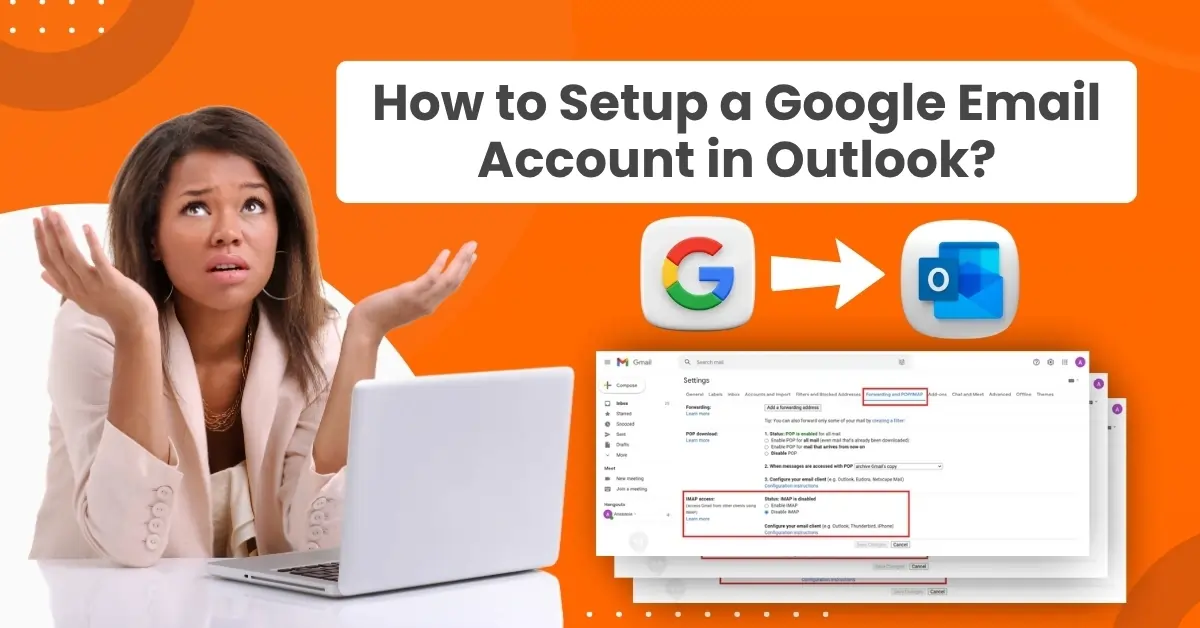
Like many users, you might be managing multiple email accounts, both personal and professional. Have you ever considered bringing them together in one place? It’s possible, and doing so can help streamline your communication. Right now, your browser might be overloaded with tabs, making your screen feel cluttered and disorganized.
If you use Gmail and want to add it to Outlook, there’s a simple way to do it. We have outlined a step-by-step process to help you set up your Gmail account in Outlook. But before we get into that, let’s go over some common issues you may face during the integration.
Common Issues When Setting Up a Google Email Account in Outlook
Be wary of these common problems that might arise while you try to set up your Google email account in Outlook:
-
Two-step verification is enabled and not properly configured for third-party access.
-
Your account may be temporarily locked by Google due to suspicious sign-in attempts (CAPTCHA lock).
-
You may be running an older version of Outlook.
-
Wrong IMAP or SMTP settings
-
Account sync problems
Tips to Know Before Setting Up a Google Email Account in Outlook
Here are the smart tips that you must keep in mind before you delve into setting up a Google email account in Outlook:
-
Go to your Gmail settings and make sure IMAP is enabled - this allows Outlook to sync with your email. Without IMAP, Outlook won’t be able to connect to your inbox.
-
An outdated Outlook client can bring problems. Ensure you are using the most recent version to avoid experiencing compatibility problems later.
-
If you have previously attempted the setup and it didn’t work, old login credentials might still be saved. Remove them from the Windows Credential Manager before starting a fresh setup.
-
Security software may also become overly protective. If Outlook refuses to connect, check if the firewall or antivirus is blocking it.
Steps to Setup a Google Email Account in Outlook
Setting up a Google email account in Outlook is a simple process. Just follow these steps and integrate your Google email account with ease:
Step 1: Open your Gmail account and click on the profile icon in the top-right corner.
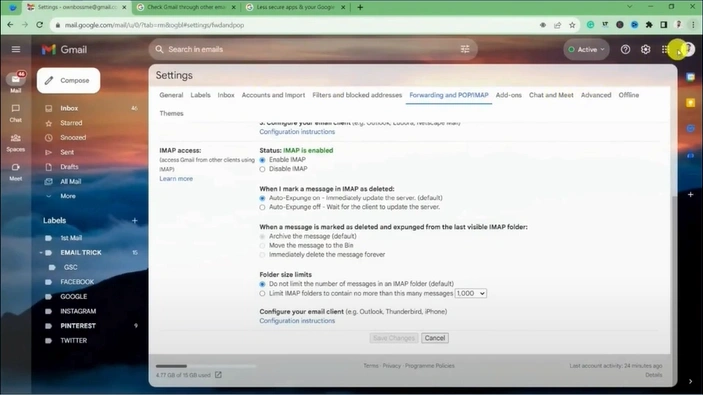
Step 2: Click on “Manage your Google Account.”
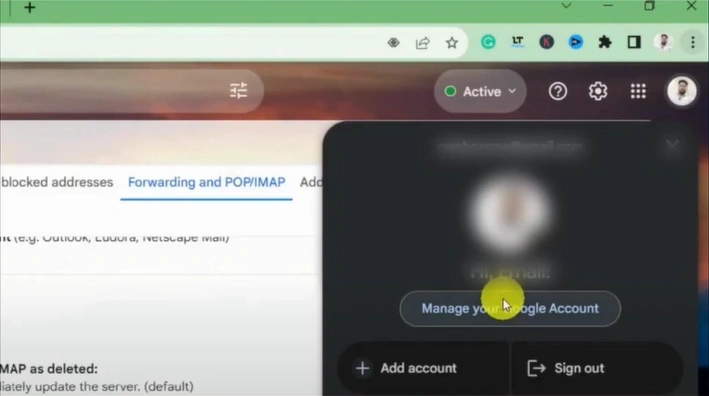
Step 3: Open the Security folder from the left bar.
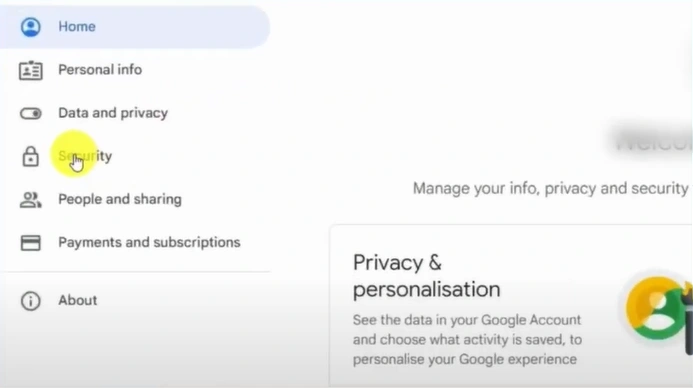
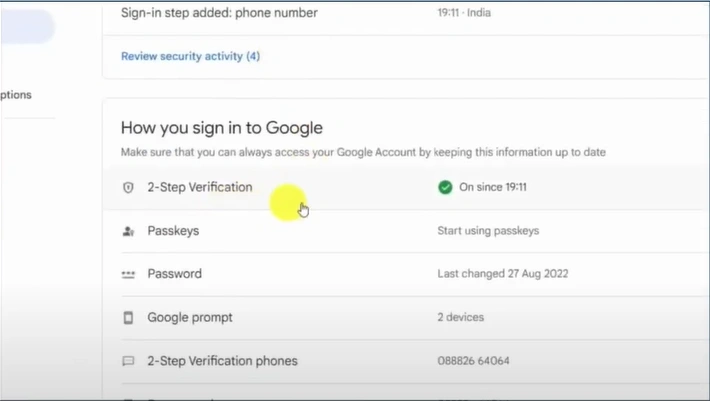
Step 4: Scroll down to the "How you sign in to Google" section and click “2-Step Verification.”
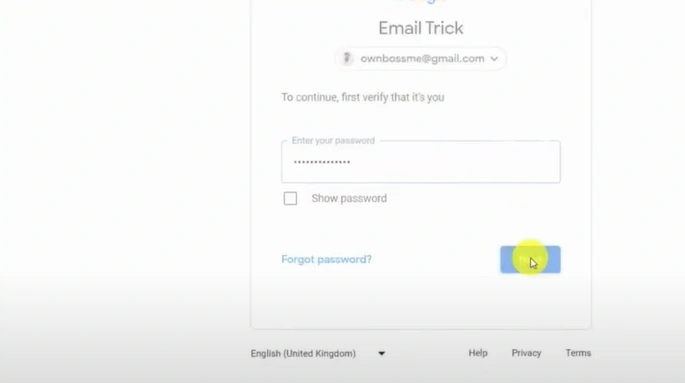
Step 5: Enter your password and click on Next.
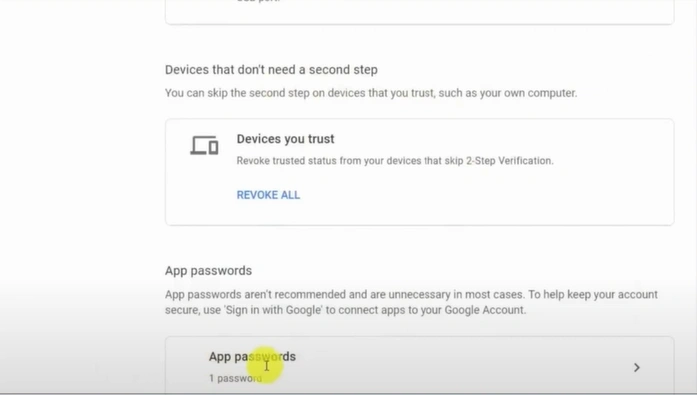
Step 6: Scroll to the bottom and open “App passwords.”
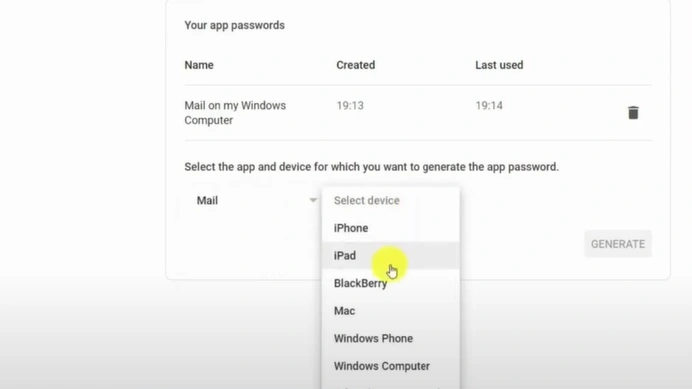
Step 7: Open the “Select app” dropdown and click on Mail.
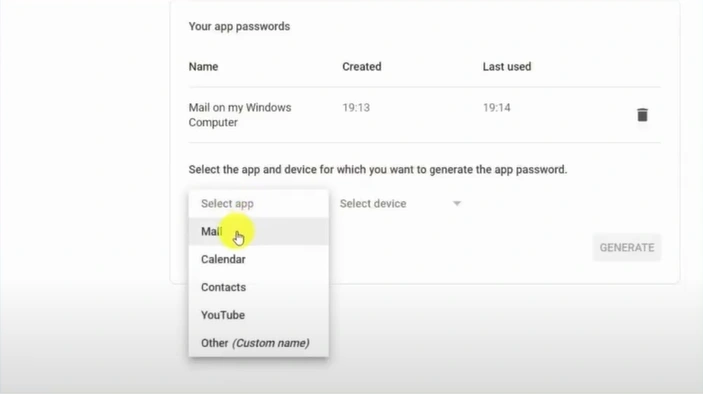
Step 8: Click the “Select device” dropdown and choose the device where Outlook is installed.
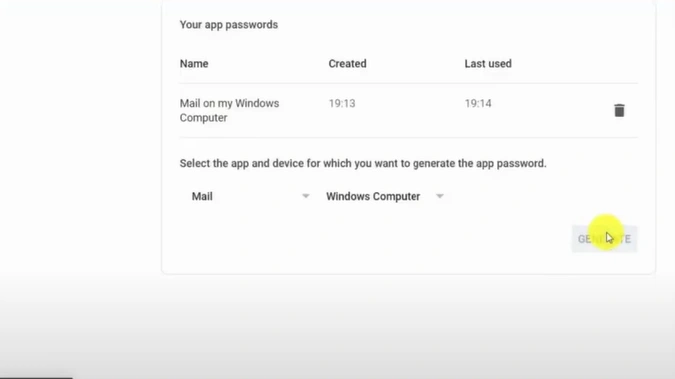
Step 9: Press the Generate button.
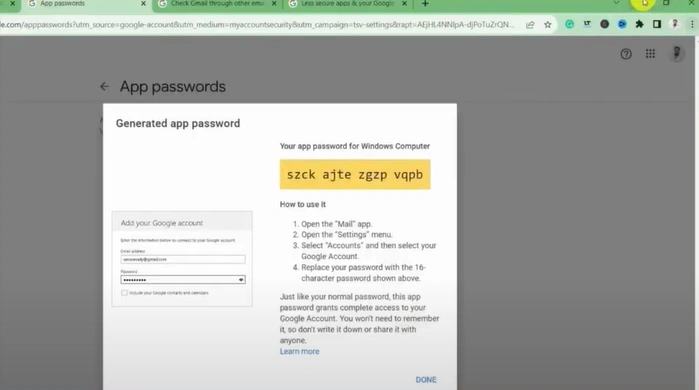
Step 10: Minimize the window.
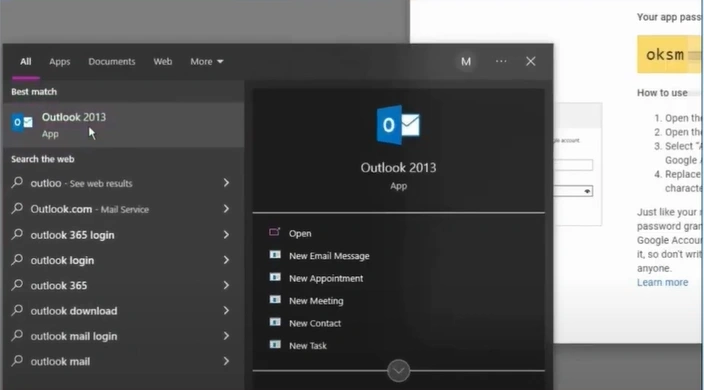
Step 11: Open your Outlook and click on Next.
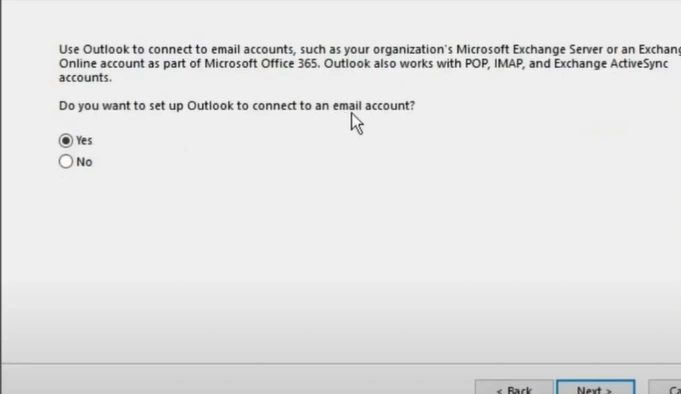
Step 12: Select “Yes” to connect an email account and click on Next.
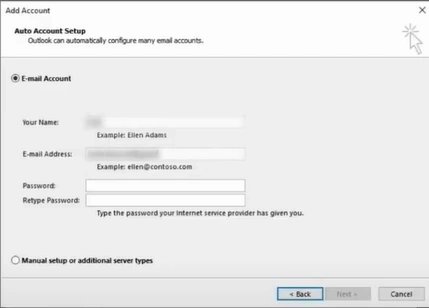
Step 13: Enter “Your Name” and “E-mail Address.”
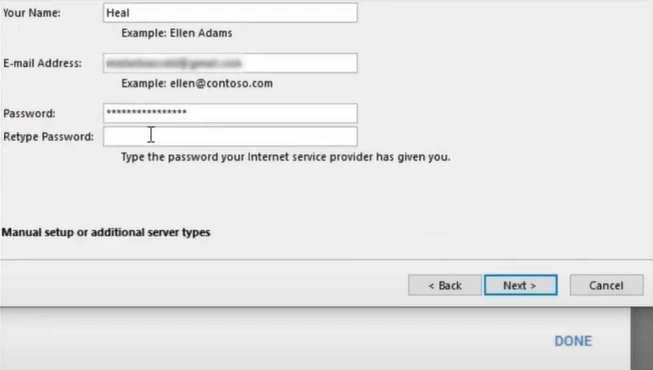
Step 14: In the password field, enter the app password generated from your Gmail account, then click Next.
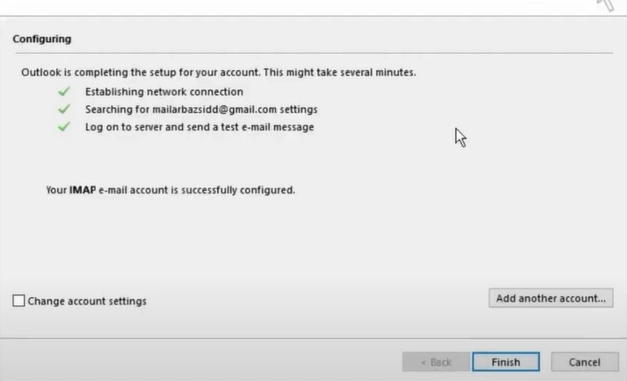
Step 15: Once mail server settings are set up, click on the Finish button.
Also Read:- How to Fix Outlook Running Out of Mailbox Space Issue?
Conclusion
Manage all your emails in one place and enjoy a clean, organized inbox that boosts your productivity. Access key Gmail features such as spam filters and email categories directly within Outlook.
Follow each instruction correctly and tackle potential problems like CAPTCHA lock from Google, an outdated Outlook version, or incorrect IMAP or SMTP settings.



 +1-857-557-6896
 +44-161-791-4592