
How to Fix Outlook Running Out of Mailbox Space Issue?
- 0
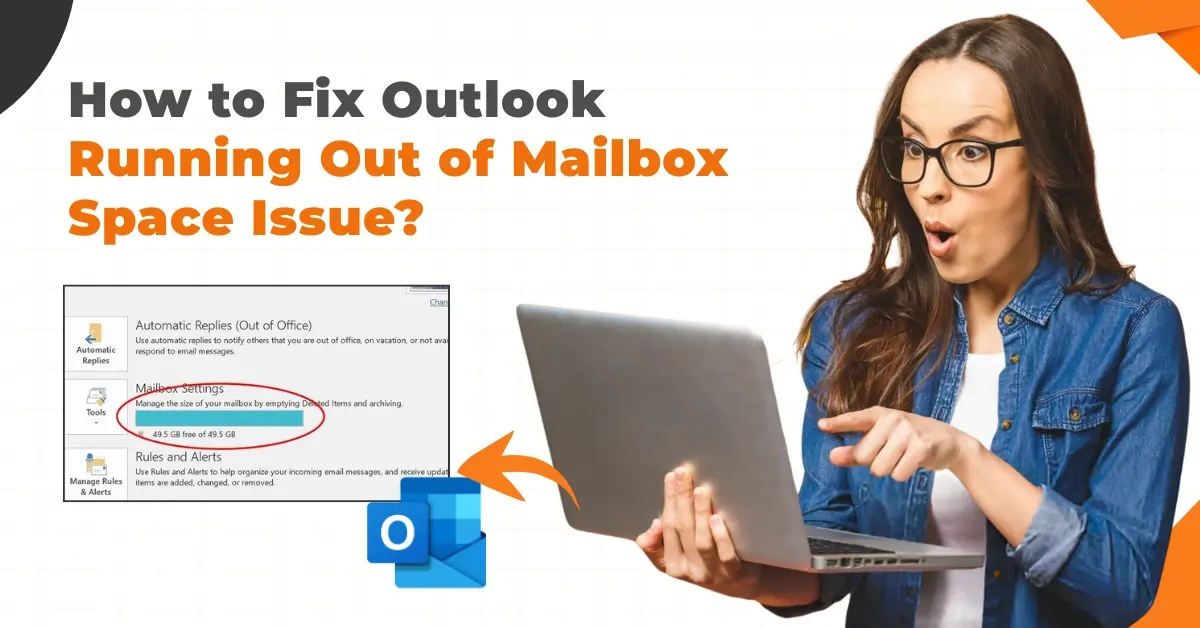
Do you often receive messages or alerts that Outlook is running out of mailbox space? That’s a common issue many Outlook users face. You might remember opening Outlook, expecting updates from a client, only to be greeted with a warning message: “Mailbox Full: You cannot send or receive any more emails.” In most cases, the mailbox gets cluttered with older newsletters or unread notifications
This constant pop-up can disrupt your workflow, and naturally, you want a solution to fix the issue. So, let’s walk you through some easy fixes to resolve the “Outlook running out of mailbox space” problem. But before we jump into the solutions, let’s first understand what’s causing the mailbox to fill up.
Causes for “Outlook Running Out of Mailbox Space” Issue
Wondering what’s causing the issue of Outlook Running Out of Mailbox Space? It can be anything from the following:
-
Too many emails with large attachments: Attachments such as images, PDFs, presentations, and spreadsheets can consume a significant portion of your mailbox quota.
-
Overloaded inbox and folders: If you rarely delete or archive messages, your inbox and folders may become cluttered with old emails.
-
Sent items not regularly cleared: Most Outlook Mail users are unaware that the Sent folder also consumes storage space.
-
Deleted items are not permanently removed: Even if you move your emails to the Deleted Items folder, they do not free up space until they are permanently deleted.
Challenges You May Face While Fixing Outlook Mailbox Space Issue
While you try to troubleshoot the Outlook running out of mailbox space issue, you might encounter these potential problems:
-
Attachment storage issues - Large or outdated attachments may still be stored in your mailbox folders.
-
Corrupted PST files - Damaged files can prevent space from being freed up properly.
-
Incorrect storage display - Sometimes, Outlook displays incorrect storage info due to sync issues.
Top 3 Solutions to Fix Outlook Running Out of Mailbox Space Issue
You can stop your search for fixes to the “Outlook running out of mailbox space” Issue. These are a few solutions that you can try:
Solution 1: Archive Older items
Step 1: Launch Outlook and click File in the top-left corner of the screen.
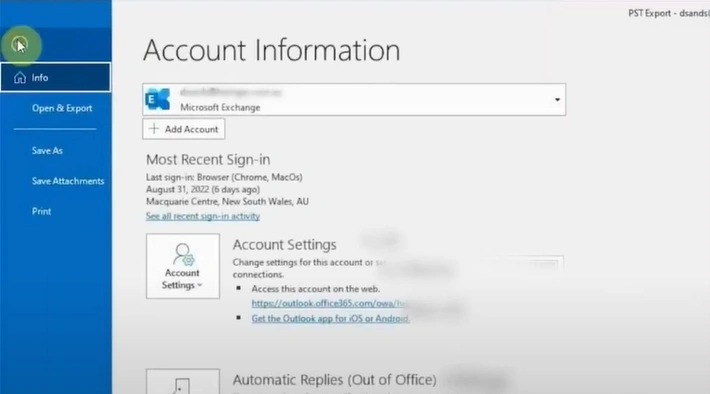
Step 2: Click on "Info" and select "Tools."
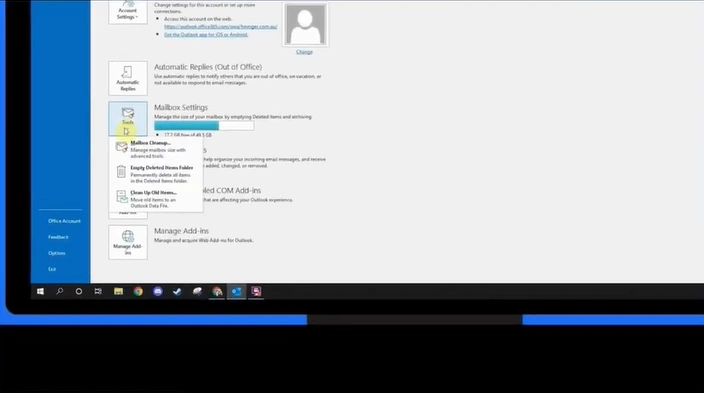
Step 3: Select Clean Up Old Items.
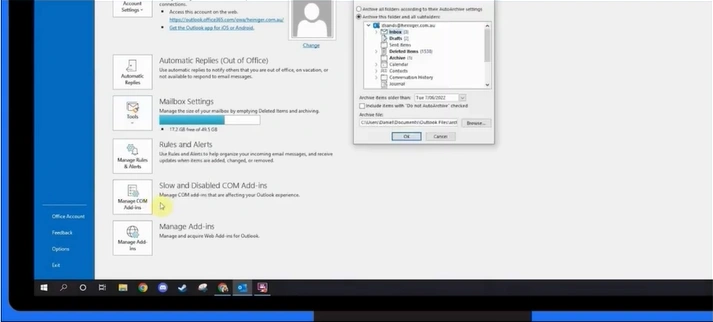
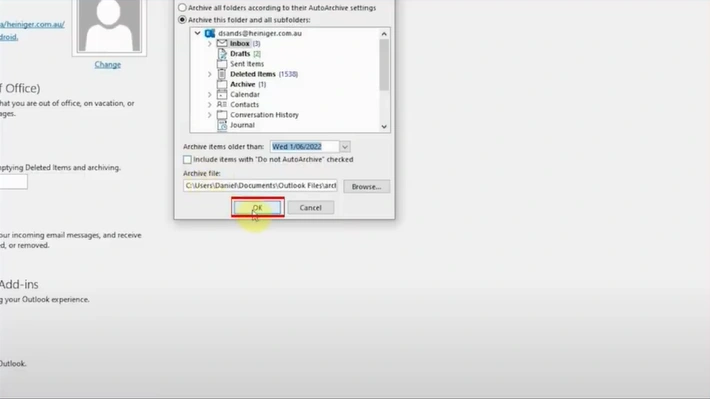
Step 4: Select Archive this folder and all subfolders.
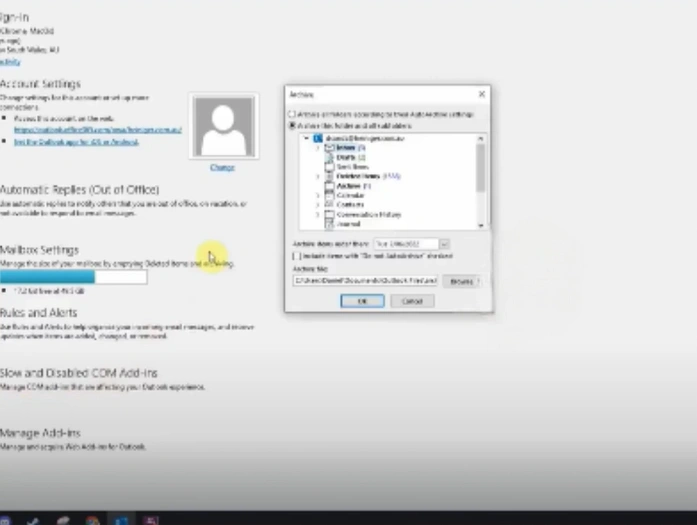
Step 5: Select the folder you want to archive.
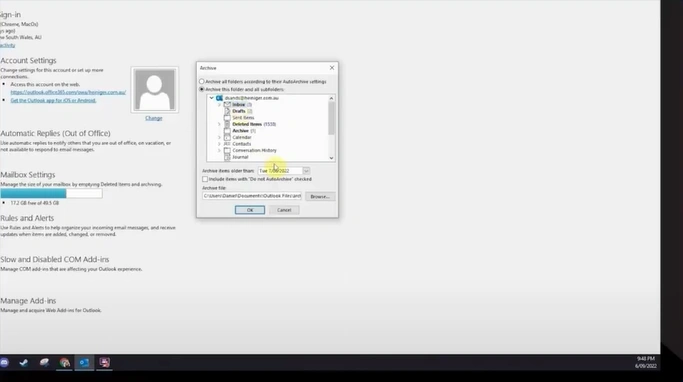
Step 6: Choose a date in the 'Archive items older than' section.
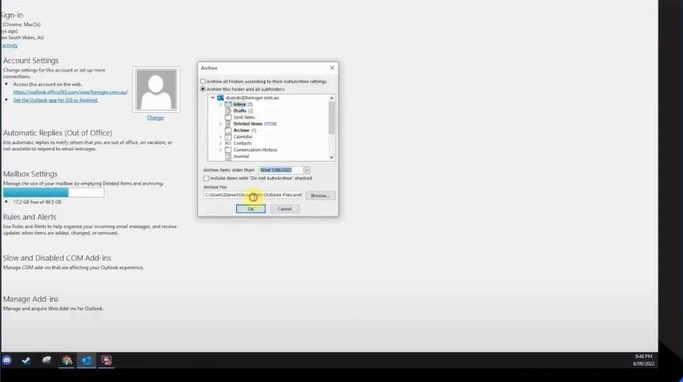
Step 7: To archive the chosen folders, check Include items with 'Do not AutoArchive' selected to ensure all items are archived.
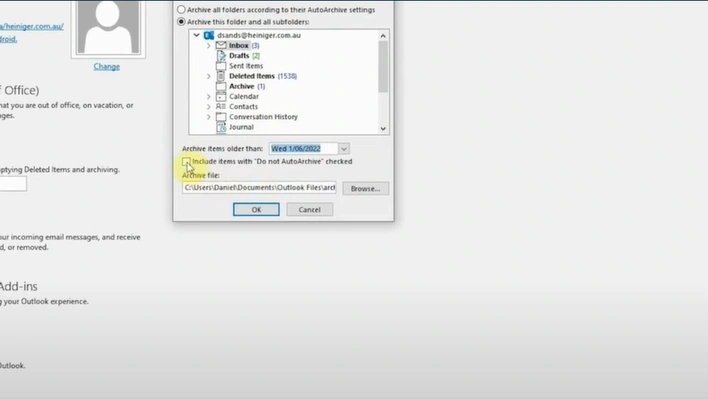
Step 8: Click on OK.
Solution 2: Clean Deleted Items and Junk Folders
Step 1: Open Outlook on your computer.
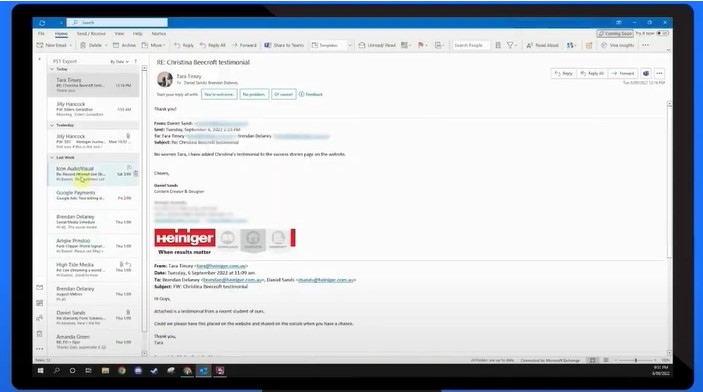
Step 2: Click "File" in the top-left corner of the screen.
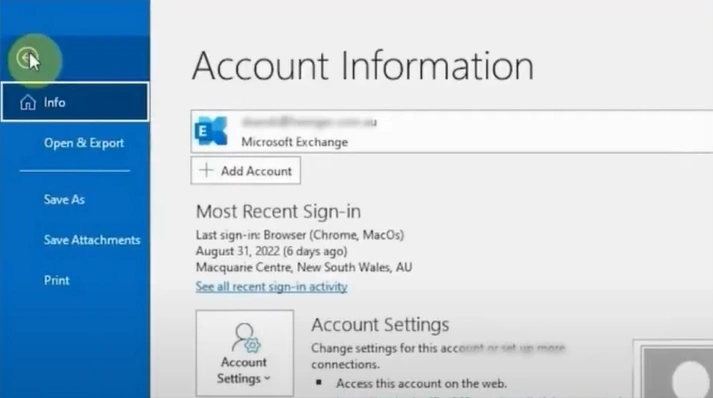
Step 3: Click "Options" at the bottom left of the screen.
Step 4: Click on the Advanced option.
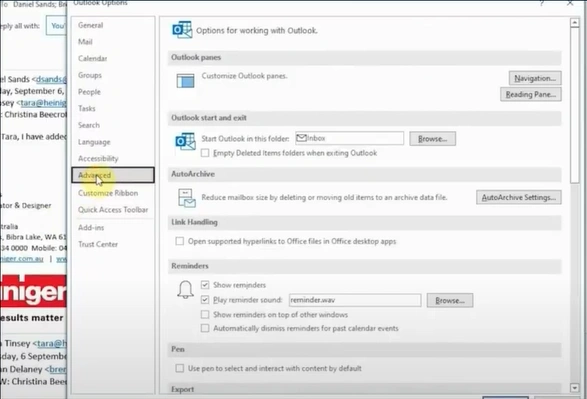
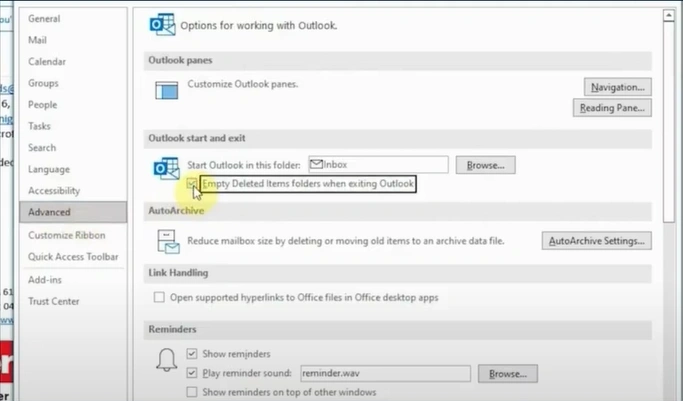
Step 5: In the Outlook start and exit section, check the “Empty Deleted Items folders when exiting Outlook.”
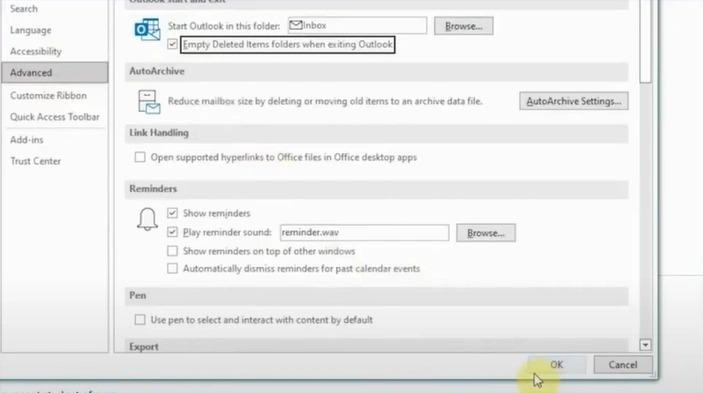
Step 6: Click OK to apply all the changes.
Solution 3: Delete Emails With Attachments After Saving Them Externally
Step 1: Open your Outlook.
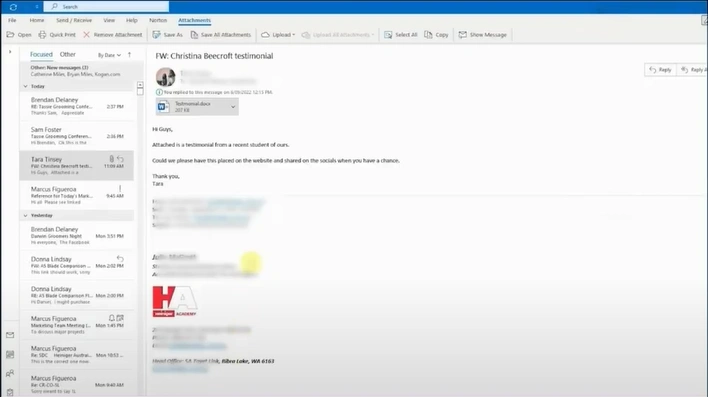
Step 2: Select the e-mail attachment you want to save and store.
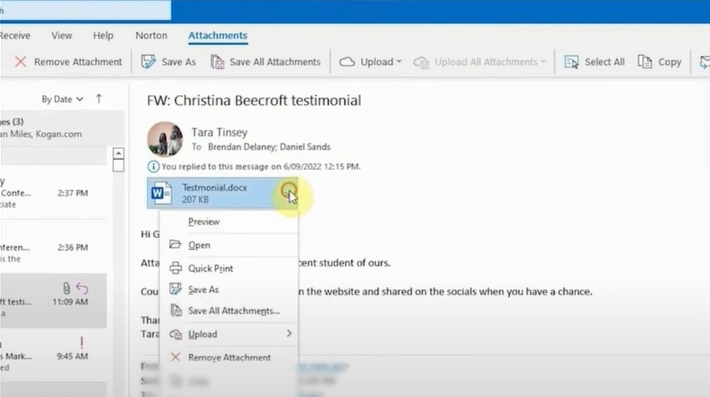
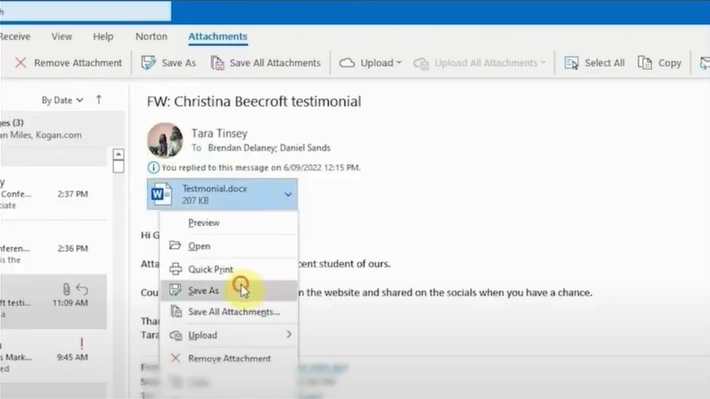
Step 3: Select "Save As" from the list of actions.
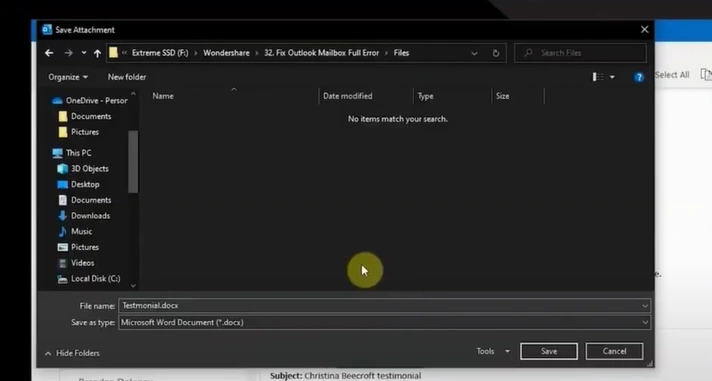
Step 4: Now, browse to the folders where you want to store the attachments, then click Save.
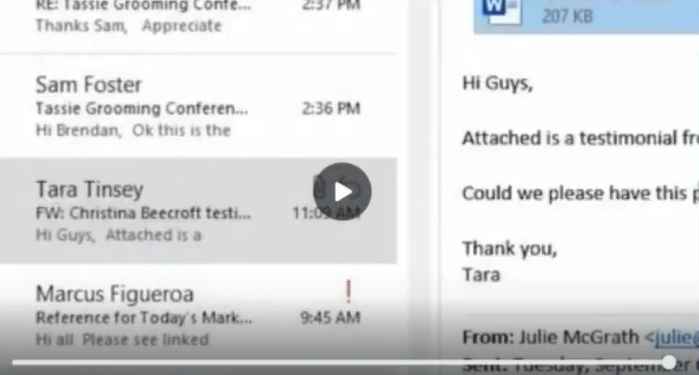
Step 5: Click the email containing the attachment, then select Delete.
How to Prevent Outlook Mailbox Space Issue
Apply some preventive measures to avoid the Outlook running out of mailbox space issue in the future. These are a few steps that you can consider:
-
Regularly delete unnecessary emails and attachments
-
Download and store attachments on your computer or cloud storage.
-
Manage Sent Items
-
Archive old emails
-
Unsubscribe from unnecessary newsletters
Also Read:- How to Fix Outlook Rules Not Working?
Summing Up
Maybe you’ve finally managed to free up space in your Outlook inbox. Now you can easily send as well as receive emails without any interruptions from those storage alert pop-ups.
Follow all the instructions carefully, and you'll soon have your Outlook Mailbox back on track. Identify the main cause of the problem and apply the most suitable solution from those provided above. And don’t forget the preventive measures that can help you avoid this issue in the future.
Just as you clean up your desk regularly, it is also important to keep your digital workspace tidy.

![Can't Send Emails on BTinternet [Fixed]](https://helpemailtales.com/upload/blog/686f80d8d370a_can-t-send-emails-on-btinternet-fixed-.webp)



 +1-857-557-6896
 +44-161-791-4592