
How to Setup Yahoo Mail in Outlook?
- 0
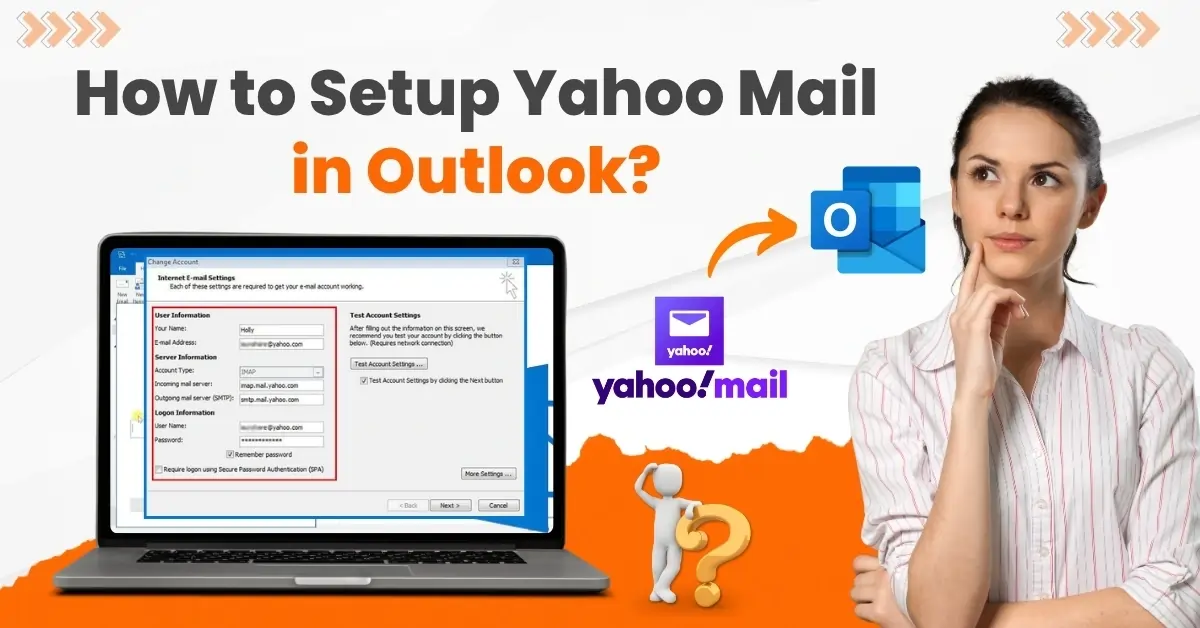
Have you been switching between multiple tabs for a long time? Jumping from one account to another can be time-consuming, frustrating, and confusing. You might wish for a way to manage all your emails in one place. Good news - it’s possible.
If you use Yahoo Mail and want to add your account to Outlook, there’s a simple process to complete the integration. Just follow a few steps, and you’re done. Let’s dive into how to setup Yahoo Mail in Outlook. But before that, take a look at the potential issues that may arise and hinder the process.
Common Issues When Setting Up Yahoo Mail in Outlook
Certain issues may arise when you try to set up Yahoo Mail in Outlook. Here are a few common ones:
-
Account settings
-
Spam filters
-
App configuration
-
Server issues
-
Outdated software
Things to Know Before Setting Up Yahoo Mail in Outlook
Here are some of the things that you need to know before you start setting up Yahoo Mail in Outlook:
-
Enable IMAP or POP access so that Outlook can sync your messages. IMAP keeps your mail synced across all devices.
-
Keep your Outlook Mail up to date to ensure compatibility and security when integrating your Yahoo Mail account.
-
Before starting the setup process, make sure you have your Yahoo Mail credentials (email address and password) ready.
Steps to Setup Yahoo Mail in Outlook
Take a glance at the following steps that can help you set up Yahoo Mail in Outlook with ease:
Step 1: Open your Outlook.

Step 2: Click on File.
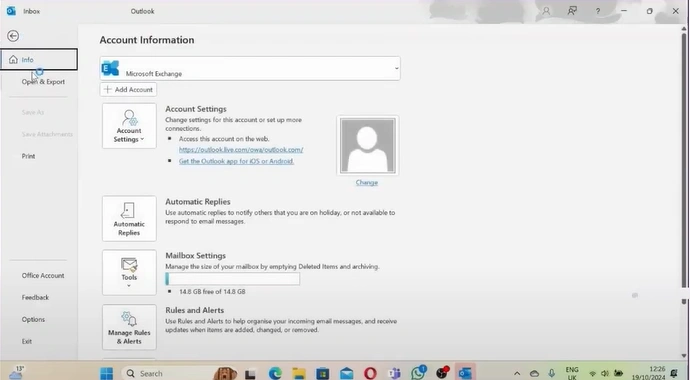
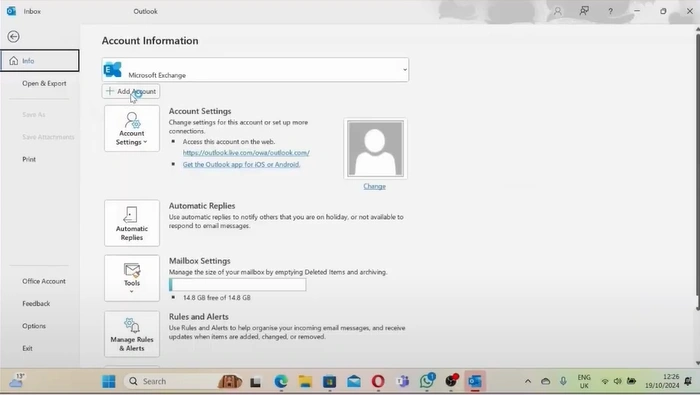
Step 3: Click "Add Account."
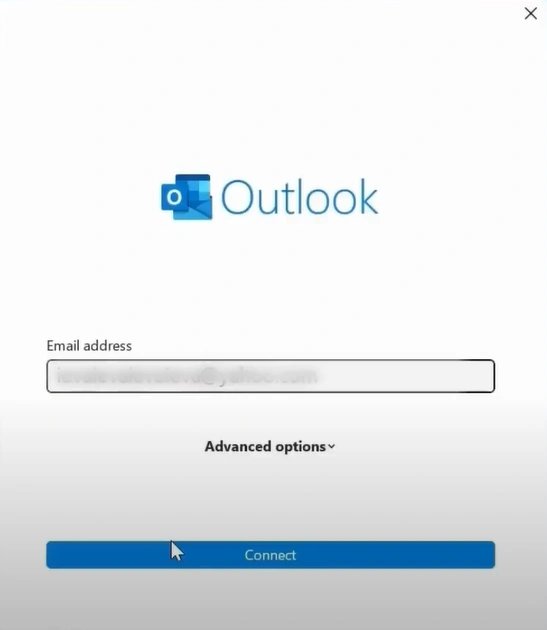
Step 4: Enter your Yahoo email address and click “Connect.”
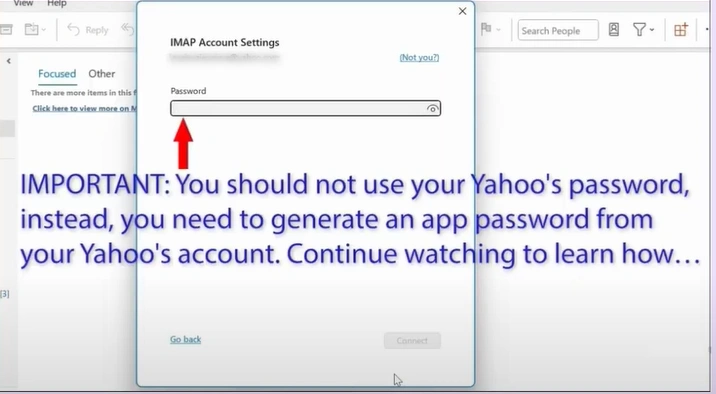
Step 5: You’ll need to generate an app password to use with IMAP settings.
Step 6: Open your browser and go to your Yahoo Mail account.
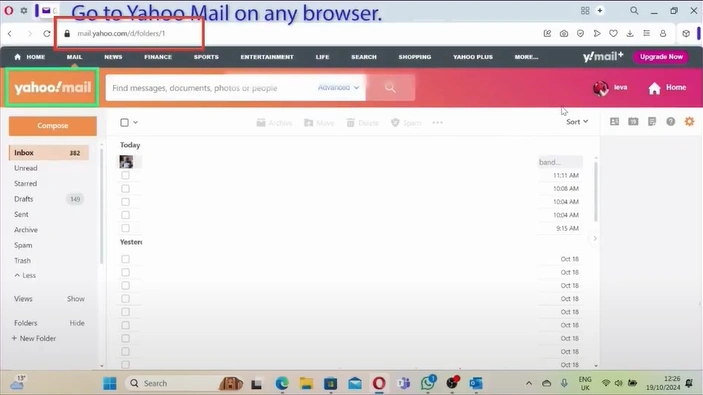
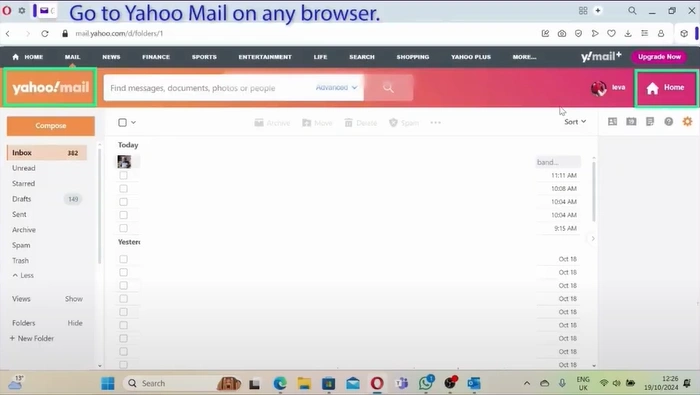
Step 7: Click on Home in the top-right corner.
Step 8: Hold the cursor over the account icon.
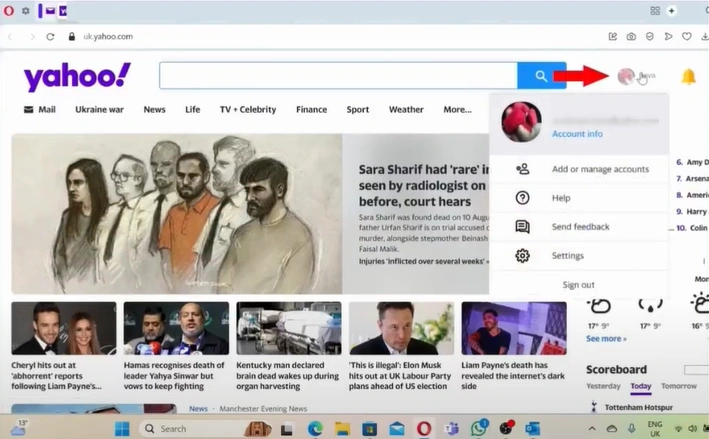
Step 9: Select Settings from the list of actions.

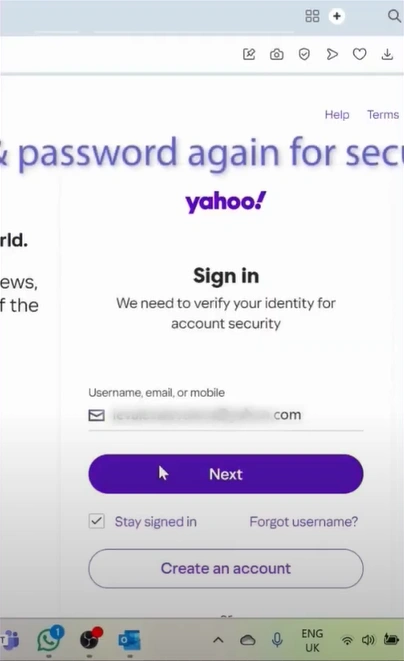
Step 10: Enter your email address and click Next.
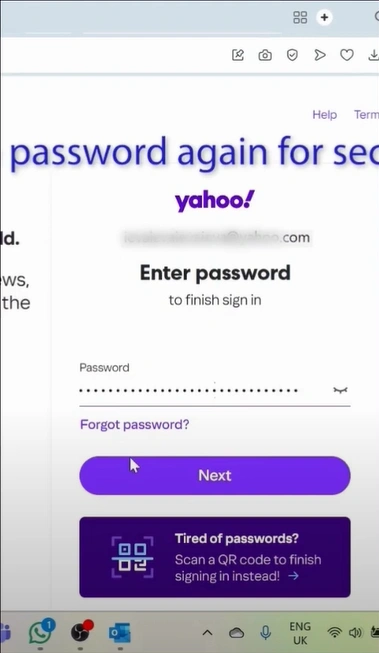
Step 11: Enter the email password and click on Next again.
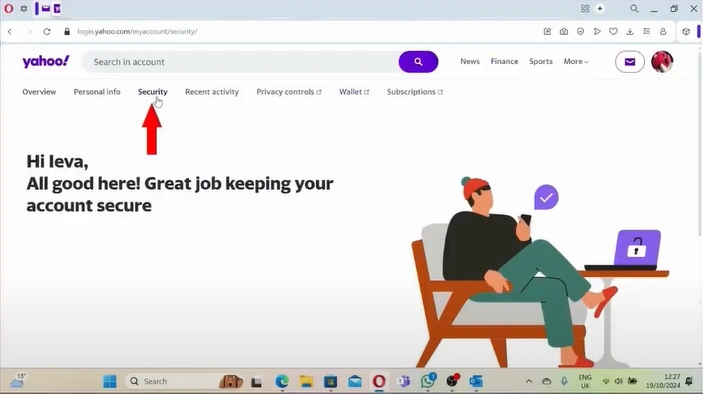
Step 12: Open the Security tab.
Step 13: Scroll down to the “Other ways to sign in” section.
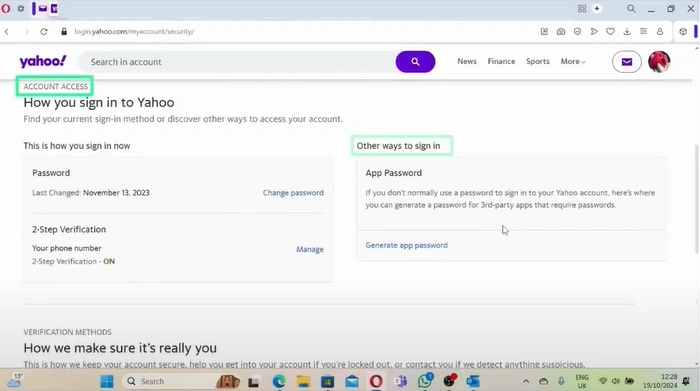
Step 14: Click “Generate app password” under “App Password.”
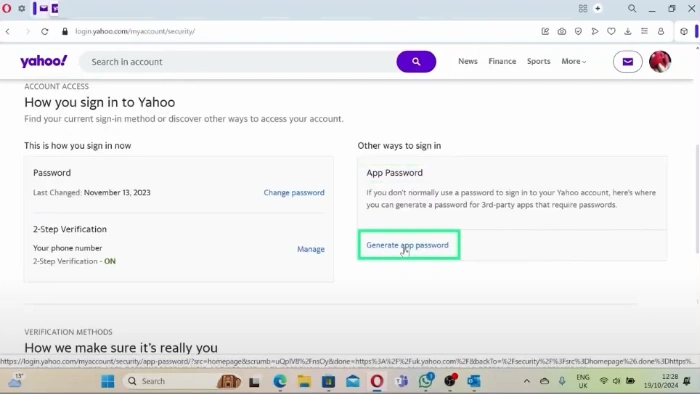
Step 15: Click on the Get Started button.
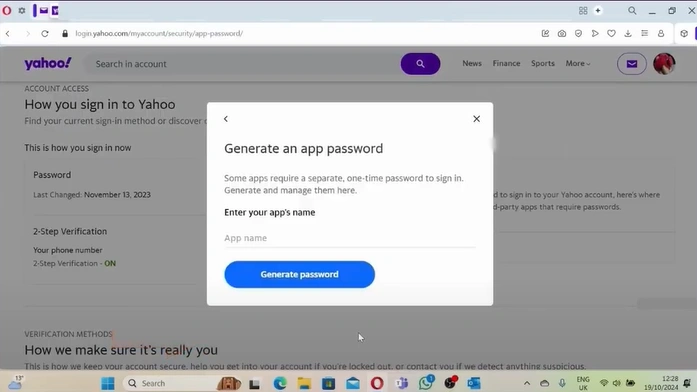
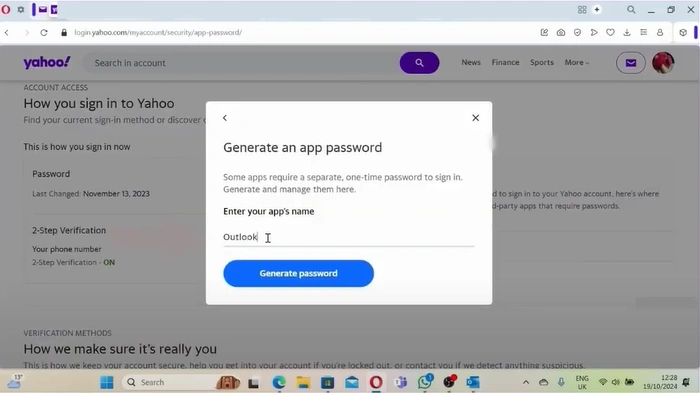
Step 16: Enter “Outlook” in the app’s name field and click on the Generate password button.
Step 17: Copy the one-time password and go back to your Outlook.
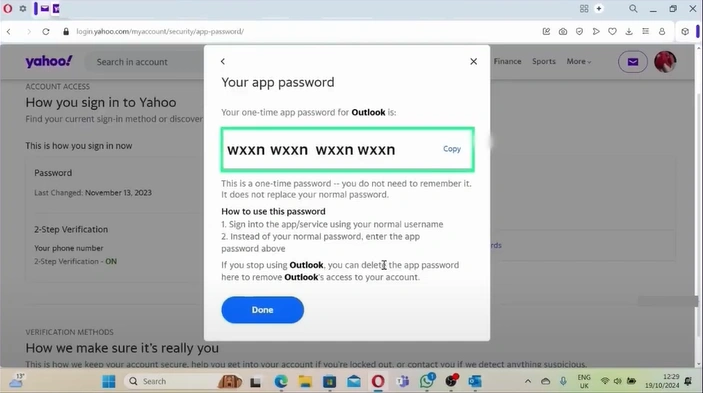
Step 18: In the IMAP Account Settings, paste the copied code in the password field.
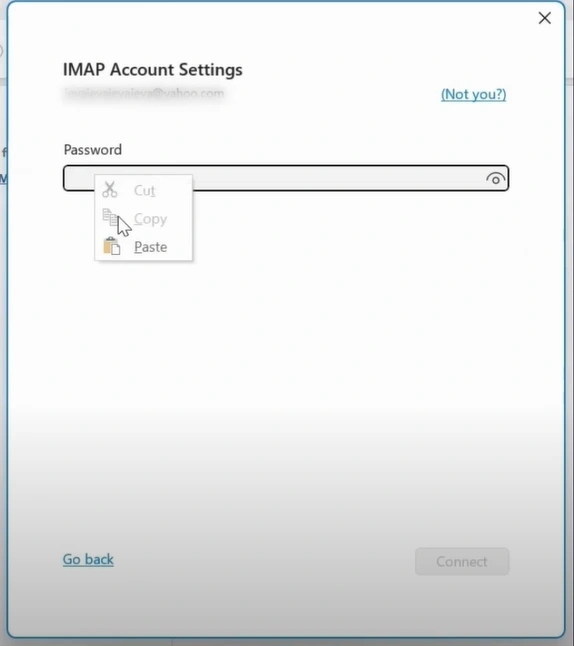
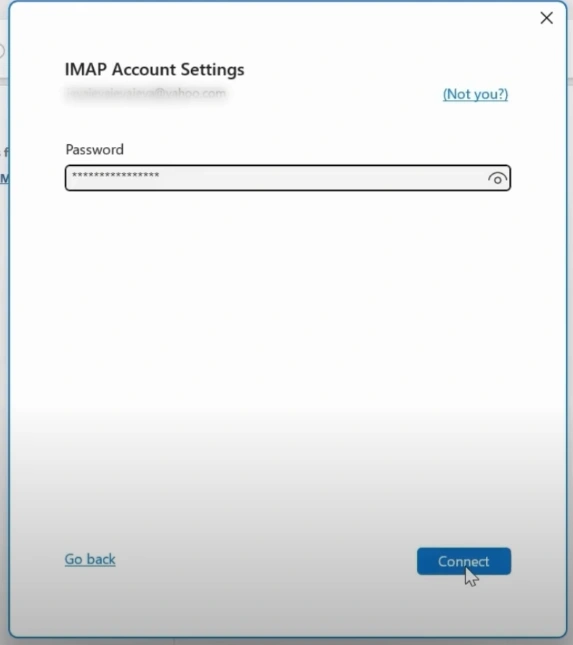
Step 19: Click on Connect.
Step 20: Uncheck the “Set up Outlook Mobile on my phone, too” option if you don’t need it.
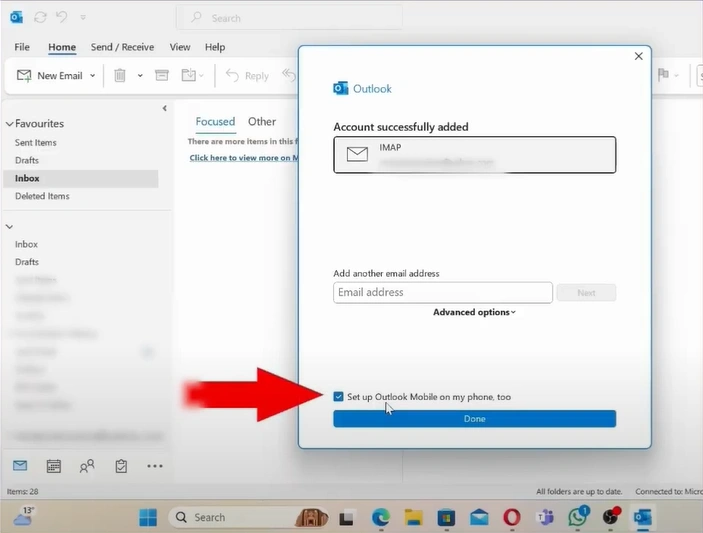
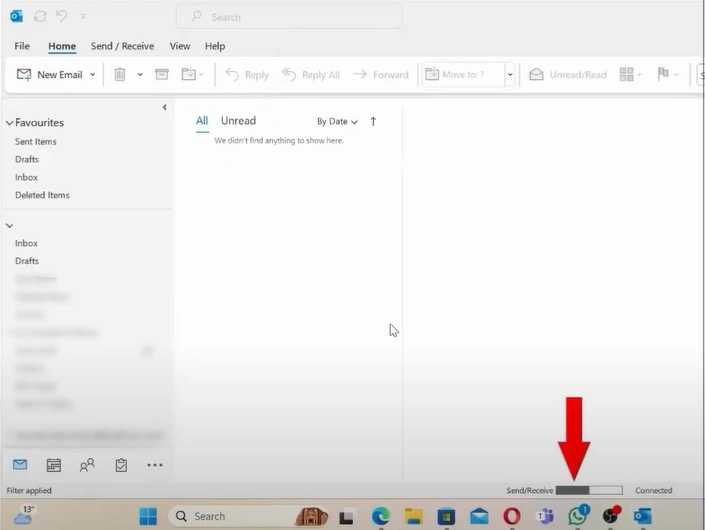
Step 21: Click on Done to set up Yahoo Mail in Outlook.
Also Read:- How to Add Yahoo Mail to Gmail?
What to Do If the Setup Fails
Things may sometimes not go as planned. If you face the situation of a failed setup process, here is what you need to do:
-
Temporarily disable the firewall or antivirus software, as it may restrict Outlook's ability to connect to Yahoo servers. Remember to enable it once you are done with the setup.
-
Remove the partly configured Yahoo account from Outlook Mail. After that, restart the program and repeat the setup process from scratch, using the correct settings.
-
You must have a stable internet connection. Access Yahoo Mail via browser to confirm it’s working outside Outlook.
In Conclusion
Here we wrap up with the complete process of Yahoo Mail setup in Outlook. It only takes a few minutes to bring all your emails into one inbox. Follow each step carefully to avoid missing anything important.
Being prepared before setup is wise - keep the Outlook Mail app updated, enable IMAP or POP access, and make sure you have the correct login credentials ready. All of this will help make the setup smoother and more hassle-free.



 +1-857-557-6896
 +44-161-791-4592