
How to Forward Email From Comcast (Xfinity) to Gmail?
- 0
Your Comcast (Xfinity) inbox is nearly full, and switching between it and your Gmail account feels exhausting. Since you use Gmail for most of your tasks, you have probably wondered - how much easier would it be if all your emails came to one place?
Imagine opening your Gmail account and finding all your Comcast emails right there, without switching from tab to tab. This makes managing your inbox much more convenient.
Forwarding your Comcast emails to Gmail helps you manage everything in one place, save time, and keep your inbox clutter-free. We have outlined the entire process for you. But before that, let's check out the issues that may arise during the email forwarding process.
Common Issues When Forwarding Comcast Email to Gmail
When attempting to forward email from Comcast to Gmail, you might face the following problems:
-
Password reset challenges
-
Server downtime
-
Syncing issues
Common Mistakes to Avoid When Forwarding Email
If you want to have a hassle-free email transfer of Comcast mails to Gmail, here are a few mistakes that you must avoid:
Entering the Wrong Gmail Address
Even a small typo in the Gmail address can cause emails to go to the wrong inbox, or not transfer at all. So, double-check the email address before you apply the forwarding configuration.
Ignoring Gmail Storage Limit
Sometimes, users may forward a chunk of emails without monitoring Gmail storage. This can lead to storage issues and prevent new emails from arriving. So, they must regularly clean the Gmail inbox or get more storage to avoid email delivery issues.
Forgetting to Save Changes
Users often change the settings but forget to click 'Save' to apply them. Once you have entered the forwarding address, save the changes to activate forwarding.
Missing the “Keep a Copy” Setting
Another common mistake is not selecting “Keep a copy of forwarded messages.” If not selected, some of the critical emails from your Comcast inbox may be lost. Always check this if you want to access both your Gmail and Comcast messages.
Steps to Forward Email From Comcast (Xfinity) to Gmail
No more juggling between two inboxes. Follow the steps below to forward your Comcast emails to your Gmail account.
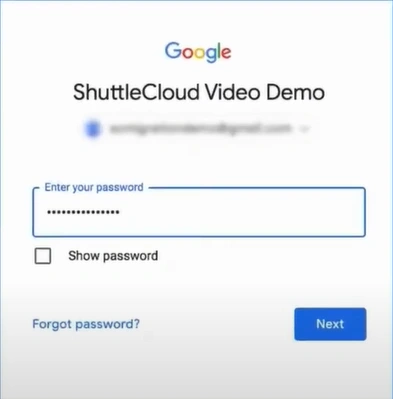
Step 1: Open your Gmail account.
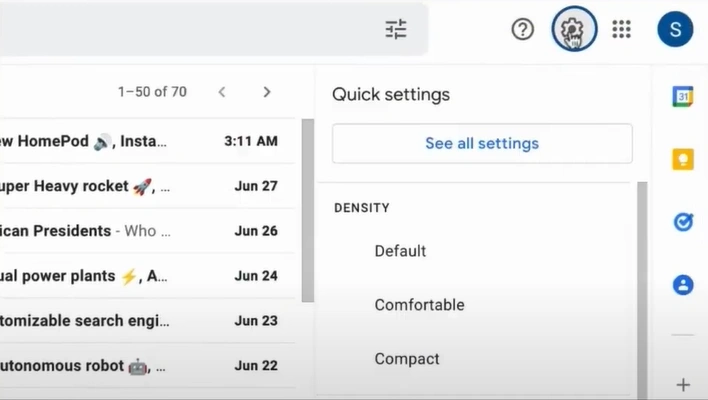
Step 2: Click on the Settings icon in the top-right corner and open the See All Settings option.
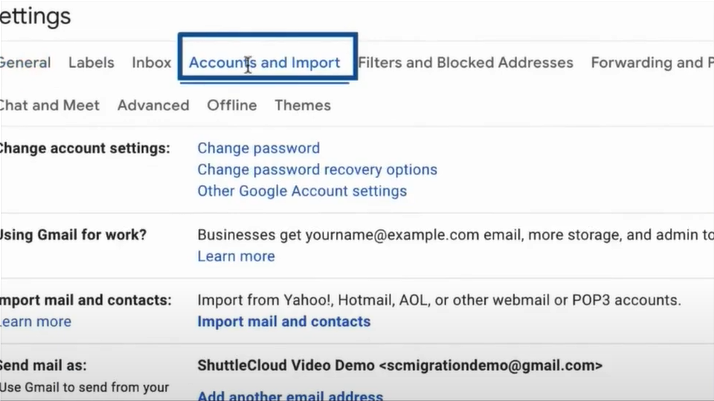
Step 3: Open the Accounts and Import tab and click Import mail and contacts.
Step 4: Enter your Xfinity email address in the pop-up window, then click 'Continue' twice.
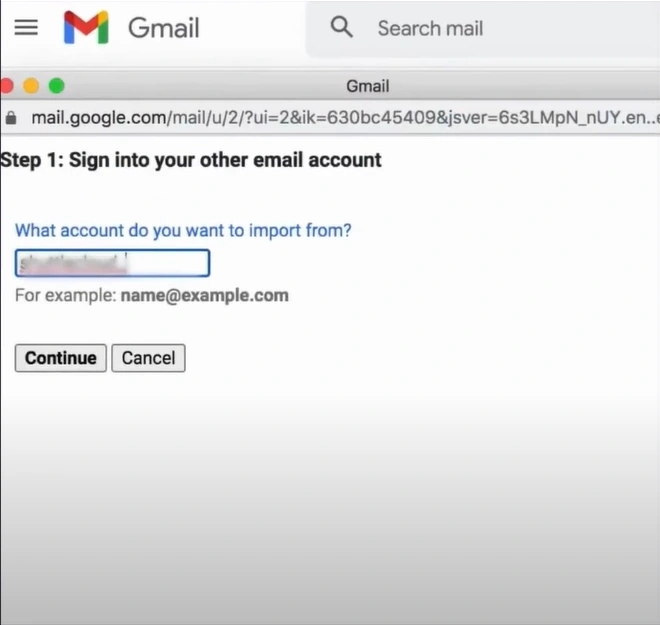
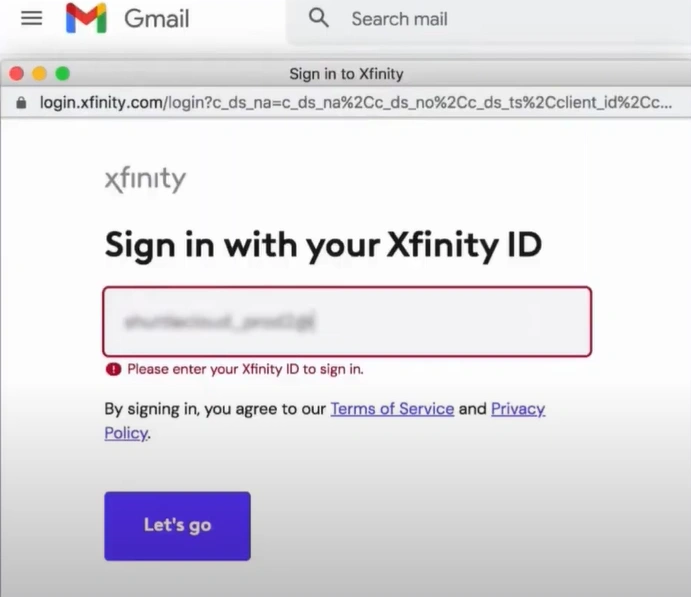
Step 5: Enter your Xfinity ID again and click the Let’s go button.
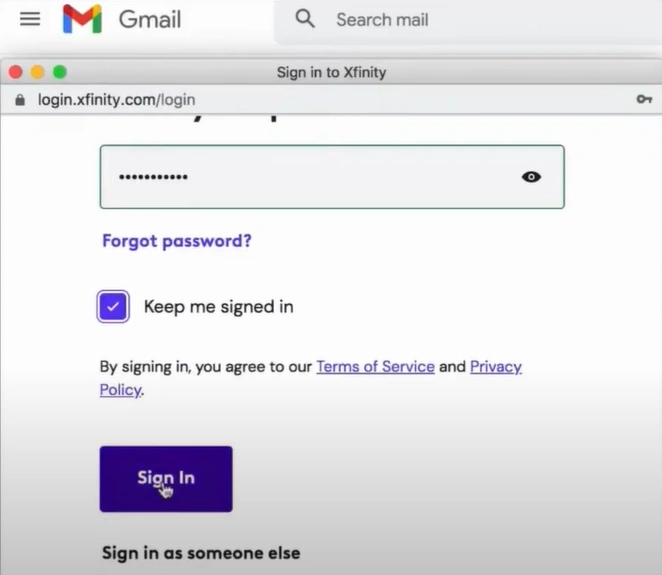
Step 6: Enter your password, then click on Sign in.
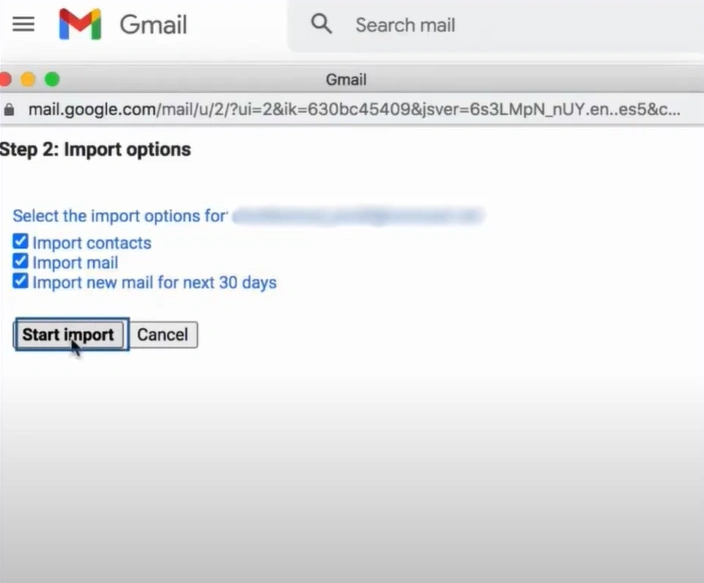
Step 7: Choose the import options for mail, contacts, and new messages.
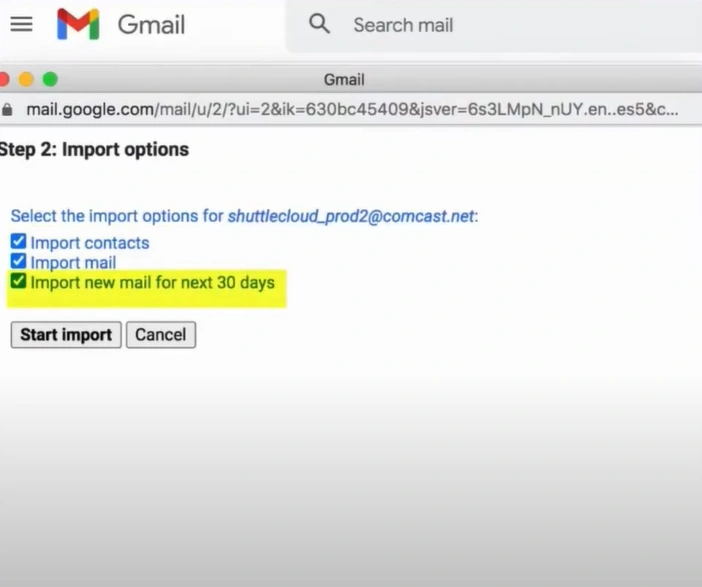
Step 8: Click on Start Import.
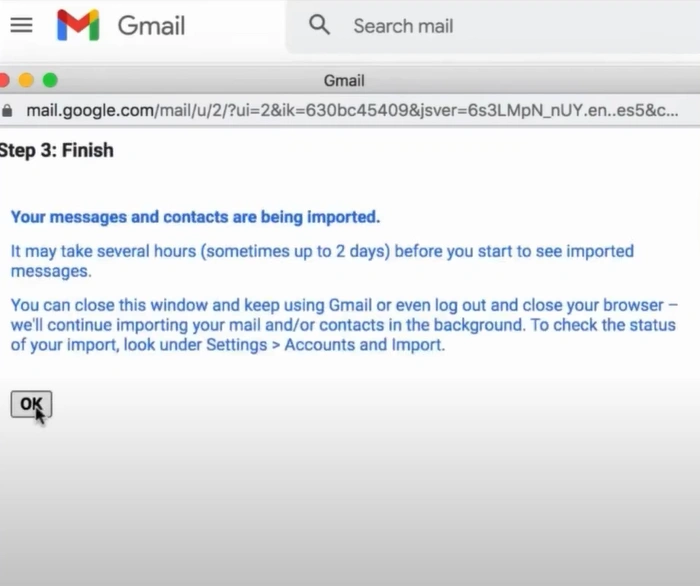
Step 9: After the Import process is finished, click on OK.
In a Nutshell
See how easy it is to forward email from Comcast to Gmail? Just follow these instructions carefully to enjoy a more streamlined inbox. This way, you won’t miss important messages or waste time juggling between two accounts.
Address the potential issues and avoid the common mistakes we discussed earlier. Follow these simple steps to forward your Comcast emails to Gmail without any interruptions.



 +1-857-557-6896
 +44-161-791-4592