
How to Add Shared Mailbox in Outlook?
- 0
A new project may have just landed on your plate, and now your inbox is overflowing with emails - client requests, important reports, and whatnot. With so many messages, it’s becoming difficult to find that one email your colleague mentioned. Most of your time is spent scrolling, and to make matters worse, half the team doesn’t even get copied on every email, so someone always ends up missing key updates.
Adding a shared mailbox in Outlook Mail is one way to simplify communication. With it, you can have a centralized inbox where all project-related emails are stored. No more forwarding threads back and forth, and no more clutter slowing you down. Every team member can now read, respond, and stay updated in real time.
Now, you may be wondering how to actually set up this shared mailbox. Don’t worry - we have mentioned the steps to add a shared mailbox in Outlook. But before we start, let’s look at some important things to keep in mind.
Key Things to Know Before You Start
As you are about to start adding a shared mailbox in Outlook, keep the following requirements in place:
Admin Permission Required
A shared mailbox cannot be created or accessed on your own. It should be set up by your Microsoft 365 administrator, who will also need to grant you permission to use it. Without these permissions, it is impossible to view the shared mailbox in Outlook, even if you add it manually.
Stable Internet and Updated Outlook
A stable internet is necessary for Outlook to load and synchronize messages from the shared mailbox. Also, you must ensure your Outlook application is updated, as outdated versions might not be compatible with the shared mailbox features.
Microsoft 365/Outlook License
A valid Microsoft 365 (Office 365) account is a major requirement for accessing a shared mailbox. The shared mailbox won’t need a separate license unless you want to give them a password and log in directly. But each user accessing it should already have a licensed Outlook account.
Problems You May Face When Adding a Shared Mailbox in Outlook
When adding a shared mailbox in Outlook, you may encounter several problems. Some of the most common ones are as follows:
-
Profile corruption
-
Visibility issues
-
Configuration errors
-
Auto-mapping issues
-
Cached credentials
Steps to Add a Shared Mailbox in Outlook
When multiple team members need access to the same set of emails, a shared mailbox makes that possible. These are the proper steps to follow when trying to add a shared mailbox in Outlook:
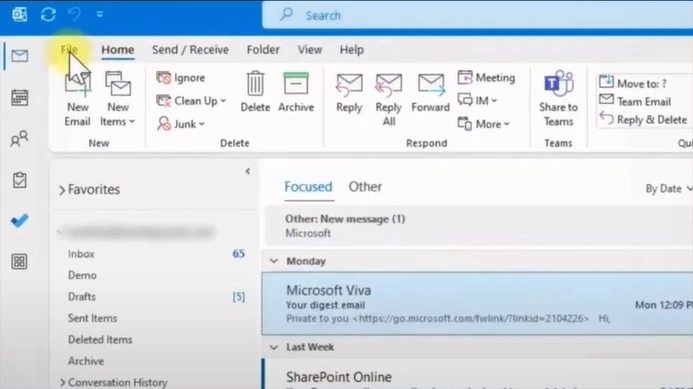
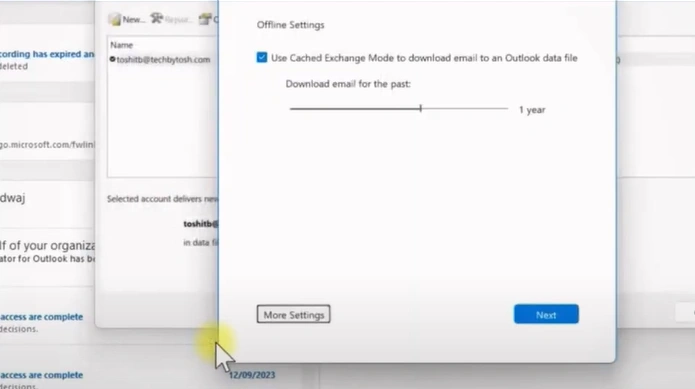
Step 1: Open your Outlook and click on File.
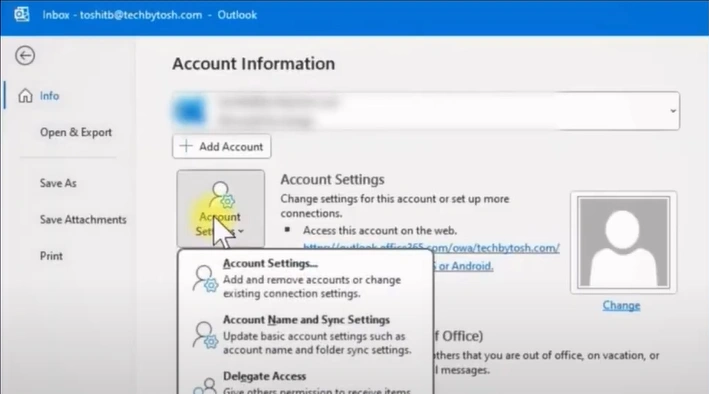
Step 2: Open Account Settings and click on Account Settings.
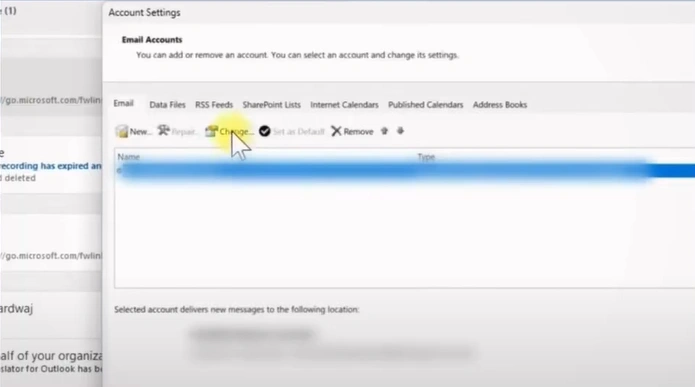
Step 3: Select your email address and click on Change.
Step 4: Click on More Settings.
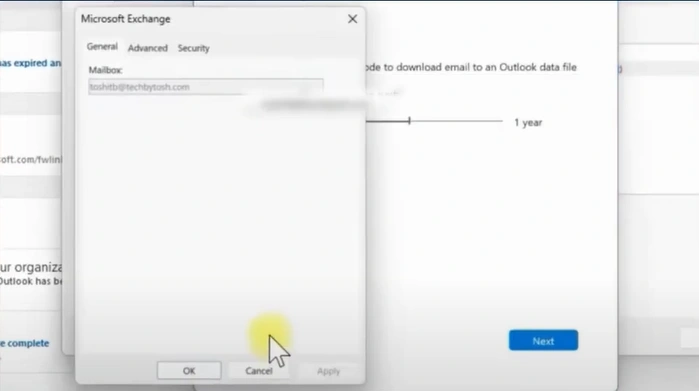
Step 5: Click on Advanced.
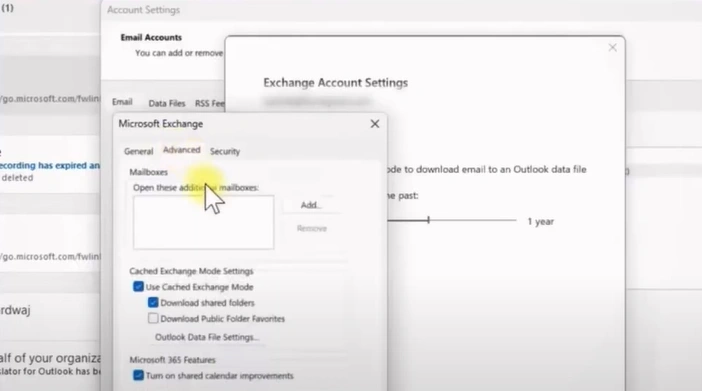
Step 6: Click on the Add button.
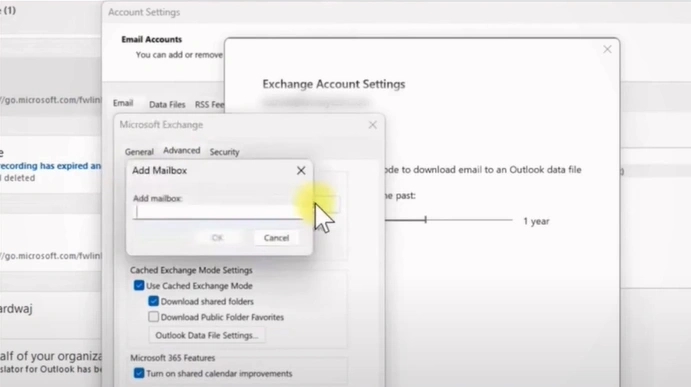
Step 7: Enter the email address and click on OK.
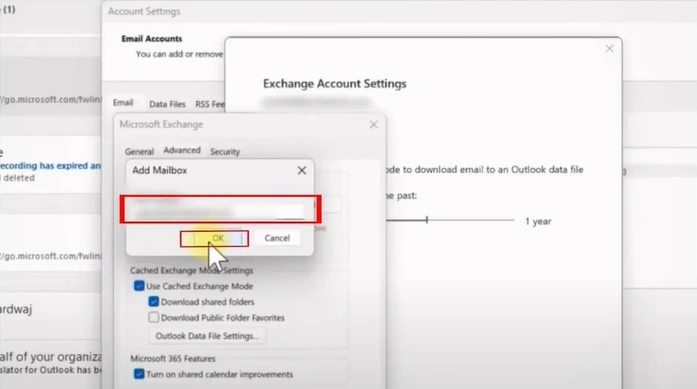
Step 8: Click on OK again.
Also Read:- How to Fix Outlook Running Out of Mailbox Space Issue?
Wrap Up
No more endless scrolling to find a specific email in your personal mailbox. The shared mailbox in Outlook is now ready to make things easier. This gives you a smarter, more organized way to manage your daily communications. Follow the above instructions to get started with it soon. If you face problems such as profile corruption or visibility errors, address them promptly so your shared mailbox works smoothly.



 +1-857-557-6896
 +44-161-791-4592