
How to Add BT Email to Outlook 365?
- 0
Do you often wish all your emails were in one place? Well, that wish can now be a reality. You may mainly use Outlook 365 for your daily communication, but logging into multiple platforms to check BT emails is becoming a hassle. The good news is that you can add your BT email to Outlook. This will keep everything in one inbox, making your day simpler and more organized.
Adding BT email to Outlook 365 only takes a few steps, and if you follow each instruction carefully, the setup should go smoothly. By the end, your BT email will be fully connected to Outlook 365. But before jumping into the process, let’s go over some common problems you might face while adding BT email to Outlook.
Common Issues When Adding BT Email to Outlook 365
While trying to add BTinternet email to Outlook 365, you may encounter the following problems:
-
Authentication issues
-
Compatibility problems
-
Incorrect server settings
-
Incorrect IMAP settings
-
Broadband customer requirements
The Process to Add BT Email to Outlook 365
Here are all the essential steps you need to know to add BT email to Outlook 365 with ease.
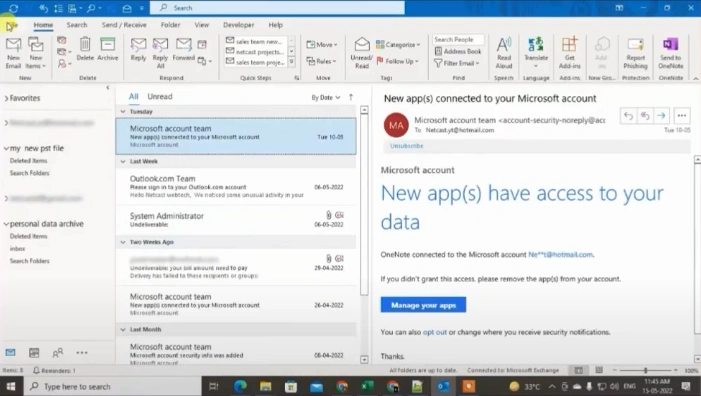
Step 1: Open Outlook, go to the File tab, click on the Account Settings drop-down menu, and select Account Settings.
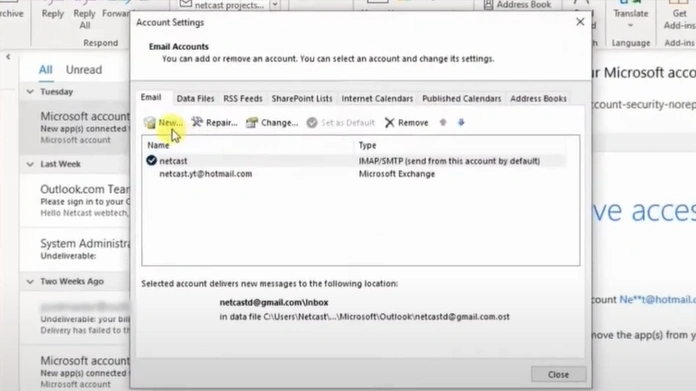
Step 2: In the Account Settings window, click on New.
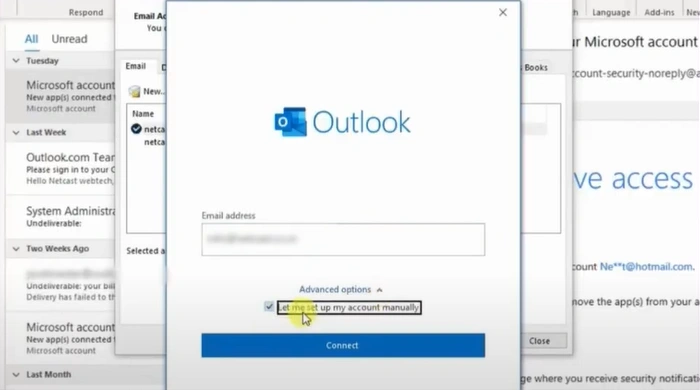
Step 3: Enter your BT email address.
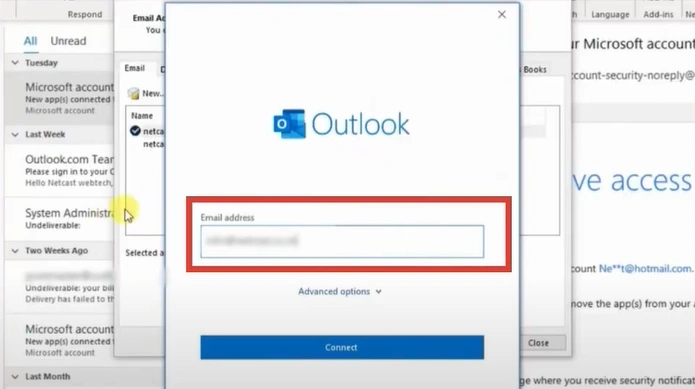
Step 4: Click on Advanced Options, then check the Let me set up my account manually option and click on the Connect button.
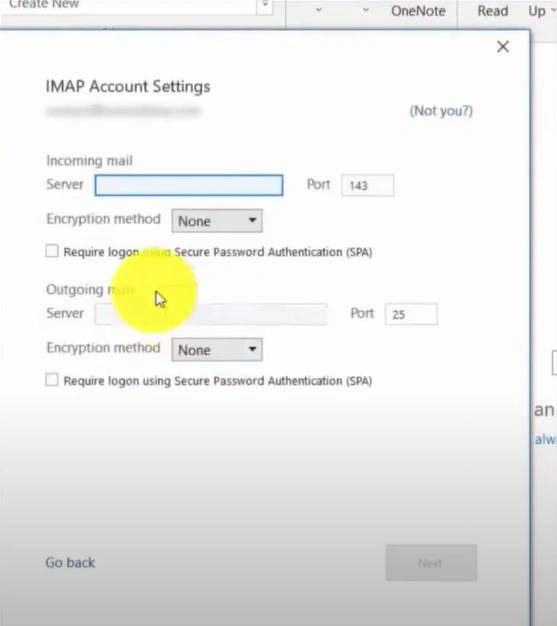
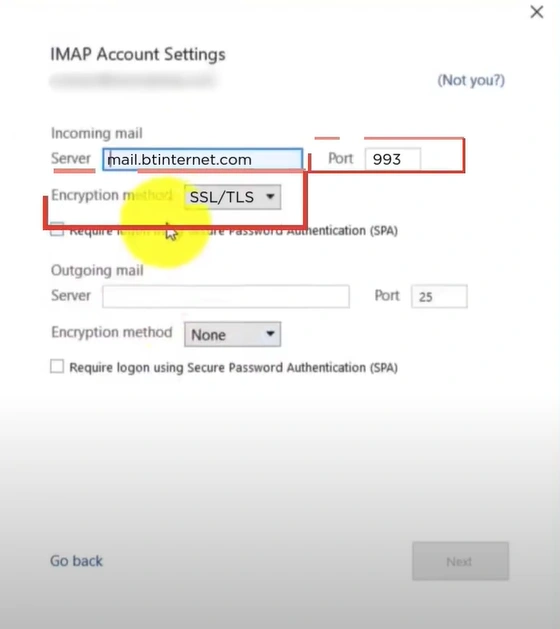
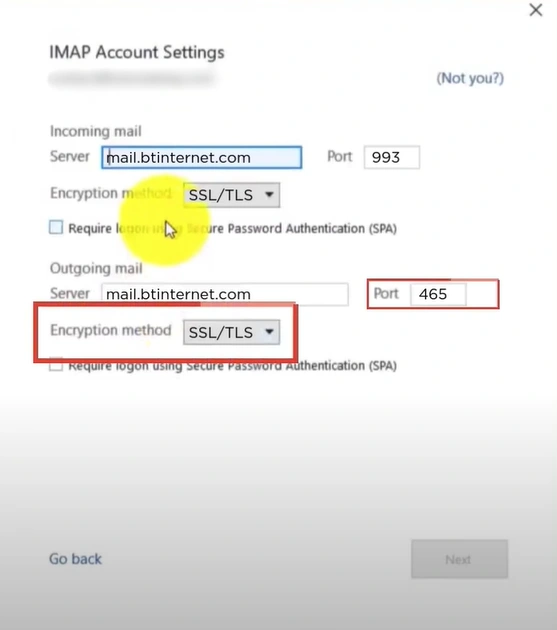
Step 5: Select IMAP and type mail.btinternet.com in the Incoming Mail server field.
Step 6: Set the Port to 993 and select SSL/TLS from the Encryption Method dropdown.
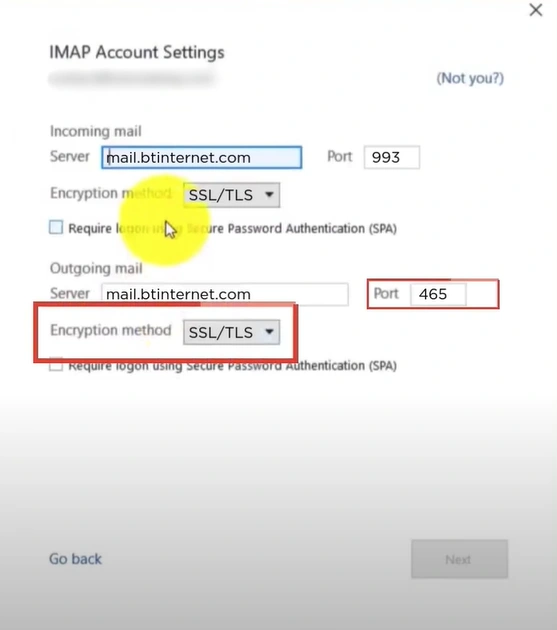
Step 7: Type in mail.btinternet.com in the Outgoing Mail server field.
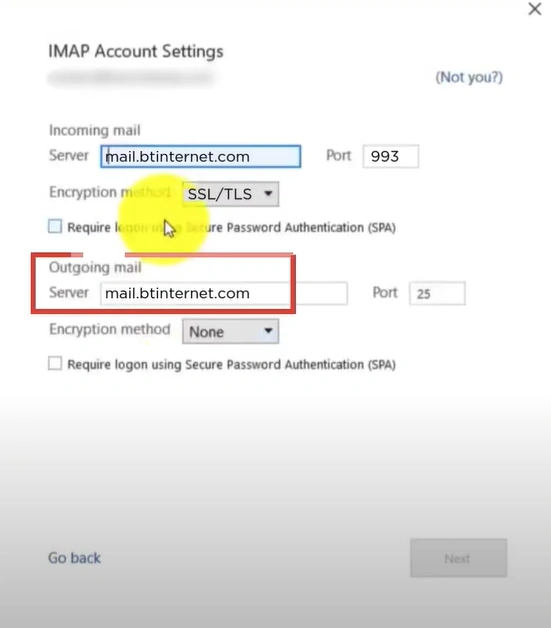
Step 8: Select SSL/TLS in the Encryption Method dropdown and set the Port to 465.
Step 9: Press the Next button, enter your BT mail password, and click on Connect.
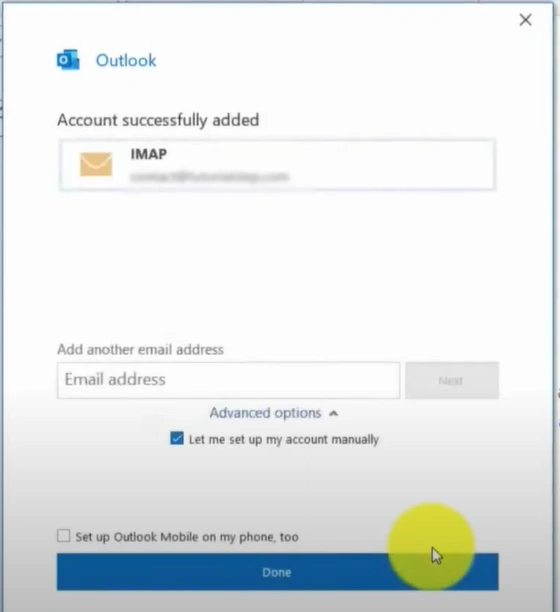
Step 10: When you get the Account Successfully Added screen, click on Done.
Mistakes to Avoid When Adding BT Email to Outlook 365
These are some of the common mistakes that most users make when adding BT email to Outlook 365:
Not Entering Full Email Address
When inputting the login credentials, use your full BT email address; for example: username@btinternet.com. Don’t just fill in your username and disregard the “@btinternet.com.” It may, otherwise, cause authentication failures.
Not Allowing Secure Mail Apps
Btinternet Mail requires that you enable the option to allow third-party apps like Outlook to connect securely. If you don’t grant this permission, Outlook 365 will continue to deny your login.
Not Using App Password
Accounts with 2-step verification may not work in Outlook with your regular BT password. You need to generate a special app password from your BTinternet Mail account and use that instead.
Skipping Outlook Updates
If Outlook 365 is running on an outdated version, it may cause compatibility issues with BT’s secure servers. Not keeping Outlook up-to-date may cause unexpected disconnects or syncing problems.
Wrong SSL/TLS Settings
If SSL encryption is not activated, Outlook may not connect. Your account may also be at risk of security breaches. So, you must always confirm that SSL/TLS encryption is enabled for both incoming and outgoing mail.
Also Read:- How to Add Yahoo Mail to Dock Mac?
Summing Up
See how easy it is to integrate your BT emails into Outlook 365. Just follow each instruction carefully; make sure you don’t miss out on anything. Problems like authentication errors, compatibility issues, or wrong server settings may also show up. So, keep your cool and tackle them smartly.
Don’t forget to enter your full email address, allow permission for third-party apps, and generate a special app password from your BT Mail.




 +1-857-557-6896
 +44-161-791-4592