
Why the Outlook App Isn't Receiving Your Emails, and How to Fix It
- 0
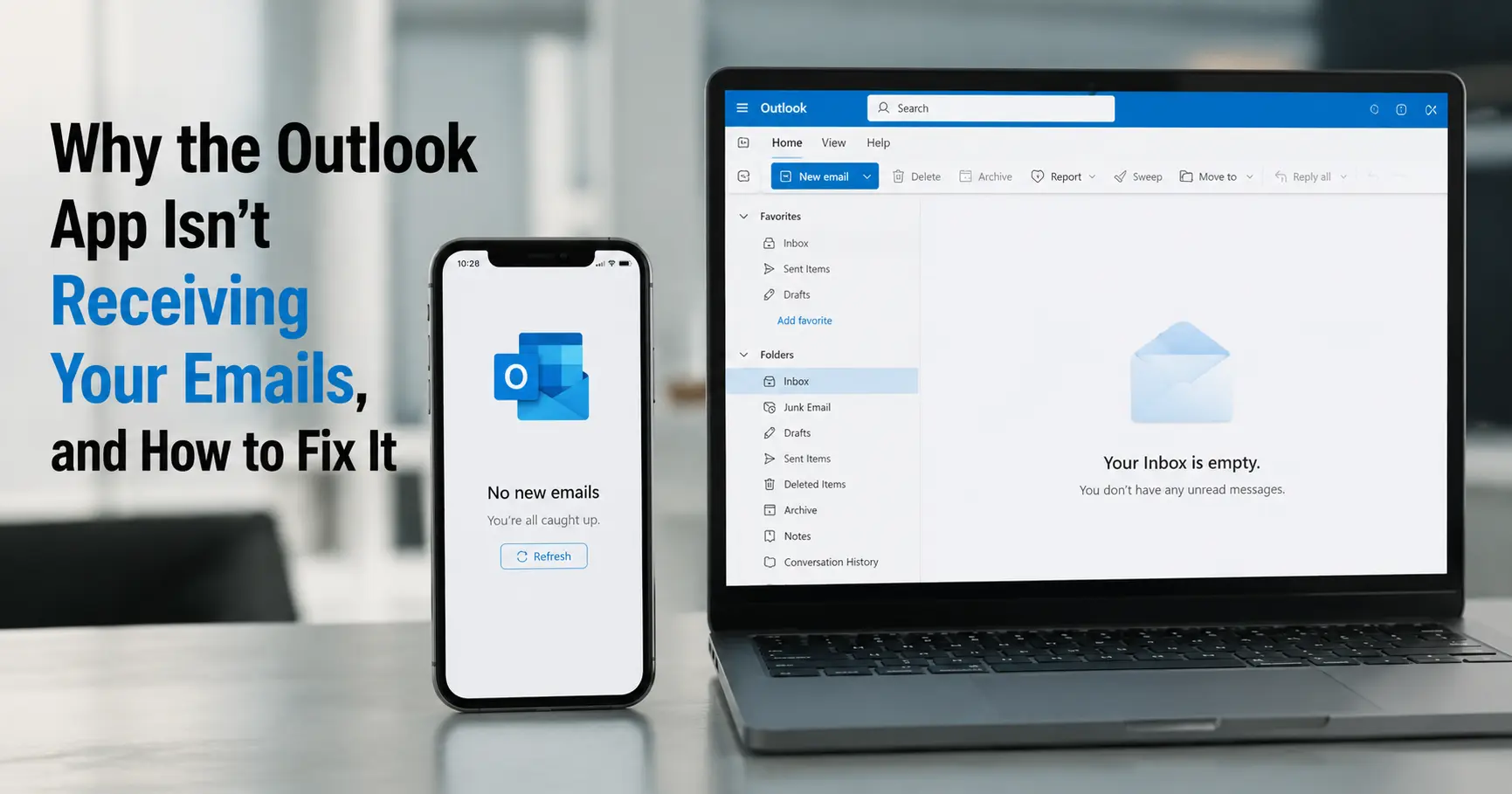
That one check saves hours. Most troubleshooting guides march you through a fixed list that starts with "restart your router," but the router is almost never the cause when sending still works and only receiving is broken. The web test tells you which half of the system to work on before you change a single setting.
The rest of this article is organized around that split: device-side causes first, because they are far more common, then server-side causes, then the account and outage problems that can masquerade as either.
Step one: the web mailbox test, done properly
Sign in to your mailbox in a browser and look at the Inbox, the Junk Email folder, and the Other tab if you use Focused Inbox. Then check a second device if you have one, such as your phone.
Three outcomes, three directions:
- Web has the mail, the app does not. Client-side problem. Skip to the next section.
- Web is missing the mail too, and it is missing on every device. Server-side or sender-side problem. Jump to "When the mail never reaches the mailbox."
- Phone has it, desktop does not (or the reverse). The device that is missing mail has the problem. This usually points to an add-in, a broken data file, or a filtered view on that one machine.
If your account is a POP or IMAP account with a hosting company rather than a Microsoft 365 or Outlook.com account, your "webmail" is whatever control panel your host provides. Log in there, or add the same account to your phone to get a second opinion.
What if webmail works fine and you just want the desktop app fixed? Then you have already done the most important diagnostic step. Everything below in the client-side section applies, and none of the server-side section does.
When the web mailbox has the mail but the app does not
Work down these in order. They are arranged by how often they turn out to be the culprit, not by how hard they are to fix.
Offline mode is switched on (classic Outlook)
Look at the status bar in the bottom-right corner of the window. If it reads "Working Offline" or "Disconnected," Outlook is deliberately not talking to the server. Go to the Send / Receive tab and click Work Offline to toggle it back off. Within a few seconds the status should change to "Connected" or "Connected to: Microsoft Exchange."
This setting gets flipped by accident constantly. A laptop wakes from sleep on a coffee-shop network it does not trust, Outlook drops to offline, and it never automatically comes back. People then spend an afternoon rebuilding profiles when one button would have fixed it.
The offline sync window is too short (new Outlook for Windows)
New Outlook has no "Work Offline" button. It keeps a bounded local copy of recent mail instead, and the size of that copy is a setting you can get wrong. Go to Settings > General > Offline.
If "Enable offline email, calendar, and people" is turned off, mail still arrives, but only while the app is open and connected, not reliably in the background. Turn it on.
The "Days of email to save" control defaults to 30 days and offers 7, 30, 90, or 180. Anything older than that window is not stored locally and needs a live connection to appear, which people frequently mistake for mail that has gone missing. Per Microsoft's roadmap, the longer 365-day and 730-day options were pushed to November 2026, so until then 180 days is the ceiling.
Your inbox view is filtered or sorted in a way that hides new mail
New messages can arrive and land exactly where they should while your view simply refuses to show them.
- A filter is applied. If the top of the message list says "Filter Applied," or you previously clicked Filter and chose Unread, Flagged, or a category, clear it. In classic Outlook: View > Filter > clear, or click the funnel icon and choose "Show all."
- The sort order is wrong. Sort by Date with Newest on top. If mail is sorted by sender, subject, or oldest-first, today's messages may be pages down.
- Focused Inbox is splitting your mail. The message may be in the Other tab, not Focused. Turn Focused Inbox off to test: in classic Outlook, View > Show Focused Inbox to toggle it; in new Outlook and on the web, Settings > Mail > Layout.
The question right after this one: "I turned Focused Inbox off and the mail is still not there." Then it genuinely is not in your local copy of the mailbox, and the sync itself is the problem. Keep going.
Force a sync and read the error
- Classic Outlook: press F9, or go to Send / Receive > Send/Receive All Folders.
- New Outlook: click View > Sync, or the circular sync icon near the folder list.
Watch the status bar while it runs. A silent success means your automatic sync schedule is the issue (next item). An actual error message is a gift, because it names the real fault: a wrong password, an expired certificate, a bad server name, or a server that is refusing the connection.
If it syncs on demand but never on its own: in classic Outlook, open Send / Receive > Send/Receive Groups > Define Send/Receive Groups and confirm "Schedule an automatic send/receive every N minutes" is checked, with N set to something reasonable like 5 or 10. On a laptop, also open Settings > Network & Internet in Windows and check whether your current connection is marked as metered. Windows throttles background sync on metered connections to save data, and a mobile hotspot or a tethered phone is often flagged that way automatically.
The offline data file is corrupted (classic Outlook, Exchange and Microsoft 365 accounts)
The .ost file is your machine's local copy of the mailbox. When it corrupts, sync can stall without any visible error. The fix is to make Outlook rebuild it:
- Close Outlook completely.
- Find the file: File > Account Settings > Data Files, select your account, click Open File Location.
- Rename the file from Outlook.ost to Outlook.ost.old.
- Reopen Outlook.
Nothing is lost. Your mail lives on Microsoft's servers, and Outlook downloads a fresh local copy on the next start. For POP accounts, which store mail in a .pst file rather than an .ost, this rebuild trick does not apply, because the .pst may be the only copy. Instead run the Inbox Repair Tool, SCANPST.EXE, found at C:\Program Files\Microsoft Office\root\Office16 on a 64-bit install (or the Program Files (x86) version of that path on a 32-bit install). Back the .pst up first, per Microsoft's guidance on repairing Outlook data files.
An add-in is jamming send and receive
Close Outlook, press Windows + R, type Outlook.exe /safe, and press Enter. Safe mode loads Outlook with no add-ins.
If mail flows normally in safe mode, an add-in is the cause. Reopen Outlook normally, go to File > Options > Add-ins, choose COM Add-ins in the Manage box, click Go, clear every checkbox, and restart. Then re-enable them one at a time until the problem returns and you have found the offender. PDF toolbars, CRM connectors, and old antivirus email plugins are the usual suspects.
It is a new Outlook sync bug specifically
New Outlook for Windows has documented automatic-sync gaps that classic Outlook does not have. Microsoft's own Q&A forums carry a steady stream of "new Outlook not syncing automatically" reports through 2025 and 2026 with no single clean fix.
If you are on new Outlook and nothing above works, switch back to classic Outlook using the toggle in the top-right corner. It is not a downgrade for this purpose. Classic Outlook keeps its full automatic Send/Receive behavior, and Microsoft has confirmed security updates for it through at least 2029, with the forced transition to new Outlook now delayed to no earlier than March 2027.
Phone: Outlook for iOS and Android not receiving
On a phone the mailbox is almost always fine. The operating system is starving the app of background time.
- iPhone: open Settings > Outlook. Turn on Background App Refresh and confirm Cellular Data is allowed for Outlook. Then turn off Low Power Mode (Settings > Battery), which suspends background fetch to save power.
- Android: long-press the Outlook icon, tap App info, open Mobile data & Wi-Fi, and enable Background data and Unrestricted data usage. Check Settings > Battery for any per-app restriction on Outlook and remove it.
- Both platforms: if mail appears the moment you open the app but you get no alert beforehand, that is a push-notification failure, not a sync failure. Sign out and back in, or remove the account and re-add it, which re-registers the device for push.
Next question: "It still only updates when I open it." Some carriers and some aggressive battery-management skins (common on Samsung, Xiaomi, and OnePlus phones) will keep restricting the app no matter what. Adding the account as a native Exchange account in the phone's built-in mail app, in addition to or instead of Outlook, sometimes restores reliable push because the OS treats its own mail client differently.
When the mail never reaches the mailbox
If the web mailbox is missing the messages too, stop touching the app. The problem is upstream.
The mailbox is full
When a Microsoft 365 mailbox reaches its storage quota, Exchange Online stops accepting new mail and sends a non-delivery report to each sender. The client often shows little or no warning, so from your side it just looks like silence.
Microsoft's Exchange Online limits documentation defines three stages:
Stage | What happens |
|---|---|
Warning | You get an email saying the mailbox is near its limit |
Prohibit Send | You can no longer send until you delete enough mail |
Prohibit Send/Receive | Incoming mail is rejected and bounced to the sender with an NDR; delete mail to drop below the limit and delivery resumes |
The quota depends on your license:
Plan or license | User mailbox limit | Warning / Prohibit Send / Prohibit Send-Receive |
|---|---|---|
Microsoft 365 Business Basic, Standard, Premium | 50 GB | 49 / 49.5 / 50 GB |
Microsoft 365 E3 and E5 | 100 GB | 98 / 99 / 100 GB |
Office 365 E1 | 50 GB | 49 / 49.5 / 50 GB |
Office 365 E3 and E5 | 100 GB | 98 / 99 / 100 GB |
Exchange Online Plan 1 | 50 GB | 49 / 49.5 / 50 GB |
Exchange Online Plan 2 | 100 GB | 98 / 99 / 100 GB |
Office 365 F3 and Exchange Online Kiosk | 2 GB | 1.96 / 1.98 / 2 GB |
Two notes from the field. First, that F3 and Kiosk limit of 2 GB is small enough that a few years of attachments will fill it, and frontline-worker accounts hit this far more often than anyone expects. Second, Microsoft is adding 50 GB of storage to eligible Business Basic, Standard, and Premium mailboxes between June and September 2026, taking them toward 100 GB, so the official 50 GB figure above is mid-transition.
To check your own usage: File > Tools > Mailbox Cleanup in classic Outlook, or Settings > General > Storage in new Outlook and on the web. Emptying Deleted Items and Junk Email is the fastest way to reclaim space, because both count against the quota.
A rule is moving or deleting mail as it arrives
Inbox rules run automatically in the order they are listed, and one bad rule can file a message into a folder you never open, forward it elsewhere, or delete it before you ever see it.
Review every rule. In classic Outlook: File > Manage Rules & Alerts. On the web and in new Outlook: Settings > Mail > Rules. Audit them on the web if you can, because the web shows you the rules the server actually runs, whereas classic Outlook also shows client-only rules that behave differently depending on whether the app is open.
If the rule list itself looks corrupted or a rule refuses to save, close classic Outlook and run Outlook.exe /cleanrules from the Windows Run box. That deletes every rule on the account, so write down the ones you want to keep before you do it.
A forwarding rule is quietly siphoning your mail
This is separate from inbox rules and easy to miss. In Outlook on the web, open Settings > Mail > Forwarding. If "Enable forwarding" is on and "Keep a copy of forwarded messages" is off, every incoming message is sent straight to another address and never lands in your inbox. Check this first if you have any reason to think the account was compromised, because attackers set up silent forwarding to monitor a mailbox.
Blocked senders and junk filtering
Open Settings > Mail > Junk email on the web. A blocked-senders list that grew over the years, or a whole domain added to it once and forgotten, can route specific mail straight to Junk or Deleted Items. While you are there, actually open the Junk Email folder and look, rather than trusting that it is empty.
It is the sender's problem, not yours
If only mail from one person or one company is missing, ask them to check for a bounce message. The NDR text is specific: it will say whether your mailbox is full, your address was mistyped, or their own mail server has landed on a blocklist. That tells you exactly where to look next, and often the fix is on their end.
Account and authentication problems
These break sending and receiving together, but receiving is usually what you notice first.
- Your password changed recently. Outlook keeps trying the old one and fails without saying so clearly. Remove and re-add the account, or update the stored credential in Windows Credential Manager (search for it in the Start menu, look under Windows Credentials).
- The sign-in token expired. Modern authentication tokens have a limited life. Go to File > Account Settings > Account Settings, select the account, and click Repair. If that does not take, remove the account and add it back.
- IMAP or POP settings drifted. After a hosting provider changes its infrastructure, the incoming server name, port, or encryption method in your account settings may no longer be right. Compare them line by line against your provider's current setup page.
When it is genuinely Microsoft's fault
Before you commit to rebuilding a profile, rule out an outage. Check the Microsoft 365 Service health page in the admin center, or the public status page if you are not an admin. An Exchange incident produces exactly this symptom, affects a lot of people at the same moment, and needs nothing from you but time. A sudden wave of identical "not receiving email" posts on Microsoft's forums all dated the same day is a reliable sign that it is not your setup.
Quick diagnosis table
Symptom | Most likely cause | First thing to try |
|---|---|---|
Sending works, receiving does not, web mailbox has the mail | Offline mode or a stalled sync in the app | Toggle Work Offline off, press F9 |
Web mailbox is missing the mail too, senders get bounces | Mailbox is full | Empty Deleted Items and Junk, archive old mail |
Only mail from certain people is missing | A rule, the blocked-senders list, or the Focused/Other split | Audit rules and Junk in Outlook on the web |
Mail arrives on the phone but not the desktop | Desktop client issue: add-in, corrupted OST, or a filtered view | Start in safe mode, then rebuild the OST |
Nothing arrives on any device, and it started at a precise time | Server outage or a forwarding rule | Check Service health, then check Forwarding settings |
New Outlook only, comes and goes | A known new Outlook automatic-sync gap | Switch back to classic Outlook |
What to check first next time
The pattern that solves this fastest, every time, is the same: confirm sending still works, then check the web mailbox. Those two facts alone place the fault in one of three buckets, client, server, or sender, and each bucket has a short list. The people who lose an afternoon to this are almost always the ones who started by reinstalling Outlook before they knew which bucket they were in.



 +1-857-557-6896
 +44-161-791-4592