
How to Add Contacts in Yahoo Mail?
- 0
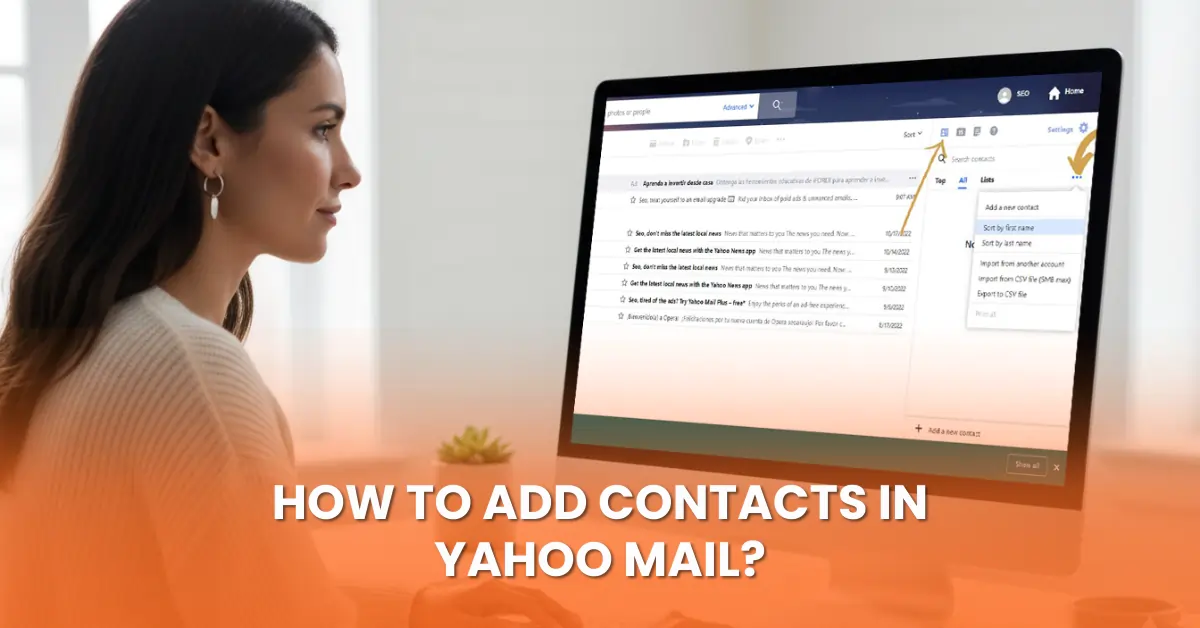
Every time you open Yahoo Mail and are ready to send a message, you expect it to work smoothly. While using Yahoo, you might have realized that it would be great if all your important contacts were neatly stored in one location. With that level of organization, using Yahoo becomes much easier.
Saving contacts in Yahoo is simple, but you need to follow the right instructions. This guide explains the complete process of adding contacts in Yahoo Mail. Let’s first look at the challenges that may come up during the process.
Issues When Trying to Add Contacts in Yahoo Mail
Take a look at these potential issues that may come up when you try to add contacts in Yahoo:
-
Wrong contact information
-
Account syncing problems
-
Storage or account limits
-
Mobile app glitches
-
Cache or cookie-related issues
What to Check Before Doing Anything?
It is always a good idea to ensure these important things before you start the “add contacts in Yahoo” process:
-
Good internet connection: Check that your network connection works properly before you begin. This will prevent interruptions while you add contacts.
-
Correct Yahoo account login: Verify that you are signed in to the right Yahoo account where you want the contacts to be saved.
-
Sync settings: If you have not, enable account sync so the contacts are saved and can be accessed through different devices.
-
Updated browser/app: Check that you are using the latest web browser or Yahoo Mail app version so everything works properly.
-
Correct details: Before you confirm, double-check every detail, such as your name, email ID, and contact number.
Easy Steps to Add Contacts in Yahoo Mail
Adding contacts in Yahoo Mail is not so tough. Keep these simple steps in mind to add contacts without confusion or errors.
Step 1: Firstly, open your internet browser and search for “Yahoo Mail.”
Step 2: After that, click on the “Contacts” icon.
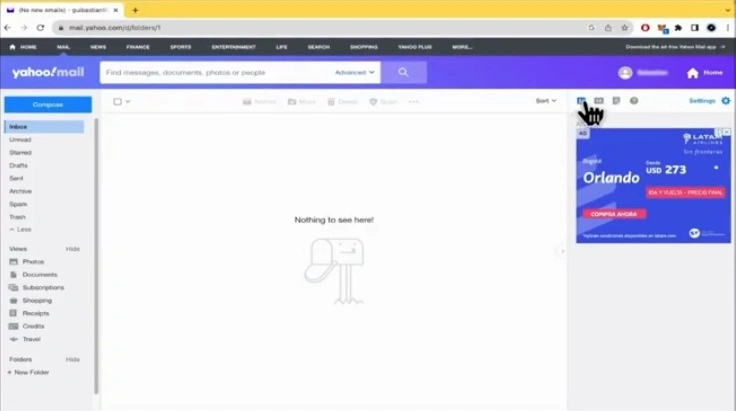
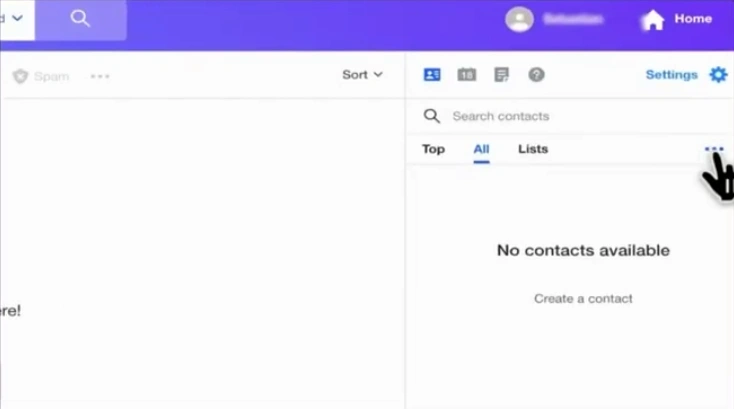
Step 3: You will see three dots next to the Contacts section. Click on the dots and choose “Add a new contact.”
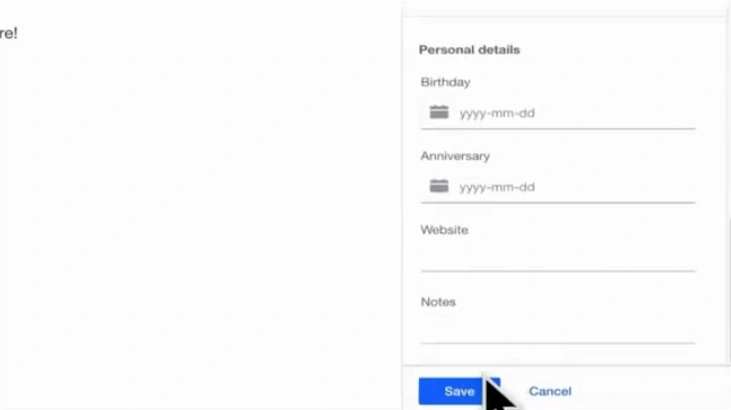
Step 4: Now, enter the necessary information in the given fields.
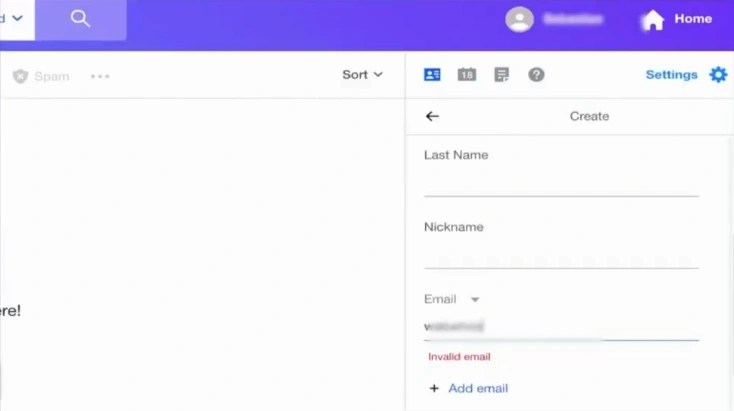
Step 5: After entering all the details, click on the “Save” button.
Also Read:- How to Add Yahoo Mail to iPhone?
Conclusion
That is all you need to do to add contacts in Yahoo Mail. Isn’t that really easy? With a few easy steps, you can organize your contacts and make them easily accessible.
There can also be potential issues that you might face, like incorrect contact information, account syncing problems, or storage limits. Fix these issues as they appear to keep your contacts organized and easy to use.





 +1-857-557-6896
 +44-161-791-4592