
How to Add Yahoo Mail to iPhone?
- 0
When you are traveling or working remotely, it can be hard to keep up with new Yahoo emails; you may not be near your laptop or desktop. Your inbox is what you rely on most for flight confirmations, package tracking, and team communications. Imagine having your Yahoo inbox right in your hand - that’s convenient, isn’t it?
Are you an iPhone user? Here’s some good news - you can easily add Yahoo Mail to iPhone. The process is easy; it takes just a few easy steps.
How do I add a Yahoo Mail account to my iPhone? That might be the only question on your mind. We have explained the full process below, but before we dive in, here are some important things to know.
Key Things to Know Before You Start
Check out some of the important things to consider before you start adding Yahoo Mail to an iPhone:
Choose App or Mail Setup
There are two options to set up Yahoo Mail on iPhone: via the iPhone’s built-in Mail application and by downloading the official Yahoo Mail app from the App Store. Select any of the options that work best for you before you get started.
Two-Step Verification
If 2-step verification is activated on your Yahoo account, ensure that you have access to your chosen authentication method, such as your phone or an authentication app.
Update iOS
Make sure your iPhone has the latest iOS update installed. An outdated operating system may result in compatibility problems.
Allow App Permissions
Be ready to grant necessary permissions if you choose to use the Yahoo Mail app. The permissions can be for access to contacts, notifications, and other relevant features.
Common Issues When Adding Yahoo Mail to iPhone
These are some of the common issues that might occur when you are trying to add Yahoo Mail to an iPhone:
-
Network connection issues
-
Corrupted account setup
-
Outdated iOS software
-
Incorrect account credentials
Steps to Add Yahoo Mail to iPhone
Adding Yahoo Mail to an iPhone is very easy. You just need to adhere to a few steps. Let’s check them out:
Step 1: On your smartphone, navigate to Settings.
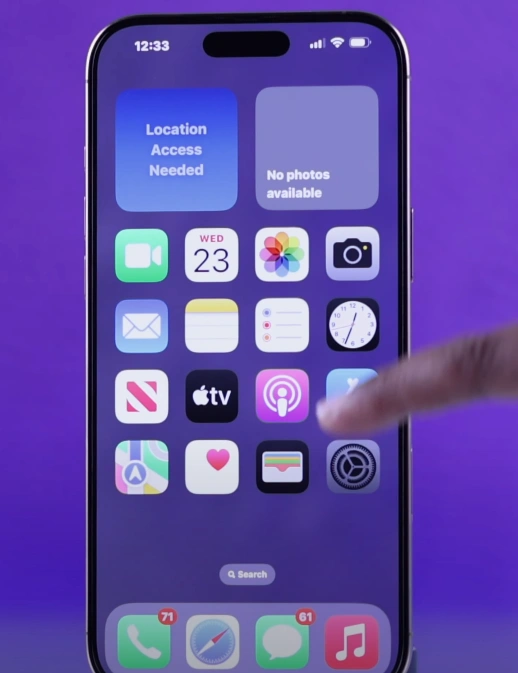
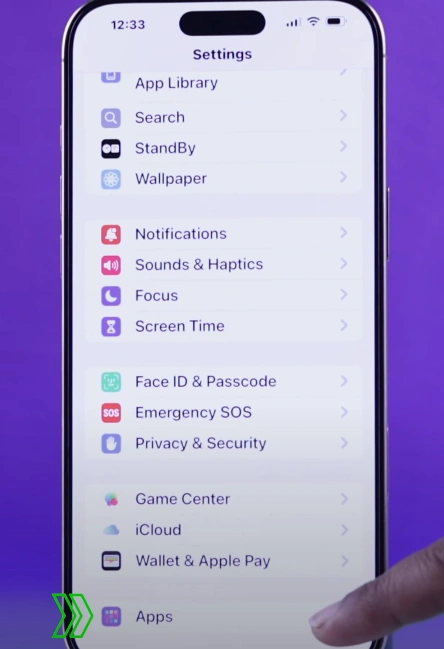
Step 2: Swipe down slightly and open the Apps section.
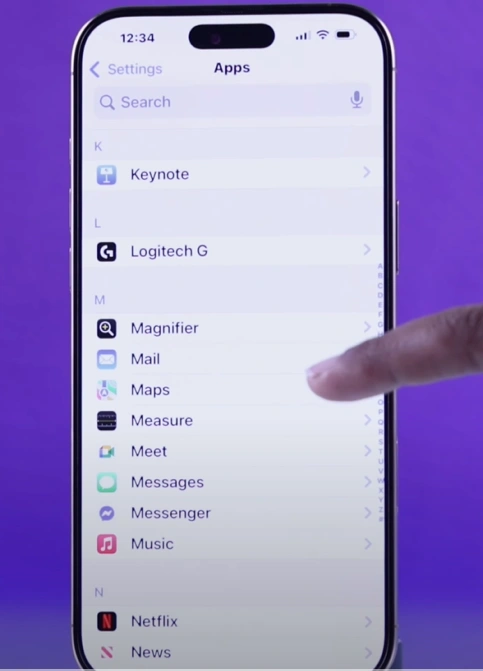
Step 3: Keep scrolling and select the Mail option from the Settings menu.
Step 4: Select Mail Accounts, and tap on Add Account.
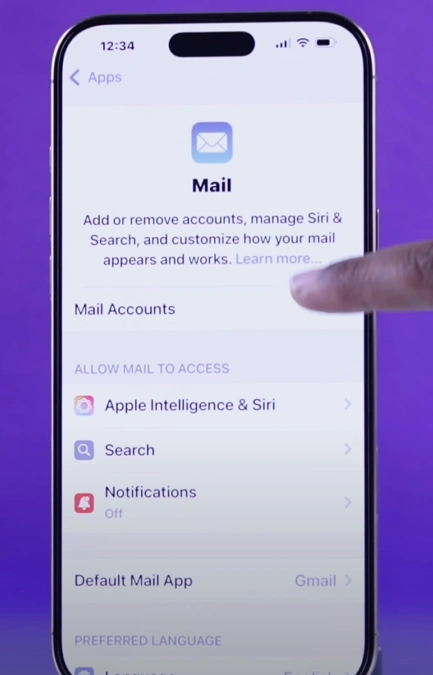
Step 5: From the list of mail providers, go ahead and select Yahoo.
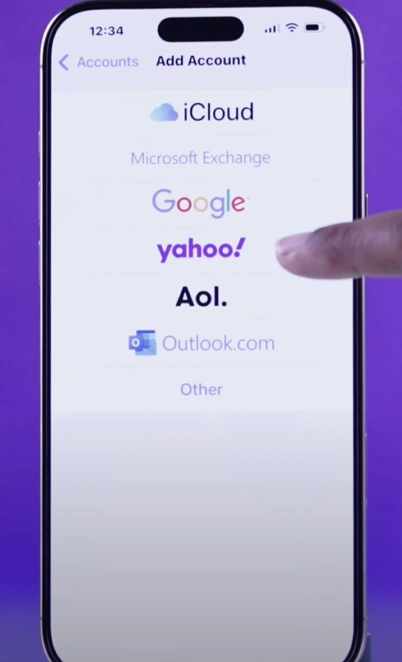
Step 6: Choose Yahoo from the list and continue to sign in.
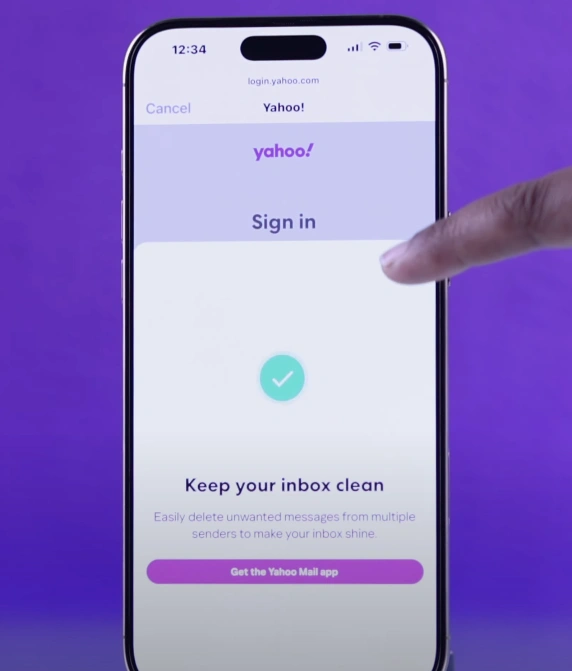
Step 7: Sign in with your Yahoo account or create a new one.
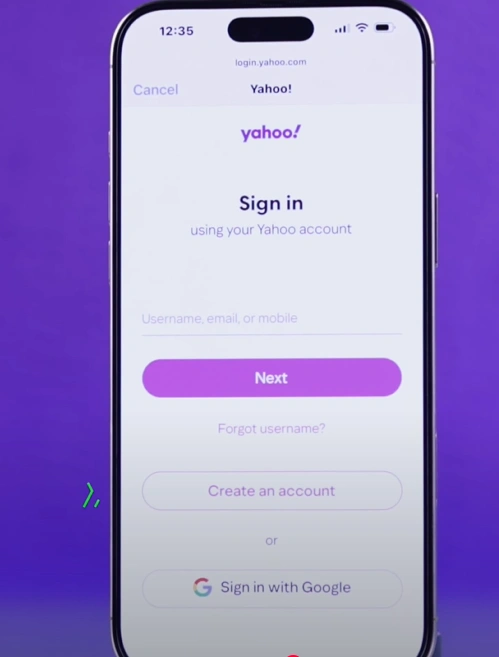
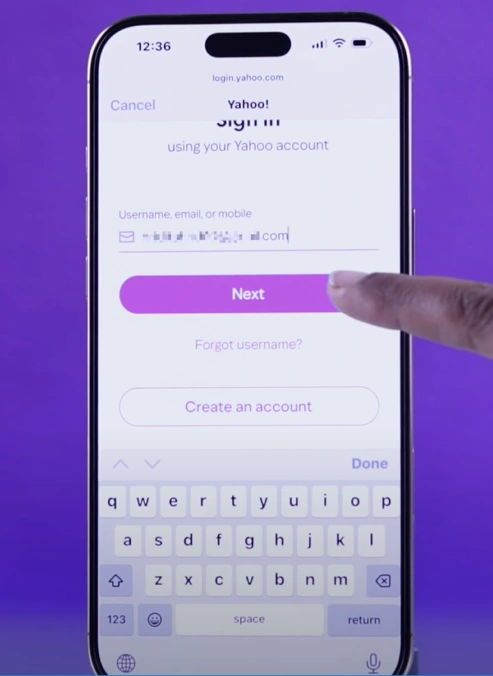
Step 8: If you already have an account, type in your Yahoo email address and tap on Next.
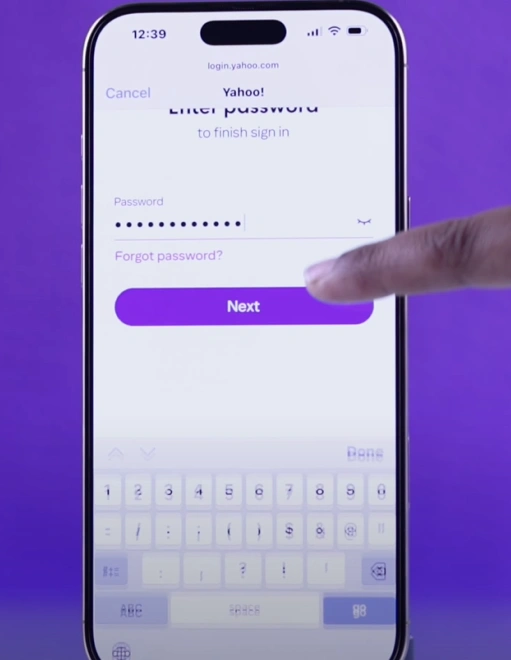
Step 9: After that, enter the email password and tap Next.
Step 10: Finally, press the Save button located in the top-right corner.

Also Read:- How to Setup Yahoo Mail in Outlook?
Summing Up
Follow these instructions to access all your Yahoo emails on your iPhone. No need to log in from your PC - you now have everything in your pocket. Grab your iPhone, tap the Mail app, and see all your emails show up right away.
Before adding Yahoo Mail to iPhone, make sure 2-step verification is enabled and your device runs the latest iOS. Don’t forget to grant the necessary permissions for contacts, calendars, and notifications. That will allow your Yahoo Mail app to fully sync and give you real-time updates.




 +1-857-557-6896
 +44-161-791-4592