
How to Add Yahoo Mail to Gmail?
- 1
Imagine all your messages neatly arranged in a single location. With a single login, you can manage all your emails from one unified inbox. This kind of organization can significantly streamline your daily workflow, giving you a sense of control and efficiency. But how is it possible?
Add your Yahoo Mail to Gmail and experience a more organized email routine. Once you do this, you won’t have to worry about switching between accounts. This is highly beneficial, as it reduces the chances of missing messages or forgetting login details.
So, it’s time to make your digital life smoother and more efficient. How do you add Yahoo Mail to Gmail? We’ll delve into it shortly, but first, let’s discuss the challenges you might face along the way.
Potential Issues When Adding Yahoo Mail to Gmail
When trying to add Yahoo Mail to Gmail, you may face several potential issues. Some of them are as follows:
-
Data synchronization
-
Spam filter conflicts
-
IMAP/POP settings
Things to Confirm Before Adding Yahoo Mail to Gmail
Look at the important things that you need to know before you start adding Yahoo Mail to Gmail:
-
Make sure you’ve entered the correct Yahoo account credentials. If using two-step verification, you may need to generate an app-specific password.
-
Enable POP or IMAP in Yahoo Mail. To do this, go to Settings > More Settings > Mailboxes > Yahoo Mail > POP access.
-
You must have sufficient storage space to import all your Yahoo mail without any issues. Confirm this before you start.
Steps to Add Yahoo Mail to Gmail
Want to manage your communication from a single inbox? Below are all the essential steps to add Yahoo Mail to Gmail successfully:
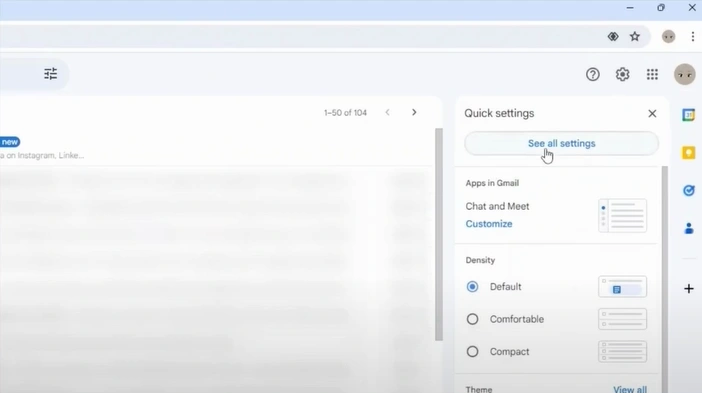
Step 1: Open your Gmail and click on the gear icon in the top-right corner.

Step 2: Click "See all settings."
Step 3: Open Accounts and Import.
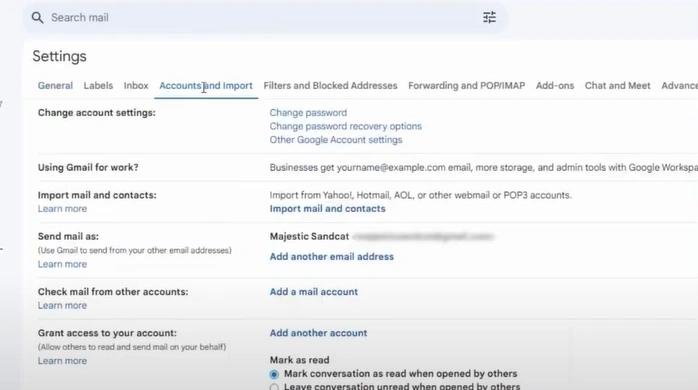
Step 4: Go to the "Check Mail from other accounts" section and click "Add a mail account."
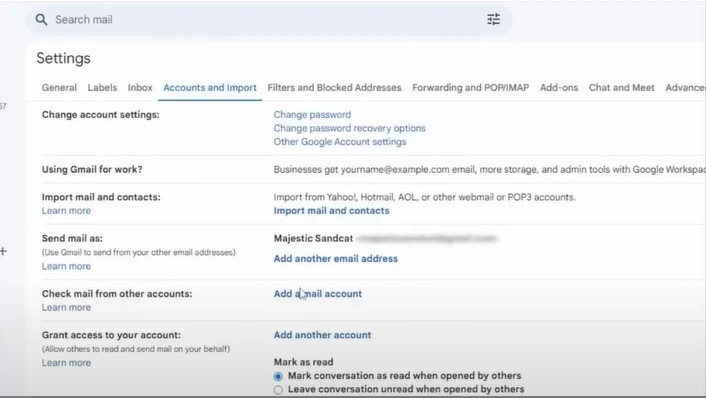
Step 5: Enter your email address and click on Next.
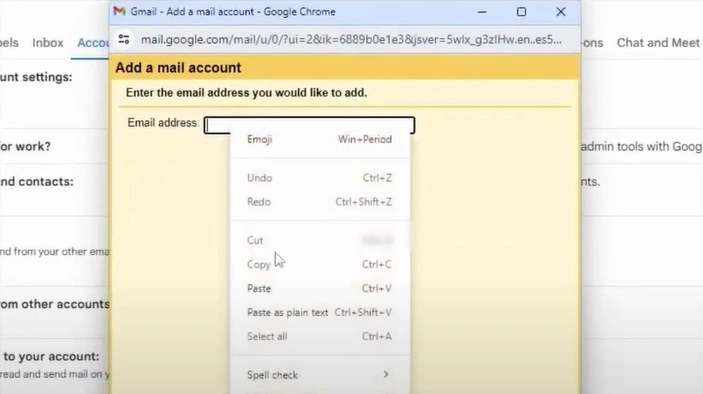
Step 6: Choose whether to link accounts using Gmailify or import emails without linking. Then click Next.
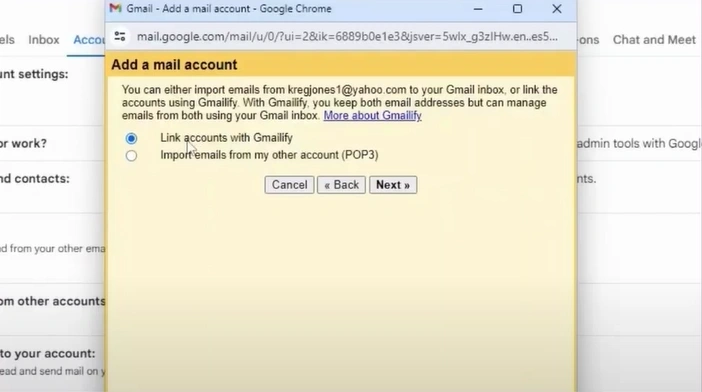
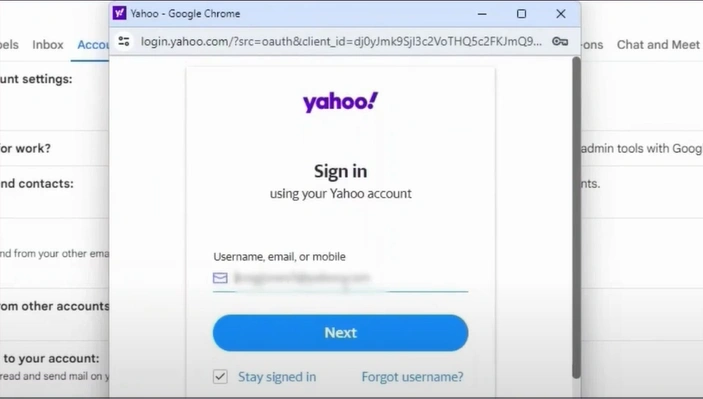
Step 7: Enter your Yahoo email address and press the Next button.
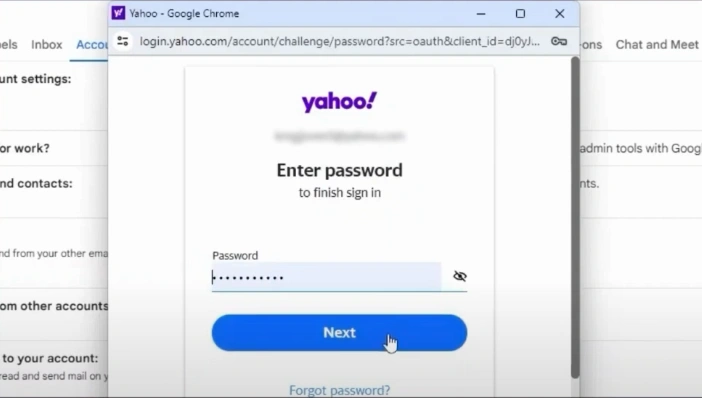
Step 8: Provide your email password, then click on Next again.
Step 9: Click "Agree" to allow Gmail to access your Yahoo account.
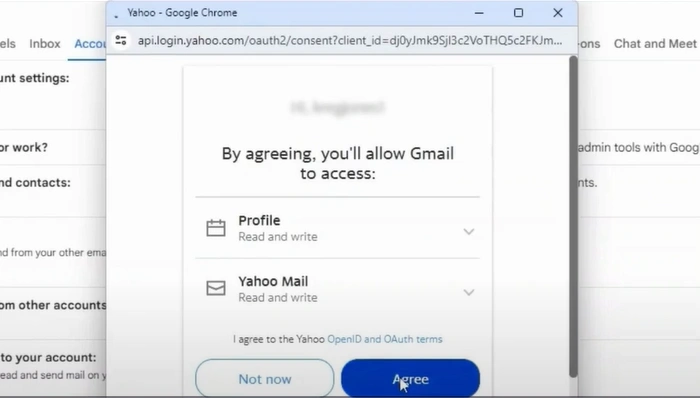
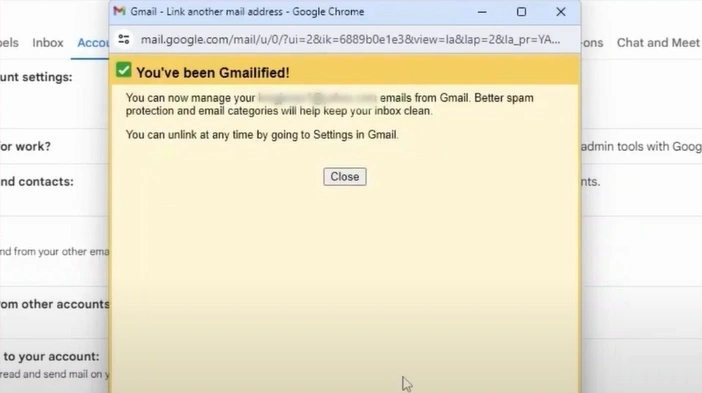
Step 10: After successfully adding the Yahoo account, click Close.
Also Read:- Troubleshooting Solutions to Fix Multiple Yahoo Mail Issues
Summing Up
As you can see, adding your Yahoo Mail to Gmail is easy and helps consolidate your messages into a single inbox. This not only provides convenience but also enhances workflow and productivity.
Follow each step carefully to avoid setup errors or syncing issues. Tackle the challenges that may arise, such as spam filter conflicts and syncing problems.




 +1-857-557-6896
 +44-161-791-4592