
How to Reset Comcast (Xfinity) Email Password?
- 0
You tried to log in to your Comcast (Xfinity) email, but the password didn’t work even after re-entering it. At first, you thought it was a typing mistake, but the login still failed. This left you frustrated as you realized you were locked out of your account.
If you are in this situation and don’t know what to do, the solution is simple - reset your Comcast email password. The process is simple; just follow a few steps to regain access to your account. Before you begin, there are some important things you should know.
Important Things to Note Before You Start the Reset
Here are some important things to remember before you reset your Comcast email password:
Check Account Info
Make sure you enter the correct Xfinity username or email ID, as this information will be required to start the reset.
Update Recovery Options
Your recovery mobile number and alternate email ID should be updated. These may be needed to get a security code.
Stable Internet Connection
A weak internet connection may interrupt the process and prevent the reset from completing. So, you must check your internet status before you can start.
Create a Strong Password
When resetting your Comcast email password, make sure your new password is strong. Your new password should include:
-
At least 8 to 12 characters
-
Numbers and special characters
-
Mix of uppercase and lowercase letters
Remember: Avoid creating easily guessable passwords like your birth date or “123456."
Sign Out From Other Devices (Optional)
If you want an extra layer of security, sign out of every device where you have logged in to a Comcast email. This step is helpful if you suspect unauthorized access.
Common Problems During Comcast Email Password Reset
These are a few potential problems that may occur while you try to reset your Comcast email password:
-
No access to recovery email address or contact number
-
Account lockout due to too many wrong login attempts
-
Two-factor authentication issues
-
Password reset email or code not received
-
Hacked or compromised account
Steps to Reset Comcast (Xfinity) Email Password
Take a look at these essential steps that you need to follow to reset your Comcast email password:
Step 1: Visit the Xfinity official website and click on “Sign In” in the top-right corner.
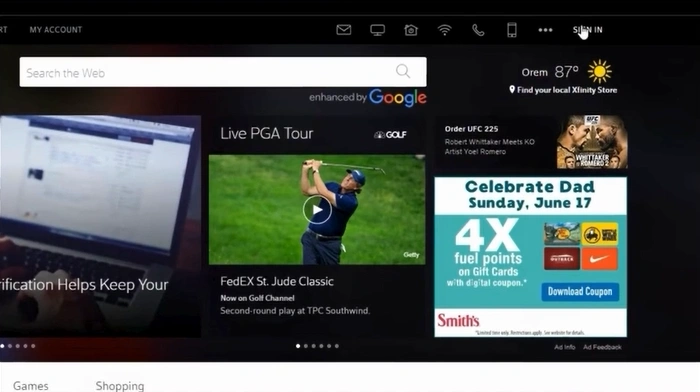
Step 2: Click on the password hyperlink.
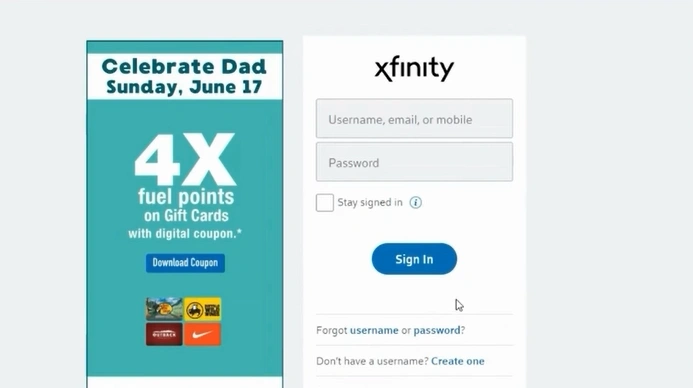
Step 3: Enter your Xfinity username or email, then click on Continue.
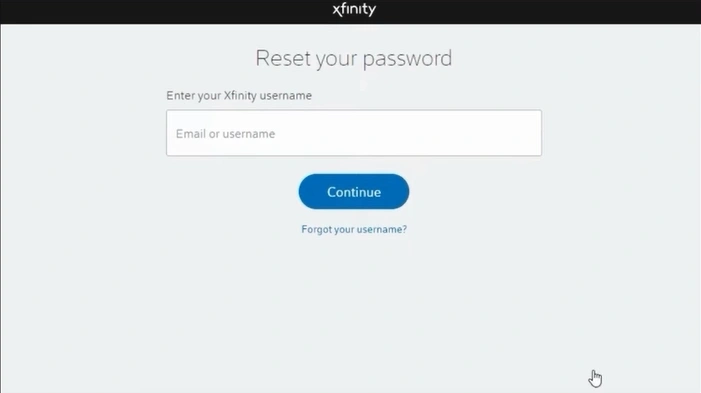
Step 4: Complete the quick security check.
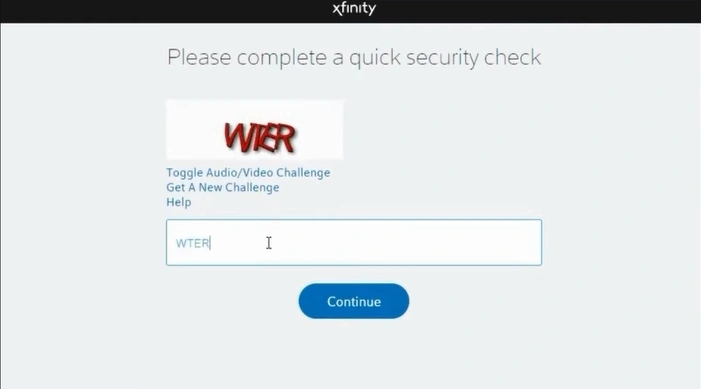
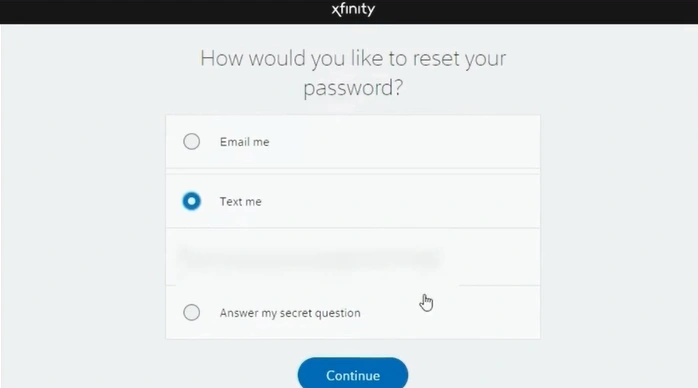
Step 5: Choose a method to reset your password and click on Continue.
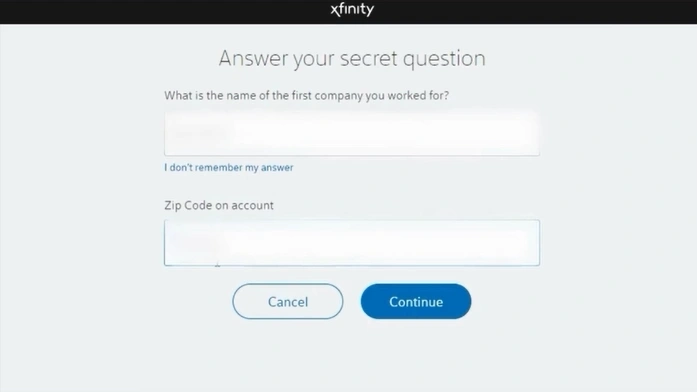
Step 6: Answer the security question and click on Continue.
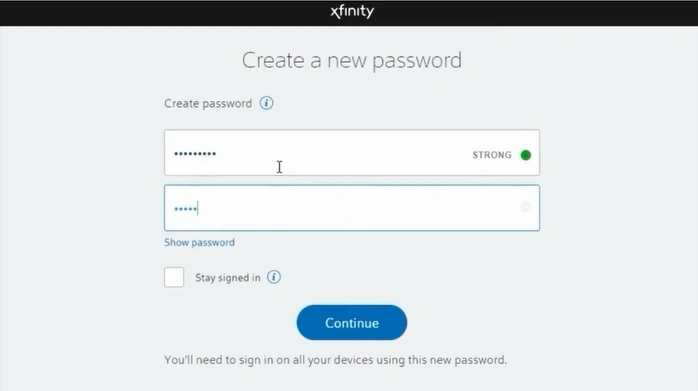
Step 7: Enter a new password, re-enter the password to confirm, and click on Continue.
Also Read:- How to Block Emails on Comcast (Xfinity)?
Bottom Line
Xfinity users often face login errors or lockouts, especially if they reuse the same password across multiple accounts. Such lockouts can be alarming, particularly from an account security perspective.
If you are concerned about your Xfinity account’s safety, it’s best to reset your password regularly. Simply follow the instructions: confirm your account details, enter the correct credentials, and make sure you have a stable internet connection. Your new password should be strong, with 8 - 12 characters, a mix of uppercase and lowercase letters, and numbers.



 +1-857-557-6896
 +44-161-791-4592