
How to Configure Outlook for AOL Mail?
- 0
Every time you try to check an important email or sign in to AOL in your browser, you might run into pop-ups or a slow experience. Does this happen to you often?
If so, Outlook can be a simpler way to manage your email. Microsoft Outlook has a clean, easy interface and lets you sync your AOL account so you can organize your inbox with helpful tools and work smoothly. Wondering how to set it up? We are going to walk you through it step by step - first, here are a few things to know before you start.
Things to Know Before Starting the Configuration
These are some points to keep in consideration when you are about to start configuring Outlook for AOL Mail:
Have an Active AOL Account
Your AOL email account should be active and accessible. Test login via the AOL webmail (mail.aol.com) before setting it up in Outlook.
Update Outlook
Confirm that you have an updated version of Outlook, or else you may face sync issues. Update Microsoft Outlook to the latest version to avoid sync problems.
Stable Internet Connection
Outlook requires an uninterrupted internet connection during the setup. So, confirm that you are on a stable and reliable network.
App Password for 2FA
If you use 2-step verification on your AOL account, generate an App Password from your AOL security settings. Enter this App Password in Outlook during setup instead of your usual AOL login password.
Backup Your Emails
If you are switching from POP to IMAP or changing accounts, back up your old emails to avoid losing any important emails.
Common Problems When Configuring Outlook for AOL Mail
Here are a few problems that you might encounter when trying to configure Outlook for AOL Mail:
-
Server settings
-
Account deactivation
-
Firewall interference
-
Network configuration
-
Spam filters
Steps to Configure Outlook for AOL Mail
Take a look at these simple steps and learn how to Configure Outlook for AOL Mail:
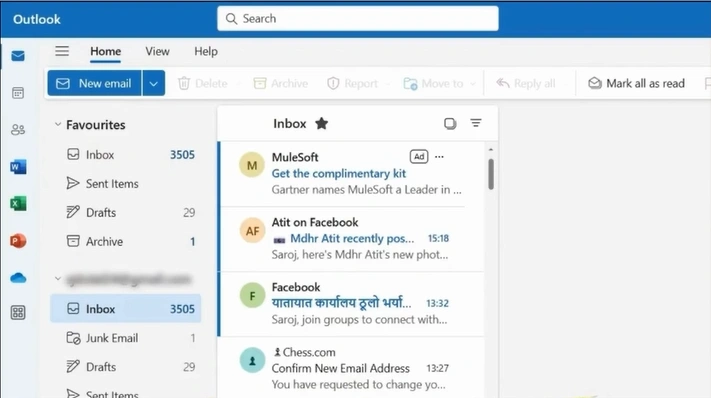
Step 1: Open your Outlook and click on the three lines.
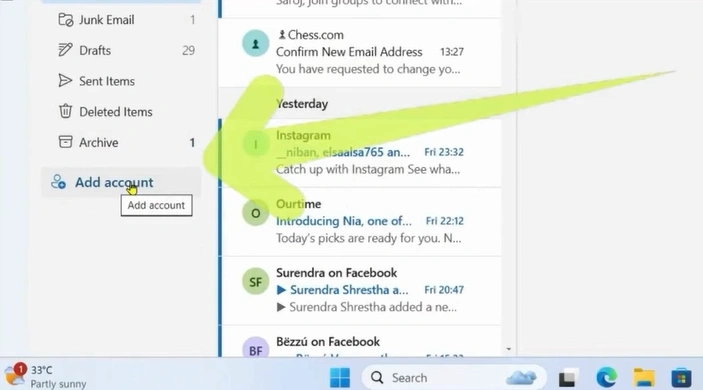
Step 2: Click on the Add Account.
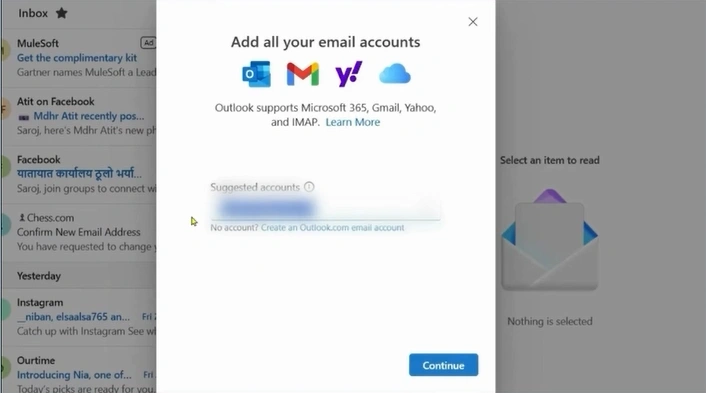
Step 3: Enter your AOL email address and click on Continue.
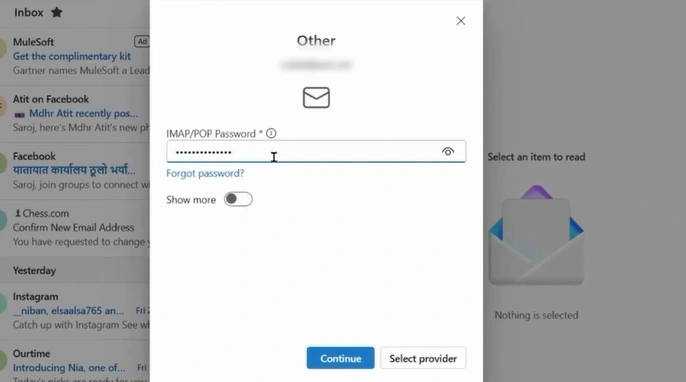
Step 4: Enter the AOL password (or App Password if 2FA is enabled) and click on Continue.
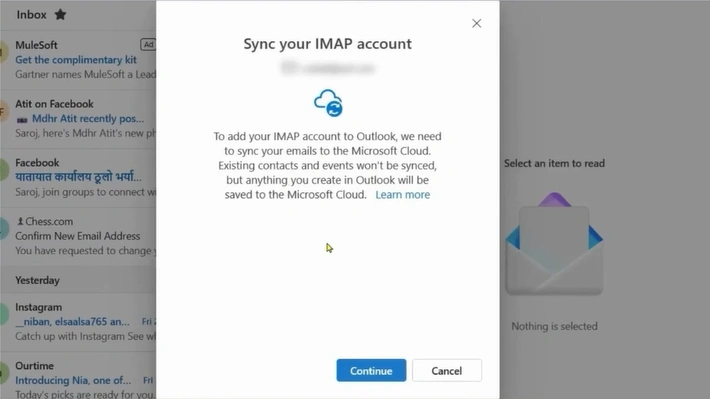
Step 5: Click on Continue to sync the AOL email.
Also Read:- How to Create a Webmail Server?
Conclusion
See how easy it was to configure Outlook for AOL Mail. With this setup, you can now manage all your emails conveniently from a single inbox. Just follow the instructions above and handle any problems that may come up during the process. Before starting, make sure your Outlook is updated, your internet connection is stable, and your old messages are backed up.




 +1-857-557-6896
 +44-161-791-4592