
Resolve Reset Your Account Error in iCloud Mail
- 0
A week ago, as I arrived home from work, I remembered that I had to review emails from a freelance client regarding his upcoming projects. Thinking that the deadline was approaching, I hurriedly opened my iPhone to check my emails.
I saw a surprising message on my screen: "reset your account—Action required," instead of the usual iCloud inbox, which made me feel tense. The client’s documents were stuck in the inbox, and I couldn’t access them, but I knew how to fix the issue. Let me guide you through the step-by-step process of resolving the “reset your account” error in iCloud Mail.
If you’re facing this error and looking for solutions, keep reading. But before we jump to the fixes, let’s go over the possible challenges you may face during troubleshooting.
Common Issues When Fixing ‘Reset Your Account’ Error in iCloud
Several potential problems can arise when resolving the 'reset your account' error in iCloud Mail, complicating the process. These can be:
-
A device or browser settings issue
-
Incorrect password
-
Outdated or inaccurate email address
-
Security software interference
-
Connectivity issues
Top 4 Solutions to Fix “Reset Your Account” Error in iCloud
Here are the four quick solutions that you should know to troubleshoot the "reset your account” error in iCloud Mail:
Solution 1: Verify Account Details
Step 1: Open Settings and tap on your iCloud profile.
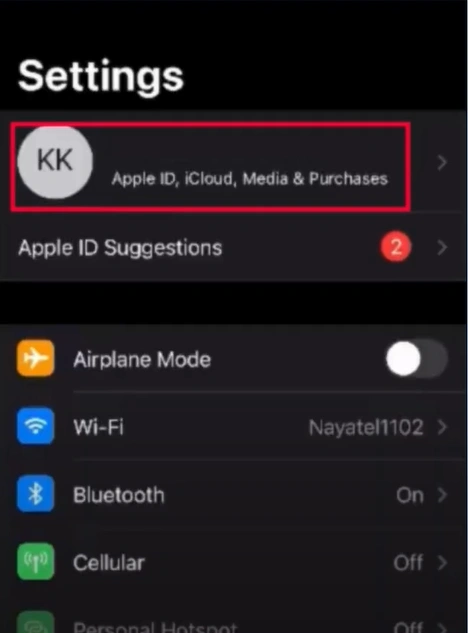
Step 2: Verify that you are signed into the correct account.
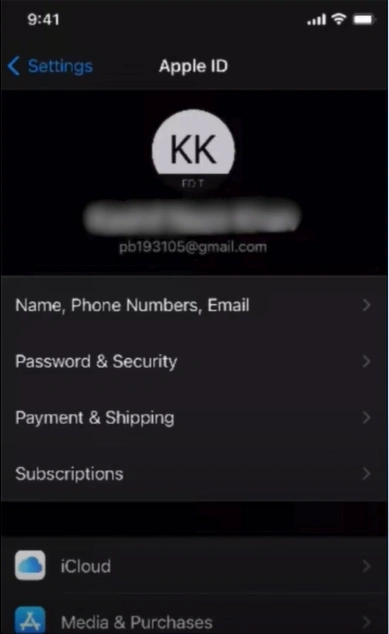
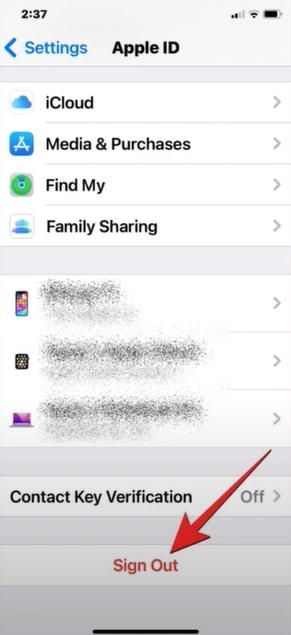
Step 3: If you’ve signed into the wrong account, sign out and sign in with the right account.
Solution 2: Update the Device
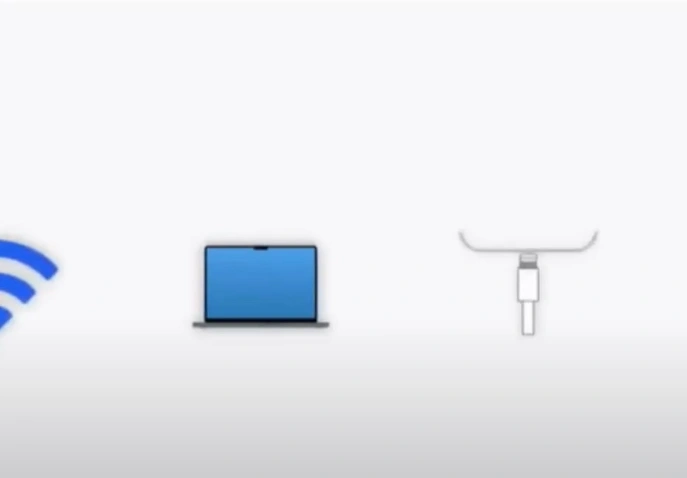
Step 1: Back up the device, plug it into a power source, and connect it to Wi-Fi.
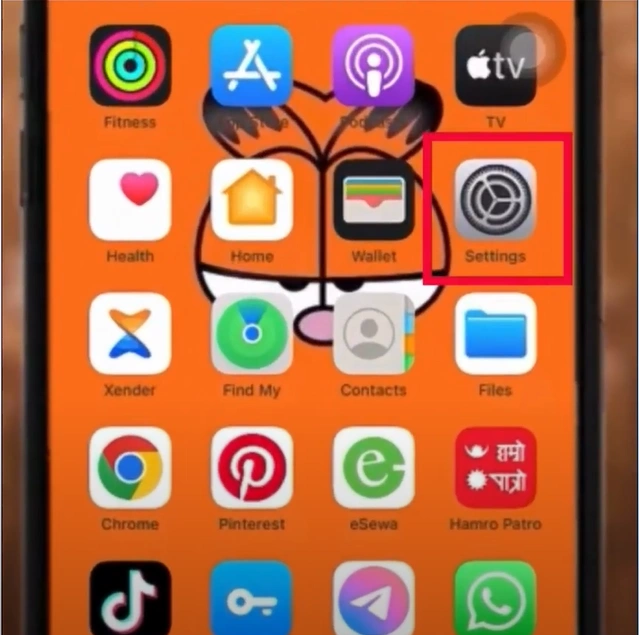
Step 2: Open Settings from the home screen.
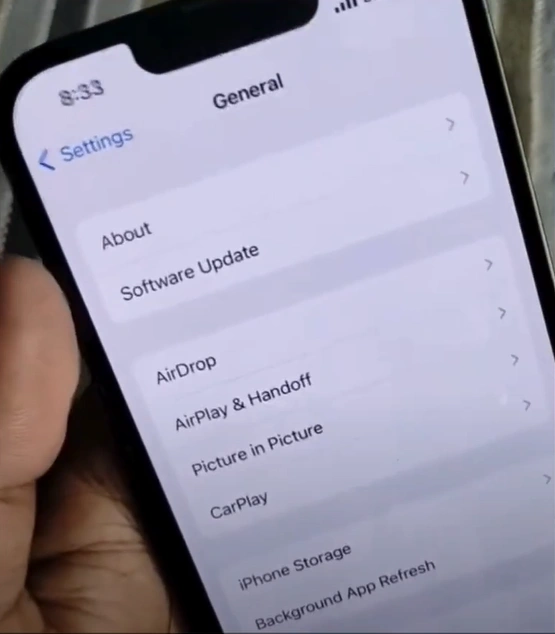
Step 3: Tap General, select Software Update, and it’ll start checking for updates.
Step 4: If an update is available, click "Download and Install."
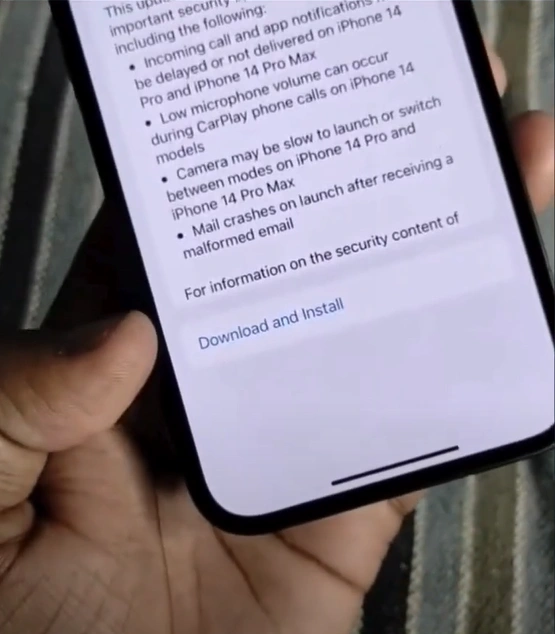
Step 5: Enter the passcode when prompted to proceed.
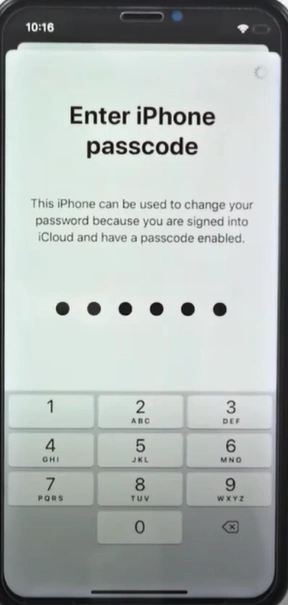
Step 6: If you are using mobile data, click Continue on the pop-up prompt to proceed.
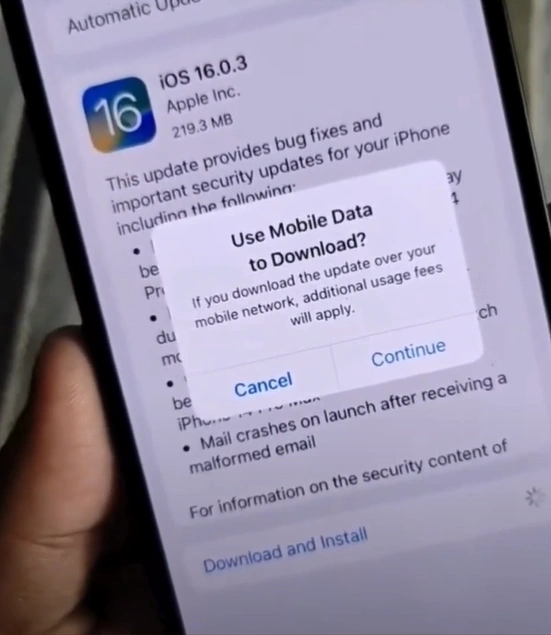
Step 7: The downloading process will take some time to complete.
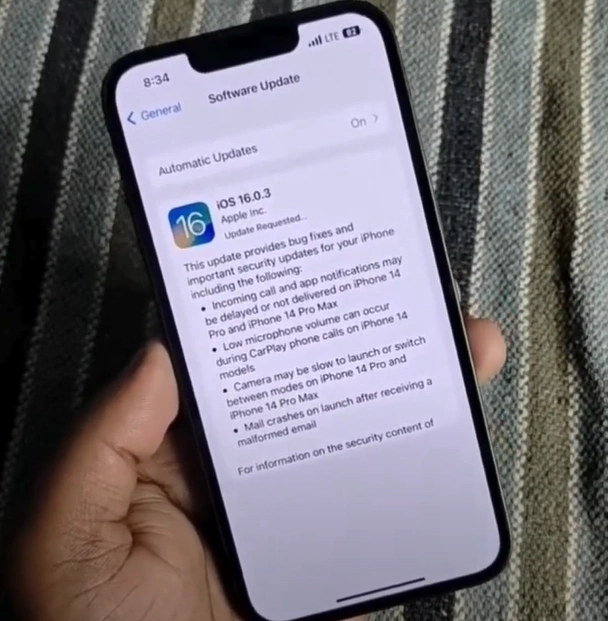
Step 8: Once the software download is complete, tap Install Now to install the update.
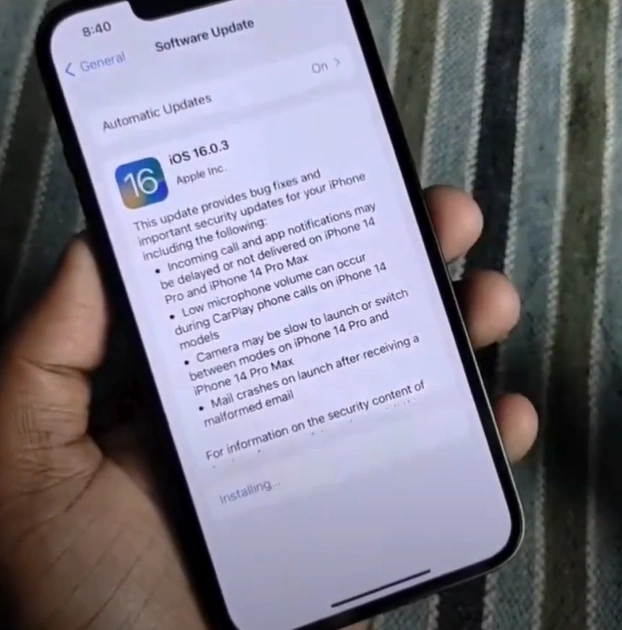
Step 9: Wait for the update process to complete.
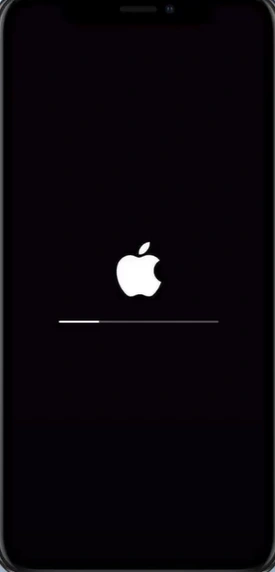
Solution 3: Restart Your Device
Step 1: Press and hold the volume button and the side button until the power-off slider appears.
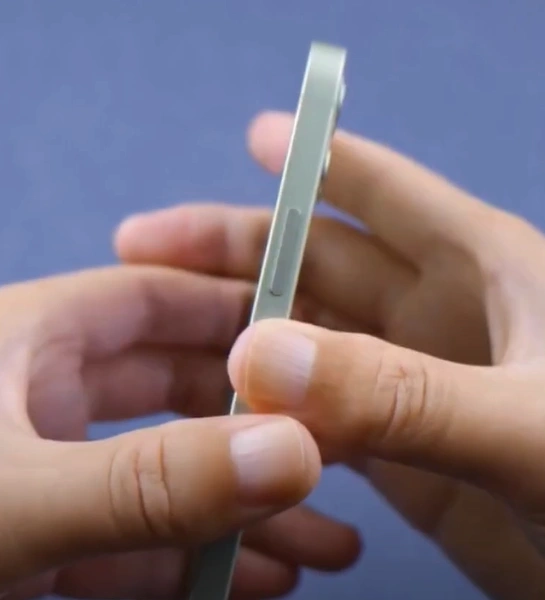
Step 2: Drag the slider to turn off your iPhone.
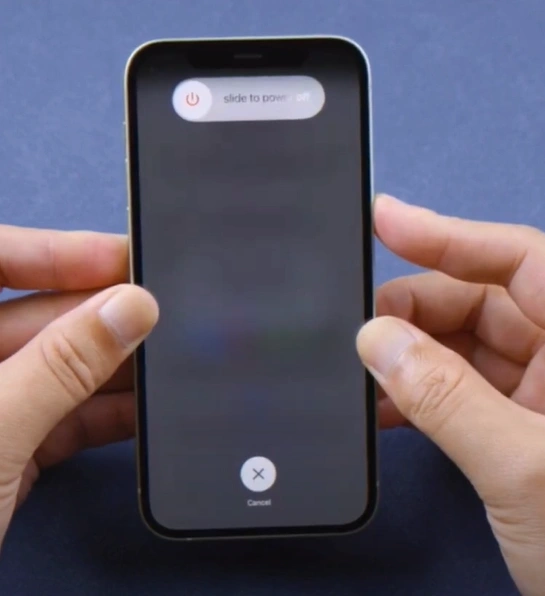
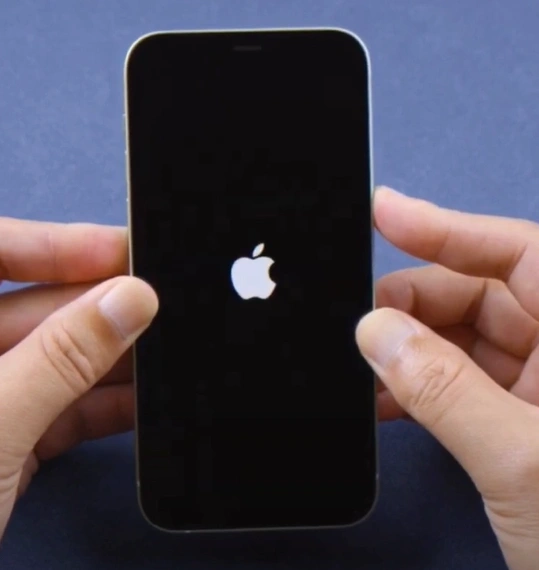
Step 3: After the device powers off, press and hold the side button again until the Apple logo appears.
Solution 4: Reset Your Account
Step 1: Open Settings and tap on your iCloud profile.
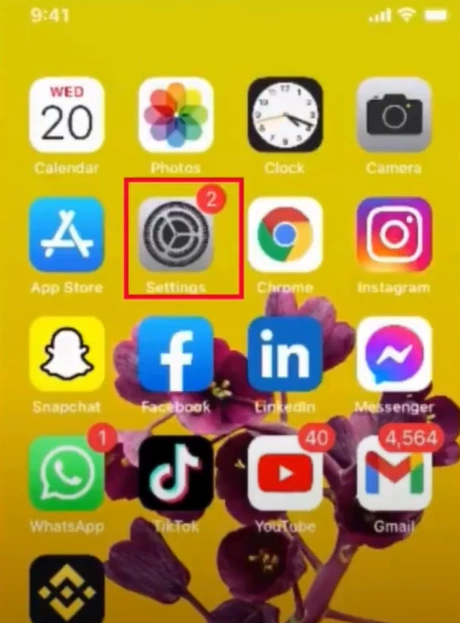
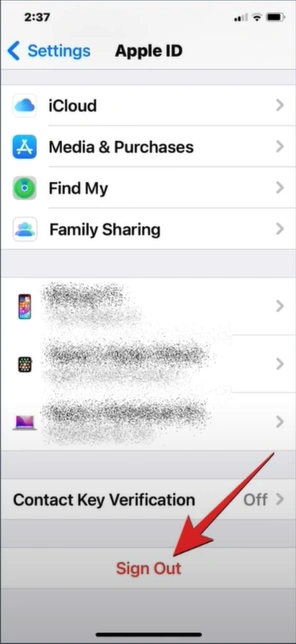
Step 2: Tap on your profile, then scroll down and tap Sign Out.
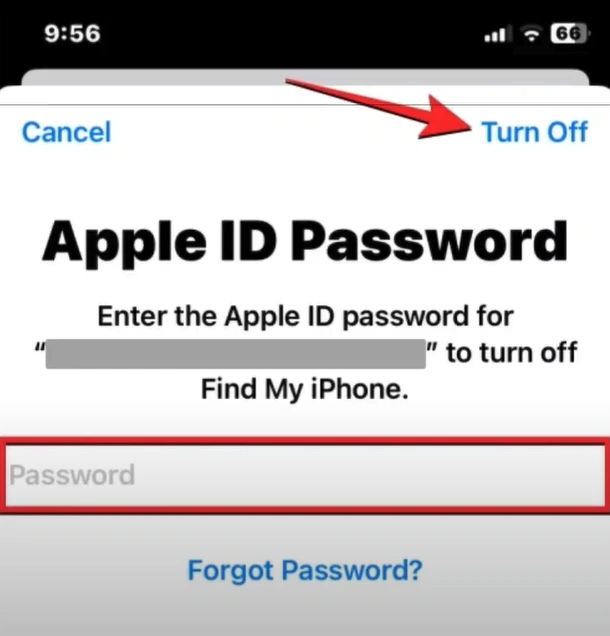
Step 3: Enter your Apple ID password and tap Turn Off.
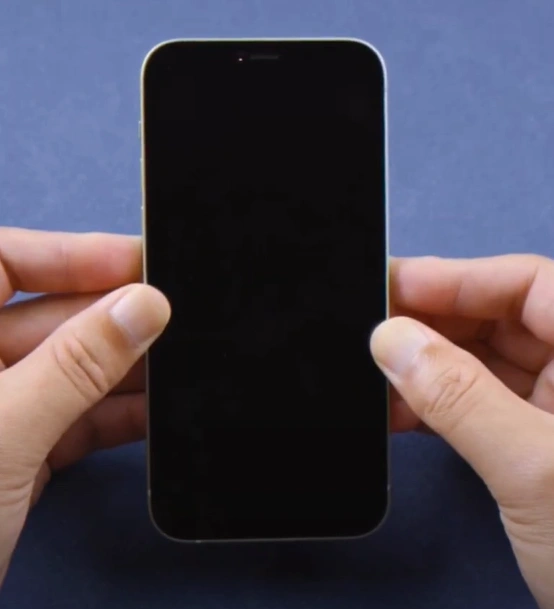
Step 4: Restart the device.
Step 5: After signing in, go to Settings.
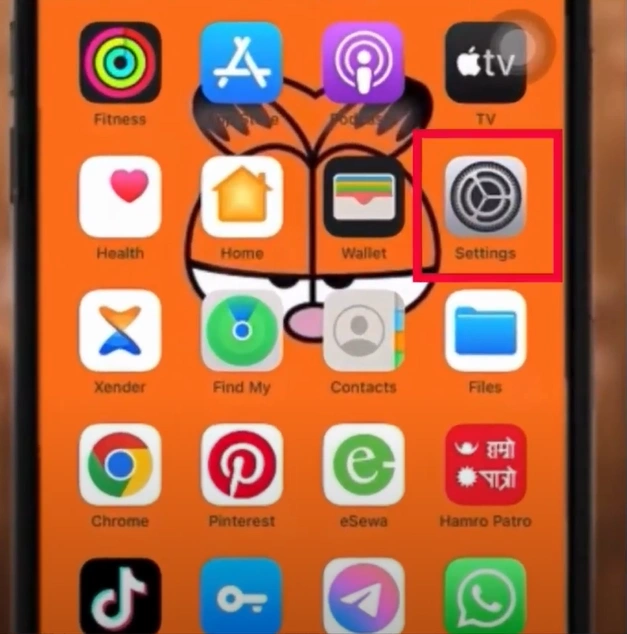
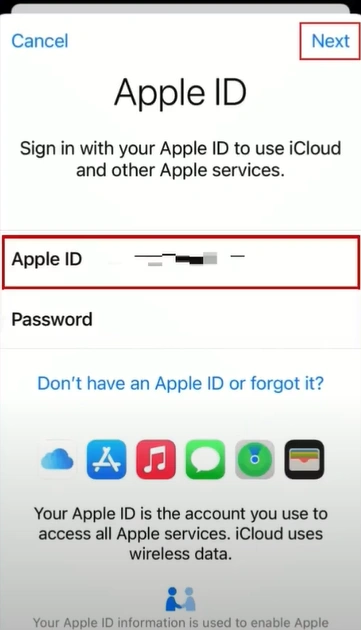
Step 6: Tap Sign in to your iPhone, enter your Apple ID address, and tap Next.
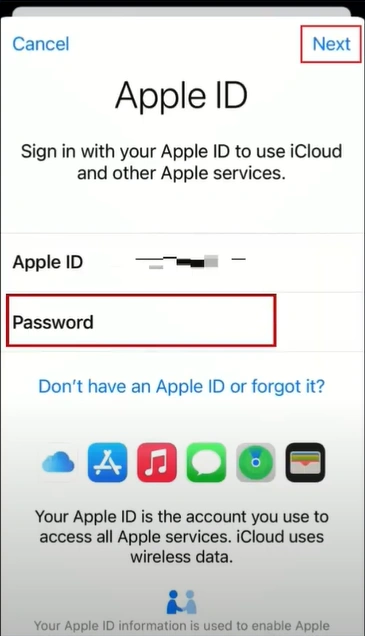
Step 7: Enter the password and tap Next.
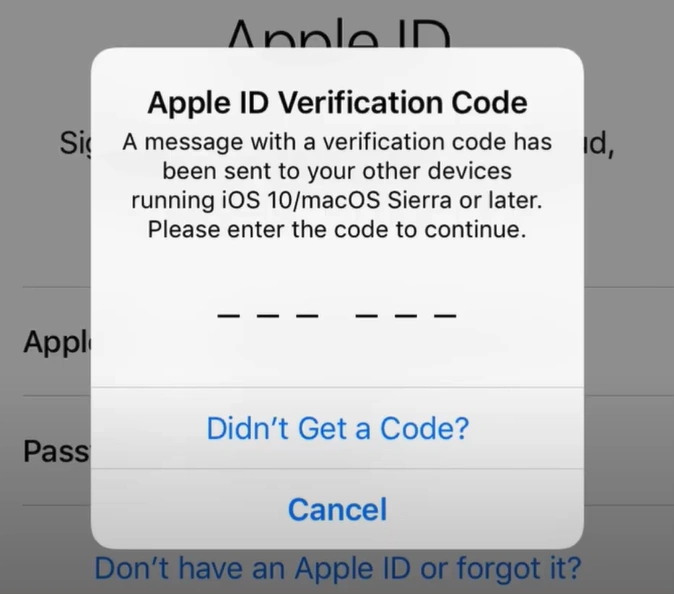
Step 8: If you receive a verification code, enter it and wait for the sign-in process to complete.
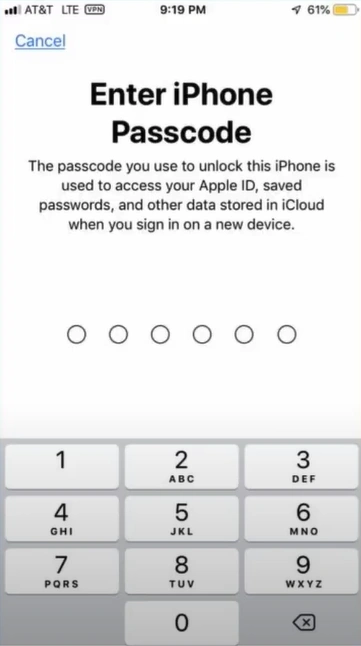
Step 9: Enter your iPhone passcode to finish the setup.
Also Read:- How to Access iCloud Mail on Android?
Wrapping Up
With these fixes, you can easily resolve the "reset your account” error and access your iCloud emails without any hassle. Whether you verify your account or restart your Apple device, you can regain access to your messages and avoid delays.
If you want to prevent the "reset your account” error from occurring, keep your Apple ID information updated, enable two-factor authentication, or regularly review your account settings.



 +1-857-557-6896
 +44-161-791-4592