
How to Encrypt Email in Webmail?
- 0
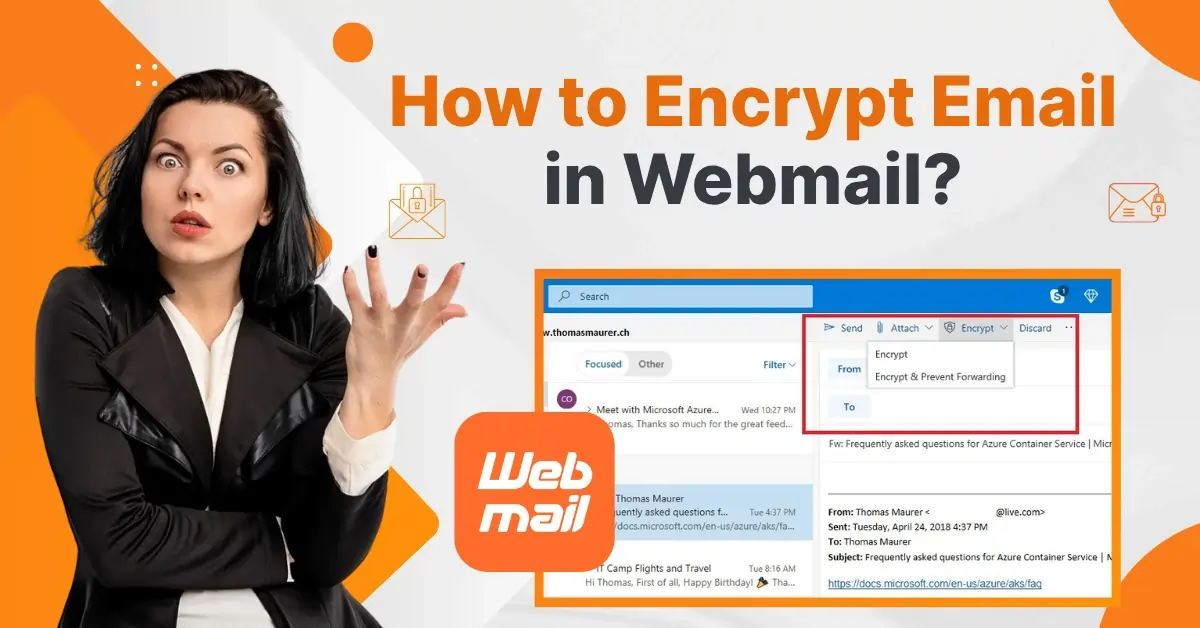
I recently received an email in Webmail claiming to be from my bank. On closer inspection, the email seemed genuine, with the official logo, correct email address, and a formal tone. However, I felt uneasy about clicking the link in the message. "I should stop right there," I told myself.
It was a wake-up call, reminding me of the importance of securing emails in Webmail. My confidential information could be at risk, and it would be a nightmare if personal documents or business contracts ended up in the wrong hands.
I knew what I needed to do: encrypt my emails. I enabled email encryption to ensure my messages remained private, so only the intended recipient could read them. The entire process of encrypting emails in Webmail was simple. Here’s how I did it, but first, I want to mention some common issues you might face along the way.
Common Issues When Encrypting Emails in Webmail
When the user attempts to encrypt an email in Webmail, they may encounter issues that hinder the process. These issues can be:
-
Email client limitations
-
Server-side encryption not enabled or improperly configured
-
Compatibility issues
-
Interoperability issues between email services
Steps to Encrypt Email in Webmail
If you want to encrypt email in Webmail, for Outlook Webmail, Gmail Webmail, and Proton Webmail, here is what you need to do:
For Outlook Webmail
Step 1: Open your Outlook account in your browser.

Step 2: Click on "New Message" and add the necessary details.
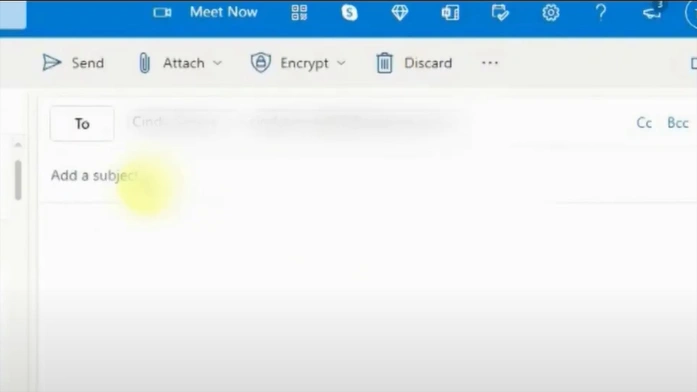
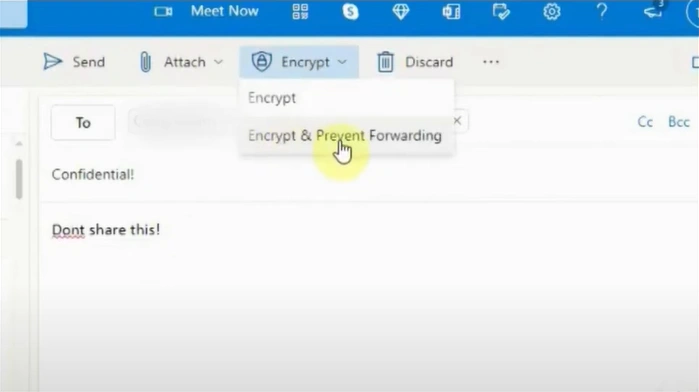
Step 3: Click on the Encrypt dropdown and select your preferred option.
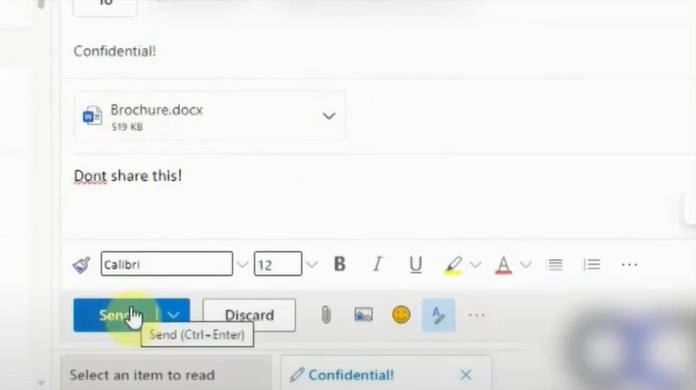
Step 4: Click the Send button to send the email.
For Gmail Webmail
Step 1: Open your Gmail account in your browser.
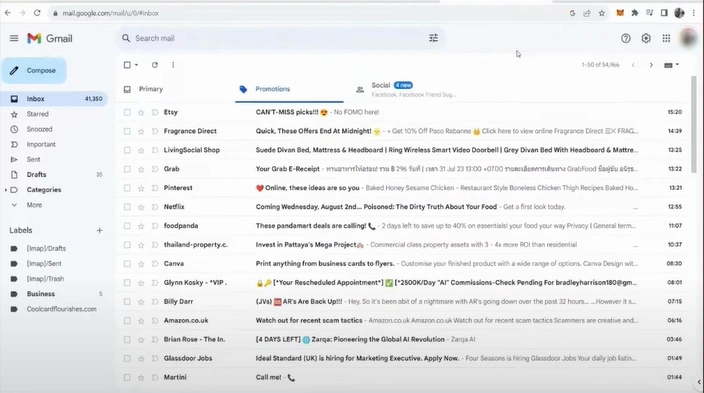
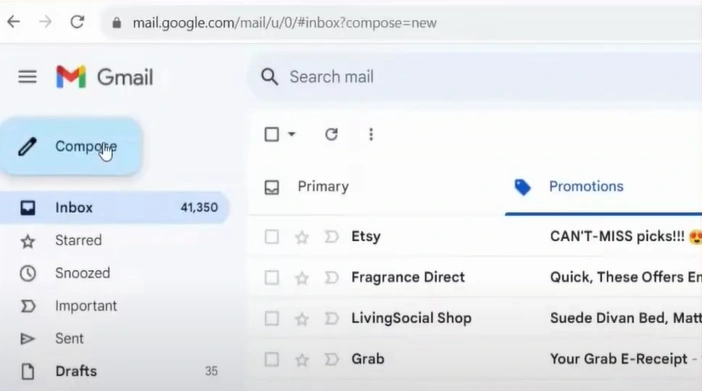
Step 2: Click "Compose" to write the email.
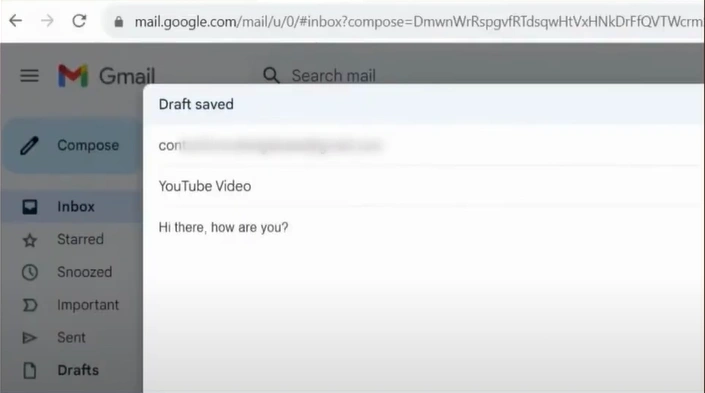
Step 3: Fill in the information, then click on the lock icon in the menu below.
Step 4: Go to 'Select expiry' to choose a period, then select either 'No SMS passcode' or 'SMS Passcode' below.
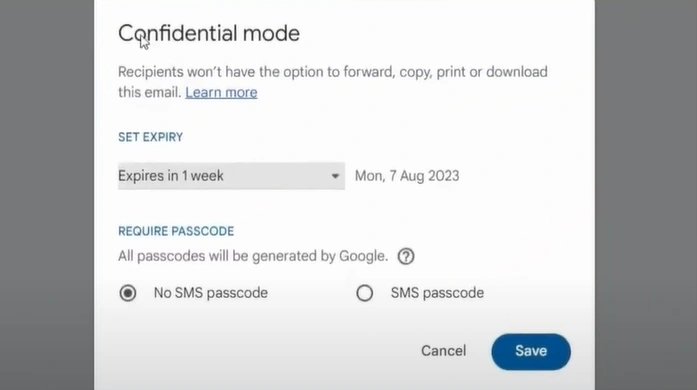
Step 5: Click on the Save button.
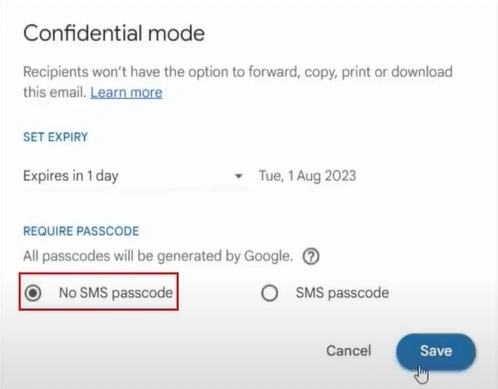
Step 6: Finally, click Send to deliver the encrypted email.
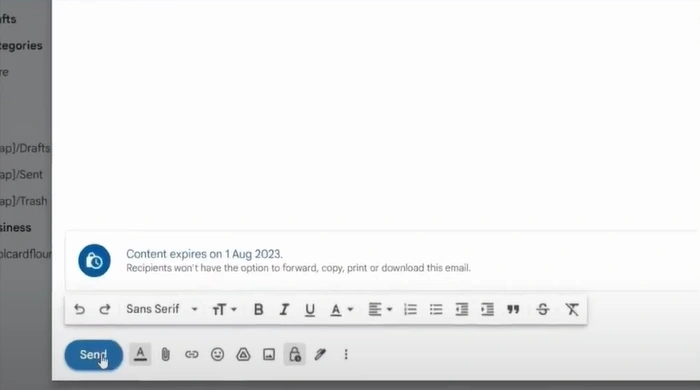
For Proton Webmail
Step 1: Open your Proton Mail account in any browser.
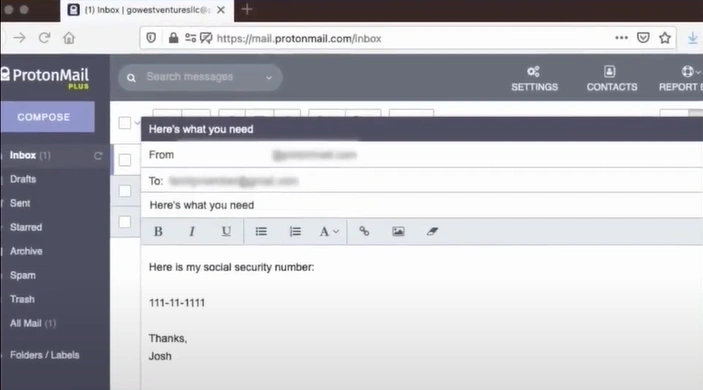
Step 2: Click on Compose.

Step 3: Enter the details and message, and click the lock icon.
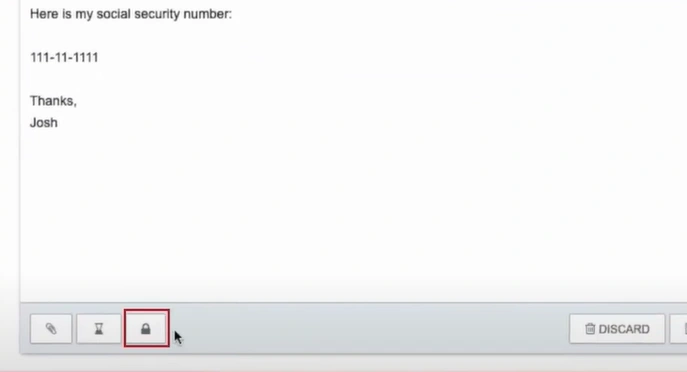
Step 4: Enter and confirm the message password in the pop-up window, then click on Set.
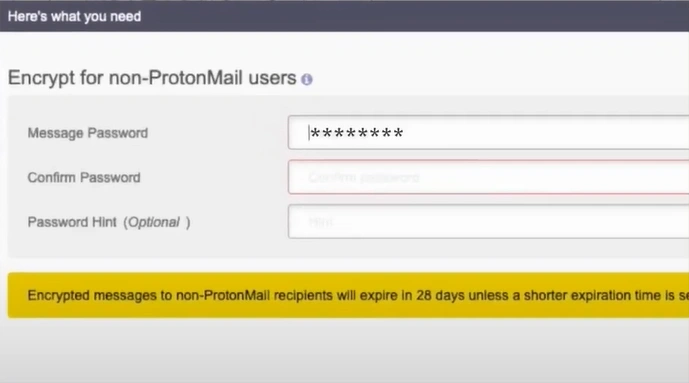
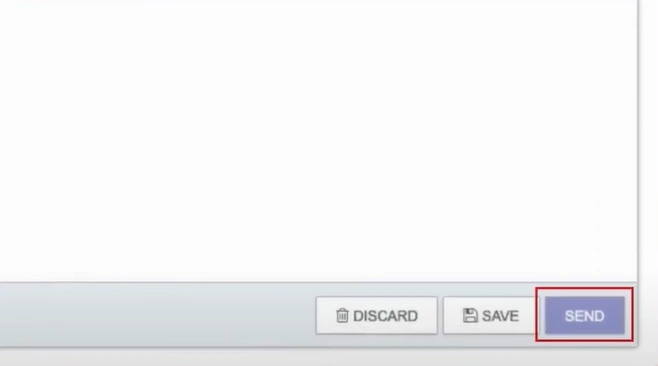
Step 5: Click "Send" to send the encrypted message via email.
Also Read:- How to Access HostGator Webmail?
Conclusion
You may have used Webmail for years without thinking about email privacy and security. But now, with the above methods, you can secure your daily communications and feel confident. Follow these simple steps to protect your private information, financial details, and other sensitive data against cyber risks.



 +1-857-557-6896
 +44-161-791-4592