
How to Solve Outlook Keeps Crashing on Startup?
- 0

Whenever Outlook crashes on startup, it stops your entire workflow. You might have tried multiple times to open the program, but it keeps closing again and again. Therefore, how to resolve this issue may be the question on your mind.
We have highlighted a few expert-proven solutions to resolve Outlook crashing when you launch it. By the end of this guide, you will be able to resolve the problem yourself and continue emailing as usual. Let’s first look at the causes of Outlook crashing on startup.
Why Is Outlook Crashing on Startup?
The most common reasons for Outlook failing to launch are:
-
Faulty add-ins
-
Outdated software
-
Corrupted data files
Things to Check Before Troubleshooting Outlook Crashes
These are important things to keep in mind before troubleshooting to avoid data loss or further issues. Make sure you:
-
Keep a backup of your files: Before doing anything else, maintain a backup of all your Outlook data files. With a backup, you can protect your contacts, emails, and attachments if something goes wrong.
-
Check the size of your mailbox: If it's too large, Outlook might take longer to load and crash. Delete unnecessary attachments or older messages.
-
Verify your internet connection: If Outlook fails to sync emails properly. Restart your computer before starting troubleshooting.
-
Test in Safe Mode by opening Outlook in Safe Mode: By doing this, you can figure out if the crash is caused by add-ins or custom settings.
Fixes to Resolve the Outlook Keeps Crashing on Startup Issue
Outlook crashing on startup is quite common. You can try these fixes:
Run Outlook in Safe Mode
Follow these simple steps to open Outlook in Safe Mode:
1. Click the Windows Start button.
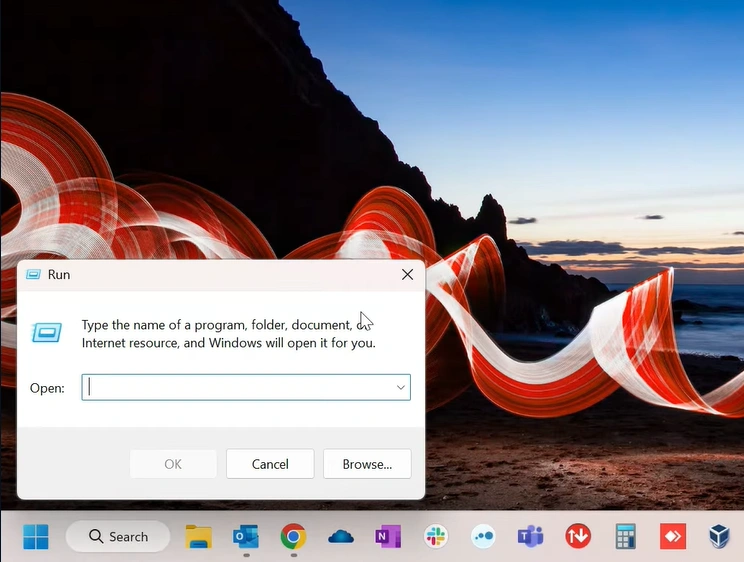
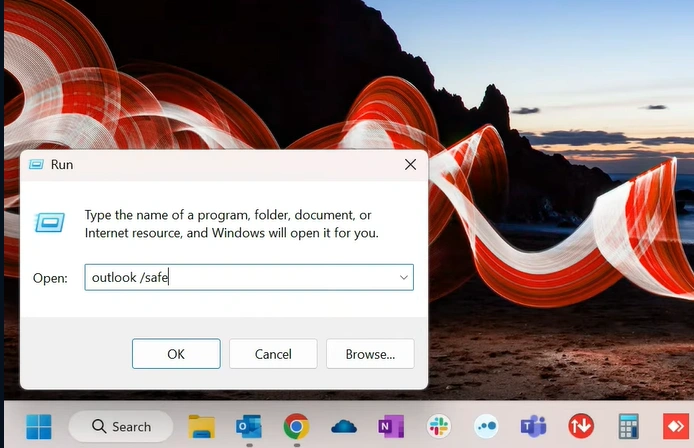
2. In the given field, type outlook /safe, and press Enter.
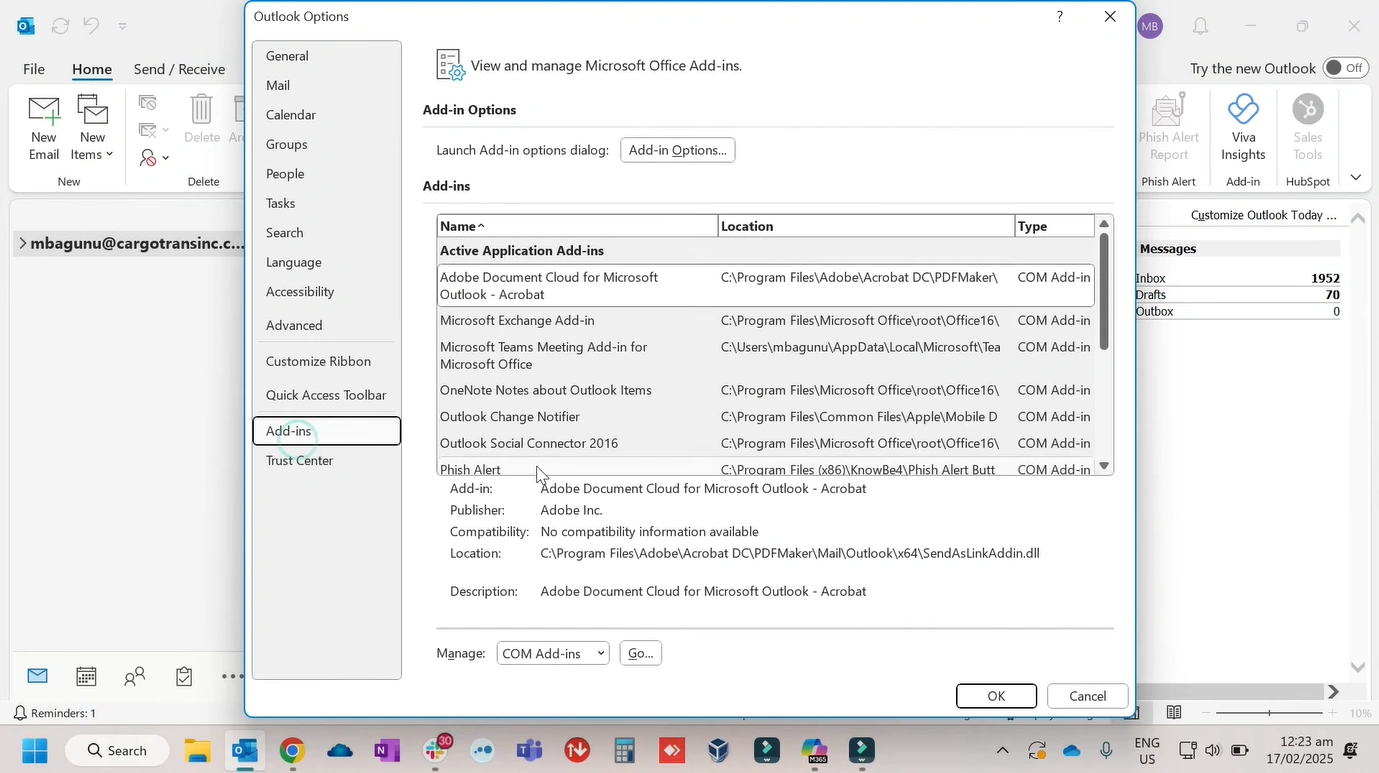
3. If this works, disable add-ins one by one in File > Options > Add-ins to identify the culprit.
Repair Outlook via Control Panel
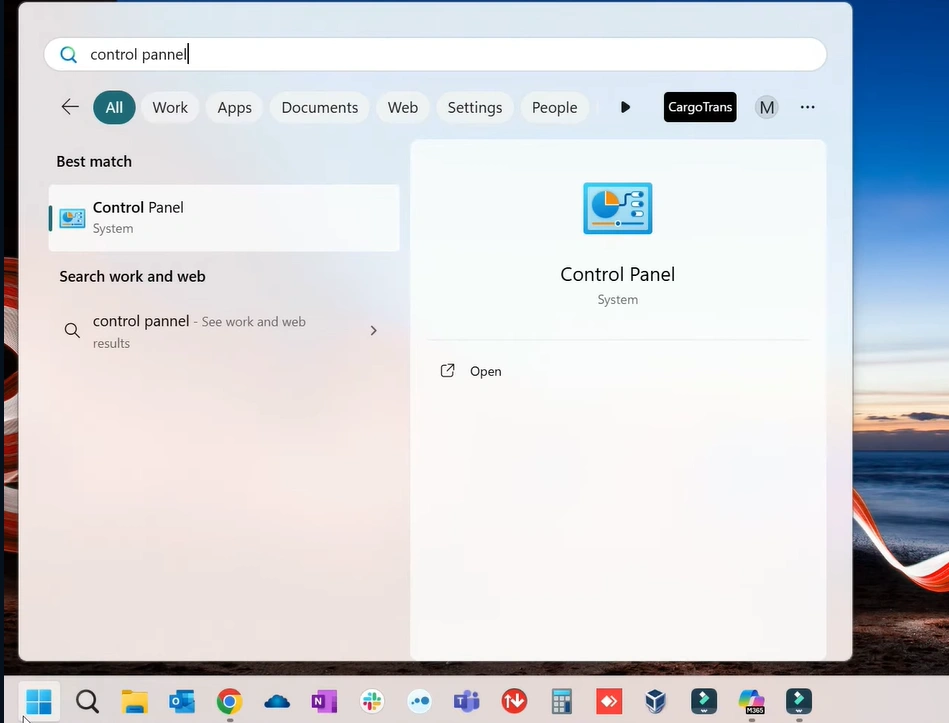
1. Press the Windows Start button.
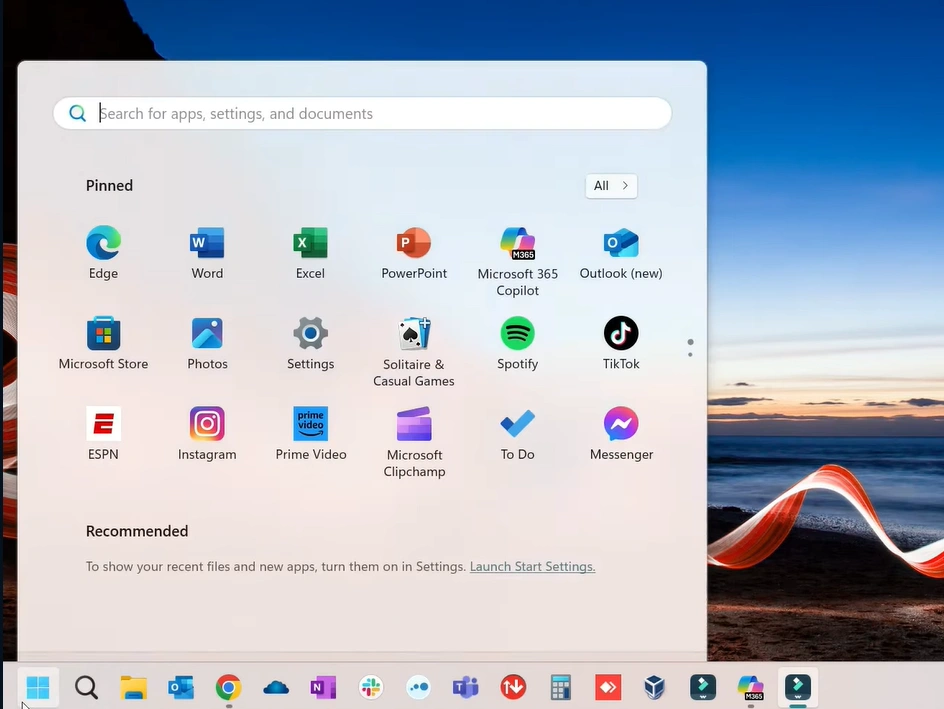
2. Type “control panel” in the search bar, and open it.
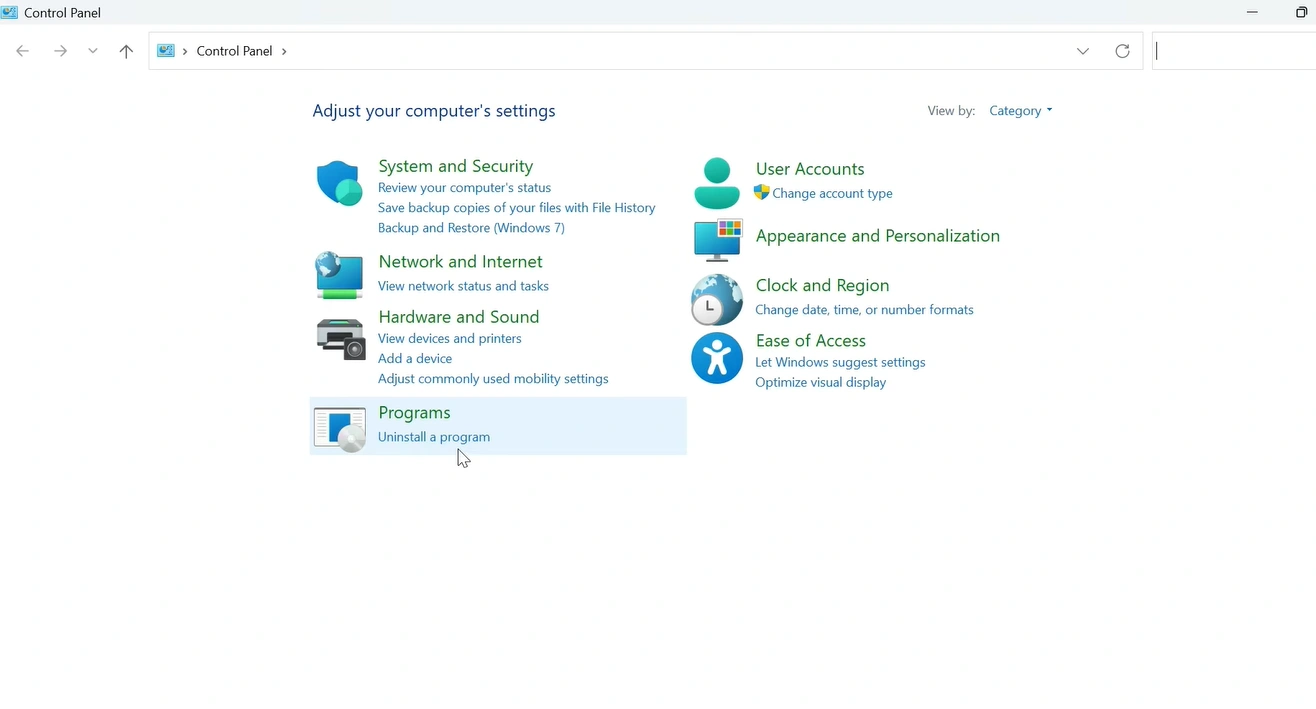
3. Then, select “Uninstall a program” under Programs.
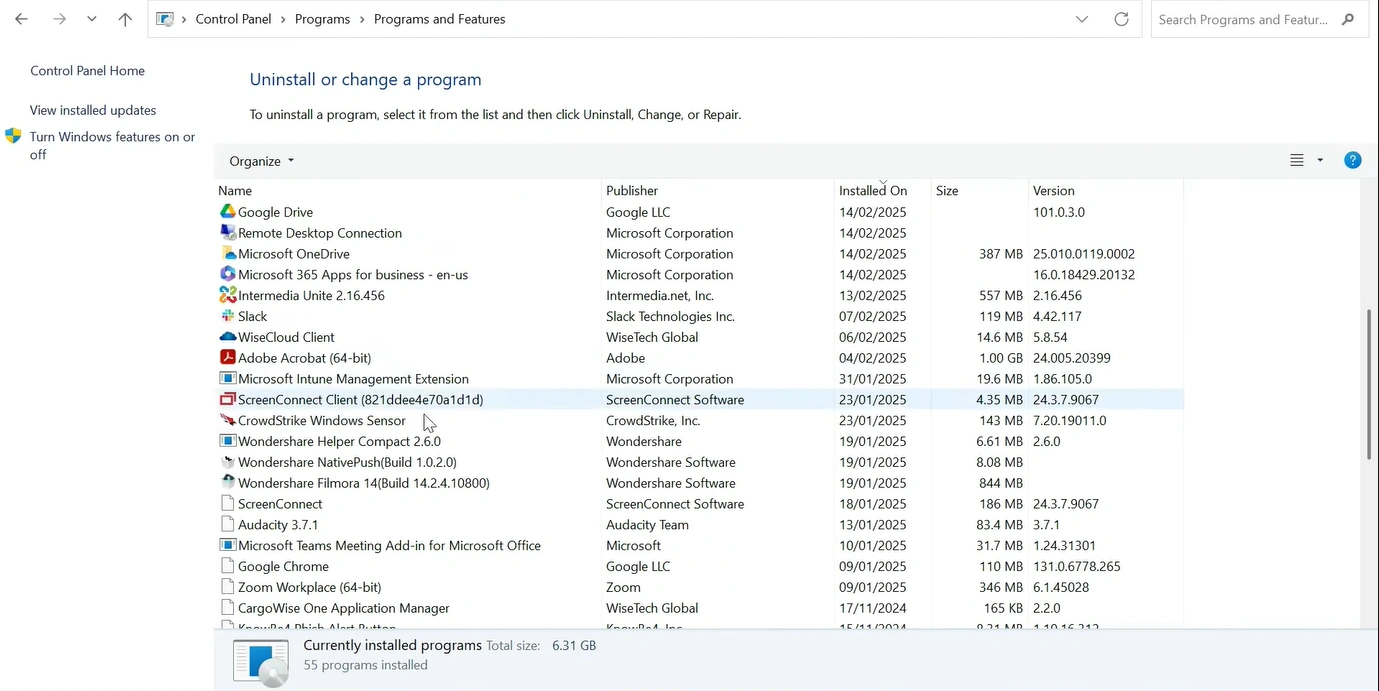
4. A list of installed programs will appear. You need to look for Microsoft 365.
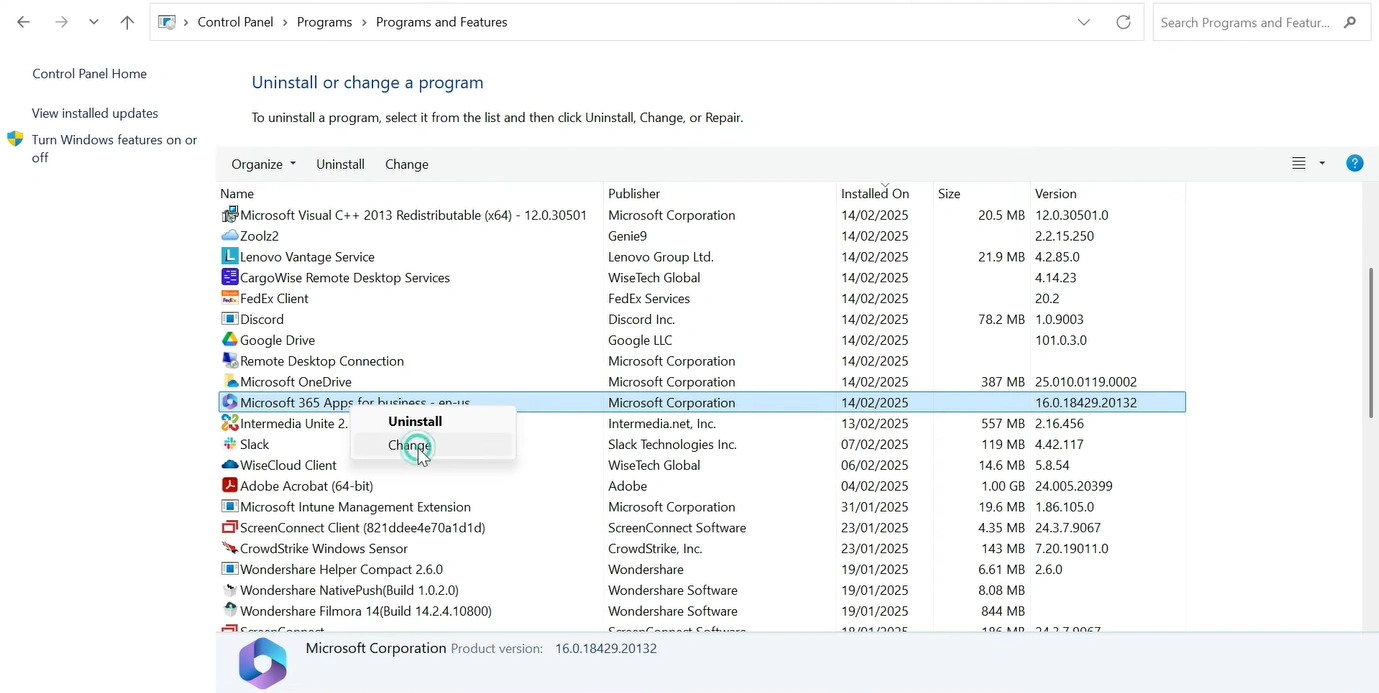
5. Right-click on Microsoft 365, then click on “Change.”
6. Select “Yes.”
7. After that, select the radio button next to Quick Repair, then click on the “Repair” option.
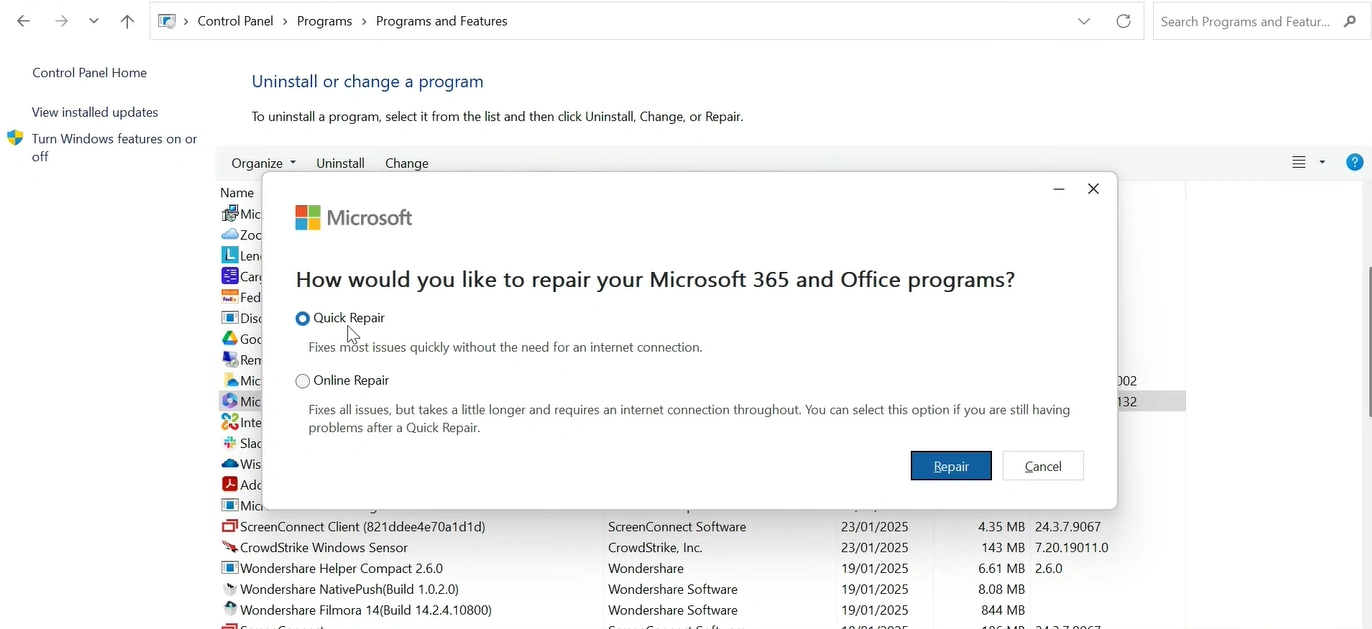
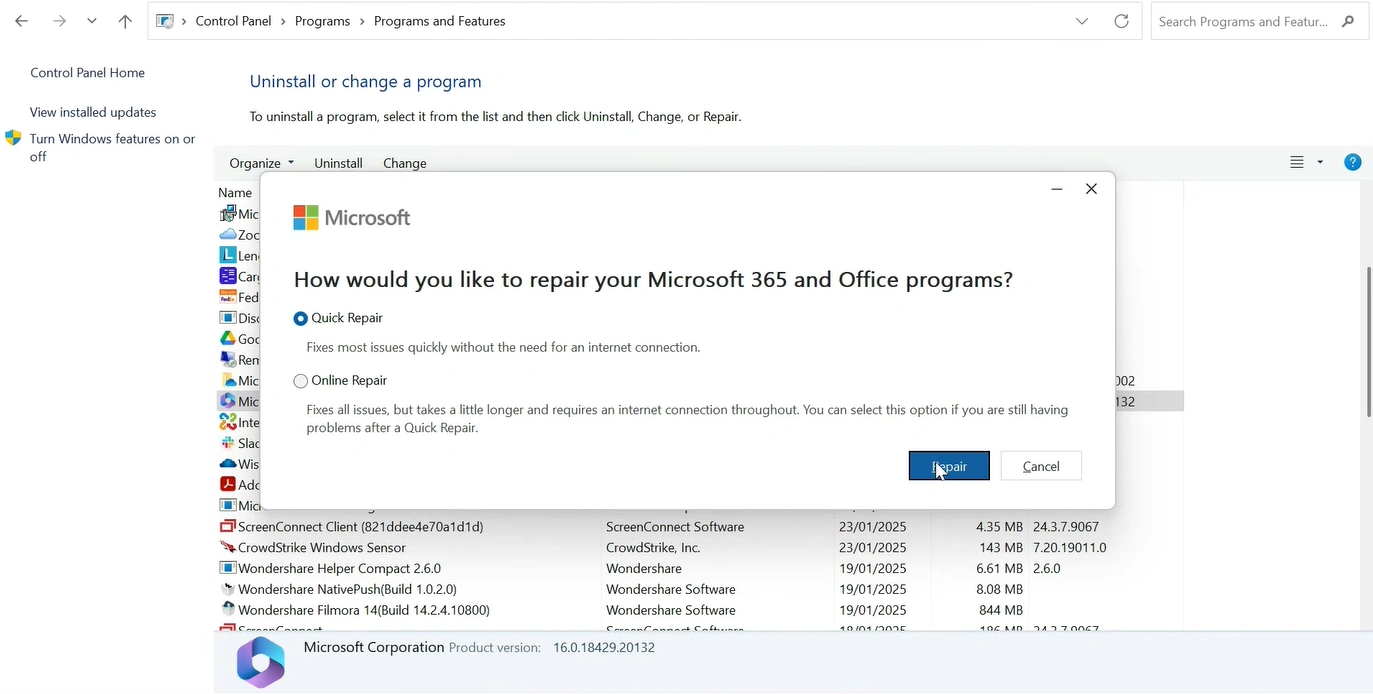
8. Click on Repair again.
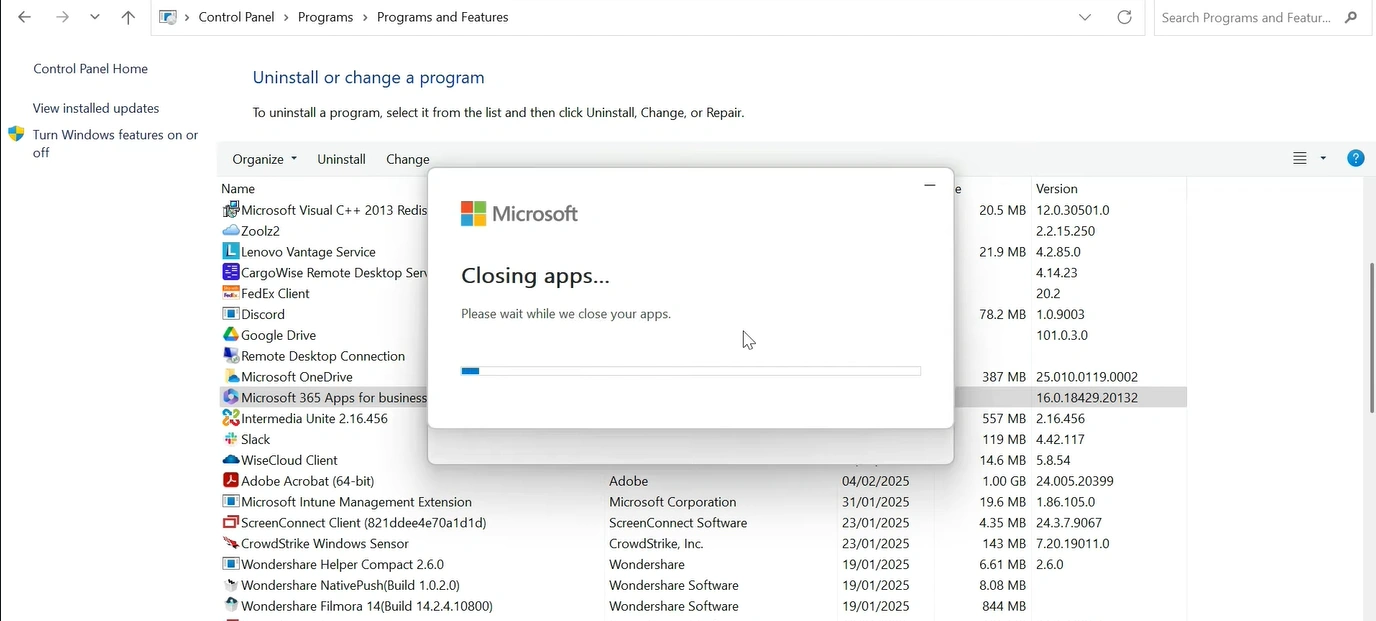
9. Wait a few minutes while the Office program repairs itself.
10. Once it is completed, click on “Close.”
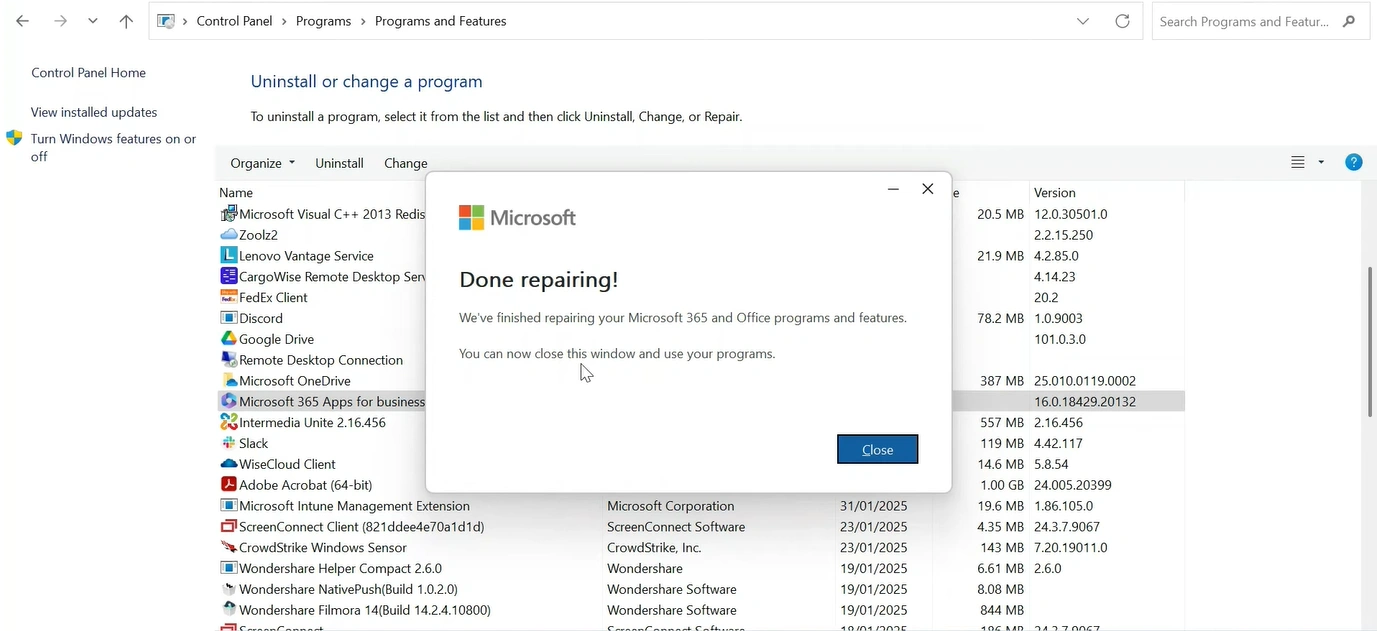
11. Now, check if the problem is resolved.
Update Outlook
- Open Outlook on your PC.
- Click on “File” at the top left corner of the screen.
- Select Office Account.
- Click on Update Options > Update Now.
- Wait for Office to check for and install available updates.
- Once the installation is completed, restart Outlook and check if the issue is resolved.
Clear Cache
Corrupted cache files of Outlook can also cause a crash when you launch the application. So, you must clear the cache before you start. Follow the given steps:
-
Press the Windows + R keys together.
-
In the dialog box, type %localappdata%\Microsoft\Outlook and hit the Enter key.
-
Look for the RoamCache folder.
-
Open the folder and select all the files inside it.
-
Delete the selected files.
-
After that, close the folder and restart Outlook.
Temporarily Disable Antivirus Integration
Antivirus programs on your PC can also interfere with Outlook and cause crashes. Disabling them temporarily is one solution. Here’s how to do that:
-
Open your antivirus program.
-
Locate the Email Protection or Outlook Integration option.
-
Disable this feature, and then restart Outlook.
-
Open Outlook again to check if the problem is resolved.
If Outlook works after temporarily disabling the antivirus, you may need to adjust the antivirus settings or contact the software provider for assistance.
Create a New Profile
1. Click on the Windows button.
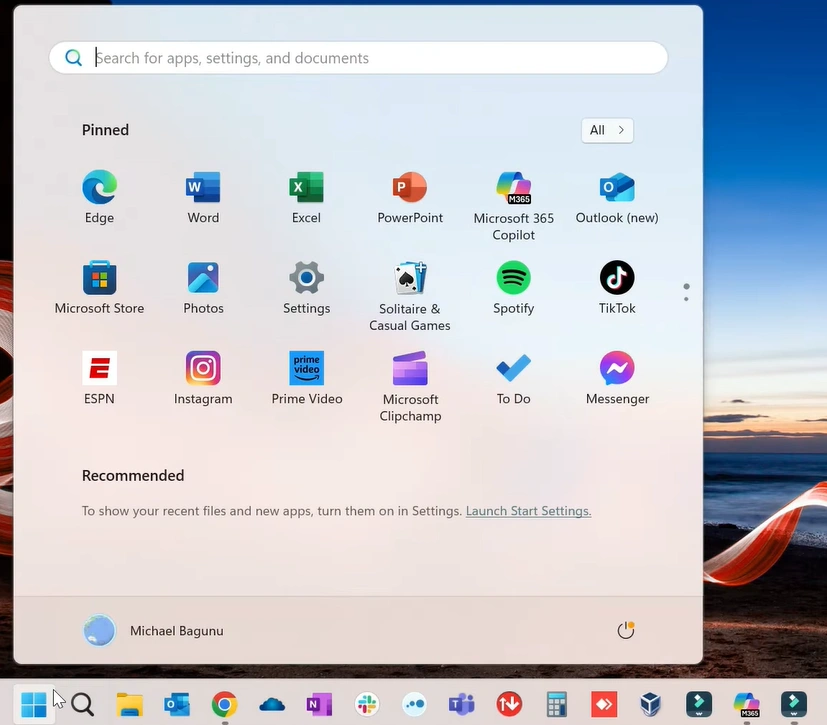
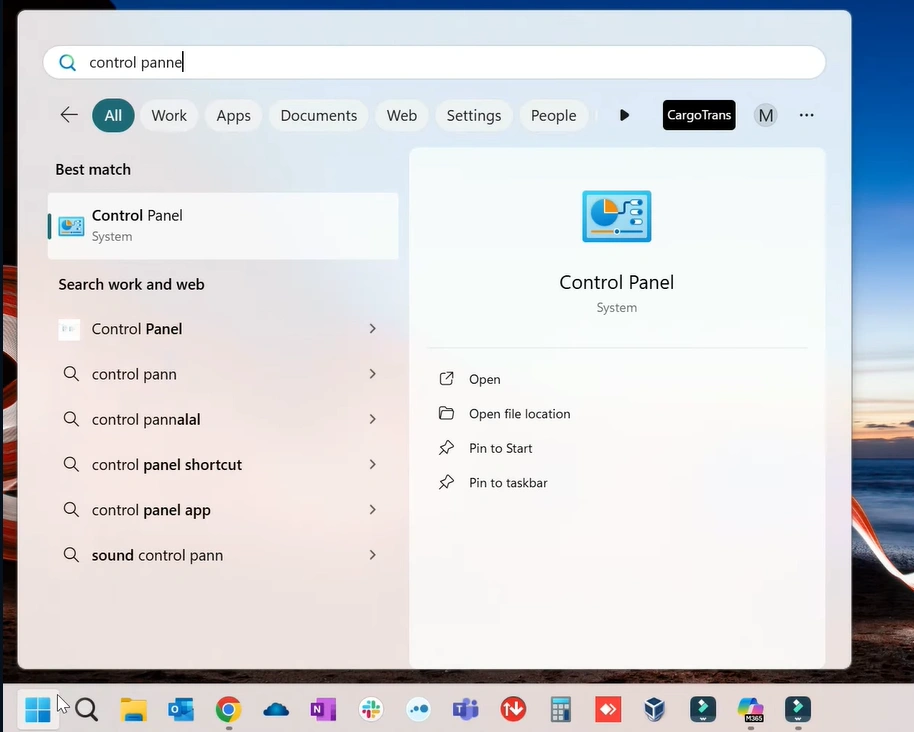
2. Type in “control panel” and open it.
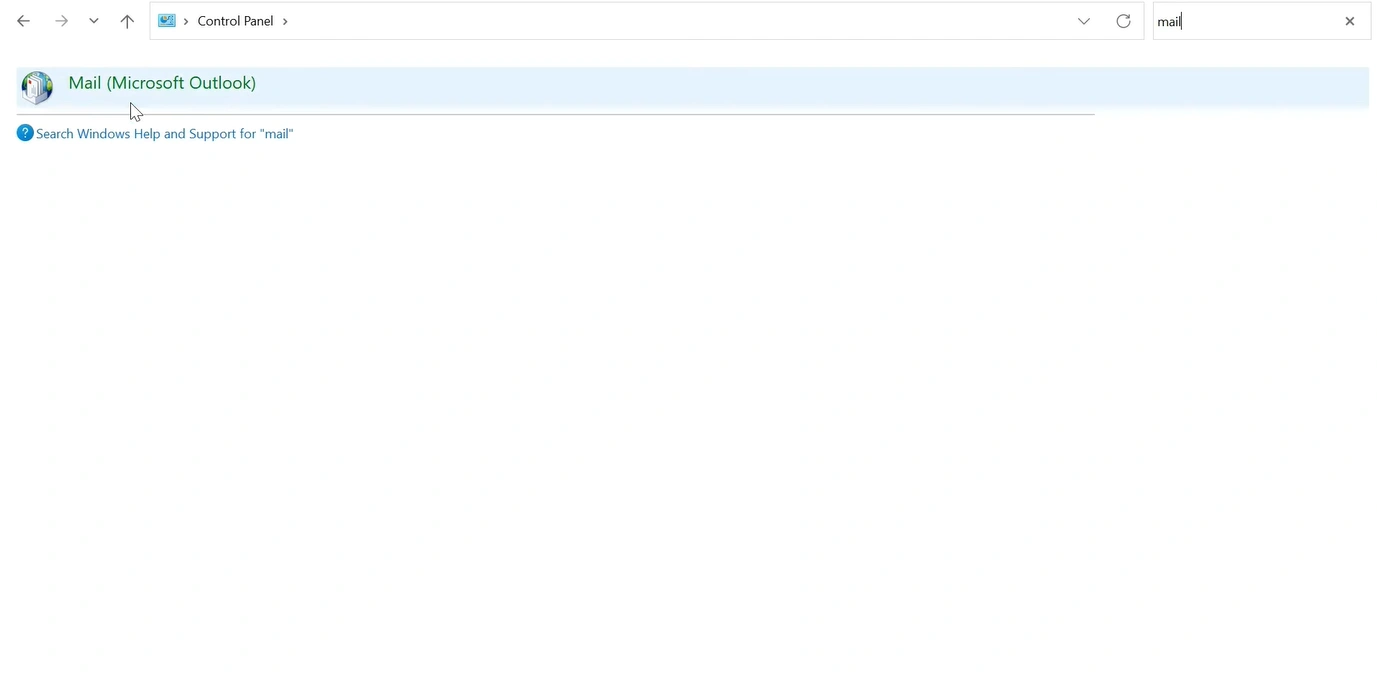
3. At the top right corner, type “mail” in the search field.

4. Select Mail (Microsoft Outlook).
5. From the dialog box, click on “Show Profiles.”
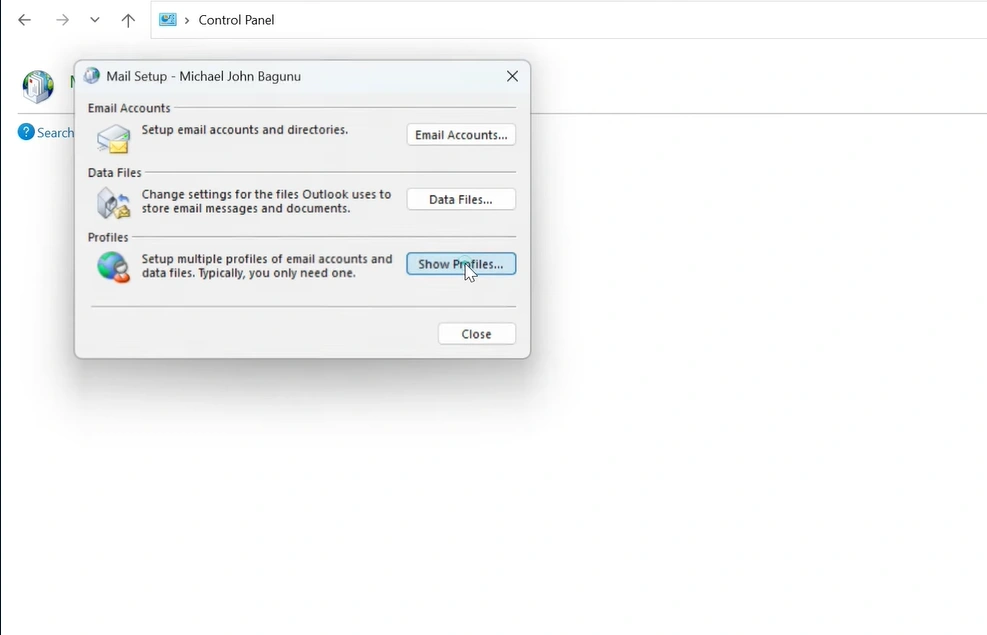
6. After that, click on Add.
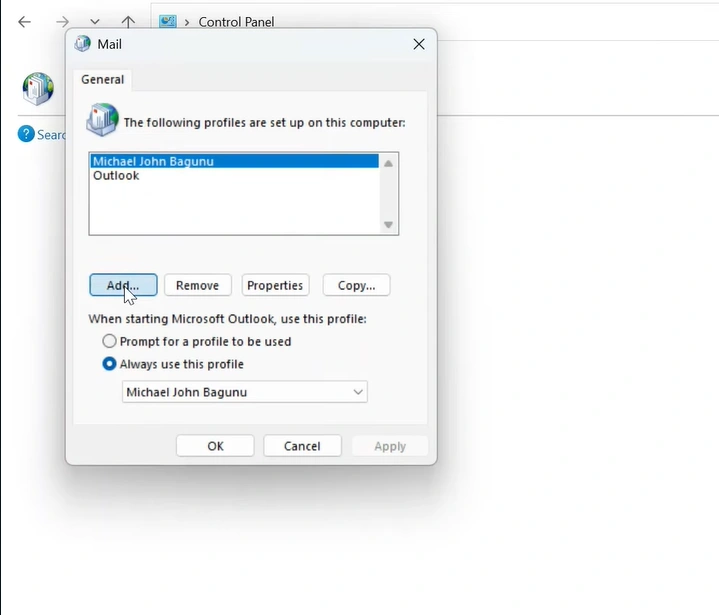
7. Enter your profile name, then click OK.
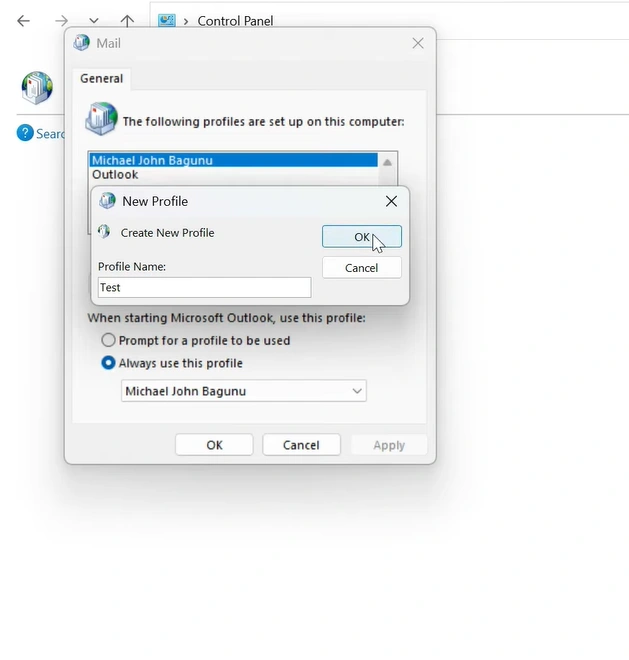
8. Re-enter your username and password, then click on Next.
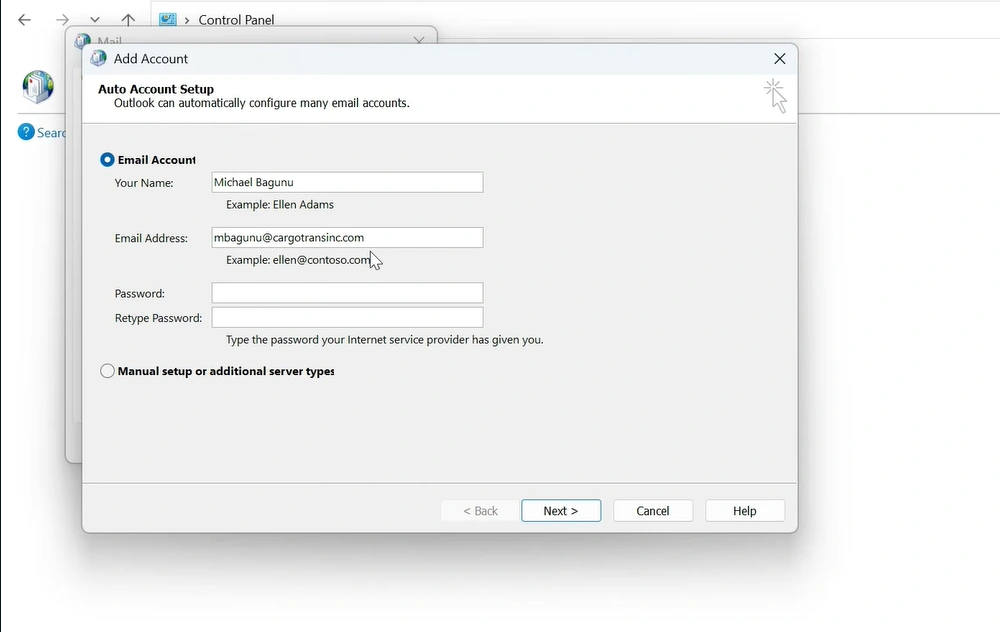
9. Click on Finish.
10. Once you are done, from the dialog box, select your new profile.
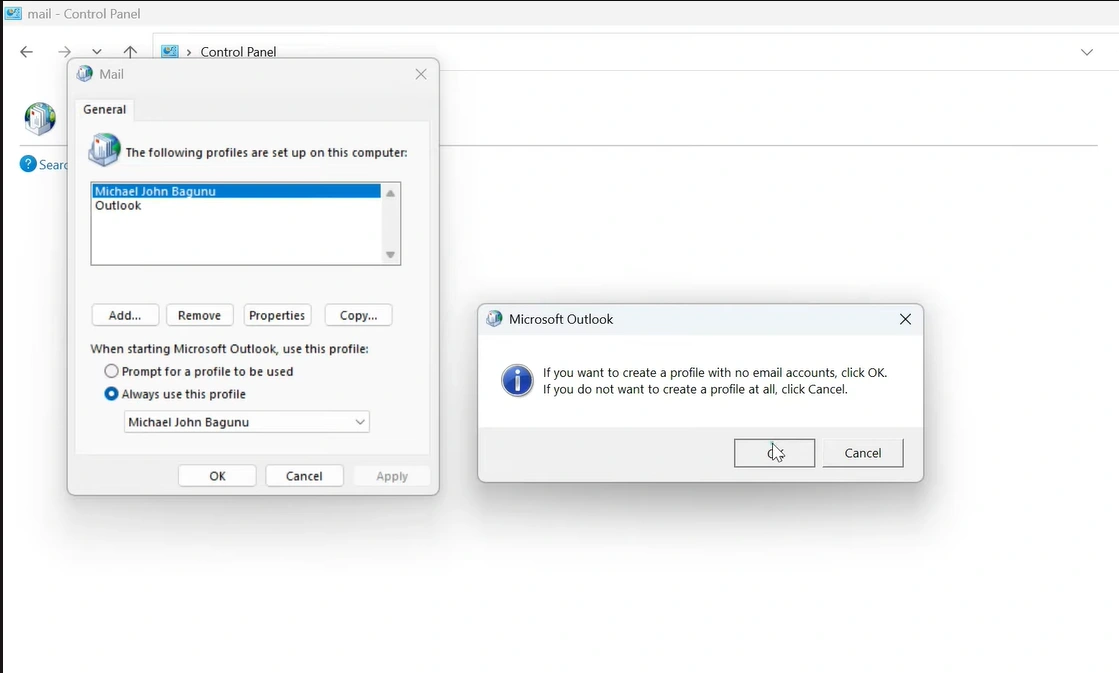
11. Ensure that “Always use this profile” is selected.
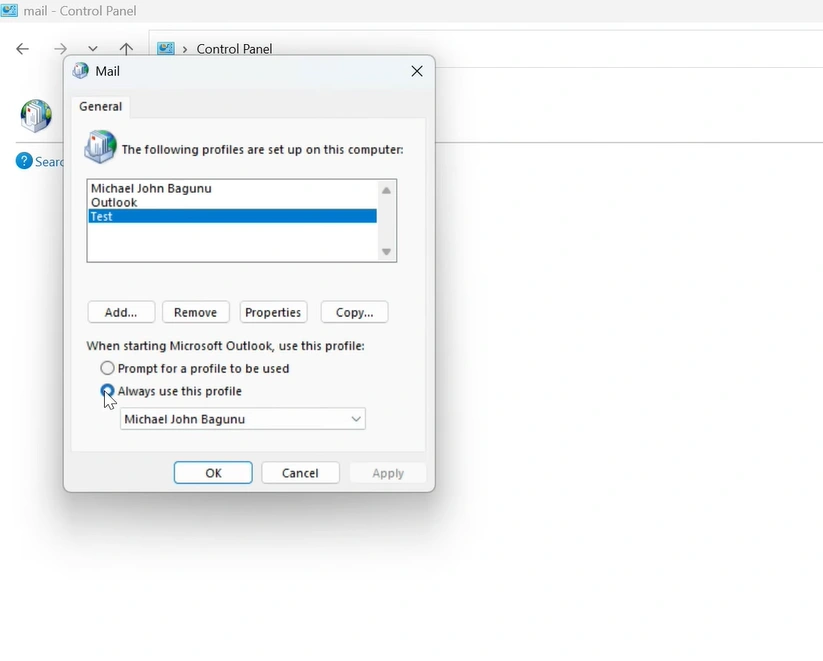
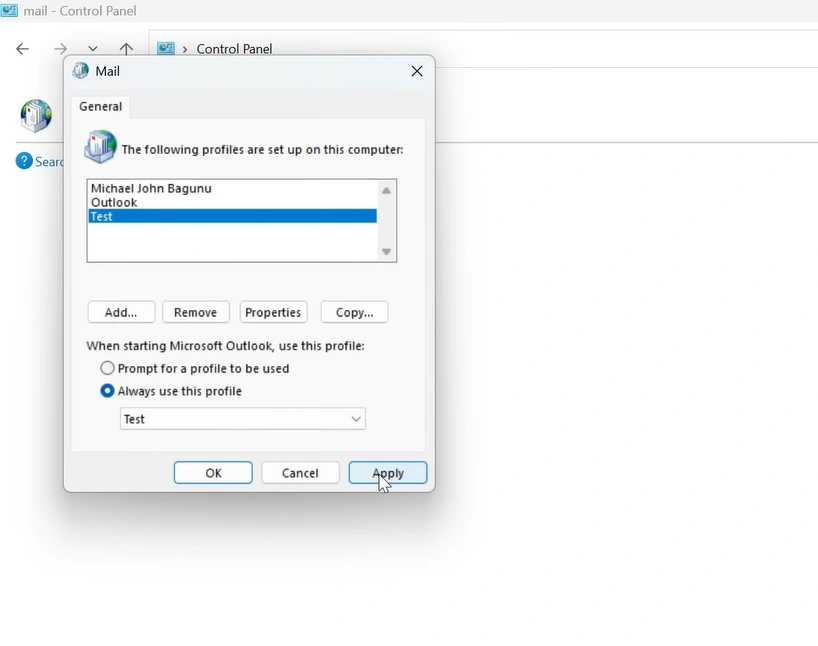
12. Under “Always use this profile,” choose your new profile.
13. After that, click on the “Apply” option, then OK.
How to Prevent Outlook Crashes in the Future?
If you want to minimize the chances of Outlook crashing again, you must follow these tips:
-
Keep Outlook and Windows updated, which can help with bug fixes and security improvements.
-
Avoid installing unnecessary add-ins. Too many add-ins can slow the program down and may cause startup issues.
-
Maintain the size of your mailbox, as large mailboxes can slow down the program and cause crashes.
-
Close Outlook properly before shutting down your PC. This helps prevent data file corruption.
-
Don’t run too many programs at once, as this can impact Outlook’s performance.
Also Read:- How to Solve Outlook Keeps Freezing or Crashing Issue?
Conclusion
Outlook crashing on launch is really frustrating, especially when you want quick access to important emails and files. Identify the root cause and apply the above troubleshooting methods to quickly resolve the “Outlook crashing on startup” issue.
You can run Outlook in Safe Mode, repair the Office installation, or clear the cache. These solutions are easy to follow for both technical and non-technical users.
Don’t forget the preventive tips, like keeping Outlook software updated and maintaining the mailbox size.
Frequently Asked Questions (FAQs)



 +1-857-557-6896
 +44-161-791-4592