
Troubleshoot Outlook Email Delivery Delays – Step by Step
- 0
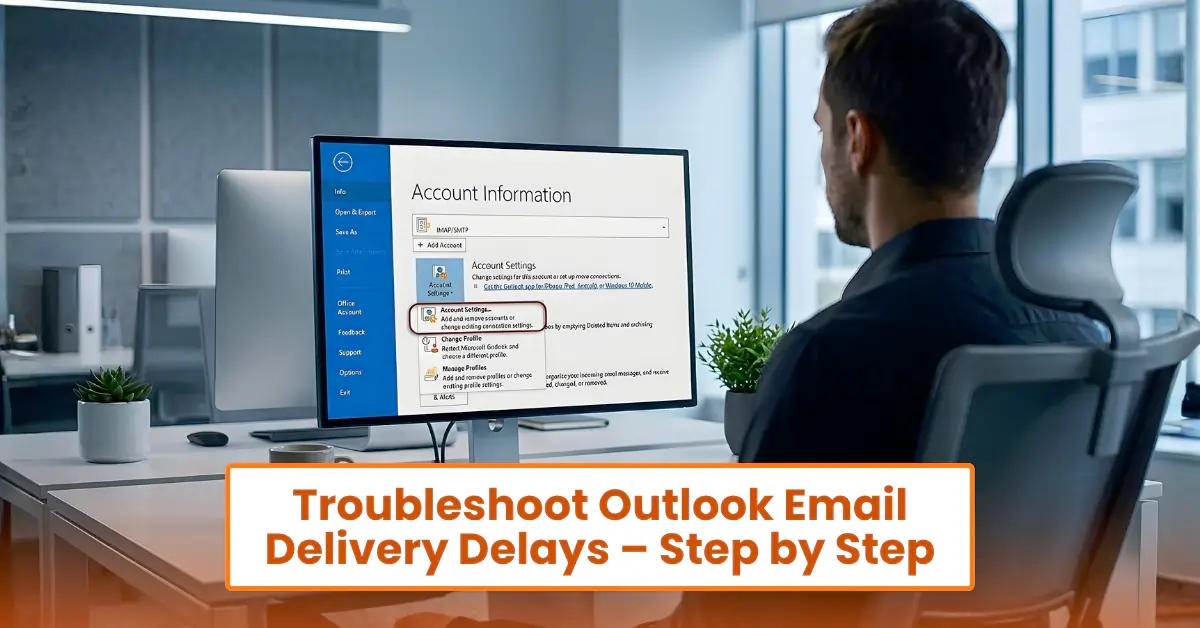
When you click the “Send” button in Outlook, the message may not be sent. Why does that happen? You might have entered the wrong email address, or the recipient’s mailbox could be full. This may happen because strict spam filters block the message. Your email may contain large attachments. All of these can cause email delivery delays.
Are you trying to fix the issue on your own? No guesswork is needed because the solutions for slow email delivery are listed below. First, let’s look at the common issues that can occur during troubleshooting.
Common Issues That Cause Email Delivery Delays in Outlook
Fixing slow email sending in Outlook is simple. However, a few issues may occur, such as:
-
Wrong email settings
-
Outdated Outlook app
-
Antivirus or firewall interference
Solutions to Fix Outlook Email Delivery Delays
Take a look at these practical solutions to fix delayed emails in Outlook:
Solution 1: Check the Outbox Folder
Sometimes your message gets stuck in the Outbox. If that happens, here’s what you can do:
-
In Outlook, look at the left navigation pane.
-
Click on “Outbox.”
-
If the message shows in the Outbox, open it and click on Send again.
-
If it still doesn’t send, delete the email and resend it.
Solution 2: Review Send/Receive Settings
If the settings are incorrect, it may delay the email delivery. Here is how to check the settings:
-
In Outlook, go to the Send/Receive tab.
-
Click Send/Receive Groups.
-
Select Define Send/Receive Groups.
-
Look for “Schedule an automatic send/receive” and see if it is enabled.
-
Check the time and set it to every 5 to 10 minutes.
Solution 3: Repair Outlook Profile
A corrupted Outlook profile can cause delays. To repair it, follow these steps:
-
Go to Control Panel.
-
Select Mail, and click on “Show Profiles.”
-
Create a new profile and set it as the default.
To create a profile:
-
Click on the “Add” button.
-
Give your new profile a name and follow the setup steps.
-
Select the new profile and set it as the default.
Solution 4: Disable “Work Offline” Mode
If Outlook is offline, emails will not send. Turn off “Work Offline” mode. Follow these steps:
-
On Outlook, click the “Send/Receive” tab.
-
Look for “Work Offline.”
-
If it is enabled, turn it off.
Solution 5: Check Spam or Junk Filters
Strict spam filters may block outgoing emails. So, you must avoid the following in your emails:
-
Too many links
-
Suspicious subject lines
-
Spam-like content
Ask the recipient to check their Spam/Junk folder if they don’t receive the email.
Tips to Prevent Outlook Email Delivery Delays
Follow these simple tips to reduce email delivery delays in Outlook.
-
Avoid large attachments: Sending too many large files is often a major cause for delays in email delivery. Rather than sending attachments directly, use cloud storage links whenever possible.
-
Keep Outlook updated: Older versions may run slowly, so update it regularly to avoid bugs that can slow email delivery.
-
Scan for malware: Viruses or malware can interfere with email delivery, causing delays. So, it is better to run antivirus scans from time to time.
Also Read:- How to Solve Outlook Keeps Crashing on Startup?
Bottom Line
Outlook email delivery delays can disrupt your work. Apply the fixes above to solve the issue. Always check the Outbox, repair the profile if required, and disable Work Offline if it is turned on.
Before you start troubleshooting, check that your email settings are correct, update Outlook, and remove large attachments from your message. Follow these tips to prevent slow email sending in the future.
Frequently Asked Questions (FAQs)





 +1-857-557-6896
 +44-161-791-4592