
Step-by-Step Fix for Outlook “Cannot Start Microsoft Outlook” Error
- 0
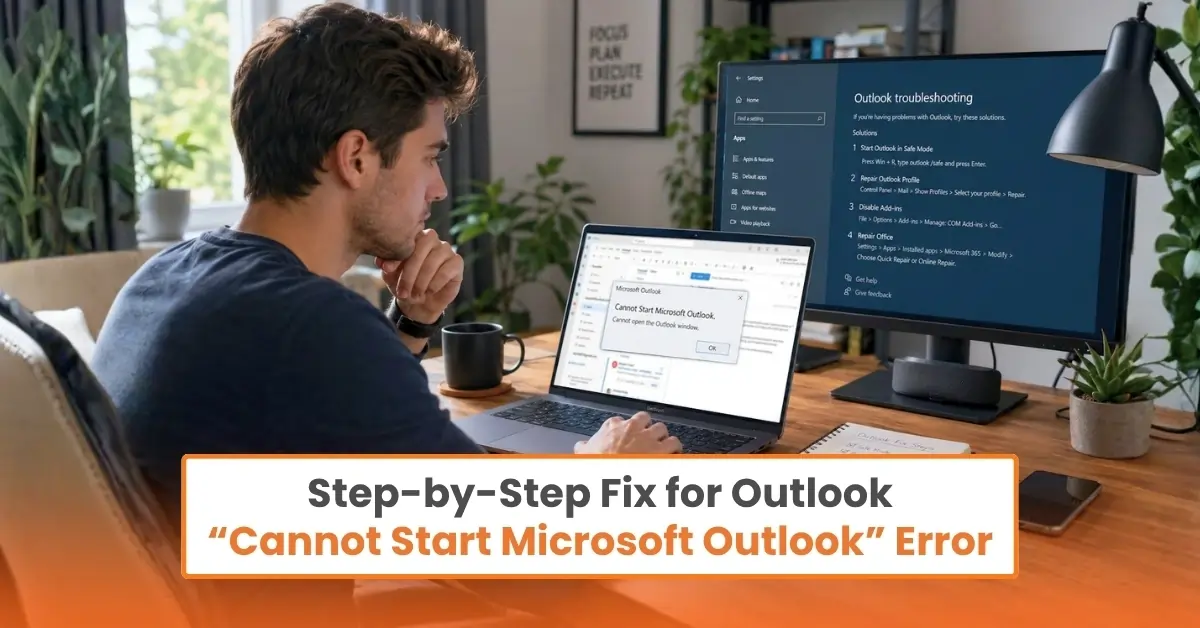
When you open Microsoft Outlook, you may see the error message: “Cannot Start Microsoft Outlook.” This can be frustrating, especially when you need to access important emails.
Based on our experience, we have shared some practical ways to fix this error on both Windows and Mac systems. In many cases, the issue can be fixed within a few minutes, and you’ll soon be able to access your daily emails without any trouble. However, before we start troubleshooting, it is important to understand the possible reasons behind this error. Let’s take a look at the common causes first.
Why Outlook Fails to Start
There can be many reasons why your Outlook application does not start. Here, we have mentioned some of the most common and obvious ones:
-
Corrupted Outlook profile: Your user profile may be damaged or may not load correctly.
-
Outdated application: If Outlook is running on an older version, it may not work properly on your computer.
-
Damaged system files: Missing or corrupted Windows files can affect Outlook.
-
Conflicting programs: Other software running on your computer may interfere with Outlook.
-
Improper shutdown: Sudden system shutdowns can cause Outlook to fail on restart.
What to Check Before Troubleshooting
These are some basic things you need to check before you start fixing the “cannot start Microsoft Outlook” error:
-
Check your internet: If it is weak or unstable, Outlook may fail to open properly. So, check your Wi-Fi or Ethernet. Do a speed test or just open any website to confirm.
-
Check antivirus or security settings: Antivirus software or a firewall can sometimes block Outlook from getting started.
-
Close background processes: In Windows, open Task Manager (Ctrl + Shift + Esc), and End Task for any Outlook processes. If using a Mac, press Command + Option + Esc and Force Quit Outlook if it’s running.
-
Verify whether your Outlook profile is corrupted: A damaged profile can prevent the application from launching. If you changed your account settings or experienced sync issues, your profile may be the reason.
-
Ensure you have enough disk space: If your PC is running low on disk space, it may prevent Outlook from loading files. In Windows, check your C: drive. Go to Apple menu > About This Mac > Storage if using a Mac.
Fixes for “Cannot Start Microsoft Outlook” Error on Windows 10/11
Outlook not starting on your Windows 10/11 system? Here are the most practical solutions to get it working again:
Fix 1: Start Outlook in Safe Mode
Safe Mode launches Outlook with minimal settings and turns off add-ins that may cause conflicts. Here are the proper steps to open Outlook in Safe Mode:
-
Press Windows + R or search for ‘Run’ in the search bar.
-
When the Run box opens, type outlook.exe /safe.
-
Click OK.
-
If the profile selection window shows up, select your profile and click OK.
Fix 2: Reset Outlook Registry and Cache
The advanced registry and cache reset method can smoothly resolve startup errors in Outlook. Here’s how to do it the right way:
Modifying Registry
-
Press Windows + R, enter “regedit,” and then hit Enter.
-
In Registry Editor, go to: HKEY_CURRENT_USER\Software\Microsoft\Office\<YourVersion>\Outlook\AutoDiscover.
-
Right-click in the right pane.
-
Select New > DWORD (32-bit) Value.
-
Name it ExcludeScpLookup.
-
Set Value Data to 1, and click OK.
Clearing Outlook Cache
-
Open the Run box.
-
Type %localappdata%\Microsoft\, and press Enter.
-
Find the Outlook folder and change its name to Outlook.old.
-
Restart your computer to apply the changes.
Fix 3: Repair Microsoft Office Installation
If Outlook still does not open after trying so many times, there could be damaged or missing Office files. So, you can try repairing the Microsoft Office installation. This generally fixes corrupted program files and restores Outlook to normal working conditions without affecting your emails or personal data. Follow these steps to repair Microsoft Office:
-
Click the Windows Start button.
-
In the search bar, type in Control Panel, then open it.
-
Make sure View by is set to Category.
-
Under the Programs section, click on “Uninstall a Program.”
-
Scroll down and find and click Microsoft Office.
-
Click on the Change option.
-
Select Quick Repair.
-
Click the Repair button.
-
Wait for a few minutes and let the repair process complete.
-
Once it is done, click “Close.”
-
Launch Outlook again and see if the problem is resolved.
Fix 4: Create a New Outlook Profile
A corrupted user profile can also cause errors when launching Outlook. Creating a new Outlook profile via the Control Panel is one of the most effective fixes. This will reset your settings and let Outlook start fresh. Here’s the right way to create a new Outlook profile:
-
Click on the Windows button.
-
Search for “Control Panel” and open it.
-
In the Control Panel search box (top-right), type ‘Mail.’
-
Click Mail (Microsoft Outlook).
-
Click Show Profiles in the new window.
-
Click the Add button.
-
Enter any name for your new profile, then click OK.
-
Enter your email address and password.
-
Wait for the login to complete.
-
Click on Finish once setup is complete.
-
Under “Always use this profile,” choose your newly created profile from the drop-down.
-
Click Apply, then OK.
-
Close the Control Panel window, and you’re done.
-
Open Outlook.
Fixes for “Cannot Start Microsoft Outlook” Error on Mac
If you want to fix the Outlook startup issue on your Mac system, you can try these easy fixes:
Fix 1: Restart Outlook and Your Mac
By restarting the Outlook app, you can clear temporary glitches affecting the application. Here’s how to do that:
-
Click Outlook from the top menu bar.
-
After that, select Quit Outlook.
To ensure the app is completely closed, right-click the Outlook icon in the Dock. If you see “Force Quit,” click it if Outlook is not responding.
Restarting your Mac helps refresh system memory and closes background activities that could affect Outlook. Follow the steps below:
-
Click on the Apple icon in the top-left corner of the screen.
-
Select the “Restart” option.
-
If prompted, click Restart again to confirm.
Fix 2: Remove and Re-add Your Account
If the Outlook app opens on your Mac but crashes or fails to load properly, it may mean the account settings are corrupted. Remove your account and add it again by following these steps:
-
Go to Outlook > Preferences.
-
Select Accounts.
-
In the Accounts window, select your email account from the left panel.
-
Click the (-) button at the bottom.
-
Select the “Delete” button.
-
Quit Outlook and reopen it.
-
Go to Outlook > Preferences > Accounts.
-
Click the (+) icon.
-
Select your account type (Exchange, Outlook.com, Gmail, etc.)
-
Enter your details correctly.
-
Follow the prompts to complete setup.
Fix 3: Update Outlook App
An outdated version of Outlook can cause startup errors. So, you must get the latest updates. Follow these steps:
-
Open Microsoft AutoUpdate and install all available updates.
-
Install all available updates.
Fix 4: Remove the Corrupt Preferences File
A corrupt preferences file can also cause an Outlook startup error on a Mac. Removing this file forces Outlook to make a fresh one. Here’s how to remove it:
-
Close Outlook fully.
-
Open Finder > Go > Go to Folder.
-
In the box, type: “~/Library/Preferences/” and press Enter.
-
Find the file named com.microsoft.Outlook.plist.
-
Right-click on this file, then click on “Move to Trash.”
-
Restart your Mac and reopen Outlook.
How to Prevent “Cannot Start Microsoft Outlook” Error
Here are some effective ways to prevent the “Cannot Start Microsoft Outlook” error from occurring again:
-
Repair data files: Scan and repair PST/OST files regularly to prevent crashes and startup issues.
-
Avoid unnecessary add-ins: Install only trusted add-ins and remove the ones that are of no use.
-
Update Windows: Confirm that your computer system is up to date and is compatible with Microsoft Outlook.
-
Create backups: Regularly back up your emails and Outlook data files to keep your information safe.
-
Close Outlook correctly: Close the application properly to avoid file corruption.
Wrapping Up
If Outlook fails to launch or shows an error message at startup, try the fixes that we’ve suggested above and follow each step very carefully. Before you begin troubleshooting, check your internet connection, security settings, and background processes.
Always keep Outlook up to date, and avoid unnecessary add-ins. Also, check your system regularly for issues to help prevent the error from recurring.
Frequently Asked Questions (FAQs)



 +1-857-557-6896
 +44-161-791-4592