
How to Fix Gmail Not Sending Emails in Google Workspace?
- 0
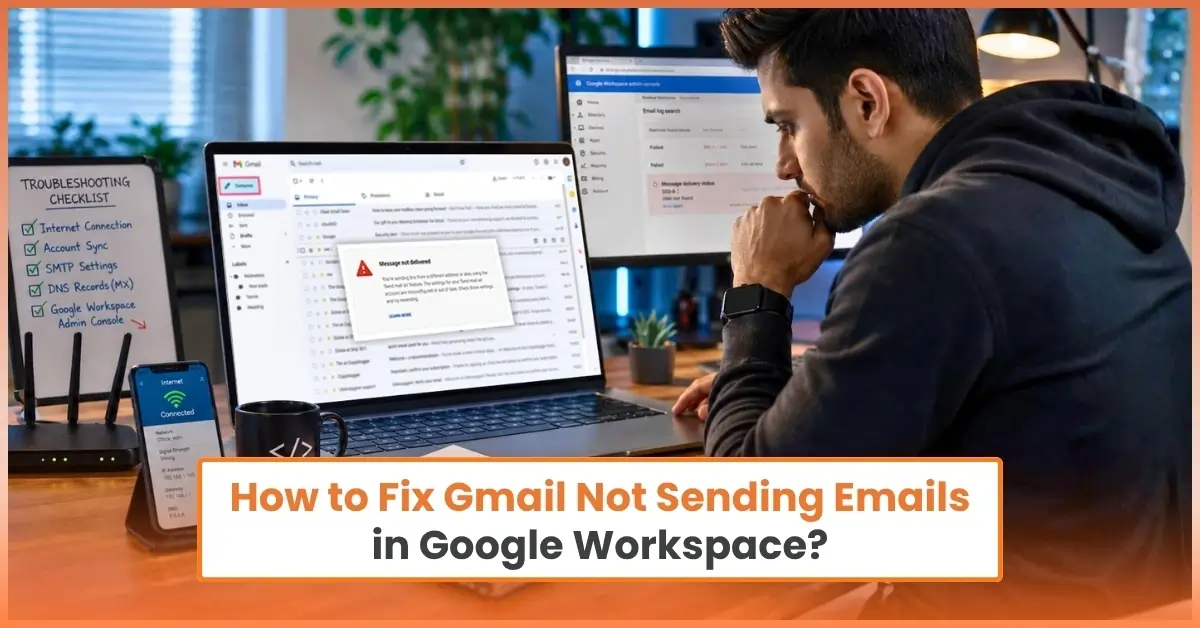
Are your emails not getting delivered in Google Workspace? This is a common issue among Gmail users, but it should be resolved so you can continue with your daily tasks. You can resolve the problem quickly by following the right troubleshooting steps.
Try these basic fixes to solve the Gmail sending issue. Before we discuss the Gmail sending error fix, let’s look at the common signs of this issue.
Signs Gmail Is Not Sending Emails in Google Workspace
Before trying to fix anything, it’s important to confirm whether you are actually facing the “Gmail emails not going out” issue. Here are the signs to watch out for:
-
Emails are sent, but they do not appear in the recipient’s mailbox.
-
Messages fail to deliver or show “failed to send” errors.
-
Emails stay stuck in the outbox.
-
There are delays in message delivery even after clicking “Send.”
-
Gmail works normally, but emails are still not being sent.
Top Reasons for Gmail Sending Issues in Google Workspace
The Gmail outgoing mail problem can occur for several reasons. Here are some of the most common ones:
-
Weak or unstable internet connection.
-
Incorrect recipient email address.
-
Large file attachments that exceed Gmail limits.
-
Browser cache and cookies are causing conflicts.
-
Outdated web browser or Gmail app.
-
Full Google account storage space.
Google Workspace Email Troubleshooting: Fixes That Work
If your Gmail messages are not sending, try these simple troubleshooting methods to fix this issue:
Fix 1: Check Your Internet Connection
If the internet connection is unstable, then your Gmail emails may not be delivered when you hit the Send button. So, here’s what you can do:
-
Make sure your device is connected to Wi-Fi, and the cables are not loose or damaged.
-
Try opening a website in the browser.
-
Switch to another network if the internet is slow or not working.
-
Turn Airplane mode on and off if using a mobile phone.
-
Refresh Gmail or restart your browser.
Fix 2: Check Gmail Sending Limit
Google Workspace has daily sending limits. If you exceed those limits, Gmail will block outgoing emails. This often happens when too many emails are sent in a short time or when many recipients are in the CC/BCC fields. Here’s what you can do:
-
The limit usually resets within 24 hours, so you must wait until then to try again.
-
Reduce the number of recipients per email.
-
Avoid sending bulk emails in one go.
Fix 3: Clear Browser Cache and Cookies
Corrupted browser data can interfere with email-sending functionality. Follow these steps to clear the cache and cookies.
-
Open your browser.
-
Click the three dots (top right corner).
-
Select Settings from the list.
-
Click the three horizontal lines, and select “Privacy and security.”
-
Select “Delete browsing data.” Then, tick the boxes for Cookies and other site data, along with cached images and files.
-
Click “More,” then select the time range as “All Time.”
-
After that, click “Delete data.”
-
Close and restart the browser.
-
Sign back into your account and try sending the email again.
Fix 4: Disable Browser Extensions
Browser extensions like ad blockers or security tools may block Gmail messages from going out. To disable these extensions, follow these steps:
-
Open any web browser (e.g., Chrome).
-
Click the three dots (top-right corner).
-
Go to Extensions > Manage Extensions.
-
A list of installed browser extensions and add-ons will appear.
-
Find enabled extensions and turn off the toggle switch next to each extension to disable it.
-
Close the browser and reopen it.
-
Sign in to your account and try to send the message again.
-
If the emails are sent successfully, turn on the extensions one at a time to find the one causing the issue.
-
Once the problem extension is found, click Remove to delete it.
Fix 5: Disable Antivirus or Firewall Temporarily
Security software or a firewall can also restrict Gmail’s outgoing connection. So, you can disable them only for testing purposes. Here’s how to do that the right way:
Antivirus
-
Open your antivirus program (McAfee, Norton, Avast, etc.)
-
Find settings like Real-time Protection, Web Shield, or Firewall.
-
Disable temporarily.
Firewall
-
Press the Windows Start button.
-
Type Control Panel in the search field and hit Enter.
-
After that, open the Control Panel.
-
Open System and Security, then select Windows Defender Firewall.
-
Click Turn Windows Defender Firewall on or off.
-
Select Turn off Windows Defender Firewall (not recommended) for both Private and Public networks.
Fix 6: Sign Out & Sign Back Into Your Account
Sometimes, temporary session issues may occur, which may stop emails from being sent. This generally happens when the browser has been left open for an extended period or when there is a temporary sync error.
Reset your session by signing out and signing back in to your Google account; here is what needs to be done:
-
Open Gmail in your browser.
-
Select your profile icon from the top-right side of the screen.
-
Select “Sign out.”
-
Close all open tabs and windows.
-
Make sure the browser is not open.
-
Launch the browser again, and go to gmail.com.
-
Enter your email and password.
-
Log in again. This creates a fresh session with Gmail servers.
-
Click “Compose” and send a test email.
-
Click the Send button.
See if the issue is resolved and your Gmail emails are being sent like they used to.
6 Tips to Prevent Gmail Sending Issues
Take a look at these preventive measures that can lessen the chances of email sending issues in Google Workspace:
-
Keep the browser up to date: Always use the latest web browser to ensure compatibility with Gmail features and security updates.
-
Clear browser cache occasionally: Remove temporary files, cookies, and cached data from time to time to avoid loading and sync issues in Gmail.
-
Delete unnecessary extensions: If you have too many extensions installed in your browser, they may interfere with Gmail functionality. So, remove the ones that are not needed.
-
Use a stable internet connection: Weak Wi-Fi or cellular data may interrupt email synchronization and prevent messages from being sent.
-
Check your mailbox storage: Ensure your mailbox and Google Drive storage are not full, as insufficient storage can stop outgoing emails.
-
Enable 2-step verification: Adding extra account security helps prevent unauthorized access and reduces the chances of account restrictions.
Conclusion
If you ever run into Gmail not sending emails in Google Workspace, check your internet connection or clear your browser cache. This may fix the issue, but if it doesn’t, disable unnecessary browser extensions, or turn off antivirus or firewall for a while. Sometimes, the issue can also be fixed by simply logging out and then logging back in to your Gmail account.
Carefully follow each step without skipping anything. Keep your browser updated, maintain sufficient storage space, and remove unnecessary extensions to prevent the “Gmail delivery failed” error from occurring again.
Frequently Asked Questions (FAQs)



 +1-857-557-6896
 +44-161-791-4592