
How to Forward Yahoo Mail to Gmail?
- 0
Managing Yahoo Mail and Gmail together can be tiring. Constantly switching between inboxes wastes time, reduces focus, and may even cause you to miss important follow-ups. The good news is that Yahoo allows you to forward your emails directly to Gmail. Once you set up email forwarding, all your Yahoo emails will arrive in your Gmail account, making it a smart way to stay organized and on top of your inbox.
If you are eager to forward your Yahoo emails to Gmail, you might be wondering how to do it. Don’t worry - we have explained the entire process in detail. But before we dive into the steps, let’s first look at the common mistakes you should avoid during the setup.
Common Mistakes When Forwarding Yahoo Mail to Gmail
Below are the five common mistakes that many users make while trying to forward Yahoo emails to Gmail:
-
Entering an incorrect Gmail address causes emails to bounce back or be sent to the wrong recipient.
-
Forgetting to enable the forwarding option in Yahoo Mail settings can stop the process from working.
-
Ignoring spam or filter settings may block or misroute forwarded emails.
-
Forgetting to save changes after setup means forwarding won’t work.
-
An old or unsupported browser can cause the setup to fail or remain incomplete.
Problems That Can Occur When Forwarding Yahoo Mail to Gmail
There can be plenty of problems that might arise when forwarding Yahoo emails to Gmail. The most common issues are:
-
Two-step verification
-
Wrong email address
-
Incorrect settings
-
Authentication failures
-
Interrupted syncs
Steps to Forward Yahoo Mail to Gmail
Forwarding Yahoo emails to Gmail might take a few steps. Here are all the essential steps that you need to follow to do the same:
Step 1: Log in to Yahoo Mail.
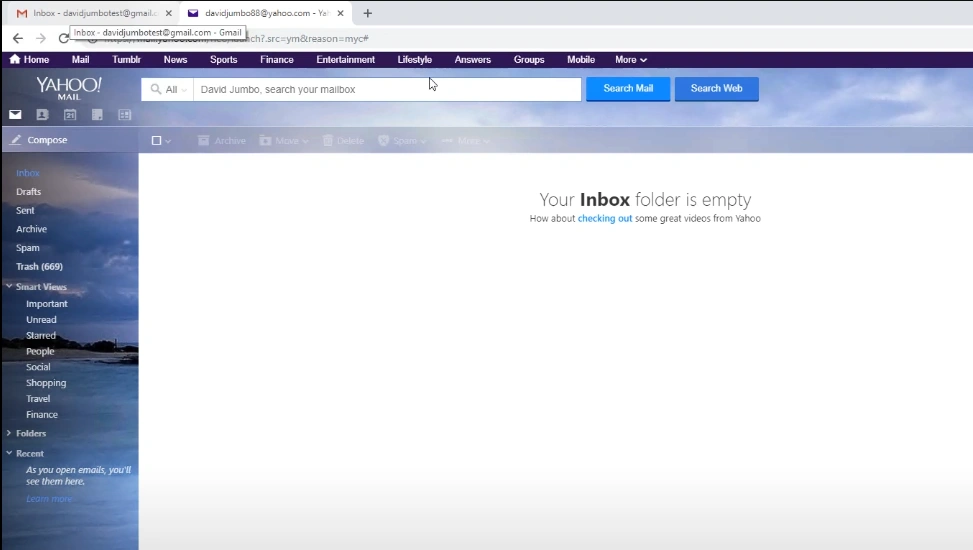
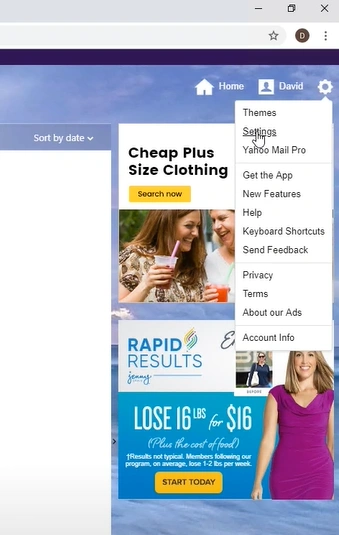
Step 2: Go to the top right corner of the screen and click on the cog wheel.

Step 3: Select the Settings option, and you will get a Settings window.
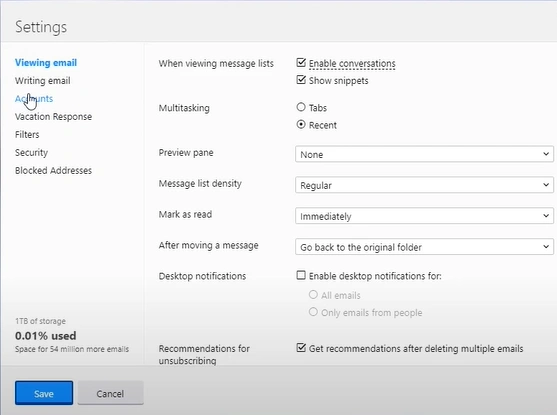
Step 4: In that same window, select the Accounts option.
Step 5: Select the Yahoo account that you want to forward over to Gmail.
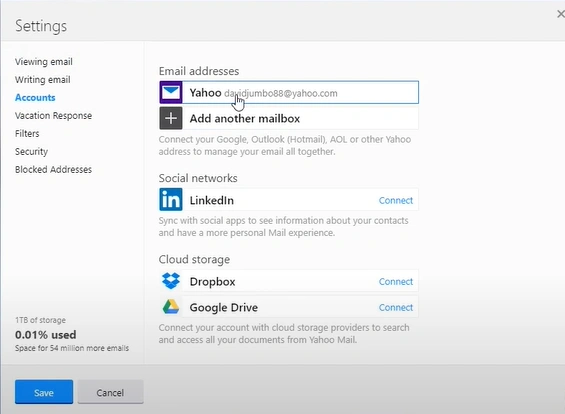
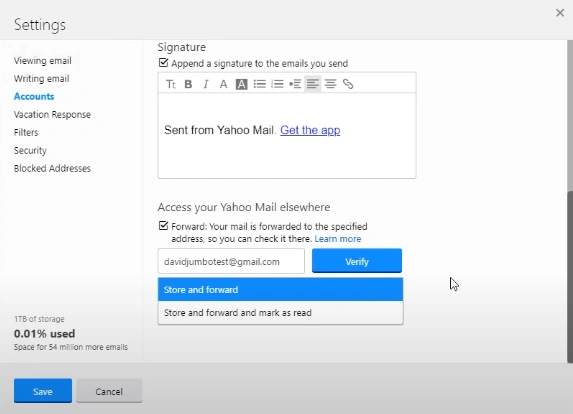
Step 6: Scroll down to the bottom of the window and check the box next to “Forward: Your mail is forwarded to the specified address so you can check it here.”
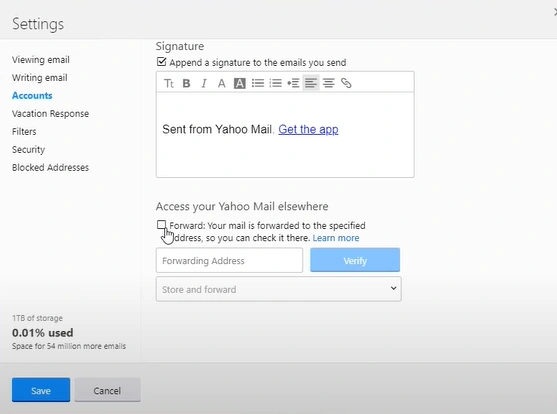
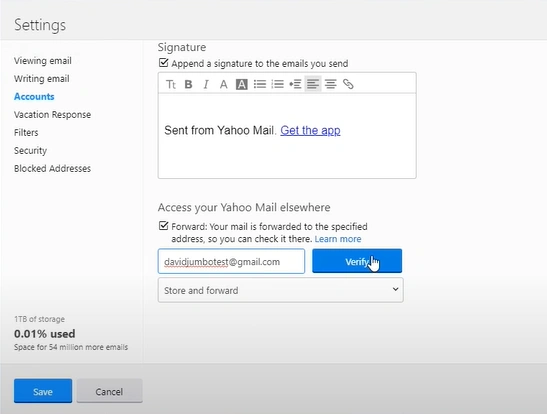
Step 7: In the Forwarding Address field, type in the email that you want to forward, and tap on the Verify button.
Step 8: A verification email will be sent to your Gmail account.
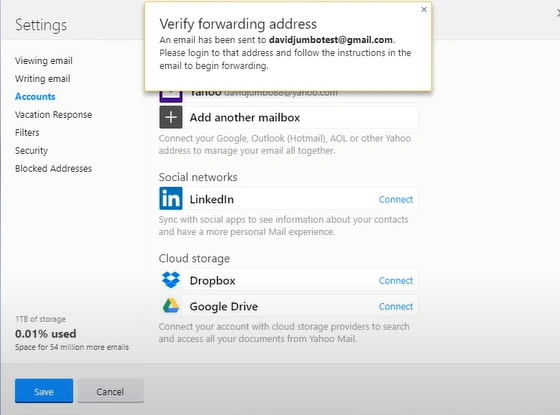
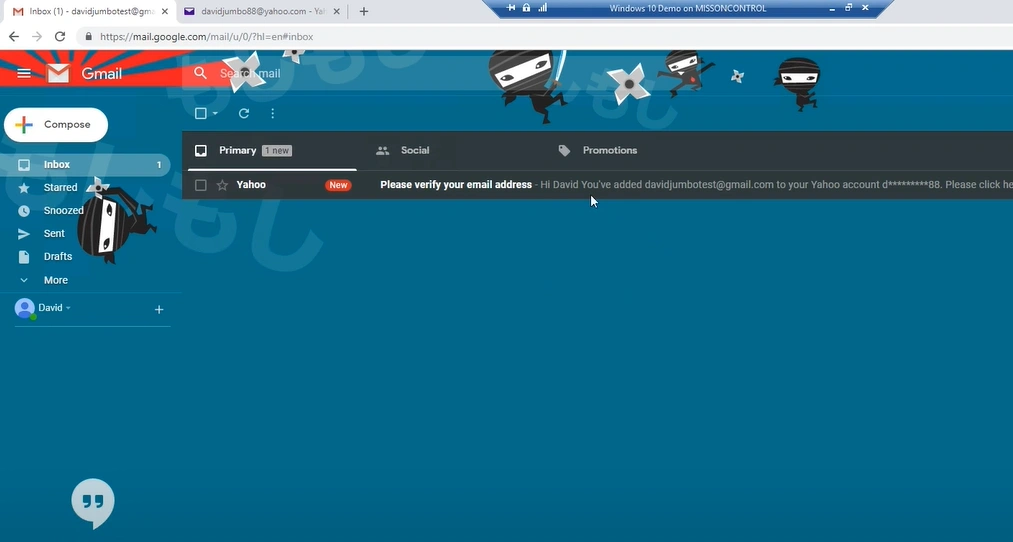
Step 9: Open Gmail, navigate to the Inbox, and click on the verification email from Yahoo.
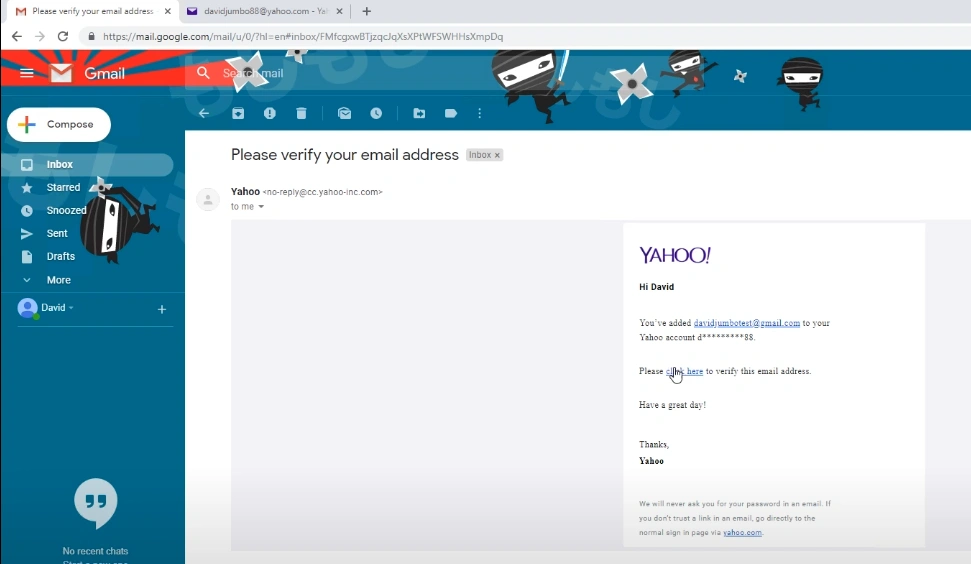
Step 10: Click on the “click here” hypertext.
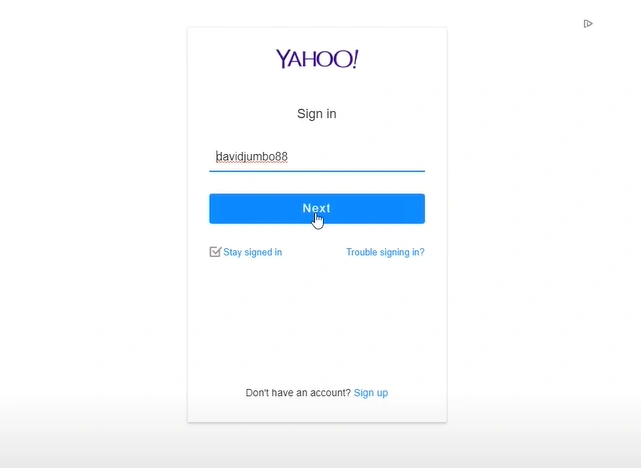
Step 11: Click Next, enter your Yahoo Mail password, and select Sign in.
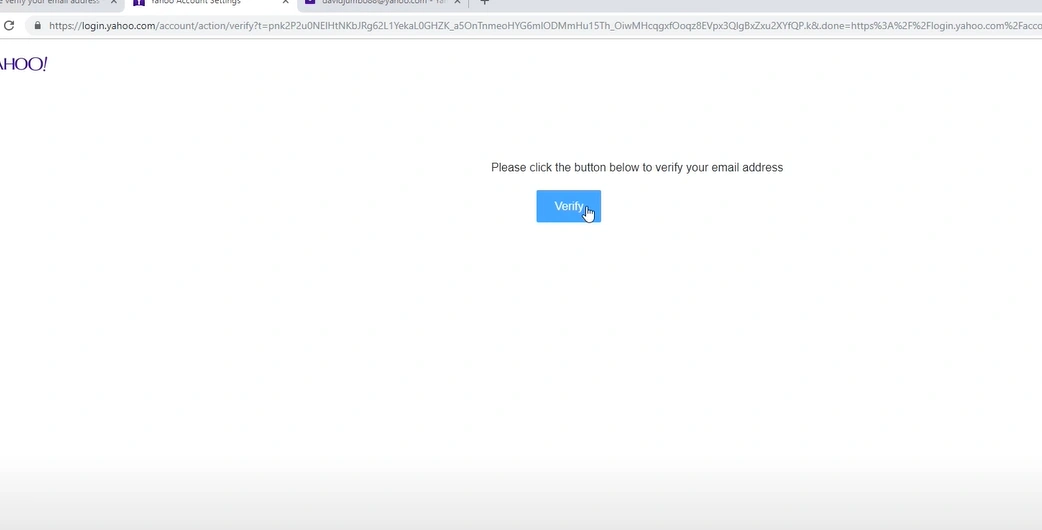
Step 12: After that, click on the blue Verify option.
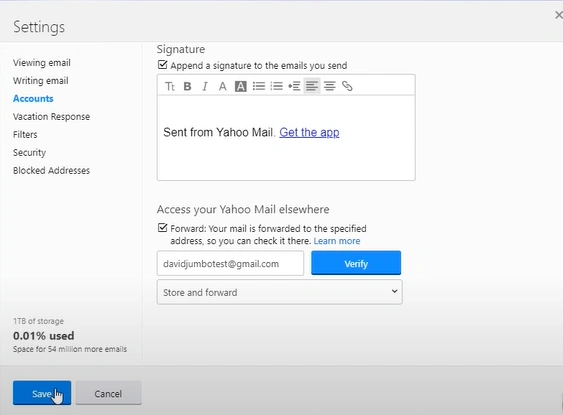
Step 13: Once you have that verified, go back to the Yahoo Mail Settings window and select either the “store and forward” or “store and forward and mark as read” option.
Step 14: Click the Save button.
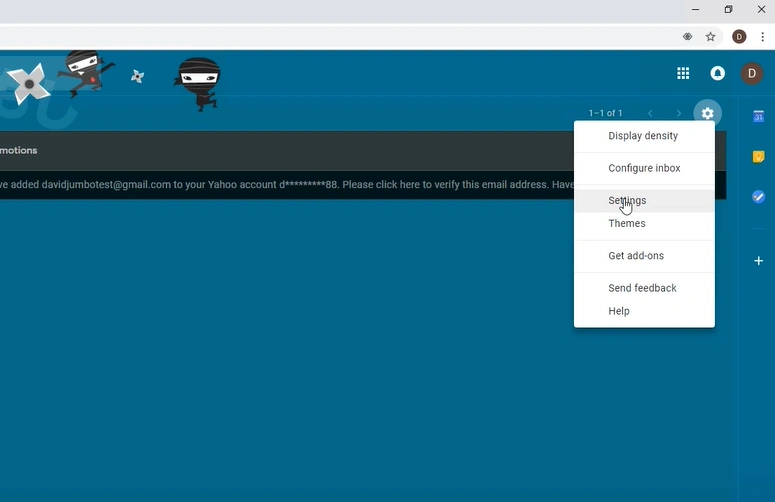
Step 15: Go to Gmail and hover over the cog wheel at the top right corner.
Step 16: Click the Settings option.
Step 17: Next, click on the Account and Import option. Go down and click on Add a Mail account.
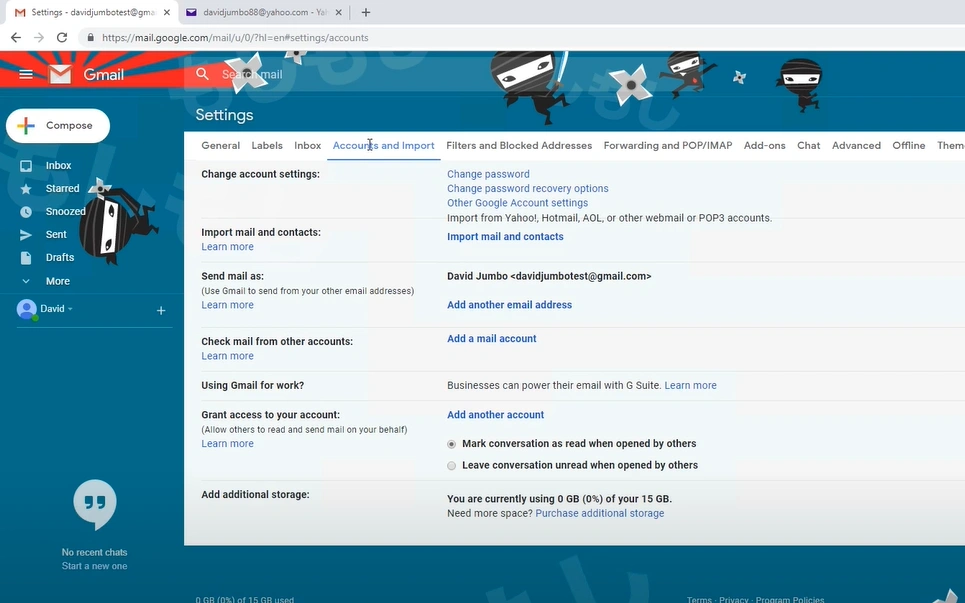
Step 18: Type in the email address in the given field. In this case, you have to enter your Yahoo email address.
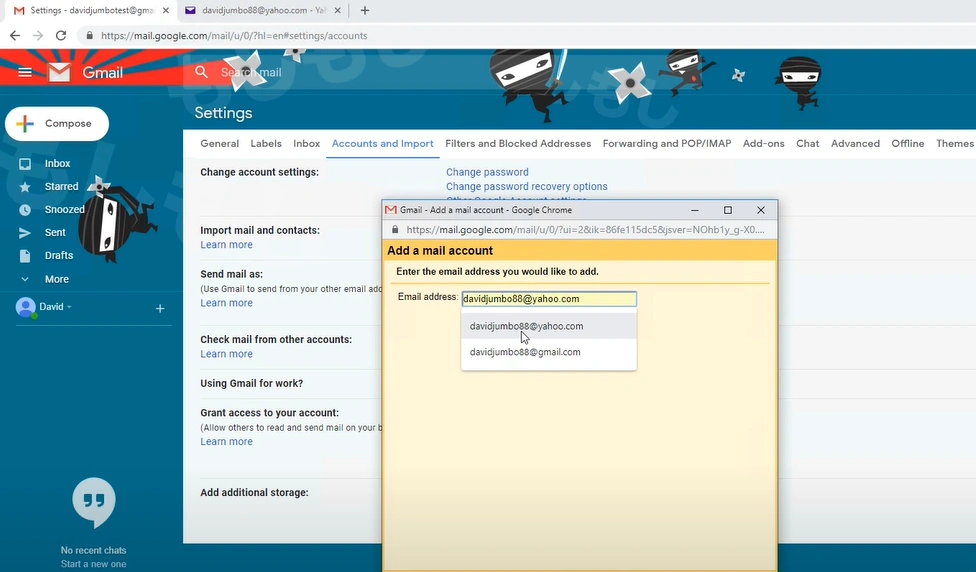
Step 19: Click on Next. Select the radio button next to “Link accounts with Gmailify.”
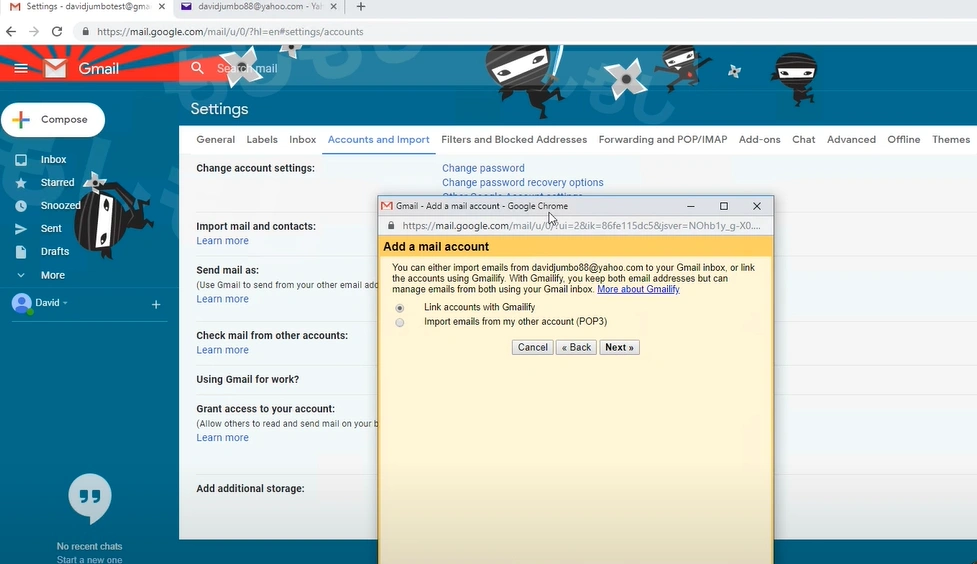
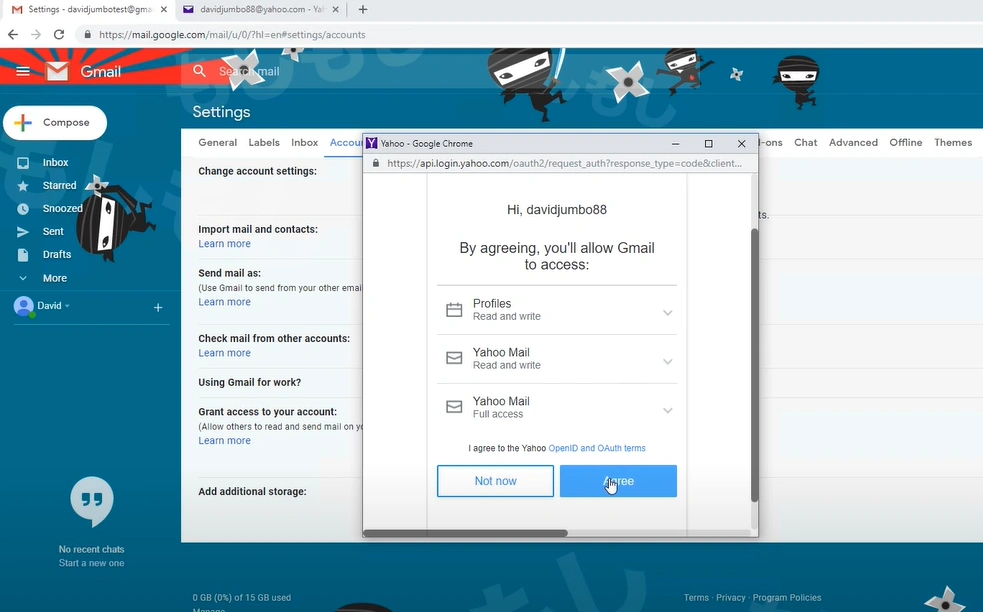
Step 20: Click Next, and a new pop-up window will appear saying “By agreeing, you’ll allow Gmail to access.”

Step 21: Click on the Agree button, and wait for a few seconds.
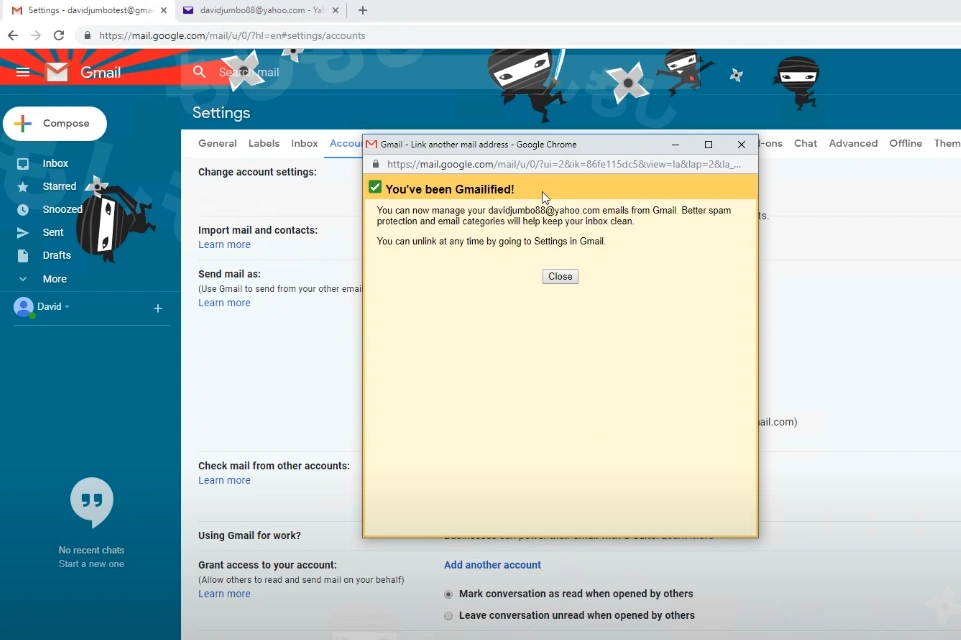
Step 22: When you get a “You’ve been Gmailified” confirmation window, click Close.
Also Read:- How to Add Yahoo Mail to Gmail?
Once you are done setting up, send a test email to check that the email forwarding is working correctly.
In a Nutshell
That wraps up the steps on how to forward Yahoo Mail to Gmail. Follow all the instructions we have mentioned and get ready to receive all your important emails conveniently in one place. View all your Yahoo emails directly in your Gmail inbox automatically. No more juggling between inboxes - it’s time to have everything in one place.



 +1-857-557-6896
 +44-161-791-4592