
Google Workspace Login Issues: How to Recover Your Account
- 0
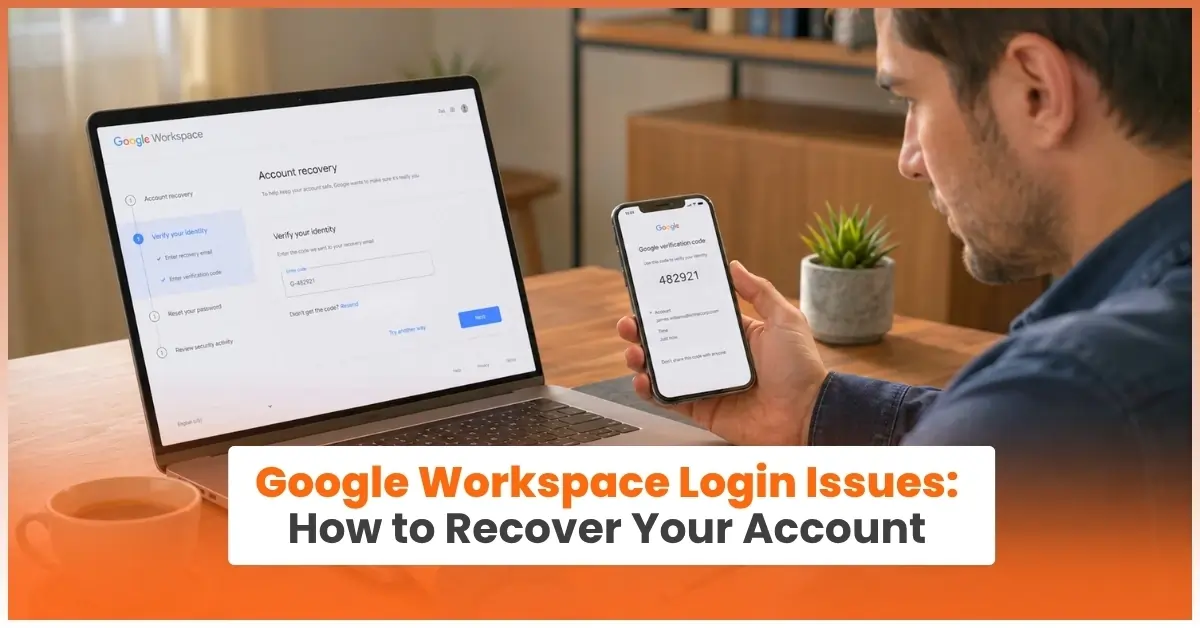
Facing Google Workspace sign-in problems? There are a few simple fixes that can help you regain access to your account quickly.
Here, we have explained simple solutions to fix Google Workspace login issues easily. Once the issue is correctly addressed, you’ll recover your account quickly. But before we start discussing how to fix the Google Workspace login error, let’s talk about the reasons why you are unable to sign in.
Reasons Why You Cannot Sign In to Google Workspace
Can’t sign in to Google Workspace? This usually happens due to the following reasons:
-
Entering invalid login credentials (username or password).
-
Using a personal email ID instead of a business email.
-
Browser issues, such as conflicting cookies or extensions.
-
Two-Step Verification is blocking the sign-in process.
-
The account is being suspended due to non-payment or security violations.
5 Easy Solutions to Fix Google Workspace Sign-In Errors
Unable to sign in to Google Workspace? You may have entered the wrong password, or there may be problems with the browser or security settings. Try these fixes to resolve the issue and sign in quickly:
Fix 1: Check Your Username and Password
-
Make sure you enter the right email address and password. Don’t rush while entering your details, and type carefully.
-
Check that the keyboard language is correct.
-
Even a small typo may block access, so double-check everything from extra spaces to capitalization before pressing Enter.
-
If required, reset your password using the “Forgot password” option.
Fix 2: Check Internet Connection
A weak or unstable network can interrupt the sign-in process. To fix internet issues, follow these steps:
-
Switch to a different Wi-Fi network.
-
Restart your Wi-Fi router.
-
Try a mobile hotspot if needed.
Fix 3: Clear Browser Cache and Cookies
Old or corrupted browser data can prevent sign-in. Here’s what you can do:
-
Open your browser.
-
Click on the three dots in the top-right corner.
-
Open “Settings.”
-
Select Privacy and security.
-
Click on Clear browsing data.
-
Choose the time range as ‘All Time.’
-
Tick the boxes next to “Cookies and other site data” and “Cached images and files.”
-
Click on “Clear data.”
-
Close the browser and reopen it.
-
Try signing in to your account again.
Fix 4: Switch to Incognito or Private Mode
Extensions and saved data may interfere with the login process, causing delays and problems. So, you must try opening Google Workspace in Incognito or Private mode. Here’s how to do it:
-
Open your web browser.
-
Start Incognito Mode (Chrome) or Private Window (Firefox). You can use shortcuts like Ctrl + Shift + N (Chrome) or Ctrl + Shift + P (Firefox).
-
A new window will show up.
-
In that window, open your Google Workspace login page.
-
Sign in normally by entering your account details.
Fix 5: Disable Browser Extensions
Certain extensions, like security tools or ad blockers, can block login requests. Turning them off can help fix the issue. Here’s how to do it right:
-
Open your browser.
-
Click the three lines in the top-right corner of the browser window.
-
Select Extensions > Manage Extensions.
-
Toggle off all extensions.
-
Open a new tab and visit the Google Workspace login page.
-
Sign in to your account.
-
If this works, return and toggle on all extensions one by one.
-
Enable the extensions one by one, test signing in again to find the one causing the login error.
-
If you find the problematic extension, remove it or keep it disabled.
How to Recover Your Google Workspace Account
Account recovery is the best option if you can’t sign in to your Google Workspace account. Let’s understand how to do it:
-
Open the Google sign-in page and click on “Forgot password?”.
-
Enter your Google Workspace email address or the recovery phone number connected to the account.
-
You’ll be asked to confirm your identity using various recovery options (Recovery email address, Recovery phone number, or authentication app).
-
Select the option available to you and follow the prompts on the screen.
-
Once it is verified, you can create a new account password.
Note: The password should be strong and easy to remember.
-
Now, sign back into your account using the new password.
If you still cannot recover the account, contact your Google Workspace administrator for additional support.
Tips to Prevent Google Workspace Sign-In Issues
Keep these 5 prevention tips in mind to never face trouble while signing in to Google Workspace:
-
Avoid sharing your account details with anyone. Multiple logins from different locations may trigger security checks, leading to an account access error later.
-
Check that every user has a recovery phone number and email address set up to avoid login problems.
-
Always use trusted devices. Add trusted computers to 2-Step Verification to reduce the frequency of sign-in prompts.
-
Ad blockers or security extensions might interfere with the login. So, turn them off if the login issue continues.
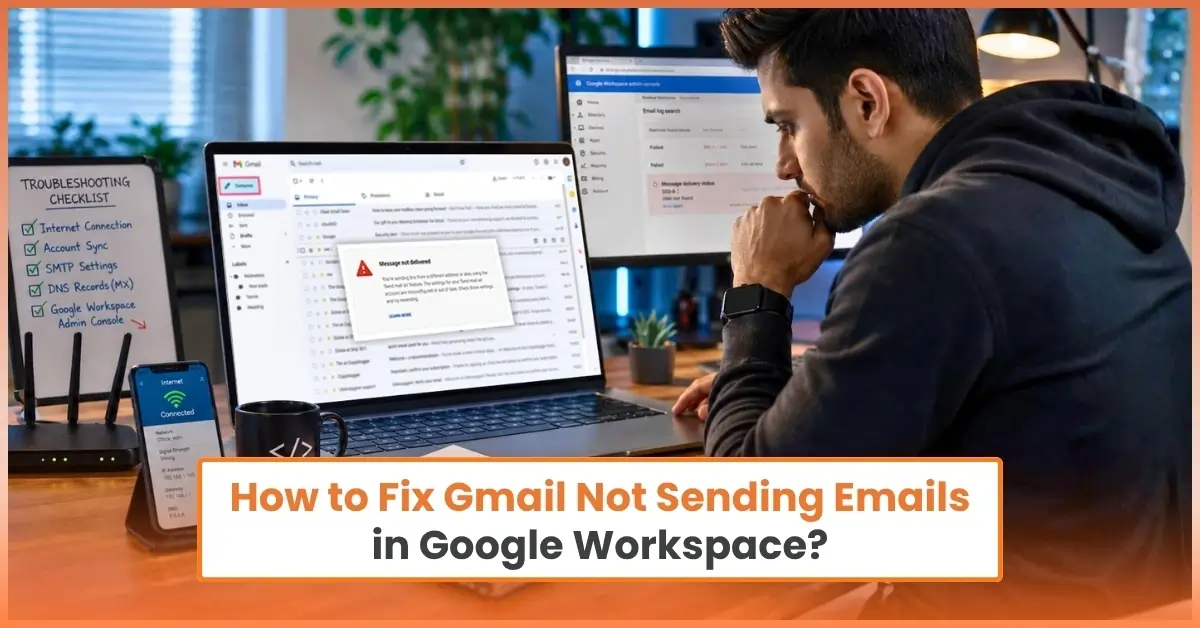
Also Read:- How to Fix Gmail Not Sending Emails in Google Workspace?
Conclusion
Whenever you’re unable to access your Google Workspace account, just remember the solutions we’ve discussed. The login issue can occur when incorrect credentials are entered or when the internet connection is weak. Browser extension conflicts can also cause this issue.
Sometimes, session timeouts, device security restrictions, or organization-level policies set by the Google Workspace admin can also block access.
Google Workspace sign-in problems can be fixed by resetting the password, clearing the browser cache, switching to Incognito or Private mode, or temporarily turning off browser extensions. To avoid login issues in the future, use trusted devices, keep your recovery details up to date, and store your backup codes in a secure place.
Frequently Asked Questions (FAQs)



 +1-857-557-6896
 +44-161-791-4592