
How to Troubleshoot Gmail Errors in Google Workspace Admin
- 0
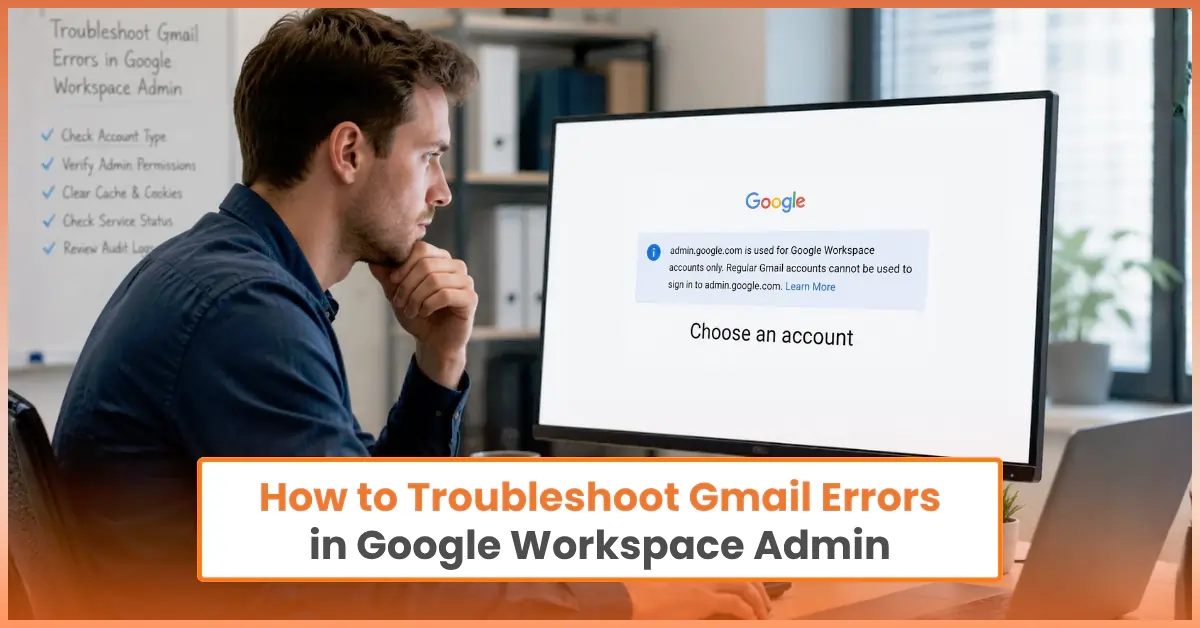
Facing Gmail errors in Google Workspace Admin? Then you must know the right fixes to resolve them properly. You might have faced issues such as emails not sending, messages being delayed, or login errors that affect your entire team's productivity.
These Gmail errors in Google Workspace Admin can slow down work and affect the team’s productivity. But what causes these problems, and how can you fix them? You can find all the answers here. Let’s start by understanding what causes these errors.
Why Are Gmail Errors Showing Up in Google Workspace?
These are the 5 most common reasons why you are having problems in Google Workspace:
-
Poor internet connection.
-
Corrupted browser cache and cookies.
-
Outdated web browser or Gmail app.
-
Incorrect account details.
-
Two-Step Verification or security policy issues.
What to Check Before Fixing Gmail Errors?
Before you start troubleshooting Gmail errors, you must check these important settings and account details:
Gmail Service Status
If the Gmail service is turned off, you won’t be able to send or receive new messages.
How to check:
-
Sign in to the Google Admin console.
-
Click on Apps > Google Workspace > Gmail.
-
Check whether Gmail is enabled for all users or only for the affected organizational unit.
User Account Permissions
Wrong admin or user settings can block Gmail features or sign-in access.
How to check:
-
In the Admin console, go to Directory > Users and select the affected account.
-
Review the user status, admin roles, and account settings to ensure the account has proper access.
Account Storage Usage
If the account storage limit is exceeded, new emails will stop arriving, and you won’t be able to send messages.
How to check:
-
Open the user profile from the Directory.
-
Select “Users” and check the storage details.
-
You can also go to Reports > Apps Reports > Accounts to monitor storage usage across users.
Spam and Compliance Filters
Sometimes important messages are wrongly marked as spam or blocked by security policies.
How to check:
-
Go to Apps > Google Workspace > Gmail > Spam, Phishing, and Malware or Compliance settings.
-
Review spam filters, blocked addresses, and security rules that may stop emails from being sent.
Email Routing Settings
If the routing settings are incorrect, emails may be delivered to the wrong location or blocked entirely.
How to check:
-
In the Admin console, navigate to Apps > Google Workspace > Gmail > Routing.
-
Check whether forwarding, routing, or mail delivery rules are configured correctly and do not conflict with each other.
Common Problems While Troubleshooting Gmail Errors in Google Workspace
Troubleshooting Gmail errors is simple if you follow the correct steps. However, you may face a few challenges during the process. Let’s check them out:
-
Conflicting browser sessions: If you have signed in to too many Google accounts at once, you may experience login or sync issues.
-
DNS update delays: Changes to DNS settings may take time to update across the internet, which can cause temporary email issues.
-
Service issues due to MX record changes: Incorrect or incomplete MX record updates can prevent your messages from being received or delivered properly.
-
Sync problems: Sometimes, emails, calendars, or contacts might not update properly across all connected devices.
Troubleshooting Gmail Errors in Google Workspace Admin
Gmail errors in Google Workspace Admin can interrupt your everyday business communication. Don’t worry, here are some practical ways to fix these errors:
Solution 1: Check Your Internet Connection
If your Wi-Fi connection is weak, your Gmail may take longer to load or fail to sync. So, here is what you can do:
-
Turn off the router or modem and restart it.
-
If possible, use another Wi-Fi network.
-
Open Gmail in another browser or on another device.
Solution 2: Clear Browser Cache and Cookies
If the browser has corrupted data, it may result in Gmail loading or login errors. So, you must do the following:
-
On your browser, click the three dots or horizontal lines.
-
Select Settings.
-
Click on the three lines at the top left, and select “Privacy and security.”
-
Click on “Delete browsing data.”
-
Tick the box next to cached images and files, cookies, and other site data.
-
Once done, click on “Delete data.”
-
Restart the browser and open Gmail again.
Solution 3: Disable Browser Extensions
Certain extensions may affect Gmail functions, so you must disable them. Here are the steps to turn off extensions:
-
On your browser, go to Extensions > Manage Extensions.
-
Click the toggle button to disable all extensions.
-
Close the browser and reopen it.
-
Open Gmail and see if it works.
-
If the issue is resolved, click Extensions > Manage Extensions again, and turn on the extensions one by one. This will help identify the problematic extension.
Solution 4: Fix Incorrect MX Records
If MX records are incorrect or missing, you won’t receive new messages. Here’s how to change these settings:
-
Sign in to your domain hosting provider.
-
Open the DNS Settings / DNS Management section.
-
Look for the MX Records section, then see if the correct Google Workspace MX records are already added.
-
If records are missing or incorrect: Delete the wrong MX entries or add the official Google Workspace MX records.
-
Save the changes.
-
Wait for the DNS changes to update (this may take from a few minutes to up to 48 hours).
-
After that, send a test email to check if the delivery is working correctly.
Solution 5: Check User Storage Space
If the account storage is full, incoming and outgoing messages may be blocked:
-
Open the Admin Console.
-
Check the user’s storage usage.
-
Delete unnecessary files or upgrade storage if required.
Solution 6: Remove and Re-add Gmail on Mobile Devices
If Gmail sync does not work on phones or tablets, removing and re-adding the Google account can help reset the connection and fix sync issues. Here is how to do it:
-
On your device (phone or tablet), tap the Settings icon.
-
Open Accounts or Passwords & Accounts.
-
Select your Gmail account.
-
Tap Remove Account and confirm the action.
-
Restart your device.
-
Once it restarts, open Settings again.
-
Go to Accounts > Add Account > Google.
-
Enter the correct account details.
-
Complete the sign-in and verification process.
-
Turn on the Sync Gmail option if it is not enabled.
-
Open Gmail and check if emails are syncing properly again.
Tips to Prevent Gmail Errors in Google Workspace Admin
If you do not want to face any Gmail errors in Google Workspace in the future, keep in mind the following tips:
-
See that your domain’s DNS settings point exclusively to Google Workspace (SMTP.GOOGLE.COM).
-
Configure authentication (SPF, DKIM, and DMARC) to prevent legitimate emails from being blocked or flagged as spam. DKIM keys can be generated in the Google Admin console.
-
Check if the domain is properly verified in the Admin Console under Account > Domains.
-
Confirm the domain expiration. Keep the domain registration active to avoid unexpected service outages.
Also Read:- How to Fix Gmail Not Sending Emails in Google Workspace?
Conclusion
Now you know what to do when you are facing Gmail errors in Google Workspace Admin. Check the network connection, clear browser data, verify MX records, or remove and re-add Gmail. While applying each step, follow the instructions carefully to resolve the issue successfully and prevent future disruptions. To avoid future issues:
-
Keep DNS and MX records updated and monitored.
-
Encourage users to update browsers and Gmail apps regularly.
-
Always keep the Gmail services enabled for all organizational units.
-
Check browser extensions and third-party integrations regularly.
Follow these troubleshooting solutions and keep the key maintenance tips in mind for smooth, uninterrupted communication.
Frequently Asked Questions (FAQs)



 +1-857-557-6896
 +44-161-791-4592