
How to Set Up Domain Email With GoDaddy?
- 0

Have you recently launched a new website for your small business? Everything looks great, but when you start sending emails, you realize you can’t keep using a regular Gmail or Yahoo address. First impressions matter, and a generic email doesn’t reflect professionalism
Setting up a domain email with GoDaddy helps you make a strong and professional impression. A custom domain builds trust and adds value to your brand. So, if you want to create a reliable and credible image, follow this guide. But before you start, here are a few important things to know.
What to Know Before Setting Up Domain Email With GoDaddy?
Here are the preparatory steps to know before you start setting up a domain email with GoDaddy:
Verify Your Domain
Make sure your domain name is registered and active with GoDaddy. If it’s registered elsewhere, check that you can access and manage its DNS settings.
Backup Existing Emails
Create a backup of your old emails before switching email service providers. A backup helps prevent data loss.
Prepare Admin and User Details
Make a list of the names, as well as email addresses, you will create. You need to start by setting up the admin account, as it will manage all the other accounts and settings.
Update Payment and Billing Info
Make sure your GoDaddy account has updated billing details to avoid any interruptions or service suspension during the setup procedure.
Check Authentication Settings
Add SPF, DKIM, and DMARC records to improve email delivery and protect your domain from phishing, spam, and spoofing.
Potential Issues During the Setup Process
When trying to set up your domain email with GoDaddy, you may likely face certain challenges, such as:
-
Authentication errors
-
Spam or delivery failures
-
Wrong DNS or MX records
-
SSL/TLS configuration problems
-
Propagation delays
-
Email client compatibility
Steps to Set Up Domain Email With GoDaddy
Follow these essential steps to correctly set up your domain email with GoDaddy:
Step 1: Go to GoDaddy’s official website and sign in to your account.
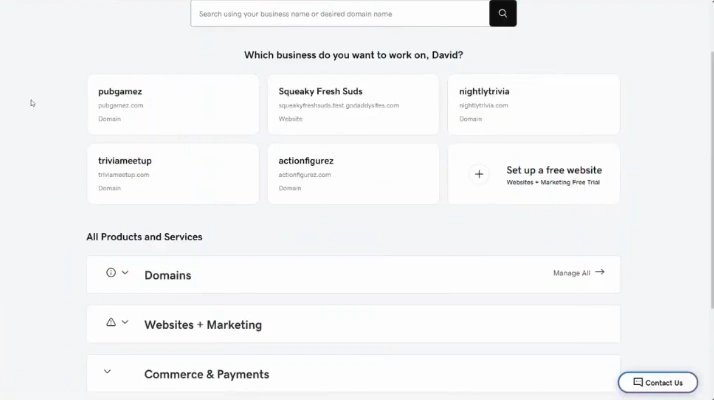
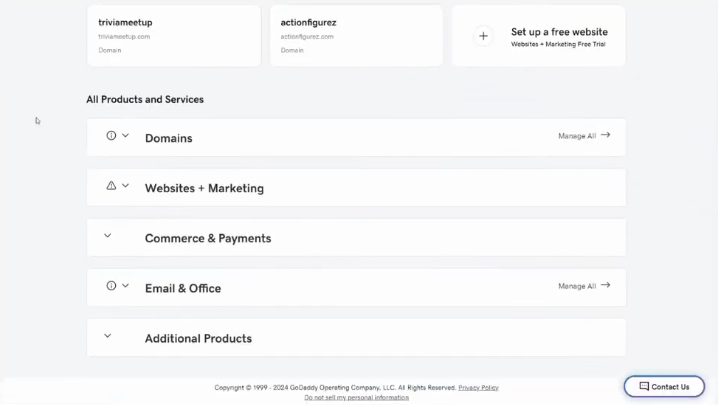
Step 2: Scroll down and go to the All Products and Services section. After that, open the Email & Office option.
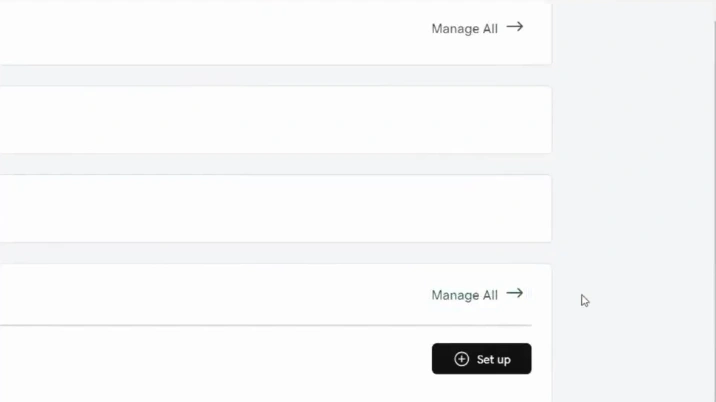
Step 3: Click “Manage All.”
Step 4: Select the domain for which you want to set up an email address.
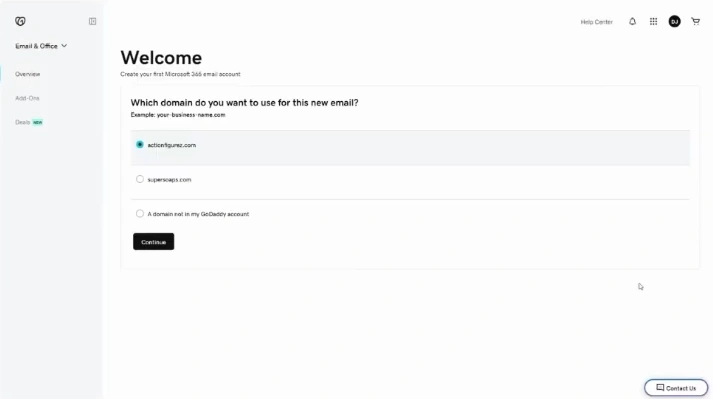
Step 5: Click on the Continue button.
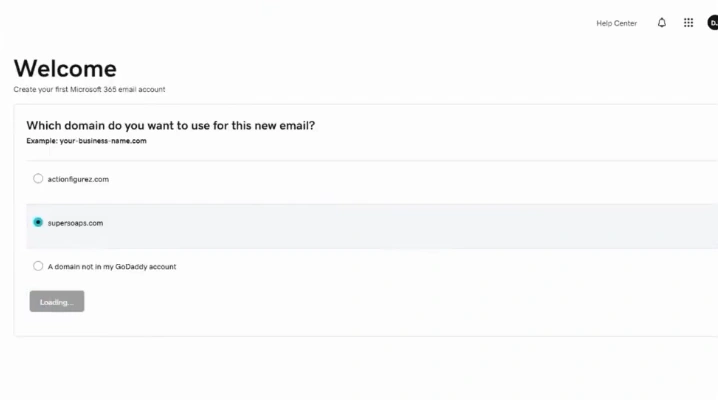
Step 6: On the Welcome page, enter the email address, first name, and last name.
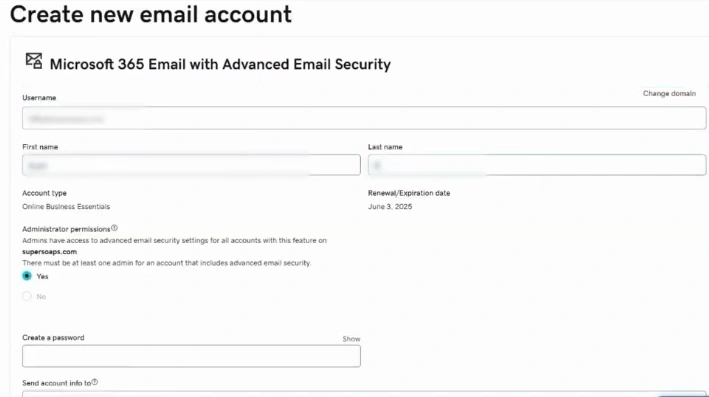
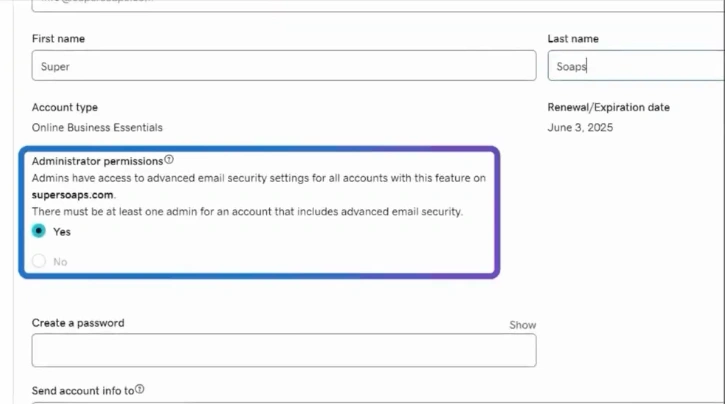
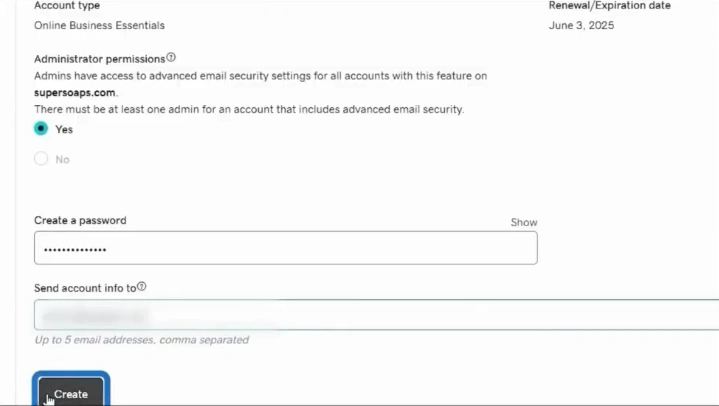
Step 7: Select Administrator Settings.
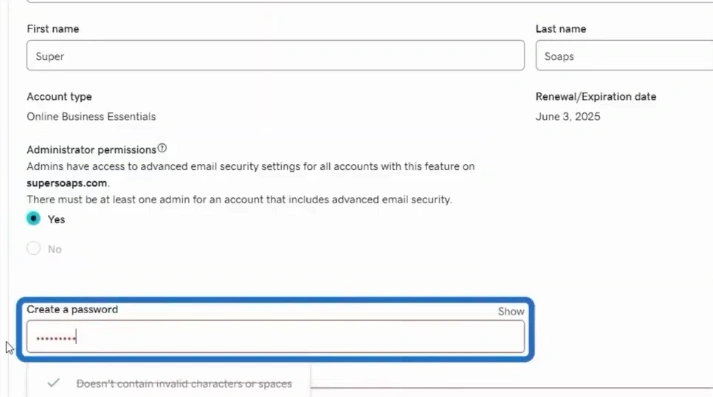
Step 8: Create a password.
Step 9: In the “Send account info to” field, add email addresses.
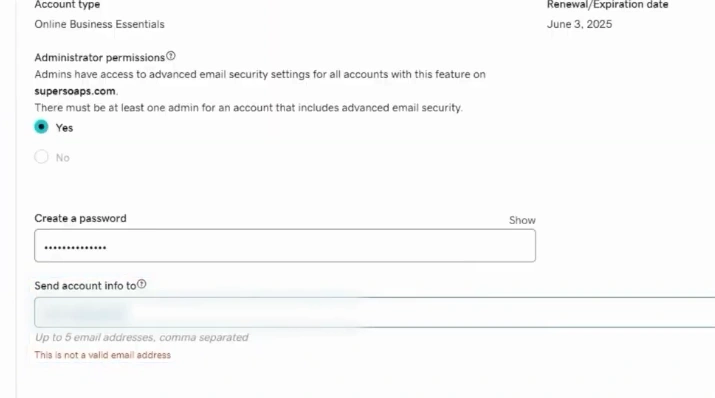
Step 10: Click on Create.
Also Read:- How to Add GoDaddy Email to iPhone?
To Sum Up
Boost your brand’s value and credibility by setting up domain email with GoDaddy. Creating a custom domain is a simple process when you follow the steps mentioned above. Just go through each step, and you will be on your way to standing out from the crowd. Before you start, you have to check your domain ownership and gather the necessary admin and user details. Also, keep a backup of your old emails so you don’t lose anything important.





 +1-857-557-6896
 +44-161-791-4592