
How to Add GoDaddy Email to iPhone?
- 0
What if all your GoDaddy emails arrived on your phone? That would be so convenient and hassle-free. It would allow you to manage communication with your team, clients, and others more easily. Not just that, you could even work on the go without needing to sit at your desk and open your laptop repeatedly to check new messages - everything would become so simple.
From order confirmations to team updates and client messages, you will receive real-time notifications. So, how can you bring this convenience into reality? We will explain the complete process of adding a GoDaddy email to your iPhone. By the end, you will have access to all your GoDaddy emails right from your mobile device. But first, let’s go through some important tips.
Things to Know Before Adding a GoDaddy Email to iPhone
Before we jump into the actual “how to add GoDaddy email to iPhone” process, it’s important to do a little preparation. Here are the key things that you need to review before you start the integration:
Check Your Email Plan
Before you begin, check if you are on an active GoDaddy email plan that supports mobile access. If it is a basic plan, then it might not work smoothly on the iPhone’s Mail app.
Update Your Login Details
Before you start, you must know that you have the correct email address and the password of your GoDaddy account. Even a minor typo or an outdated password can hinder the setup process. Have you recently updated your account password? If so, check if it works when you log in through GoDaddy webmail. Keep your login credentials in a safe place or use a password manager.
Check Internet Connection
Internet connection matters when adding a GoDaddy email to an iPhone. A steady Wi-Fi or mobile data connection can help you easily sync your GoDaddy email with your iPhone. If your operating system is connected to an unstable internet, there may be a chance of repetitive setup failures.
Enable SSL for Security
When adding GoDaddy to the iPhone, don’t forget to turn on SSL encryption. When SSL encryption is enabled, your emails and login information remain secure during transmission.
Update Your iPhone to Latest iOS
Older iOS versions can have compatibility issues with GoDaddy’s mail servers. So, if your iPhone is not up-to-date with the latest iOS, update it before you start adding your account.
Common Errors When Adding a GoDaddy Email to iPhone
When adding your GoDaddy email to your iPhone, you may encounter several common problems. Here is a list of the problems you might run into:
-
Wrong password
-
Network issues
-
SSL certificate errors
-
Account already exists
-
Two-factor authentication issues
Steps to Add a GoDaddy Email to Your iPhone
It may seem straightforward to add a GoDaddy email to your iPhone. Follow these steps to successfully add a GoDaddy email to your iPhone:
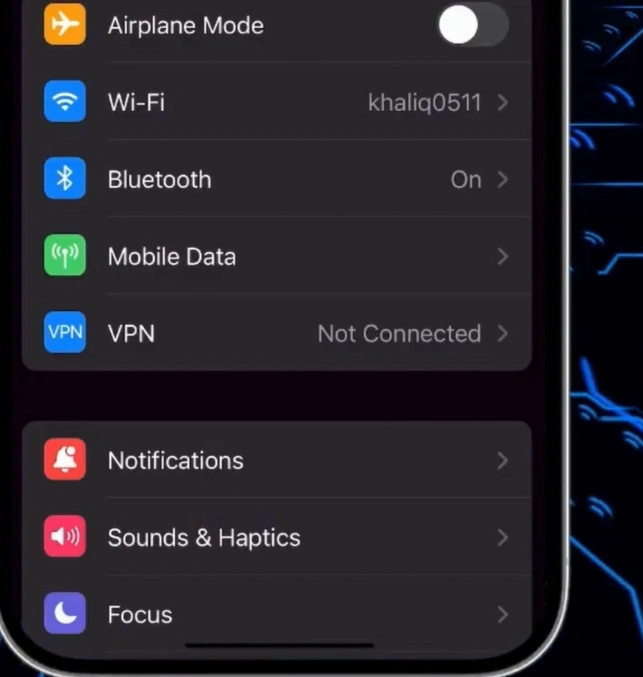
Step 1: On your iPhone, open Settings.
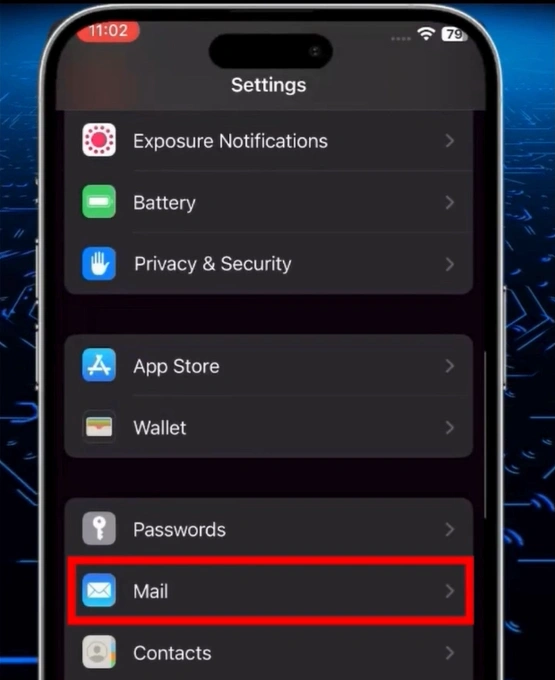
Step 2: Scroll and open Mail.
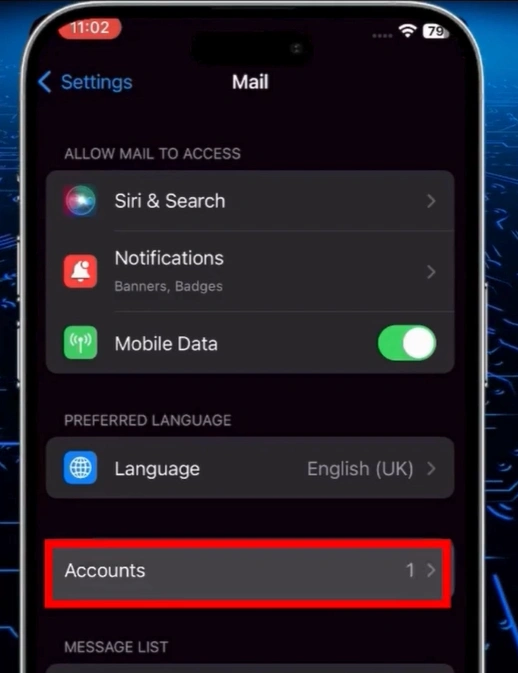
Step 3: Tap on Accounts.
Step 4: Tap on Add Account.
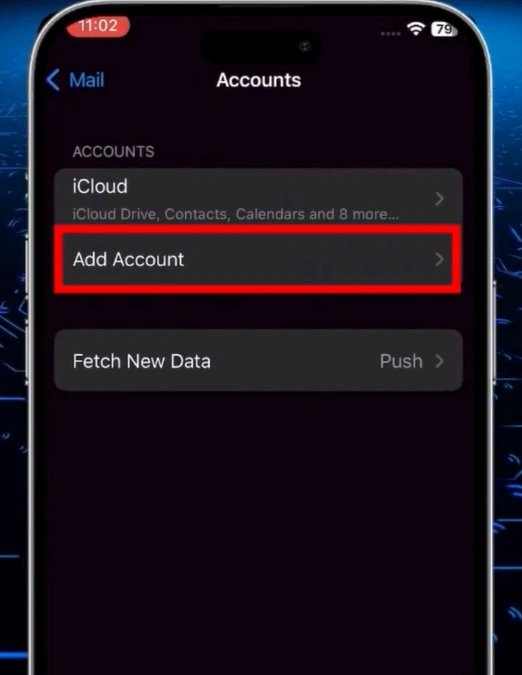
Step 5: Select Other.
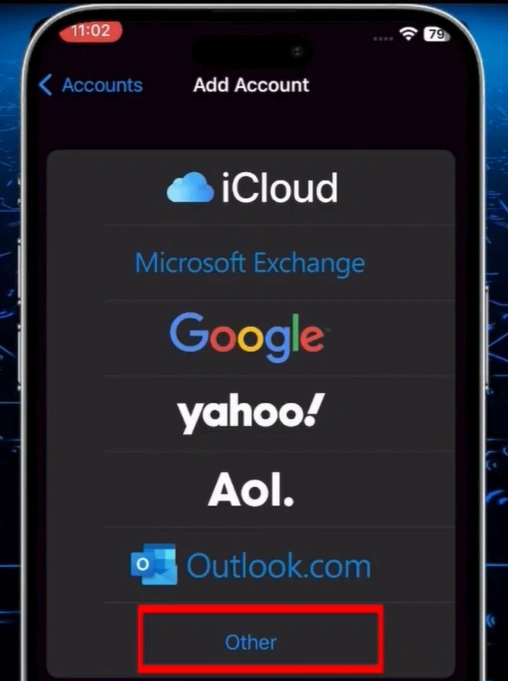
Step 6: Tap on Add Mail Account.
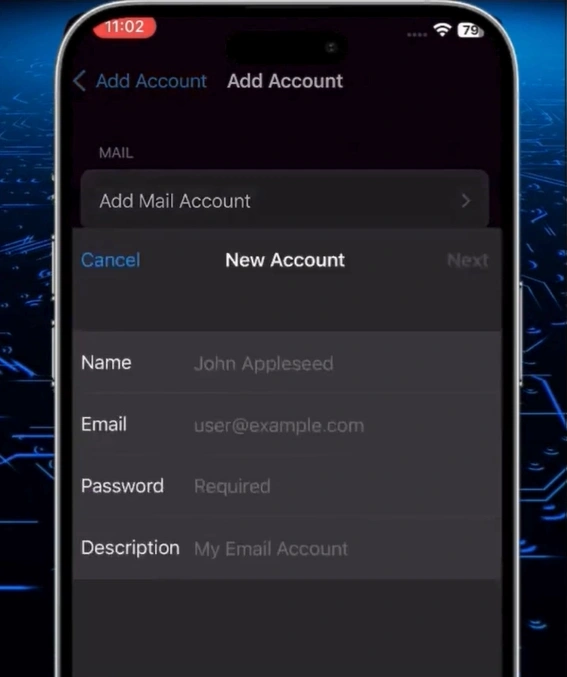
Step 7: Enter the correct name, email, password, and description.
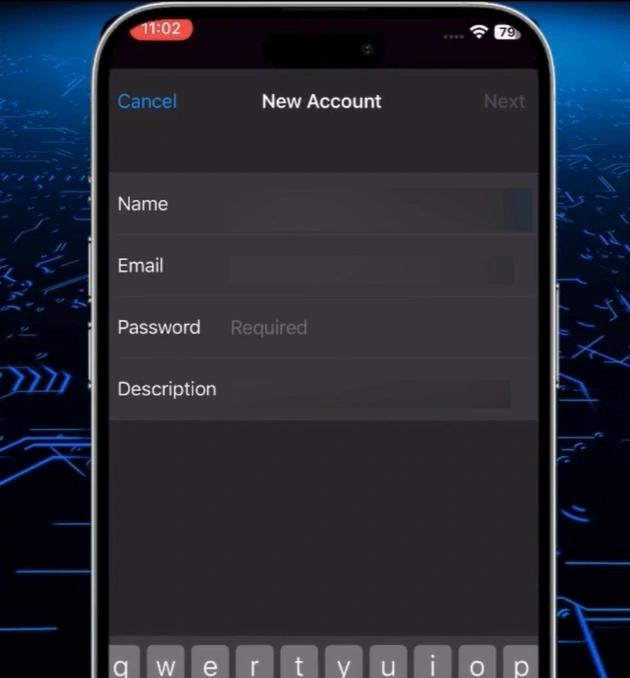
Step 8: In the Incoming Mail Server section, enter the hostname, your email address as the username, and your password.
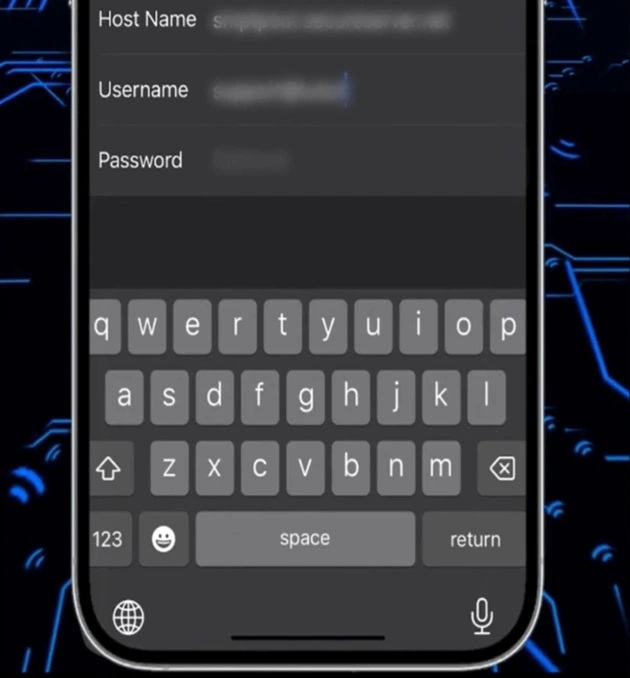
Step 9: In the Outgoing Mail Server section, enter the required details just like in the incoming section.
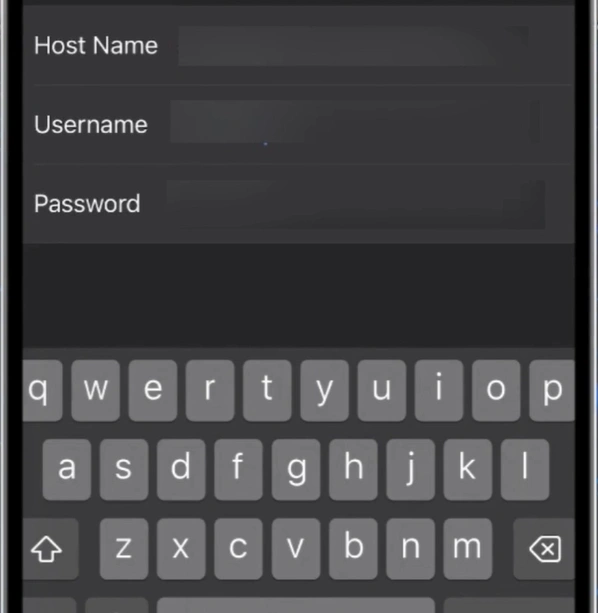
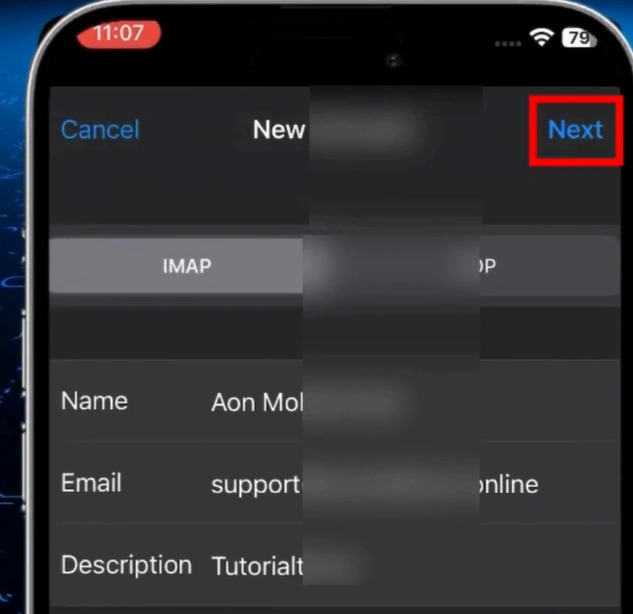
Step 10: After filling in the details, tap on Next and wait for verification.
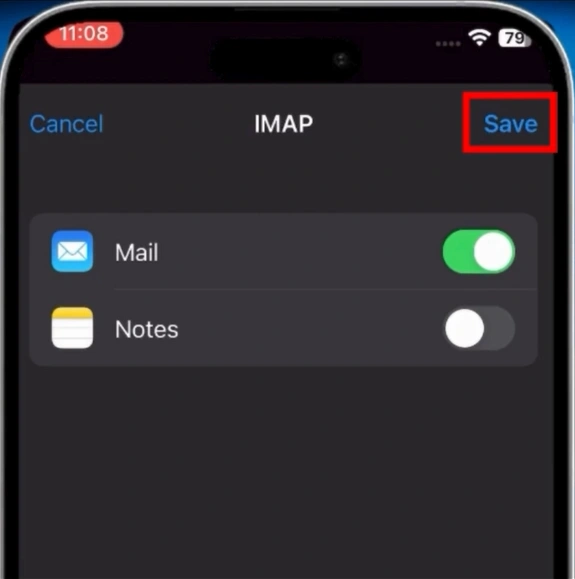
Step 11: Select the apps you want to use with this email account.
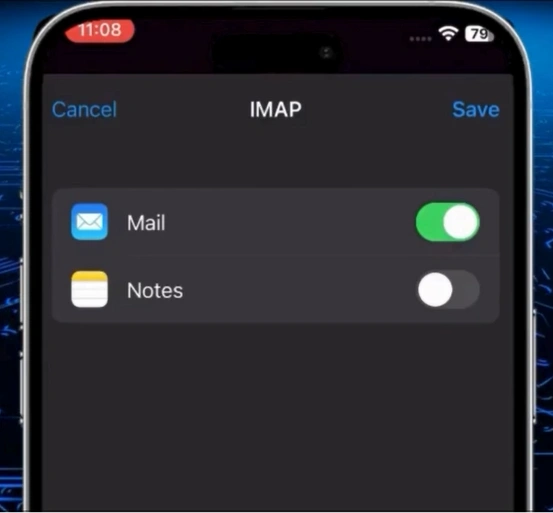
Note: You must at least select Mail.
Step 12: Tap on Save.
Also Read:- How to Setup Yahoo Mail in Outlook?
Wrapping Up
That’s how you set up GoDaddy email on your iPhone and carry your inbox in your pocket! Follow the above instructions carefully to add your GoDaddy email with ease. Ensure a stable internet connection during the setup. Also, check your email plan, keep your credentials updated, and confirm that your iPhone is running the latest iOS version. Keep these points in mind before you begin, and be prepared to handle issues like incorrect passwords, SSL certificate errors, or two-factor authentication problems.



 +1-857-557-6896
 +44-161-791-4592