
How to Set Up Email Address in Bluehost?
- 0
A new online business idea is already in your mind, and you have started planning the details. But, at some point, you have realized that it may not be good enough to rely on a generic-looking email address for your business.
You can think of setting up your business email address in Bluehost. It would take a few simple steps to set up your own personalized email address and start communicating with clients. This will build great trust along the way.
Setting up an email address in Bluehost can be a great way to connect with clients confidently and professionally. But how to get it done? Here’s everything on how to set up an email address in Bluehost. We’ll first discuss the potential issues that may show up and hinder the setup process.
Common Problems When Setting up Email Address in Bluehost
Below are a few potential problems that you may encounter while setting up an email address in Bluehost:
-
SSL certificate mismatch warning
-
Mailbox quota exceeded
-
DNS or MX record misconfiguration
-
Webmail login problems
-
Spam and junk email issues
Proper Method to Set Up Email Address in Bluehost
With an email address in Bluehost, your communications appear reliable and secure. Here are the right steps to set up an email address in Bluehost:
Step 1: Go to Bluehost’s official website.

Step 2: Click on Pricing available on the top bar.

Step 3: Click on the Hosting.
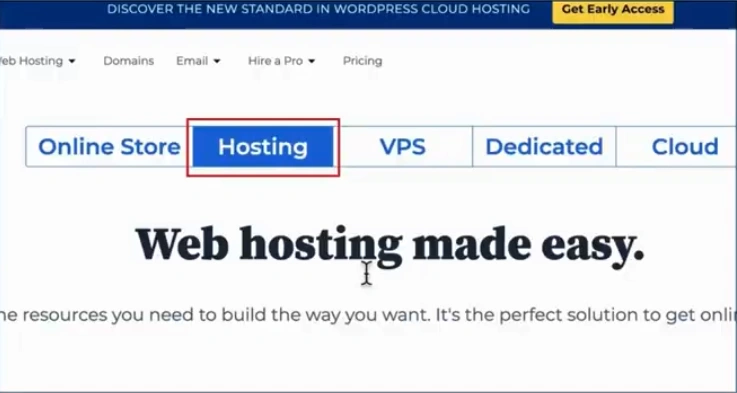
Step 4: You will be redirected to the Bluehost plans page.
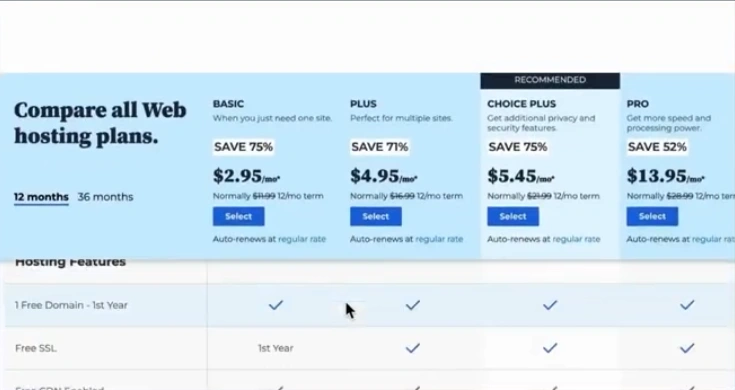
Step 5: Choose a plan to create a domain hosting with which you will create the email address.
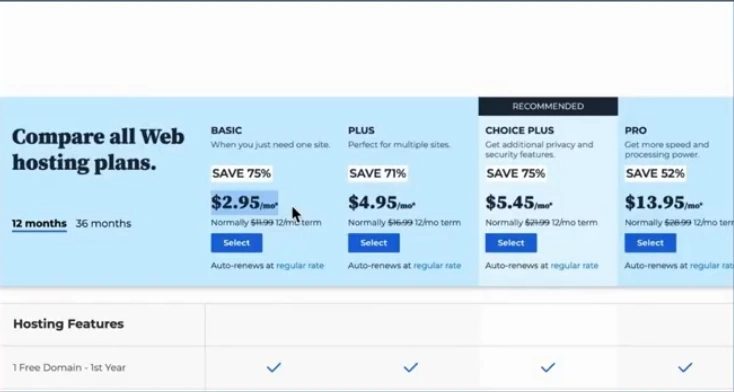
Step 6: In the Create a new domain tile, provide a domain name.
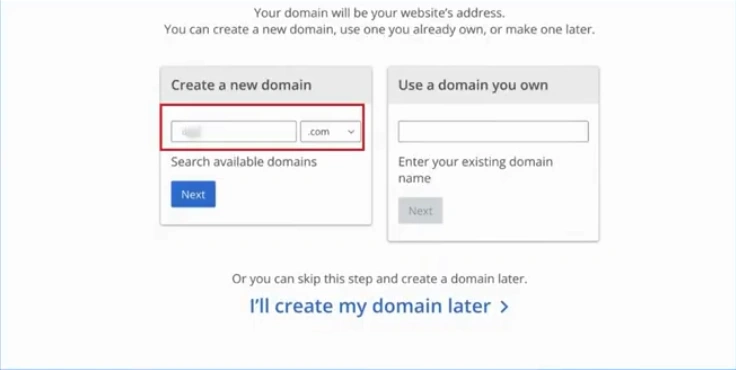
Step 7: Click on Next.
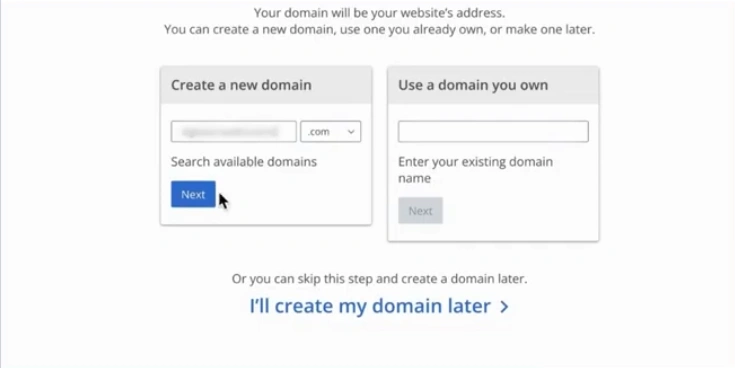
Step 8: You will be redirected to the next page, where you must fill in all the details and complete the payment.
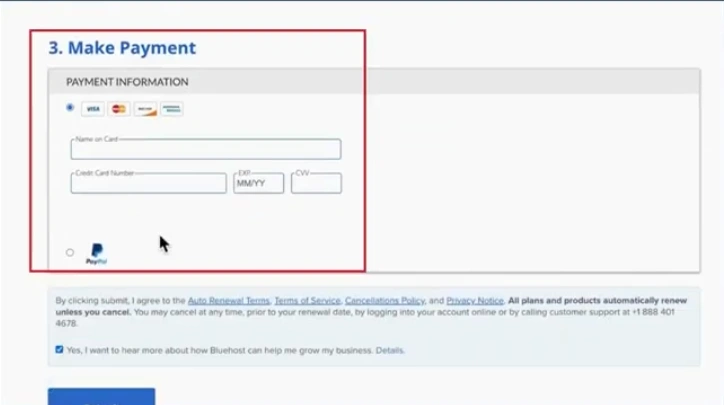
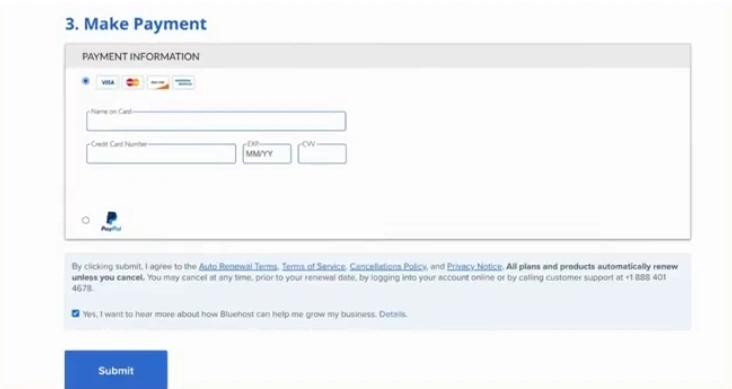
Step 9: After reviewing the details and making the payment, click “Submit.”
Step 10: Go back to Bluehost’s official website and log in.

Step 11: Open the Advanced tab from the left navigation menu.
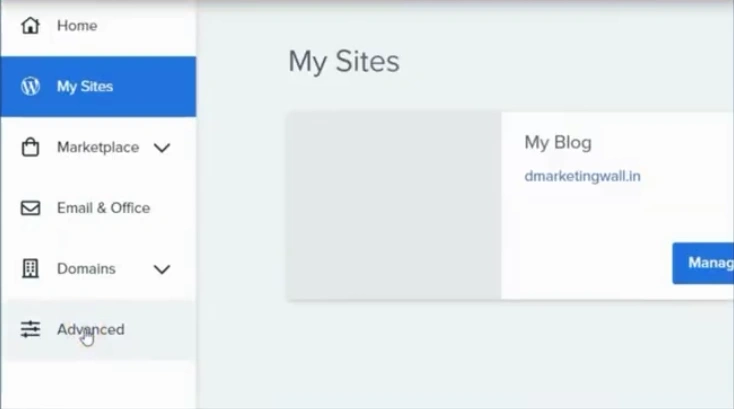
Step 12: Scroll to the Email section and click on the Email Accounts.

Step 13: Click “Create.”
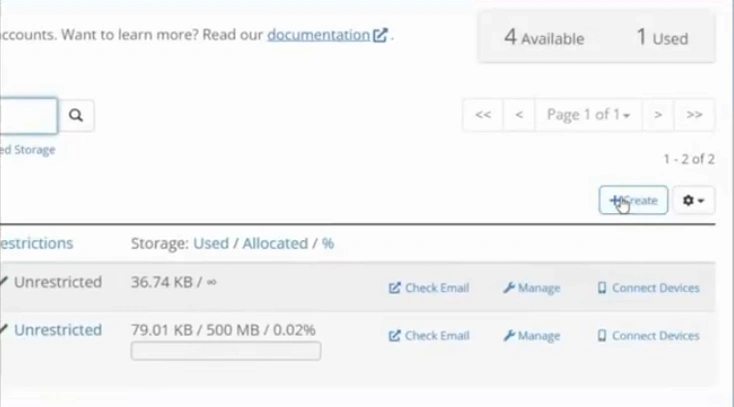
Step 14: In the Create New Email Address page, enter the user name.
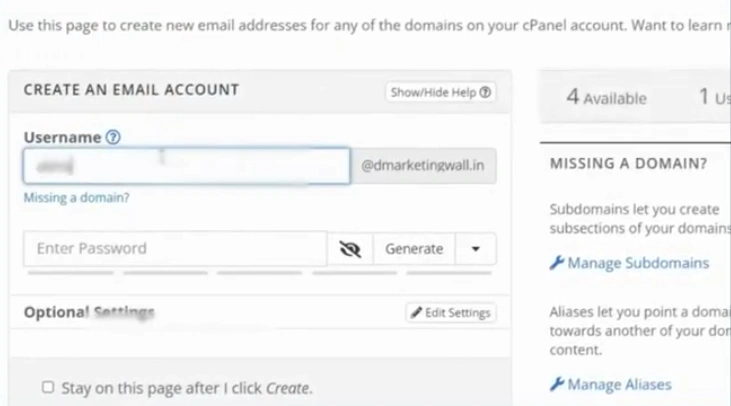
Step 15: Enter the password.

Step 16: Click “Create.”

Step 17: You will be redirected to your Email accounts. Once there, click on the Manage button next to the email address you created.
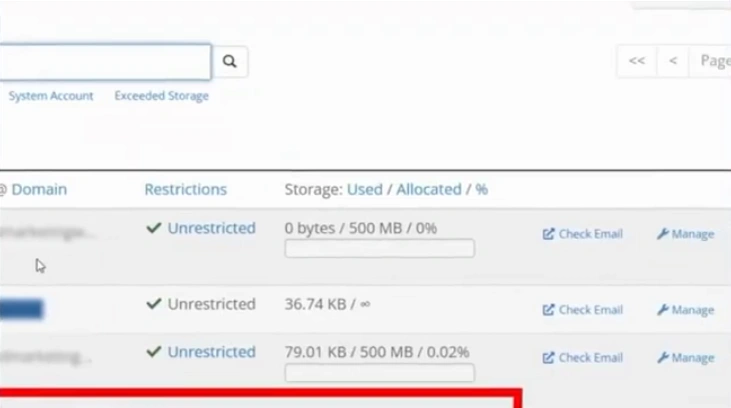
Step 18: Here, you can configure your email account settings.
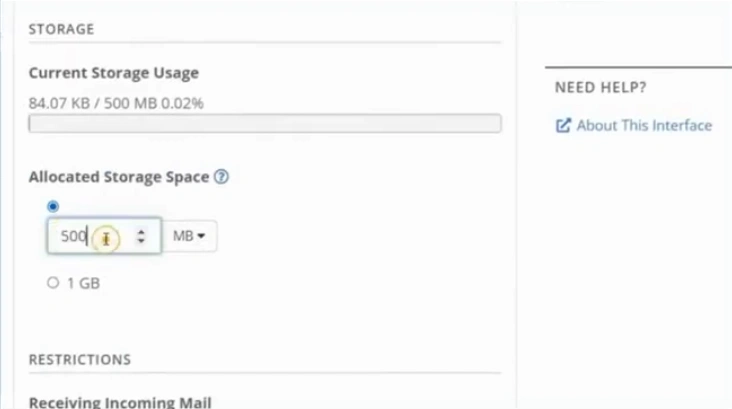
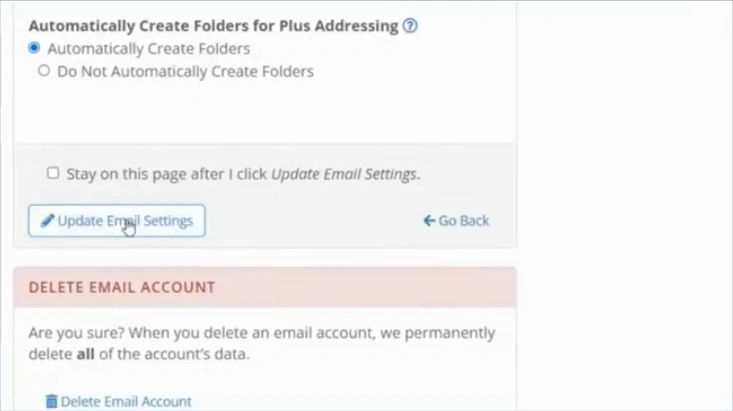
Step 19: After changing settings, click on Update Email Settings.
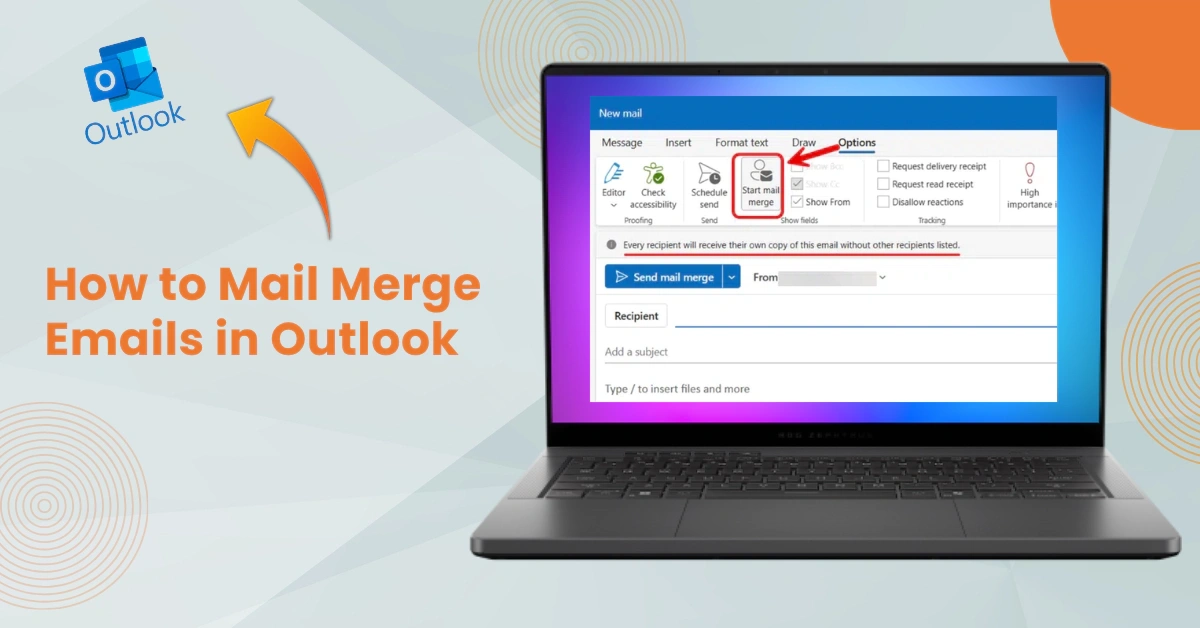
Also Read:- How to Mail Merge Emails in Outlook?
Summing Up
Here, we conclude with our step-by-step guide on setting up an email address in Bluehost. It is a simple method, but potential issues can arise, such as mailbox quota exceeded, DNS or MX record misconfiguration, and others.
Remember: Regularly update your passwords or use strong, unique passwords to prevent account security issues in the future.




 +1-857-557-6896
 +44-161-791-4592