
How to Make a New Folder in Yahoo Mail on iPhone?
- 1
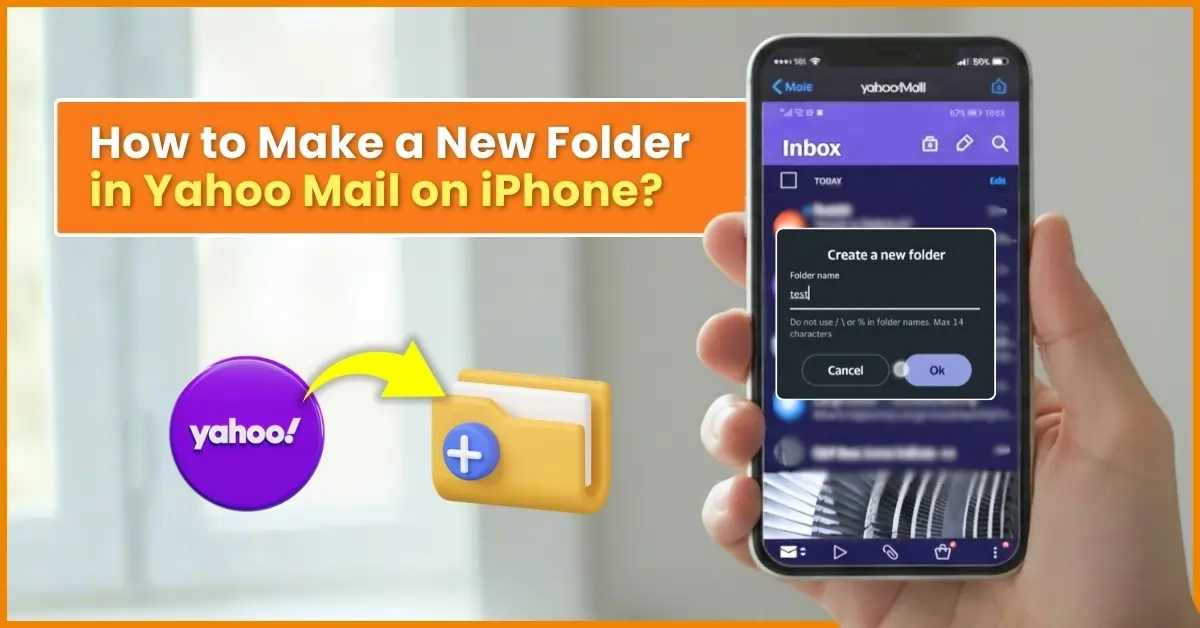
At the start of the day, as you open Yahoo Mail on your iPhone, you find your inbox clean and manageable. But by the evening, all you see are overflowing receipts, messages, newsletters, and other emails. The real annoyance starts when you have to find that one important email, and searching for it takes a lot of your time.
No worries, there is one easy way to keep things simple and organized. You can create a new folder in Yahoo Mail on your iPhone, which helps keep important messages right where you need them. But how do you create a new folder in Yahoo Mail on an iPhone? That’s the question, and we’ll discuss the steps here. Before that, let’s look at the issues that can occur when creating a folder.
Issues That May Occur When Creating a New Folder in Yahoo
When creating a new folder in Yahoo Mail on your iPhone, you may encounter certain problems. For instance:
-
An outdated Yahoo Mail app may not support certain features.
-
Not enough space on your iPhone
-
Poor internet connection
-
Incorrect app settings or sync issues with your Yahoo account
-
Temporary server outages or maintenance on Yahoo’s end
What to Check Before You Start
It is good to double-check everything before you start making a new folder in Yahoo on your iPhone. Here’s what you need to check:
-
Make sure your iPhone is connected to a stable network.
-
Check if you’re signed in to the right Yahoo Mail account.
-
Check that your iPhone has a compatible iOS version.
-
Restart the Yahoo Mail application to clear any temporary glitches.
-
See if your device has sufficient storage space.
Steps to Make a New Folder in Yahoo Mail on Your iPhone
These are the steps you need to learn to create a new folder in Yahoo on your iPhone:
Step 1: Open Yahoo Mail on your phone.
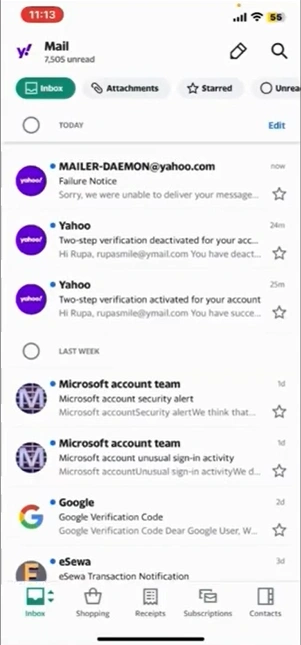
Step 2: Tap on the Inbox tab at the top of the screen.
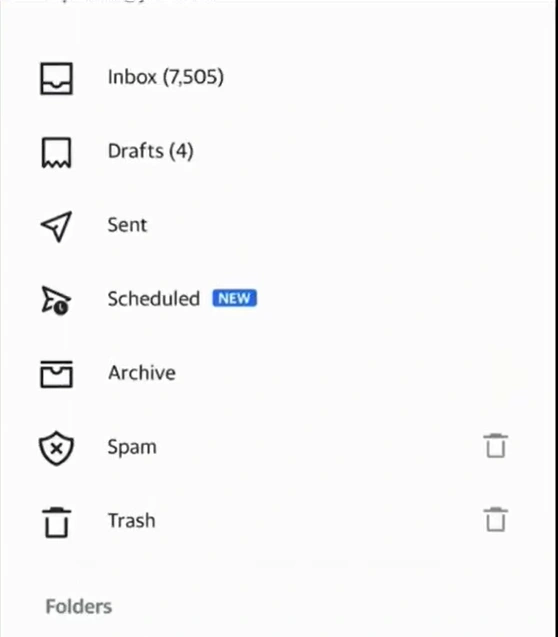
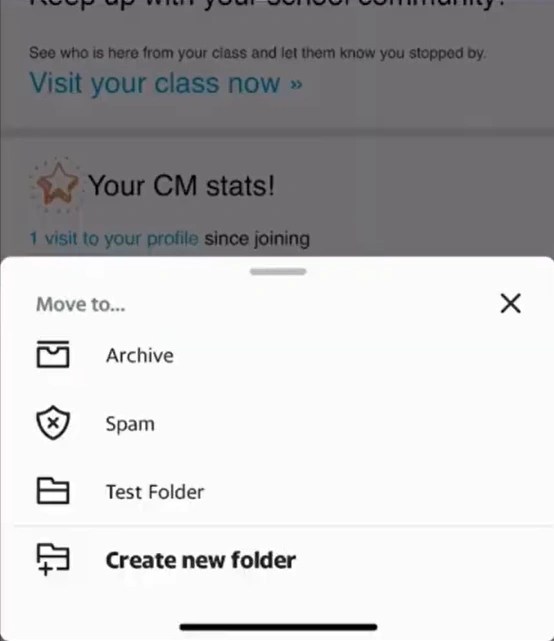
Step 3: From the Folder section, tap on the “Create new folder” option.
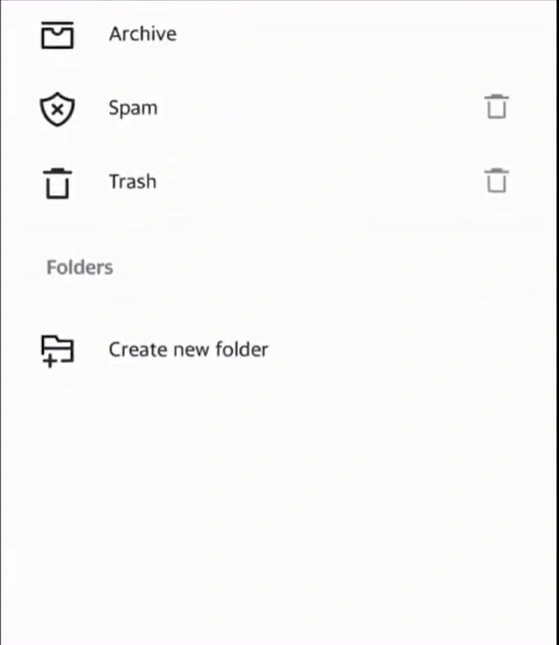
Step 4: Type in the name of your choice in the field.
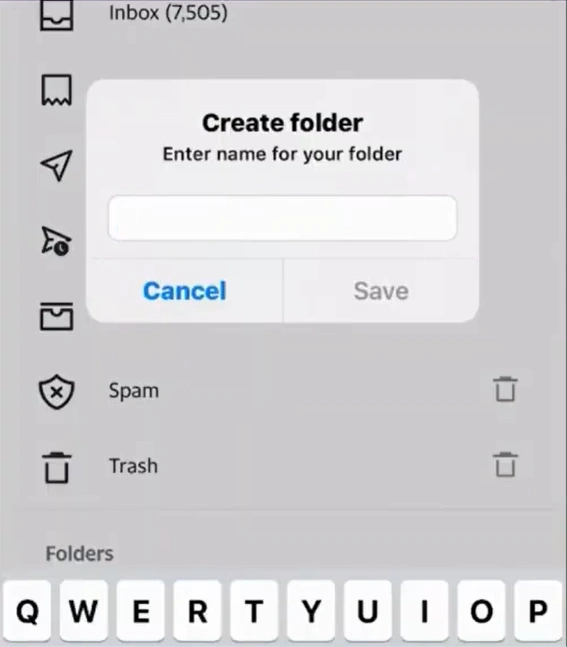
Step 5: Tap on “Save.”
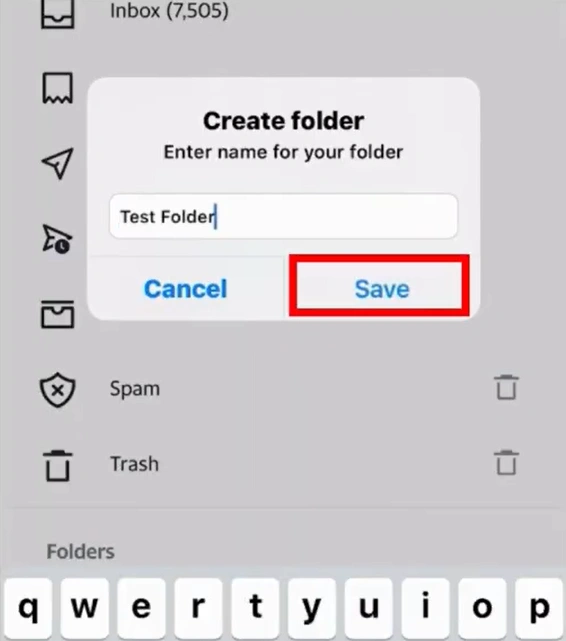
Now that you have created your new folder, you can move your preferred messages into it. Here is how to do that:
Step 1: Go back to Yahoo Mail, open any email.
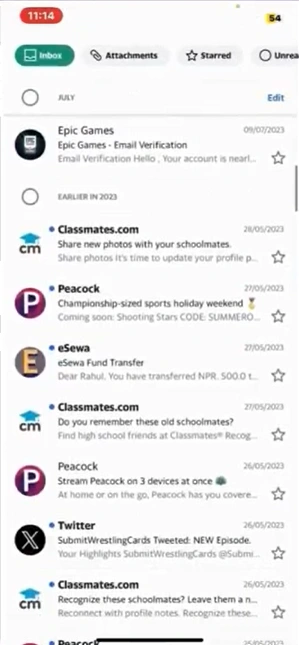
Step 2: Tap on Move (at the bottom of the screen).
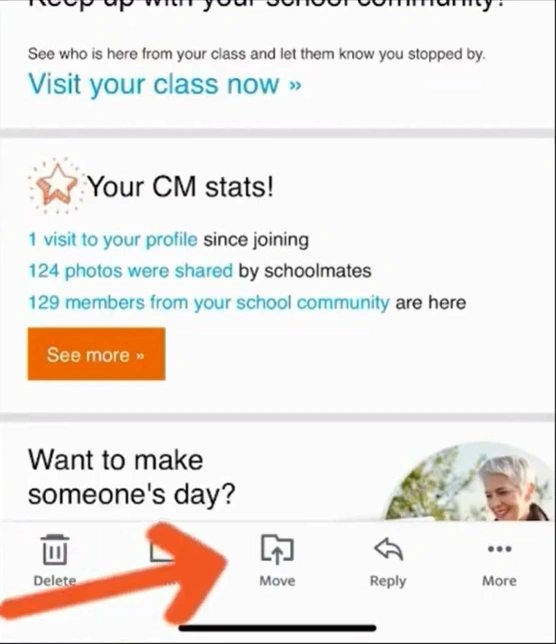
Step 3: From here, you can move the email by selecting the folder you created.
Also Read:- How to Forward Yahoo Mail to Gmail?
To Sum Up
You can create a new folder in Yahoo Mail on iPhone using these simple steps. Make sure your iPhone is connected to a stable internet connection, and you’re signed in to the correct Yahoo account. Ensure your iOS version is compatible and that you have sufficient storage space.
It would be good to use clear, specific folder names to make their purpose easy to recognize. For instance: Bills, Work, or Travel. Also, regularly move emails to always have a clean, clutter-free mailbox. Don’t create too many folders, as this can lead to confusion later.
Frequently Asked Questions (FAQs)





 +1-857-557-6896
 +44-161-791-4592